

If you use Excel at work, or list it on your résumé, what tasks should you be able to do? Are there basic skills for Excel users that office workers should be able to perform with little or no help?
Run an Excel Macro With a Worksheet Button
In my workbooks, I sometimes add buttons to run macros. Usually, they’re for navigation to the next or previous sheet, or to run a macro that’s specific to the contents of the worksheet.
In this example, I’ve got two macros in the workbook – one that takes you to the next sheet in the workbook, and one that takes you to the previous sheet.
So, if you’re on the second sheet, you can click the Next button to go to the third sheet. Or, click the Back button to go to the first sheet.
Update: I’ve added a video, about halfway down the page, to show the steps.
Add a Button
- On the Ribbon, click the Developer tab
- Note: If the Developer tab isn’t visible, click the Office Button, then click Excel Options. Click the Popular category, then add a check mark to Show Developer tab in the Ribbon.
- In the Controls group, click Insert, to see the controls from the Form toolbar and the Control Toolbox.
- In the Form Controls section, click Button.
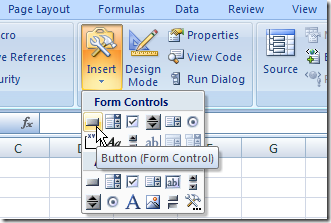
- Click on the worksheet to add a button, or drag on the worksheet to add a button of a specific size.
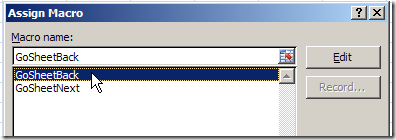
- In the Assign Macro dialog box that opens automatically, click on the name of a macro to select it, then click OK
Format the Button
While the button is still selected, you can change its caption and add some formatting.
- To change the button’s caption, select the existing text, and type a caption to replace it. The border around the button will have diagonal lines when you’re editing the text
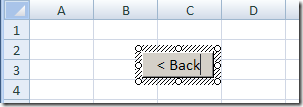
- Click on the border of the button, to select it. The outline should change to a dotted pattern, as you can see in the next screenshot.
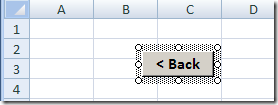
- On the Ribbon’s Home tab, use the font formatting buttons, such as Bold and Font Size, to change the appearance of the button.
Use the Buttons
After you’ve added the Back button, repeat the steps to create a Next button. Then, copy the two buttons to any worksheets or chart sheets in the workbook.
To move through the sheets, click either the Back or Next button on any sheet.
Video: Add Worksheet Navigation Buttons
This video shows how to add the buttons, and align them. Then it shows how to copy the buttons to other worksheets.
NOTE: This video does NOT show the steps for writing the Excel macros. Those are in the sample file that you can download.
The Navigation Code
Here’s the code that I used to make the buttons select the next or previous sheet.
Sub GoSheetNext()
Dim wb As Workbook
Dim lSheet As Long
Set wb = ActiveWorkbook
lSheet = ActiveSheet.Index
With wb
  If lSheet = .Sheets.Count Then
    .Sheets(1).Select
  Else
    .Sheets(lSheet + 1).Select
  End If
End With
End Sub
'=================================
Sub GoSheetBack()
Dim wb As Workbook
Dim lSheet As Long
Set wb = ActiveWorkbook
lSheet = ActiveSheet.Index
With wb
  If lSheet = 1 Then
    .Sheets(.Sheets.Count).Select
  Else
    .Sheets(lSheet - 1).Select
  End If
End With
End Sub
Get the Sample File
To get an Excel sample file with buttons to navigate to the previous or next worksheet, go to the Worksheet Macro Buttons page on my Contextures site. The zipped Excel file is in xlsm format, and contains macros.
Update: There is a newer version of the code on this Add Navigation Buttons blog post.
________________
Celebrating Excel Day 40000
Excel was launched in 1985, so it hasn’t been around for 40,000 days. However, Excel’s date system starts at January 1, 1900 (day 1), and today is day 40,000 in that date system.
Not on the Mac
It’s not Day 40000 for Excel Mac users though – its default date system starts at January 1, 1904 (day 0).
So, if you’re using Excel for the Mac, you won’t hit the day 40000 milestone for another four years.
The two dating systems are explained in the Microsoft Knowledgebase article at this link: Description of the differences between the 1900 date system and the 1904 date system in Excel.
Switch to a Different Date System
Whether you’re using Excel on a Windows machine or on a Mac, you can switch from the default date system.
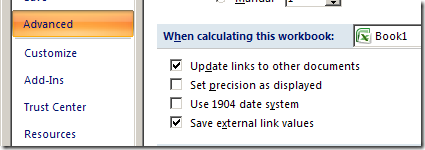
Follow the steps below, if you want to switch to the 1904 Date System in Excel 2007:
- Click the Office Button, then click Excel Options
- Click the Advanced category
- Scroll down to the section titled, When calculating this workbook
- Add a check mark to Use 1904 date system.
- Click OK
Keyboard Shortcuts for Dates
If you use these shortcuts, you’ll have more time available for celebrating the 40,000 day milestone.
- Enter today’s date: Ctrl + ;
- Format a date as dd-mmm-yy: Ctrl + #
______________________
200906 Site Stats
Who’s visiting Excel blogs and websites?
Chandoo, at Pointy Haired Dilbert, reported his stats for June 2009, and a few more people chimed in.
The Spreadsheet Page
Daily Dose of Excel
PTS Blog
And here are the stats for this blog — I lost a couple of days of stats when I switched blog themes.
[image no longer available]
________________________
Excel Rounds Off Large Numbers-Credit Card
What danger lurks in the evil spreadsheet? Drama and tension in outer space!
No, Excel shouldn’t change your numbers, but it can happen occasionally, as this poor guy discovered.
Yes, this is silly, but it was a fun project, and the serious instructions are below the video.
Numbers in General Format
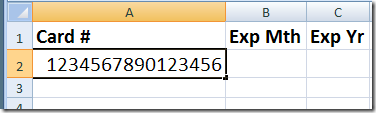
As the robot in the video mentioned, you might have problems if you try to enter a large number in Excel. For example, I’ve entered a 16-digit credit card number — 1234567890123456 — in cell A2.
Everything looks fine, until I press the Enter key.
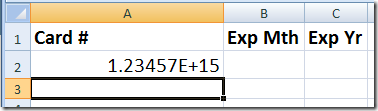
The cell is formatted as General, which will only display 11 numeric characters.
Since the credit card number is larger than that, it appears in exponential notation.
Significant Digits in Number Format
To make the credit card number display correctly, I could try Number format, with zero decimals.
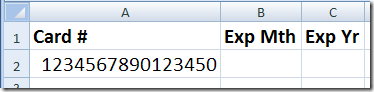
That looks better, except that the last digit has changed from a 6 to a 0. Excel only retains 15 significant digits, so it changes our 16th digit to zero.
Large Numbers in Text Format
Since we need to see all 16 digits in the credit card number, we can format the credit card column as Text, and enter the numbers.
All 16 digits will be stored, and will display correctly.
Or, type an apostrophe before the credit card number, and it will be treated as text.
More Information
On the Microsoft site, a brief article on the Number of significant digits MS Excel retains
Chip Pearson’s article on Rounding Errors In Microsoft Excel97
For smaller numbers that have been formatted as text, you can Convert Text to Numbers
____________
Pick a Winner From a List of Names in Excel
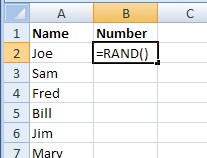
Here’s how I ran a small contest, and what I did to pick a winner from a list of names in Excel.
Continue reading “Pick a Winner From a List of Names in Excel”
Get Free Help With Your Excel Problems
Do people email you, asking for Excel help? Co-workers? Family members? Strangers from the Internet?
Email Message
Here’s a favourite “Email Help” message from my mailbox this week:
Subject: help me in excel
Dear sir,
I have a problem in excel i requesting to you solve this. I am sending the data of excel sheet pls look in to that
If you have want any information on that please get back to me
I am waiting for your reply
Regards
Anonymous
Those “Dear Sir” emails make me feel like Peppermint Patty. At least the attached Excel file was small, unlike some of the multi-megabyte files I’ve been sent.
Sorry Anonymous, but I can’t help with your Excel problem today. My desk is piled high with work, and I won’t have any extra time to decipher your file.
Where to Get Help
Fortunately, there are places where Anonymous, or you, can get free help with your Excel problems, or ask questions about other Microsoft products.
- You can post questions in the online Excel help forums, which provide free peer-to-peer support
- You could even post a short cry for help in Twitter, and it’s likely that someone will respond. Use the hashtag #Excel in your tweet
Ask Questions in Public
These are much better options than emailing me, and asking for private help. Why?
- There are people reading those messages 24 hours a day, 7 days a week – you have a much better chance of getting a quick reply.
- Thousands of people are reading the messages, and probably some of them are experts in the area where you need help.
- Responses are usually very quick, and you’ll sometimes get multiple replies, giving you a variety of solutions.
- When you post a question and get a response, it might help someone else who has the same question later. They can find your question and answer by searching in Google.
Good luck, Anonymous! I hope you find someone who can help with that Excel question.
_______________________
Find Excel List Duplicates With COUNTIF
“Help!” said the familiar voice, when I picked up the phone at 10 PM.
“I have a list of orders in an Excel sheet. I want to compare it with the list from last week, and delete all the orders that were in the old list.”
It was my daughter, still at the office, trying to get a pile of work done before the looming deadline. I helped her with a COUNTIF formula, and she was able to leave for home a short time later. Phew!
Find Duplicates With COUNTIF
The first step is to check each OrderID in the new list, to see if it’s also in the old list.
We’ll use a COUNTIF formula to calculate how many times each OrderID is found in the old list. If the count is zero, we know it’s a new order.
Prepare the Worksheets
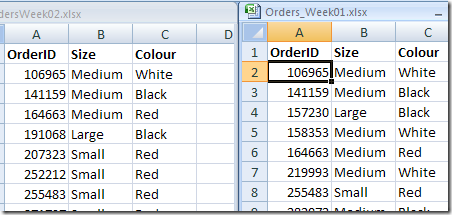
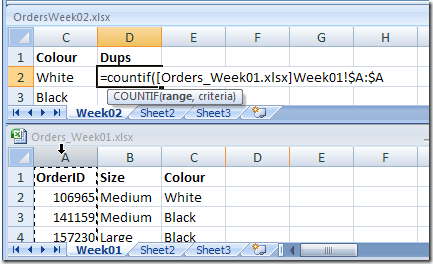
- Open both workbooks. Here they’re arranged vertically, so both lists are visible.
- In the new workbook, add a column heading, Dups, in cell D1 in this example. This step isn’t required, but keeps things tidier when you try to sort later.
Add COUNTIF Formula
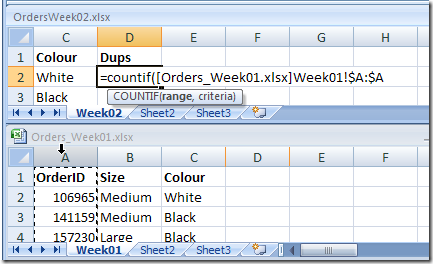
- To start the formula, in cell D2, type: =COUNTIF(
- Next, we’ll tell Excel where to look for the OrderID. In the old list, click on the column heading for column A, where the Order IDs are listed. That adds a reference with the workbook name, sheet name and column.
- =COUNTIF([Orders_Week01.xlsx]Week01!$A:$A
- Finally, we’ll tell Excel what we want to look for. Type a comma, then in the new list, click on the OrderID in cell A2.
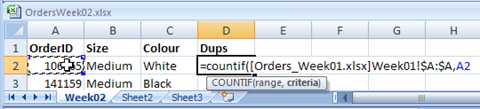
- To complete the formula, type a closing bracket, then press Enter. Here’s the completed formula.
- =COUNTIF([Orders_Week01.xlsx]Week01!$A:$A,A2)
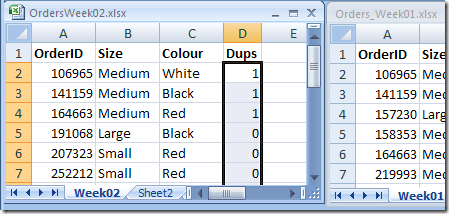
- Copy the formula down to the last row of data in the new list. There are 1s in some rows and 0s in other rows.
Check Formula Results
We can see that the first three numbers in the new list are also in the old list, and they have been correctly counted as 1.
The next three numbers aren’t in the old list, so their count is zero.
Delete the Duplicates
Now that the new orders are identified with a zero, we can delete the old orders.
- Click in the Dups column heading, and press Ctrl+A, to select the entire range.
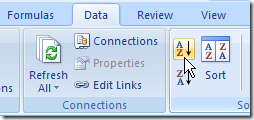
- On the Ribbon’s Data tab, click the A-Z button, to sort the list in ascending order.
- The new items (zeros) will sort to the top of the list, with the old items (ones) at the bottom of the list.
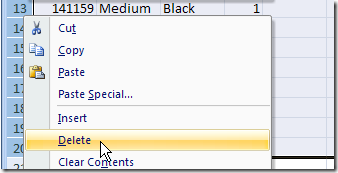
- Select all the rows with old items, right-click on a row button in the selected rows, and click Delete.
- Finally, to clean up the sheet, delete the Dups column.
- Save a copy of the revised file, send it off to your vendor, and go home! (Well that’s how our scenario ended – you might have to stay at work for a few more hours.)
Video: Count Specific Items with COUNTIF
See how to use Excel COUNTIF function to count cells in a list that contain specific words or part of a word. For example, how many orders were for a Pen? How many orders for any kind of pen, such as “Gel Pen”, “Pen” or even a “Pencil”?
Video Timeline:
- 00:00 Introduction
- 00:22 Example 1 – COUNTIF Exact Match
- 00:46 Enter Criteria in Formula
- 01:20 Example 2 – Partial Match
- 02:00 Criteria for “Contains”
Counting in Excel
There are more Excel counting tips on the Contextures website.
More COUNTIF Links
For more examples of using the Excel COUNTIF function, see these blog posts:
Check Winning Numbers with COUNTIF
Use COUNTIFS for Multiple Criteria
Quickly Change COUNTIF Criteria
Count Cells Greater Than Set Amount
____________________________
Excel Count With 2 Criteria-SUMPRODUCT
Have you ever had trouble trying to count items in an Excel list, based on two criteria? See how to use the Excel SUMPRODUCT function to get the count that you need
Use SUMPRODUCT to Count
Instead of using the COUNT function, or the COUNTA funtion, you can use the SUMPRODUCT function to count items based on 2 criteria.
In the example shown below, the SUMPRODUCT function is used to count the rows where :
- the item sold is “Pen”
- AND the quantity is greater than or equal to 10
Add SUMPRODUCT Formula
This solution will work in any version of Excel, including Excel 2003 or earlier, where there COUNTIFS function is not available.
- Select the cell in which you want to see the total
- Type an equal sign (=) to start the formula
- Type: SUMPRODUCT(–(
- Select the cells that contain the values to check for the first criterion. In this example, cells A2:A10 will be checked
- Type the first criterion: =”Pen”
Note: Because this is a text criterion, it is enclosed in double quote marks. - Type ),–(
- Select the cells that contain the values to check for the second criterion. In this example, cells B2:B10 will be checked
- Type the second criterion: >=10
Note: Because this is a numerical criterion, it is NOT enclosed in double quote marks. - Finish with closing brackets: ))
- The completed formula is shown in the screen shot below.
- =SUMPRODUCT(–(A2:A10=”Pen”),–(B2:B10>=10))
- Press the Enter key to complete the entry

Use Cell References
Instead of typing the criteria in a formula, you can refer to a cell, as shown in the second formula below.
- Use typed criteria:
=SUMPRODUCT(–(A2:A10=”Pen”),–(B2:B10>=10))
2. Or use cell references:
=SUMPRODUCT(–(A2:A10=D2),–(B2:B10>=E2))
More Excel Count Examples
There are many more examples, written steps, and videos for counting in Excel on my Contextures website.
Count Criteria in Other Column
Count Cells With Specific Text
____________
Highlight Weekend Dates In Excel
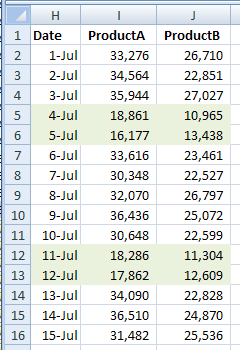
Yes, the weekend is over, but another one is just five days away! To make it easier to keep track of Saturdays and Sundays, you can use conditional formatting to highlight weekend dates in Excel.