
One of the tasks you have to do quite often in Excel is to count things. Here’s how to count cells greater than set amount with Excel COUNTIF function.
Student Test Scores
In this example, we have a list of students and their test scores.
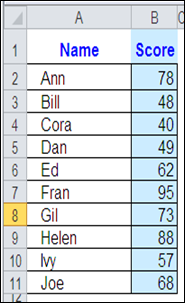
If the passing score is 50, how can you get Excel to count the number of students who passed the test?
Use COUNTIF and an Operator
The Excel COUNTIF function will count cells, based on the criteria that you enter. As part of the criteria, you can use an operator, such as greater than, or less than, to count a specific range of numbers.
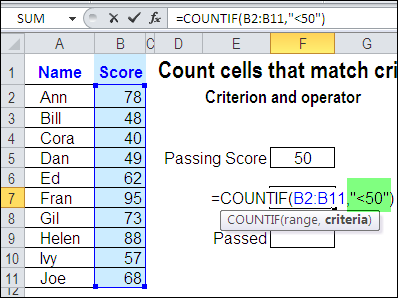
In this example, the passing score is 50. To find the students who failed the test, you’d count the scores that are less than 50 — <50.
To include this operator in the COUNTIF criteria, enclose the operator and number in double quote marks.
=COUNTIF(B2:B11,”<50″)
Use a Cell Reference with COUNTIF Criteria
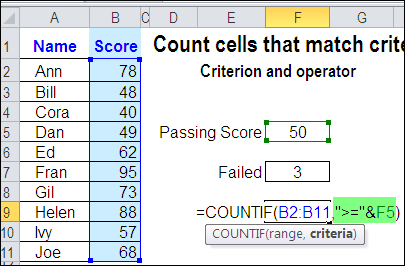
Instead of typing a number in the COUNTIF criteria, you can use a cell reference. In this example, cell F5 contains the passing score.
To find the students who passed the test, you’d count the scores that are greater than or equal to the value in cell F5 — >=F5.
To include a cell reference and operator in the COUNTIF criteria, enclose the operator in double quote marks, and use an ampersand before the cell reference.
=COUNTIF(B2:B11,”>=” & F5)
Cell Reference Automatically Updates
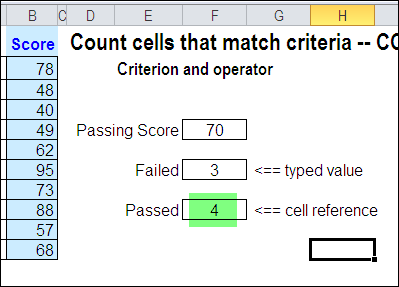
An advantage to using a cell reference in the COUNTIF criteria is that the result will automatically update, if the value in the referenced cell changes.
In the screenshot below, you can see that the passing score has been increased from 50 to 70. Because the Passed formula uses a reference to cell F5, the count is automatically updated.
The Failed formula has the passing score of 50 typed into the criteria, so that value would have to be changed, before the result is updated.
Watch the COUNTIF Video
To see the steps for creating a COUNTIF formula with an operator, you can watch this short Excel tutorial video.
_________________________
I am working on a Sales spread sheet. That tracks sale date product codes and several other thing. I have a stats page that then takes the sale date and count the different products per month to see how much of each product is sold. The catch is that several of the products have multiple codes based on the different promotions the customer may get. Thos codes can also change often so I am trying to set up the Countif to have the products codes listed on another sheet and reference them for deciding what codes are counted. Here is an example of what the equation looks like right now.
=(SUM(COUNTIFS(‘data new’!D2:D1114,”>=”&”2018-1-1″,’data new’!D2:D1114,”<"&"2018-2-1",'data new'!C2:C1114,{"abc","mno","4ho","EE("})))
Where "abc","mno","4ho","EE(" are the codes that are for the same product just different prices based on what else was purchased.
Is there a way to have a separate table that will say product A is "abc","mno","4ho","EE(" and link to that table so when a new code comes out I can just add the code to the table and not have to use find replace to edit the equations for all the months that are being tracked?
I have a problem with the structure as bellow
Col-A Col-B Col-C
Row-1 NAME NUMBER PASS
Row-2 BOB 50
Row-3 JAMES 52
Row-4 KELLY 40
Row-5 ROGER 55
Row-6 BILLY 35
Row-7 ROBERT 55
Row-8 MICHEL 25
Here are some names and their scores in the Range $A$2 : $B$8.
I want to get those names who scored Greater Than 40.
I want to show them under “PASS” i.e. from Cell $C$2
Need help… anybody pls…. thanking you
Oh. my. goodness. Why did I not look this up earlier!! Thank you, thank you.
You’re welcome, Stephanie, and I’m glad the example helped you!
Hi How to count between number
Ex 50 to 70 71 to 80