Smell My Blog

According to an article in Neuromarketing, if things smell better, users assume they ARE better.

“In another study – a consumer test of shampoos – a shampoo which participants ranked last on general performance in an initial test, was ranked first in a second test after its fragrance had been altered. In the second test, participants said that the shampoo was easier to rinse out, foamed better and left the hair more glossy. Only the fragrance had been changed.”

Until I can get the smell-o-blog plugin working, please imagine the aroma of freshly baked chocolate chip cookies while you read this blog.

Maybe that’s the real reason for those annoying perfume strips in magazines.

Hmmm…should we add them to our Excel books too? Send an air freshener with every invoice? Food for thought.

I’m Not Perfect

I know — I’m more shocked than you are.

Yesterday I discovered a site where you can create quizzes and post them for others to try. So, I searched for Excel quizzes and found a few.

One quiz had the mysterious name, Excel 13-22, so I decided to try that one. I got off to a good start, and as I completed each question it told me that I had selected the correct answer. Woohoo!

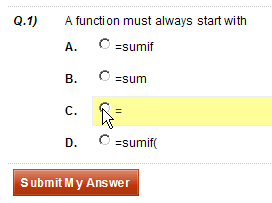
I ignored minor problems, such as the misuse of Function in Question 1, and carried on.

Then, things went horribly wrong. Question 18 was about chart backgrounds, but it was incomprehensible.

It was the only “fill in the blank” question, and I guessed wrong. However, the “correct” answer was in no way related to charts, so I was robbed.

Still in shock, I missed question 19 too, on how to end an argument. Since “yes, dear” wasn’t listed, I selected comma.

That was marked as wrong, but I still think I’m right. In my opinion, the question should have been “how do you end a formula?” Where do I get a refund?

Fortunately, things improved, and I got the remaining questions right. On the page where your final score appears, you can scroll down to see the correct answers, and a summary of how other participants have scored.

To my relief, not one person got the chart background question right.

If you pass, you can print out a certificate, and hang it proudly on your office wall. Here’s my certificate for a different quiz.

It had only one question, and I wrote the quiz myself, but I got it 100%!

Create Your Own Quiz

So, what questions would you put on an Excel quiz for a beginner class? I sure wouldn’t include the Natural Formula questions that were on the Excel 13-22 quiz.

You have to register for a free account if you want to create a quiz, but it was quick and easy. You can make the quiz public, or accessible only with a password. Later, you can edit the quiz, view individual results, or see a quiz summary.

If you create an Excel quiz at Quiz School and would like to share it, please post the link in the comments.


What Excel VBA Books Do You Recommend

Maybe you can help. I got an email this week from an Excel 2007 user who wants book recommendations:

“I have a question about Excel Visual Basic. My purpose is to write my own Excel formula. Where or what book do you think I could learn from? I have no prior knowledge of programming.”

Step By Step Books

I like the Step by Step books for a good intro to a topic, although I haven’t read the Excel 2007 version.

Power Programming

John’s Power Programming book covers all the basics, and well beyond. It might be overwhelming for someone with absolutely no programming experience though.

Advanced Programming Books

The following books are excellent resources, but for intermediate to advanced programmers, not beginners.

  • Professional Excel Development; Stephen Bullen, Rob Bovey, John Green; Addison-Wesley Professional; ISBN:0321262506
  • Excel 2007 VBA Programmer’s Reference; John Green, Stephen Bullen, Rob Bovey, Michael Alexander; 1176 pages; Wrox Press Inc; 2007; ISBN 978-0470046432

What Would You Recommend?

If there are other books you’d recommend for a beginner, please add them in the comments.
Thanks!

The Painful Process of Removing My Sharing Folders

When I installed Windows Live Messenger on my laptop, it also installed a folder named My Sharing Folders. Sometimes, when I try to drag a file to a different folder in Windows Explorer, it accidentally touches the My Sharing Folders, a message appears, and the copying freezes solid. Forever. Actually, I get tired of waiting after a few seconds, and use Ctrl+Alt+Delete to shut it down, and start over.

After it happened again today, I was determined to get rid of the annoying folder, but there’s no obvious way to delete it. It would make sense to right-click on the folder and select Delete from the list of commands, but it’s not available. So, the Googling started.

Failed Attempt #1

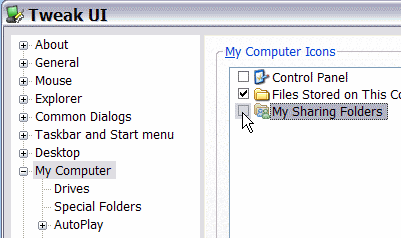
The first suggestion that I found said to install Tweak UI and uncheck the folder name in there.

No problem installing Tweak UI, or unchecking the box, but it had absolutely no effect on the folder, even after a reboot. Back to Google.

Failed Attempt #2

The next suggestion was to open Windows Live Messenger to determine its version number. I have Build 8.5.1302.1018 and of course there’s no way to copy that number onto the clipboard, so I typed it into a text file and copied from there.

Then, I closed the Help window, clicked the Windows Start button, and clicked Run.

I typed the long line below, pasting in my build number:
regsvr32 -u “%PROGRAMFILES%\MSN Messenger\fsshext.8.5.1302.1018.dll

I clicked OK, but unfortunately, that didn’t work either. All I got was an error message.

Failed Attempt #3

Back to Google, where I found a variation of attempt 2, but with a different path. I had to retype the ” which was slanted in the notes.

regsvr32 -u \”%programfiles%\\windows live\\messenger\\fsshext.8.5.1302.1018.dll

This line ran without problems, and removed the My Sharing Folders. The victory was short-lived though — the next time I restarted the laptop, it was installed again.

Success At Last

Finally, I found an article on the SuperWasp site. Their solution requires registry edits and file name changes, but it removed My Shared Folders and there was no re-installation when I restarted the laptop.

Woohoo! But why does it have to be so complicated?

Quick Navigation in a Word Document

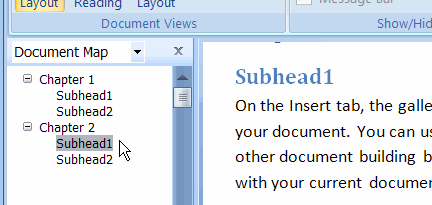
Occasionally I work with long Word documents, and want to get from one section to another as quickly as possible. To do this, I use one of Word’s best hidden features — the Document Map.

It lists all the headings in your document, and to go to a section you just click on its name in the Document Map.

Just like an Excel outline, you can collapse and expand sections by clicking the + and – buttons at the left of the section names.

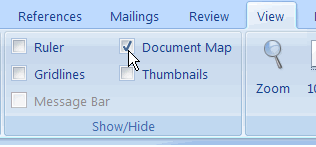
To view the Document Map in Word 2007, click on the View tab, and add a check mark to Document Map.

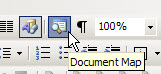
In Word 2003, and earlier versions, click the Document Map button on the Standard Toolbar.

If you like to use the keyboard, you can press the F6 key to move into the Document Map, and arrow up or down. Press Enter to select the highlighted section name.

Note: If you have the Document Map open, you can’t use Word’s Split Window feature.

Print What You Like and Decipher Mysteries

Although the title of today’s blog pretty much describes my meeting notes (what the heck do those scribbles mean?), I’m referring to a couple of utilities I found this week. Both have been very helpful already, so you might find them useful too.

Print What You Like

First is Print What You Like, a web site that lets you select sections on a web page, before you print. This should reduce the amount of paper and ink that you waste, when extra pages are printed.

I’ve spent time copying and pasting web site text into Word, to avoid those extra pages, and this is much easier.

  • To start, copy the URL for the page you want to print.
  • Go to Print What You Like, paste in the URL, and click Start.
  • Your target page appears, and you can point to a section, word, or paragraph, to frame it.
  • Click on a framed area to select it, and select as many sections as you’d like.

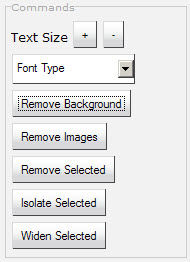
  • Use buttons at the left side of the editor to remove images, remove the background, change the font size and isolate or remove the selections

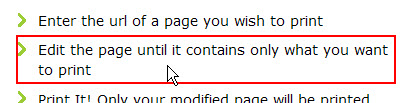
  • Experiment with the settings for a minute or two, and once the page contains only the elements that you want to print, hit the Print button.

LongURL

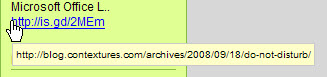
The other utility is LongURL, a FireFox add-on that lets you point to a condensed URL and see the full text for the designation URL. Twitter is full of these short links, and some are useful, but other, not so much.

This might help you avoid sites in which you have no interest, or that might not be suitable for work.

You have to register to download the add-on, and that took a few minutes, but the installation went smoothly, and the add-on works as promised. Occasionally it can’t decipher the URL, but most work fine.

Do Not Disturb

After my Outlook article on Tuesday, Ken Puls sent me a link to the Microsoft Office Labs site, where you can download the Email Prioritizer add-in for Outlook 2007.

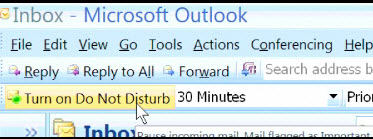
It has a Do Not Disturb setting that you can use to temporarily stop email from arriving. Good for those times when you need to focus for a while, but don’t want to lose touch with the world for the long term.


My mail runs through MailWasher, which flashes in the system tray when a message arrives on the mail server. Sometimes I turn it off accidentally, and don’t notice until a couple of quiet hours have passed.

No alerts, so I get lots of work done, but it might be better to have it off for a shorter, and predetermined, amount of time.

You can also prioritize your email with the Email Prioritizer’s 3-star rating system. I don’t have Exchange Server, so can’t test it, and will have to stick with my coloured flags system in Outlook. (I only use the red flags, since I can’t remember what the other colours mean if I use them.)

Finally, if you’d like to read about a few Outlook (and other) catastrophes at Microsoft, see Brick ONeil’s Microsoft Office Blog article from yesterday, Top 7 Employee Bungles Using Office.

Make Your Vote Count With Doodle

No, this blog hasn’t gone political. I’m talking about polling co-workers, friends or family, to make a decision, or pick a date for an event. That might be easy to do if you’re in a big office, and share an online calendar.

But, if you’re running a small business and trying to get a consensus on a decision among clients or associates, it’s not so easy.

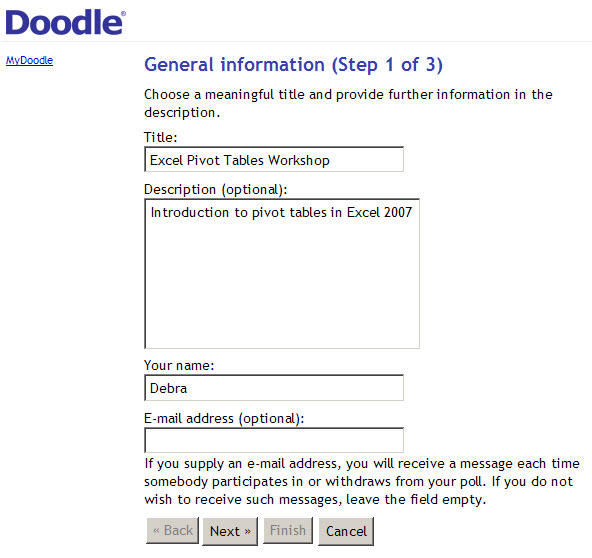
Instead of spending hours on the phone, or sending emails round in circles, you could use the online polling tool, Doodle. Create a poll, then send everyone a web page link where they can vote. No one has to register or log in — they just follow your link, type a name and cast a vote.

To start, you set up a poll with a choice of dates, or other options. You can opt for email notices, or go to the page and see how the voting is going.

When participants follow your link to the page, they type their name and select one or more of the options.

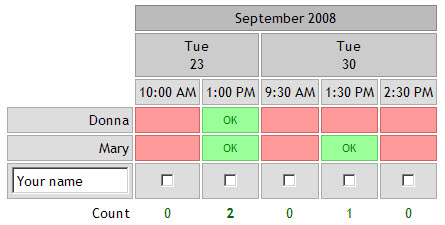
In this poll, participants would add a check mark for any time they’d be available to attend the workshop. They can see the names and selections of previous voters.

While setting up the poll, if you click the PowerDoodle button, you can make the poll a bit more sophisticated.

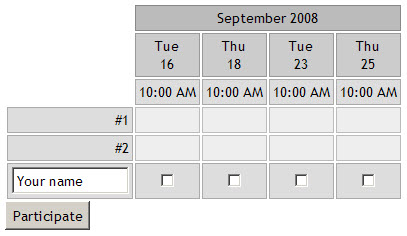
You can hide the voter names and selections, as shown below, or limit participants to one selection from the options, or only allow one participant to select each option — useful if you’re allocating tasks.

The Doodle tool seems very easy to use, with no inconvenience to participants. You can see the test poll that I set up, and cast your vote if you’d like.

POLL IS NO LONGER AVAILABLE

Delay Sending Outlook Messages

You hit Send, then realize you forgot the attachment. Or you misspelled the recipient’s name. Or you used Reply All, when you only wanted the message to go to one person. None of these things have ever happened to me (well hardly ever), but you might have been less fortunate.

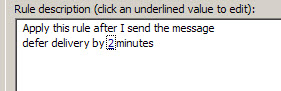
All kinds of tragedies can strike in that ohnosecond, just after you fire off an email. As a bit of insurance, you can change a setting in Outlook, so messages are delayed a set number of minutes.

Then, if you realize you didn’t want to include everyone in the lottery ticket email, you’ll have time to delete a name or two from the Send To list.

There are instructions for changing this setting on the Microsoft website. It will only take you a couple of minutes to make the change, and that investment will pay for itself the first time you can correct an error before an email is sent.

Update (2008-Sep-19): JP has written an article describing how to delay Outlook messages with programming.

Excel Keyboard Shortcuts

Someone on Twitter said this recently:

  • “Microsoft Excel has no keyboard shortcut for “save as”. Probably because they are *only* on version 11.”

That was one of the Excel tweets that I posted on Saturday. However, as Jason Morin pointed out in the comments, you can use the F12 key to open the Save As dialog box.

Excel Help

Why didn’t the tweeter know about the F12 shortcut for Save As?

Well, when you go to the Keyboard Shortcuts topic in Excel’s Help, there’s an incomplete list. It doesn’t even show Ctl + S as a shortcut to Save, let alone tell us how to do a Save As.

To find a full list of Excel Keyboard shortcuts, you can download one of the following files or view the list on the web page.

Contextures site

View: Excel Keyboard Shortcuts list

Download: Excel Keyboard Shortcuts Excel file

Chip Pearson’s site

View: Excel Keyboard Shortcuts list

Download: Excel Keyboard Shortcuts Excel file

Microsoft Website

Web: Keyboard Shortcuts in Excel

Download: Excel Keyboard Shortcuts (in a Word document)

__________________