Last Friday, there was an HLOOKUP example, and it used a dynamic lookup range — as rates were added to the lookup table, it automatically expanded to include them.
Continue reading “Excel Function Friday: INDEX for Dynamic Range”
Excel tips and tutorials

Last Friday, there was an HLOOKUP example, and it used a dynamic lookup range — as rates were added to the lookup table, it automatically expanded to include them.
Continue reading “Excel Function Friday: INDEX for Dynamic Range”
You probably use defined names in some of your Excel workbooks. We’ll look at a built-in way to list the names in a workbook, and see some Excel VBA code that creates a more detailed list of names.
You can name a group of cells, and use that name as the source for a data validation drop down list.
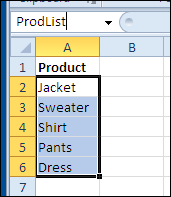
For example, if you have entered a list of the products that you sell, you could select the list, and name the range reference as ProdList.
Then, that product list could be used in an order form.
If you created Excel Tables, in Excel 2007 or Excel 2010, they are automatically named.
Later, you can change the names to something meaningful, such as ProdTable, for a list of products and their prices.
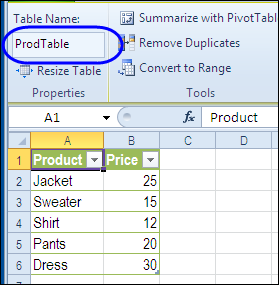
If you’re working on a complex Excel workbook, it’s easy to lose track of what you’ve named, and where the named ranges are located.
For reference, you can print out a list of names, using a built-in feature in Excel.
To paste a list of workbook level names in Excel:
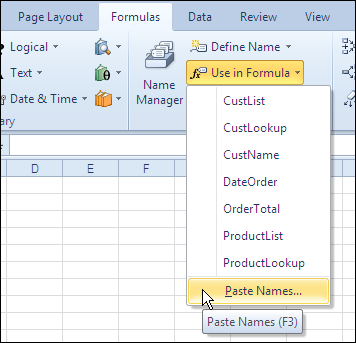
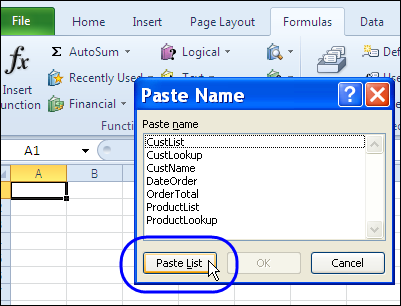
Next, in the Paste Name window, click the Paste List button.
A list of defined names and their formulas is pasted into the worksheet.
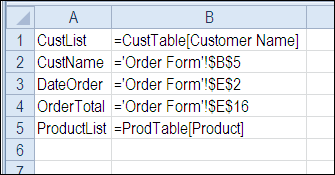
Note: To see worksheet level names, use the Paste List feature on the worksheet where those names are defined.
The built-in names list feature is helpful, but if you need more details, you can create your own list, by using Excel VBA.
This macro adds a new sheet to the active workbook, with a list of the non-hidden defined names, with details for each name, if available.
Sub ListAllNames()
Dim lRow As Long
Dim nm As Name
Dim wb As Workbook
Dim ws As Worksheet
Dim wsL As Worksheet
Dim wsName As String
Dim shName As String
Dim myName As String
Dim nmRef As String
Dim nmAddr As String
Dim nmRng As Range
Dim nmSc As String
Dim lCells As Long
Set wb = ActiveWorkbook
Set ws = ActiveSheet
Set wsL = Worksheets.Add

wsName = ws.Name

With wsL
    .Range("A1:F1").Value = Array("Name", _
        "Refers To", "Cells", "Sheet", "Address", "Scope")
    lRow = 2
End With

On Error Resume Next
  For Each nm In wb.Names
    If nm.Visible Then
      Set nmRng = nm.RefersToRange
      myName = nm.Name
      nmRef = "'" & nm.RefersTo
      lCells = nmRng.Cells.Count
      shName = nm.RefersToRange.Parent.Name
      nmAddr = nm.RefersToRange.Address
      If TypeOf nm.Parent Is Workbook Then
        nmSc = "Wb"
      Else
        nmSc = "Ws"
      End If
      wsL.Range(wsL.Cells(lRow, 1), wsL.Cells(lRow, 6)).Value _
         = Array(myName, nmRef, lCells, shName, nmAddr, nmSc)
      lRow = lRow + 1
      Set nmRng = Nothing
      myName = ""
      nmRef = ""
      lCells = 0
      shName = ""
      nmAddr = ""
      nmSc = ""
    End If
  Next nm

With wsL
  .Rows("1:1").Font.Bold = True
  .Columns("A:F").EntireColumn.AutoFit
End With

End Sub
To get the sample workbook, and the Names List code, go to the Excel Names Macros page on my Contextures site.
The file is zipped, and in Excel xlsm file format, and it contains macros.
___________
 There is an Excel weekly meal planner on the Contextures website, in which you can select meal items, and create a weekly shopping list.
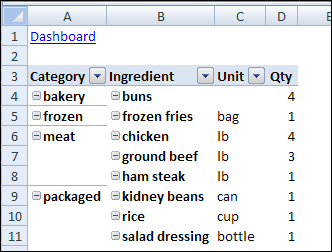
In December, I added an online recipe selector, created by Jimmy Peña, and described the new feature in a blog post.
This weekend, Alyssa pointed out a problem — if you select a meal item twice, it’s only added to the shopping list once.
That could cause problems, if you run out of food on Friday, and have hungry and cranky children waiting for their dinner. Thanks Alyssa!
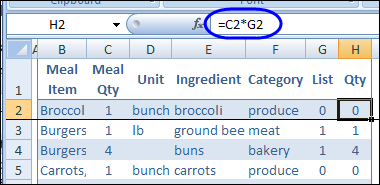
To show the correct quantities in the shopping list, I changed the heading in the original quantity column, from Qty to Meal Qty.
Then, I added a new column, with the heading Qty, and a formula to multiply the Meal Qty by the List qty.
The formula in cell H2 multiplies the Meal Qty by the List Qty:
That should prevent any food shortages at the end of the week!
You can see the full details for the Excel Weekly Meal Planner on the Contextures website, and download an updated copy to help plan your meals.
____________
 On Day 10 of the 30 Excel Functions in 30 Days series, we looked at the Excel HLOOKUP function. It’s similar to VLOOKUP, but looks for values in a horizontal list, instead of a vertical list.
The second example in that HLOOKUP blog post showed how to find a rate in a lookup table, based on the date entered in cell C5. On March 15th, the rate would be 0.25, because the Jan 1st rate is still in effect.
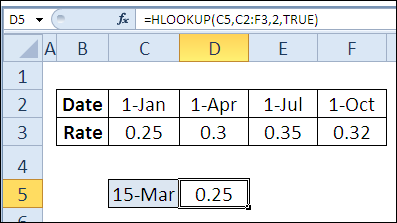
In the comments for the HLOOKUP blog post, Fred said that he got the formula working correctly in cell D5, but wondered how to use the result in multiple cells.
In this example, we’ll use the rates as a lookup for pricing. The prices change quarterly, and the correct price will be used in each order, based on the order date.
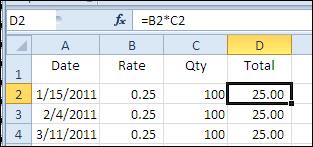
In this workbook, the table with the quarterly dates and rates is on a separate sheet, named Rates.
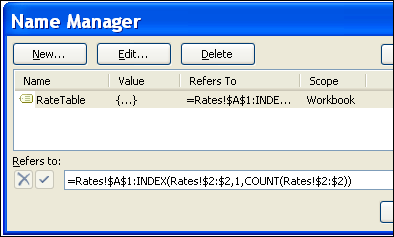
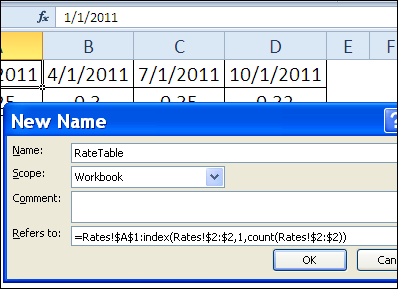
New rates will be added each quarter, so we’ll create a dynamic range named RateTable, using the technique from Example 3 in the 30XL30D INDEX function post.
In this HLOOKUP rates table, the formula for the named range is:
=Rates!$A$1:INDEX(Rates!$2:$2,1,COUNT(Rates!$2:$2))
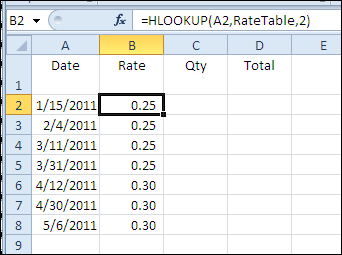
In the Orders table, we’ll use an Excel HLOOKUP formula to pull the correct rate from the RateTable range, based on the order date.
In cell B2, the formula is:
=HLOOKUP(A2,RateTable,2)
The final argument is omitted, so the result is an approximate match.
If the order date isn’t found in the first row of the RateTable range, the HLOOKUP formula result is based on the next largest date that is less than order date.
The final step is to add the pricing formula in column D. Quantities will be entered in column C, so the pricing formula will multiply the quantity by the rate.
The formula in cell D2 is:
=B2*C2
To see the Excel HLOOKUP formula and the RateTable named range, you can download the HLOOKUP Rates sample file.
It is in Excel xlsx format, and zipped.
_______________
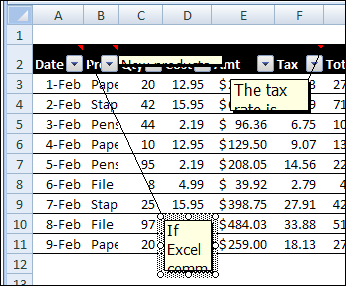
Do you ever open an Excel workbook, and find that tragedy has struck your comments? You spent hours inserting those comments, and making them just the right size and shape. Then, for no apparent reason, everything changes. Comments are in the wrong place, and wrong size. Here’s how to fix those wandering Excel comments.
 Yes, it’s Valentine’s Day today, and if you were too busy to buy your sweetie a card yesterday, you can make one in Excel. Phew!
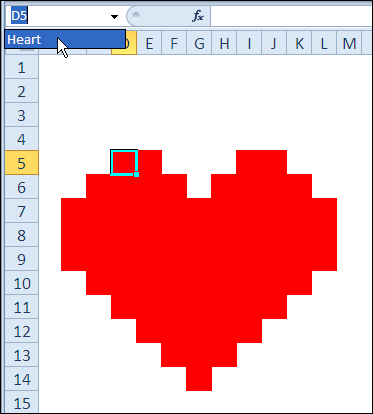
Your boss won’t mind if you spend a couple of hours working on this today, because it’s an Excel project! This Excel Valentine card uses a named range, data validation, a formula, and conditional formatting (to change the heart from white to pink to red).
If you won’t have time, or if your drawing skills are worse than mine, you can download the sample Excel Valentine file, at the end of this blog post.
And if you want some romantic music in the background, while you work on your Excel Valentine card, you can listen to the YouTube playlist, compiled by John Walkenbach and his blog readers.
To create the heart shape,
The formula will count how many text items have been added at the top of the worksheet, and the result is used for conditional formatting.
=COUNTA($E$1:$E$3)
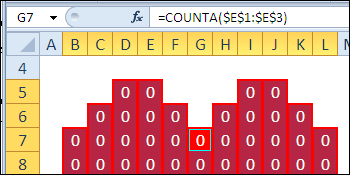
With the Heart range still selected, set up the following conditional formatting:
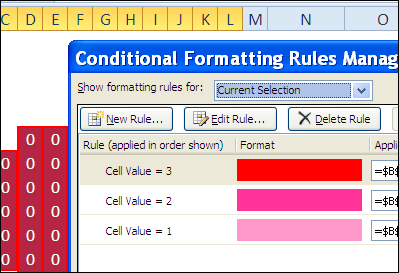
The heart shape will be hidden, and only revealed when the Valentine message is selected.
To hide the heart:
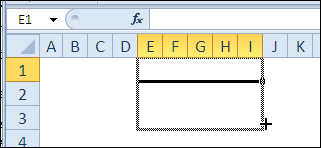
Next, you’ll create three drop downs, for the Valentine message at the top of the worksheet.
To prepare the cells for the drop down lists:
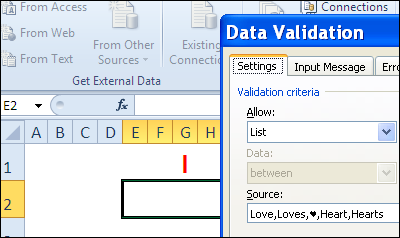
Create the following data validation drop down lists:
Tip: To type a heart shape, press Alt and type a 3 on the number keypad (if no number keypad, try Fn+Alt+L). On a Mac, another key combination might be needed.
The Excel Valentine heart has white fill and white font, so it’s not visible.
To see the heart:
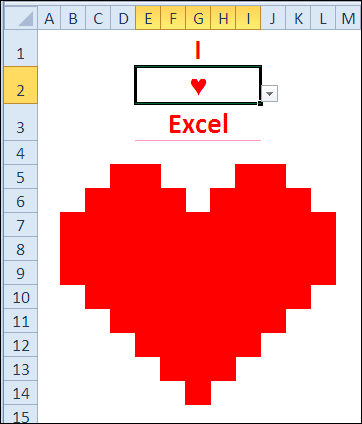
To see how the card works, you can download the Excel Valentine Card sample file.
The file is in Excel 2007 format, and zipped, and it contains no macros.
_____________
This week, I’ve been working in an Excel 2007 file that has several named Excel Tables. After adding a column in one table, I copied the entire worksheet column.
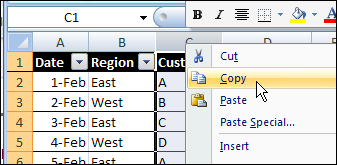
Next, I tried to paste it into another worksheet, where there was a similar table.
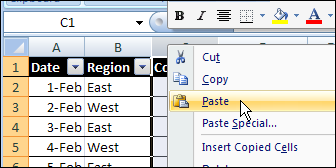
That didn’t go too well. After a few minutes of staring at the hourglass, I gave up, and closed Excel in the Task Manager.
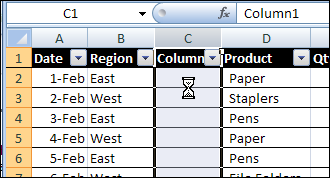
Today, I tried to repeat the column copy and paste, forgetting about the previous problem.
Sure enough, Excel crashed again. Well, technically, I guess it’s a hang, rather than a crash, but it’s still annoying.
In a smaller workbook, with smaller tables, the copy eventually completed, but with strange results. There was a strange message in the Status Bar.
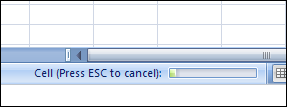
Eventually, the copy completed, but instead of the ten rows from the original table, the paste filled the entire column, so the named Excel Table ended in the last row.
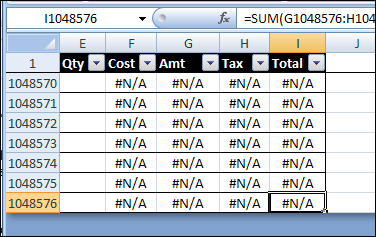
Instead of copying and pasting the entire column, you can copy and paste the named Excel table column.
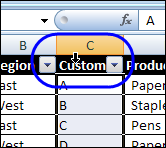
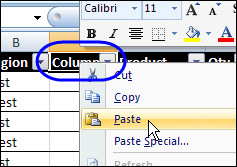
Or you can copy the cells, and paste them, instead of copying and pasting the column.
Enough about my problems! What’s your favourite way to crash/hang Excel?
________________
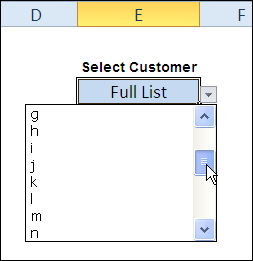
 On Monday, AlexJ showed us how to create a short or long drop down list in Excel. With his technique, users can see just the top customers, or all customers.
That technique didn’t require macros — it was driven by a formula in the data validation source.
Today, Alex shares an automated version of the short or long data validation list technique. Starting in the next section, you can read his description of how this version works.
You can download the zipped Dynamic Data Validation Sample File from the Contextures website. The file contains macros, so enable them to use the dynamic drop down list.
For an Excel utility running at our office, users are required to enter a project number using a drop down list. There are thousands of these records in the data set, selecting from hundreds of project numbers. This means that the drop-down list is long, and therefore not very useful.
To address this, we determined that the user would usually select from a short list of active projects, but would also need to select from a long list of all projects or old projects.
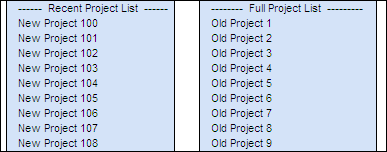
There are a number of techniques using dependent data validation in Excel, but these usually require two selection boxes, we wanted to do this with only a single drop down selection.
The technique presented allows the user to select from a default list of entries, or select a different list.
The two lists are named — rng.DD1 for the new projects, and rng.DD2 for the full project list. The first cell in each list is a formula, that refers to the other list.
=”>> GOTO ” & $J$3
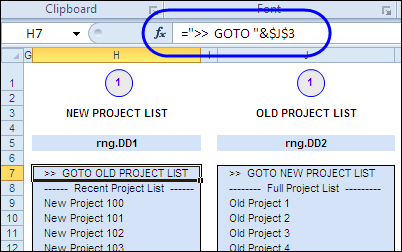
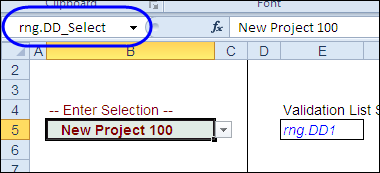
The cell with the drop down list is named rng.DD_Select.
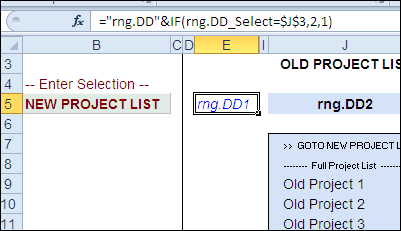
The result cell, $E$5, calculates which list has been selected:
=”rng.DD”&IF(rng.DD_Select=$J$3,2,1)
If the selected item matches the heading in cell J3, the result is rng.DD2, otherwise, the result is rng.DD1.
The data entry cell has data validation configured for a list, and the following formula that refers to the result cell:
=INDIRECT($E$5)
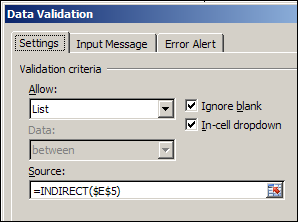
If the result in cell $E$5 is rng.DD1, the new project list is shown.
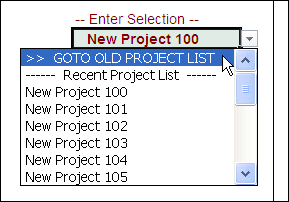
The data validation doesn’t require programming, but there is a small VBA routine triggered by the Change Event in cell B5. It tidies up the data entry cell, after a selection is made.
This routine will:
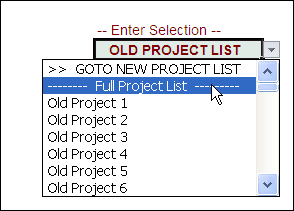
Here is the event code from the data entry sheet.
Private Sub Worksheet_Change(ByVal Target As Range)
Dim str As String
Dim strNew As String
Const strMatch As String = ">> GOTO "
If Target.Address = Me.Range("rng.DD_Select").Address Then
  str = Target.Value
  If str Like "-*" Then
    Target.ClearContents
  Else
    If str Like strMatch & "*" Then
      strNew = Right(str, Len(str) - Len(strMatch))
      Target.Value = strNew
    End If
  End If
End If
End Sub
________________
You can make data entry easier in Excel, by create a drop down list with data validation. Sometimes those lists are so long, that they become a pain to use.
Here’s a technique from AlexJ, that lets users switch between a short or full Excel drop down list of customers.
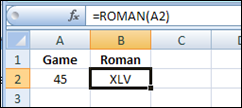
Apparently there is a big football game this weekend in the USA. They’re using Excel for the game — XLV. That’s a really old version, but at least it has multiple sheets and VBA!
The officials probably used the Excel ROMAN function to figure out how to show the game number — 45:
=ROMAN(A2)
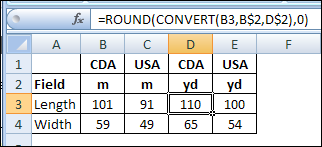
While you’re watching the game, you can use an Excel function to convert the field size from yards to metres. You’ll see that the American field is smaller than the Canadian field, no matter what measurement system you use!
There is a CONVERT function in Excel, that you can use to convert measurements from one system to another.
=CONVERT(number,from_unit,to_unit)
For example, cell B3 has the length of a Canadian field in metres. In cell D3, the following formula converts that measurement to yards, and rounds the result:
=ROUND(CONVERT(B3,B$2,D$2),0)
Unfortunately, the CONVERT function does not get you an extra point.
Besides the size of the fields, there are other key differences between Canadian and American football.
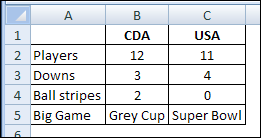
No stripes? Fewer players? More downs? You call that a game? 😉


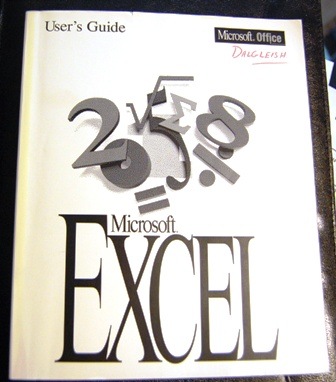
Do you remember when printed manuals came with the software? I still have my Excel 5.0 User Guide, so maybe I can read it while watching the big game!
There were tons of new features in that version, so there will be lots of interesting stuff to read.
________________