Excel Bingo Card Random Number Code

A couple of years ago, I posted about an Excel bingo workbook, that you could use to create a set of three cards with random numbers.

Bingo Card Formulas

In the Excel workbook, the bingo card sheet uses the INDEX and MATCH functions to pull the numbers from another sheet.

  • =INDEX(Numbers!$M$1:$M$15, MATCH(LARGE(
    Numbers!$N$1:$N$15, ROW()-1), Numbers!$N$1:$N$15,0))
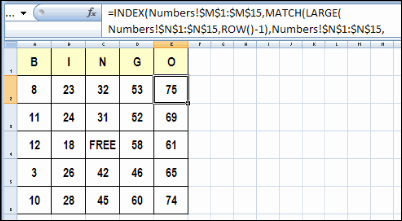
INDEX and MATCH formula for bingo cards

There were a few follow up workbooks, including an Excel Bingo Number Selector file from Dick Kusleika.

Horizontal Number Lists

This week, Carrie posted a comment on that article, and she wanted to adapt the bingo cards so they could be printed with Adobe InDesign. Instead of a square with 25 numbers, that program needs the 25 numbers in a single row.

Using the example in the screen shot above, the numbers in the first two rows would be arranged like this, followed by the numbers from the remaining rows:

BingoHoriz01

Random Number Code

Jim Cone pitched in, and wrote some code to generate the random numbers in single rows, but it created some duplicates in the rows. Carrie didn’t want an uprising in the bingo hall, so we sent Jim away to try again. 😉

It didn’t take long for him to return with some code that worked correctly, so Carrie, and her Hummel figurine collecting friends, can safely play bingo this summer.

Whew! A bit later, Dick posted an update for Jim’s code. It’s shorter, and does the job very well.

Copy the Random Number Code

Thanks Jim and Dick! I’m sure Carrie appreciates the code, and maybe it will help a few other people.

To use this random number code, copy it to a regular code module in your workbook.

Then, go to a blank sheet, and run the SurelyYouCantBeSerious_R1 code.

Sub SurelyYouCantBeSerious_R1()
'Generates 800 sets of random Bingo numbers with no duplicates.
'Each row contains an individual set of Bingo numbers.
'Designed to be used with the "Adobe InDesign" application.
'Jim Cone - Portland, Oregon USA - February 02, 2011
'[email protected] - remove all "X"
'Edited by Dick dailydoseofexcel.com
On Error GoTo DontCallMeShirley
Dim arrList(1 To 800, 1 To 25) As Long
Dim j As Long
Dim R As Long
'B COLUMNS
'1 to 15 in the B column
Randomize
For R = 1 To 800
  For j = 1 To 5
    FillList arrList, j, R
  Next j
Next R
Range("A1:Y800").Value = arrList()
  Exit Sub
DontCallMeShirley:
  Beep
  Resume Next
End Sub
'==========
Sub FillList(ByRef arrList As Variant, lStart As Long, R As Long)
Dim j As Long
Dim C As Long
Dim N As Long
Dim arrCheck(1 To 75) As Long
j = 1
For C = lStart To 25 Step 5
  Do While j < 6
    'Int((High - Low + 1) * Rnd + Low)
    N = Int(Rnd * 15 + ((lStart - 1) * 15 + 1))
    If arrCheck(N) < 1 Then
      arrList(R, C) = N
      arrCheck(N) = N
      j = j + 1
      Exit Do
    End If
  Loop
Next C
End Sub

______________
30 Excel Functions in 30 Days: 30 – INDIRECT

Icon30DayCongratulations! You made it to the final day in the 30XL30D challenge. It’s been an long, and interesting, journey, and I hope you learned a few useful things about Excel functions along the way.

Tomorrow, I’ll do a wrap-up article, and let you know how the functions ranked in the pre-challenge voting, last month.

INDIRECT Function

For day 30, we’ll examine the INDIRECT function, which returns the reference specified by a text string.

This is one of the ways that you can create a dependent data validation drop down list, where, for example, the selection in the Country drop down controls the choices in the City drop down.

So, let’s take a look at the INDIRECT information and examples, and if you have other tips or examples, please share them in the comments.

Function 30: INDIRECT

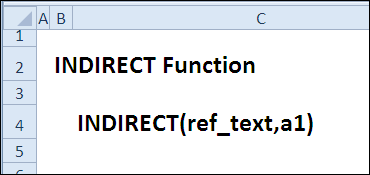
The INDIRECT function returns the reference specified by a text string.

Indirect00

How Could You Use INDIRECT?

The INDIRECT function returns the reference specified by a text string, so you can use it to:

  • Create starting reference that doesn’t shift
  • Create reference to static named range
  • Create reference from sheet, row, column info
  • Create array of numbers that doesn’t shift

INDIRECT Syntax

The INDIRECT function has the following syntax:

  • INDIRECT(ref_text,a1)
    • ref_text is the text string for a reference.
    • a1 if TRUE or omitted, uses an A1 reference style; if FALSE, the R1C1 reference style is used

INDIRECT Traps

  • The INDIRECT function is volatile, so it could slow down your workbook, if used in many formulas.
  • If the INDIRECT function creates a reference to another workbook, that workbook must be open, or the formula will result in a #REF! error.
  • If the INDIRECT function creates a reference to a range outside the row and column limit, the formula will result in a #REF! error. (Excel 2007 and Excel 2010)
  • The INDIRECT function cannot resolve a reference to a dynamic named range

Example 1: Create starting reference that doesn’t shift

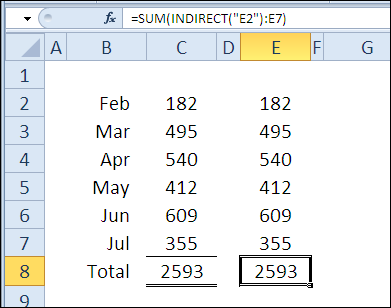
In the first example, there are identical numbers in columns C and E, and the totals are the same, using the SUM function. However, the formulas are slightly different. In cell C8, the formula is:

=SUM(C2:C7)

In cell E8, the INDIRECT function creates a reference to the starting cell, E2:

=SUM(INDIRECT(“E2”):E7)

Create starting reference with INDIRECT function

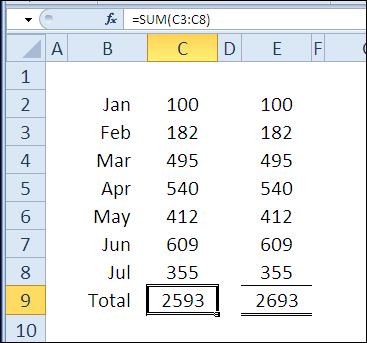
If a row is inserted at the top of the lists, and January amounts are entered, the total in column C doesn’t change. The formula changed, adjusting to the inserted row:

=SUM(C3:C8)

However, the INDIRECT function locked the starting cell to E2, so the January amount is automatically included in the column E total. The ending cell changed, but the starting cell wasn’t affected.

=SUM(INDIRECT(“E2”):E8)

Indirect01b

Example 2: Create reference to static named range

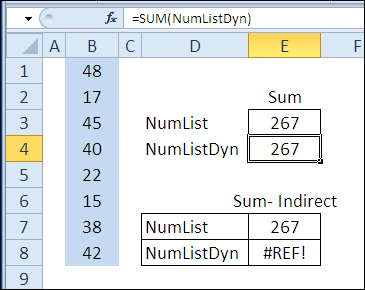
The INDIRECT function can also create a reference for a named range. In this example, the blue cells are in a range named NumList. There is also a dynamic range in column B, based on the count of numbers in that column.

The total for either range can be calculated, by using the range name with the SUM function, as you can see in cells E3 and E4

=SUM(NumList) or =SUM(NumListDyn)

Indirect02a

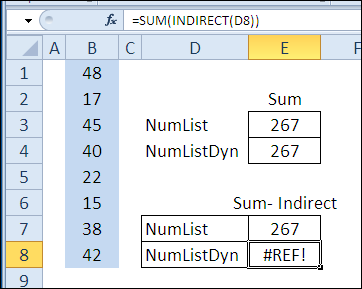
Instead of typing the name in the SUM formula, you can refer to the range name in a worksheet cell. For example, with the name NumList in cell D7, the formula in cell E7 is:

=SUM(INDIRECT(D7))

Unfortunately, the INDIRECT function can’t resolve a dynamic range, so when the formula is copied down to cell E8, the result is a #REF! error.

Indirect02b

Example 3: Create reference from sheet, row, column info

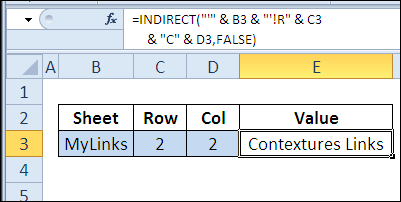
You can easily create a reference based on row and column numbers, by using FALSE as the second argument in the INDIRECT function.

This creates an R1C1 style reference, and in this example, a sheet name is also included — ‘MyLinks’!R2C2

=INDIRECT(“‘” & B3 & “‘!R” & C3 & “C” & D3,FALSE)

Indirect03

Example 4: Create array of numbers that doesn’t shift

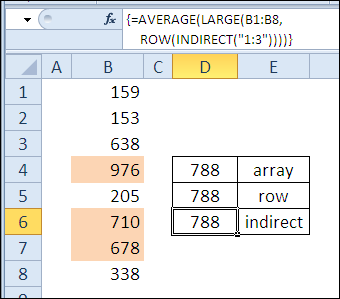
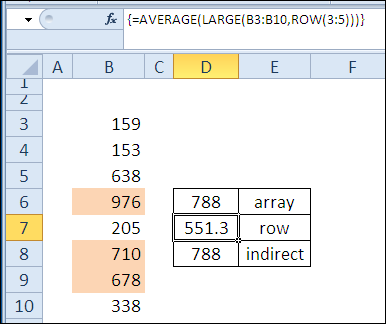
In some formulas, you need an array of numbers, as in this example, where we want the average of the 3 highest numbers in column B. The numbers could be typed in the formula, as they are in cell D4:

=AVERAGE(LARGE(B1:B8,{1,2,3}))

If you need a bigger array of numbers, you probably wouldn’t want to type all of them. Another option is to use the ROW function, as in the array-entered formula in cell D5:

=AVERAGE(LARGE(B1:B8,ROW(1:3)))

A third option is to use the ROW function with INDIRECT, as in the formula in cell D6, which is also array-entered:

=AVERAGE(LARGE(B1:B8,ROW(INDIRECT(“1:3”))))

The results for all 3 formulas are the same.

Indirect04a

However, if rows are inserted at the top of the sheet, the second formula returns an incorrect result, because the rows are adjusted. Now, instead of the average of the top 3 numbers, it shows the average of the 3rd, 4th and 5th largest numbers.

With the INDIRECT function, the third formula keeps the correct row reference, and continues to show the correct result.

Indirect04b

Download the INDIRECT Function File

To see the formulas used in today’s examples, you can download the INDIRECT function sample workbook.

The file is zipped, and is in Excel 2007 file format.

Watch the INDIRECT Video

To see a demonstration of the examples in the INDIRECT function sample workbook, you can watch this short Excel video tutorial.

_____________
30 Excel Functions in 30 Days: 29 – CLEAN

Icon30DayYesterday, in the 30XL30D challenge, we jumped around a workbook, and opened Excel files and websites, by using the HYPERLINK function.

CLEAN Function

For day 29 in the challenge, we’ll examine the CLEAN function. Sometimes the data you get from a website, or in a download file, has some unwanted characters, and the CLEAN function can help you fix it.

It doesn’t do much heavy lifting though, and refuses to help with the mess that the kids make. This will be perfect for a lazy Sunday!

So, let’s take a look at the CLEAN information and examples, and if you have other tips or examples, please share them in the comments.

Function 29: CLEAN

The CLEAN function shows removes some non-printing characters from text — characters 0 to 31, 129, 141, 143, 144, and 157.

Clean00

How Could You Use CLEAN?

The CLEAN function can remove some non-printing characters from text , but not all of them. You can use CLEAN, or other functions when necessary, to:

  • Remove some non-printing characters
  • Replace non-printing characters in text

CLEAN Syntax

The CLEAN function has the following syntax:

  • CLEAN(text)
    • text is any information from which you want the non-printing characters removed

CLEAN Traps

The CLEAN function only removes some non-printing characters from text — characters 0 to 31, 129, 141, 143, 144, and 157.

For other non-printing characters, such as the non-breaking space character 160, you can use SUBSTITUTE to replace them with space characters, or empty strings.

Example 1: Remove non-printing characters

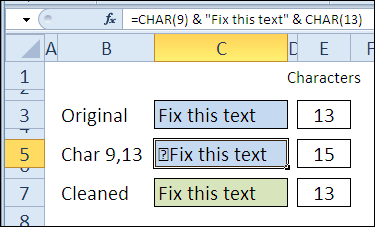
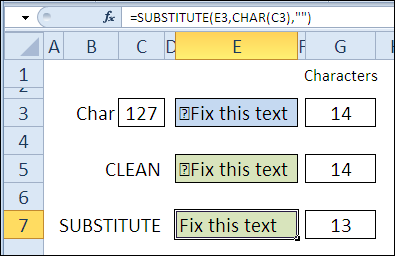
The CLEAN function works to remove some non-printing characters, such as those in the 0-30 range of the ASCII character set. In this example, I added characters 9 and 13 to the original text string from C3.

=CHAR(9) & C3 & CHAR(13)

The LEN function shows that the number of characters in cell C5 increased to 15, with those non-printing characters included.

Remove non-printing characters with CLEAN function

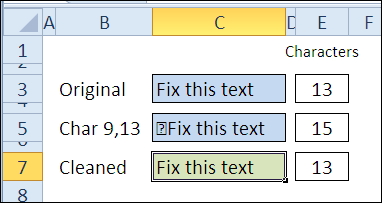
With the CLEAN function, in cell C7, those characters are removed, and the number of characters is reduced by 2, so it’s back to the original 13 characters.

=CLEAN(C5)

Clean01b

Example 2: Replace non-printing characters

For the characters that the CLEAN function can’t remove, like characters 127 and 160, you can use the SUBSTITUTE function to replace them.

=SUBSTITUTE(E3,CHAR(C3),””)

Clean02b

Download the CLEAN Function File

To see the formulas used in today’s examples, you can download the CLEAN function sample workbook. The file is zipped, and is in Excel 2007 file format.

Watch the CLEAN Video

To see a demonstration of the examples in the CLEAN function sample workbook, you can watch this short Excel video tutorial.

_____________
30 Excel Functions in 30 Days: 28 – HYPERLINK

Icon30DayYesterday, in the 30XL30D challenge, we replaced text with the SUBSTITUTE function, and used it to create flexible reports.

HYPERLINK Function

For day 28 in the challenge, we’ll examine the HYPERLINK function. Instead of manually creating hyperlinks, with the command on the Excel Ribbon, you can use this function.

So, let’s take a look at the HYPERLINK information and examples, and if you have other tips or examples, please share them in the comments.

Function 28: HYPERLINK

The HYPERLINK function creates a shortcut that opens a document stored on a computer, network server, intranet, or Internet.

Hyperlink00

How Could You Use HYPERLINK?

The HYPERLINK function can open a document, or jump to a specific location, so you can:

  • Link to location in same file
  • Link to Excel file in same folder
  • Link to website

HYPERLINK Syntax

The HYPERLINK function has the following syntax:

  • HYPERLINK(link_location,friendly_name)
    • link_location is the text string for the location where you want to go.
    • friendly_name is the text you want displayed in the cell

HYPERLINK Traps

If you have trouble creating the correct location string for the HYPERLINK function, manually insert a link with the Hyperlink command on Excel’s Ribbon.

That should show you the correct syntax, then recreate that in your link_location argument.

Example 1: Link to location in same file

There are several different ways to create the text string for the link_location argument.

In the first example, the ADDRESS function returns the address for row 1, column 1, on the sheet that is named in cell B3.

The pound sign (#) at the start of the address indicates that the location is within the current file.

=HYPERLINK(“#”&ADDRESS(1,1,,,B3),D3)

Link to location in same file with HYPERLINK function

You could also use the & operator to construct the link location. Here, the sheet name is in cell B5 and the cell is in C5.

=HYPERLINK(“#”&”‘” & B5 & “‘!” & C5,D5)

Hyperlink01b
For a link to a named range in the same workbook, just use the range name as the link location.
=HYPERLINK(“#”&D7,D7)
Hyperlink01c

Example 2: Link to Excel file in same folder

To create a link to another Excel file, in the same folder, just use the file name as the link_location argument for the HYPERLINK function.

For files that are up a level or more in the hierarchy, use two periods and a backslash for each level.

=HYPERLINK(C3,D3)

Link to location in same folder with HYPERLINK function

Example 3: Link to a website

You can also link to website pages with the HYPERLINK function. In this example, the URL is constructed from text strings, and the website name is used as the friendly name.

=HYPERLINK(“http://www.” &B3 & “.com”,B3)

Hyperlink03

Download the HYPERLINK Function File

To see the formulas used in today’s examples, you can download the HYPERLINK function sample workbook. The file is zipped, and is in Excel 2007 file format.

Watch the HYPERLINK Video

To see a demonstration of the examples in the HYPERLINK function sample workbook, you can watch this short Excel video tutorial.

_____________
30 Excel Functions in 30 Days: 27 – SUBSTITUTE

Icon30DayYesterday, in the 30XL30D challenge, we used the OFFSET function to return a reference, and saw that it is similar to the non-volatile INDEX function.

SUBSTITUTE function

For day 27 in the challenge, we’ll examine the SUBSTITUTE function. Like the REPLACE function, it replaces old text with new text, in a text string, but can replace multiple instances of the same text.

In some situations though, it’s quicker and easier to use the Find/Replace command on the Excel Ribbon, with Match Case option turned on, for case sensitive replacement.

So, let’s take a look at the SUBSTITUTE information and examples, and if you have other tips or examples, please share them in the comments.

Function 27: SUBSTITUTE

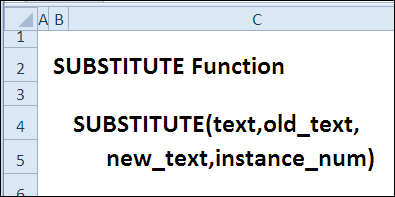
The SUBSTITUTE function replaces old text with new text, in a text string. It will replace all instances of the old text, unless a specific occurrence is selected, and SUBSTITUTE is case sensitive.

Substitute00

How Could You Use SUBSTITUTE?

The SUBSTITUTE function replaces old text with new text, in a text string, so you could use it to:

  • Change region name in report title
  • Remove non-printing characters
  • Replace last space character

SUBSTITUTE Syntax

The SUBSTITUTE function has the following syntax:

  • SUBSTITUTE(text,old_text,new_text,instance_num)
    • text is the text string or cell reference, where text will be replaced.
    • old_text is the text that will be removed
    • new_text is the text that will be added
    • instance_number is the specific occurrence of old text that you want replaced

SUBSTITUTE Traps

  • The SUBSTITUTE function can replace all instances of the old text, so use the instance_num argument if you want only a specific occurrence of old text replaced.
  • For replacements that are not case sensitive, you can use the REPLACE function.

Example 1: Change region name in report title

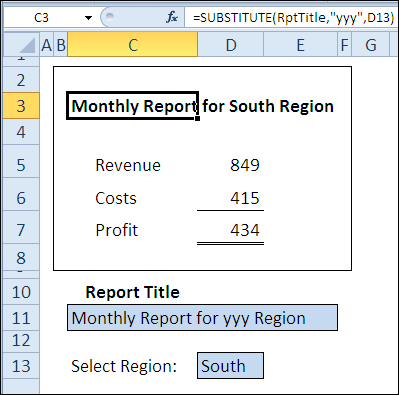
With the SUBSTITUTE function, you can create a report title that changes automatically, based on the region name that is selected.

In this example, the report title is entered in cell C11, which is named RptTitle. The “yyy” in the title text will be replaced with the region name, selected in cell D13.

=SUBSTITUTE(RptTitle,”yyy”,D13)

Change region name with SUBSTITUTE function

Example 2: Remove non-printing characters

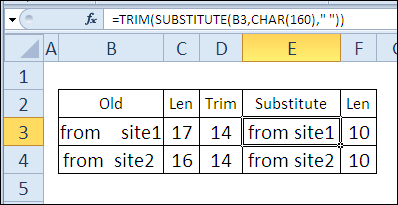
When you copy data from a website, there might be hidden, non-printing space characters in the text.

If you try to remove space characters from the text in Excel, the TRIM function can’t remove them. The characters aren’t normal space characters (character 32); they are non-breaking space characters (character 160).

Instead, you can use the SUBSTITUTE function to replace each of the non-printing spaces with a normal space character. Then, use TRIM to remove all the extra spaces.

=TRIM(SUBSTITUTE(B3,CHAR(160),” “))

Substitute02

Example 3: Replace last space character

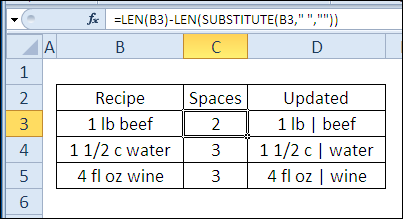
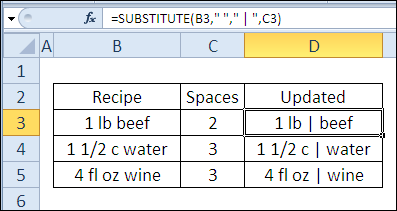
Instead of replacing all instances of a text string, you can use the SUBSTITUTE function’s instance_number argument to select a specific instance. In this list of recipe ingredients, we want to replace the last space character only.

In cell C3, the LEN function calculates the number of characters in cell B3. The SUBSTITUTE function replaces all the space characters with empty strings, and the second LEN function finds the length of the revised string. The length is 2 characters shorter, so there are two spaces.

=LEN(B3)-LEN(SUBSTITUTE(B3,” “,””))

Substitute03a

In cell D3, the SUBSTITUTE function replaces only the 2nd space character with the new text – ” | ”

=SUBSTITUTE(B3,” “,” | “,C3)

Instead of using two columns for this formula, you could combine them into one long formula.

=SUBSTITUTE(B3,” “,” | “,LEN(B3)-LEN(SUBSTITUTE(B3,” “,””)))

Substitute03b

Download the SUBSTITUTE Function File

To see the formulas used in today’s examples, you can download the SUBSTITUTE function sample workbook. The file is zipped, and is in Excel 2007 file format.

Watch the SUBSTITUTE Video

To see a demonstration of the examples in the SUBSTITUTE function sample workbook, you can watch this short Excel video tutorial.

_____________
30 Excel Functions in 30 Days: 26 – OFFSET

Icon30DayYesterday, in the 30XL30D challenge, we changed text strings with the REPLACE function, and learned that it can insert characters too.

OFFSET function

For day 26 in the challenge, we’ll examine the OFFSET function. From a starting reference, it returns another reference, of a specified size, and offset by a set number of rows and columns.

So, let’s take a look at the OFFSET information and examples, and if you have other tips or examples, please share them in the comments.

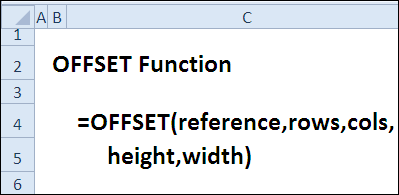
Function 26: OFFSET

The OFFSET function returns a reference offset from a given reference.

Offset00

How Could You Use OFFSET?

The OFFSET function can return a reference to a range, and be combined with other functions. Use it to:

  • Find sales amount for selected month
  • Sum the selected month’s sales
  • Create a dynamic range based on count
  • Sum the last n month’s sales

OFFSET Syntax

The OFFSET function has the following syntax:

  • OFFSET(reference,rows,cols,height,width)
    • reference is a cell or range of adjacent cells.
    • rows can be positive (below starting reference) or negative (above starting reference)
    • cols can be positive (right of starting reference) or negative (left of starting reference)
    • height must be positive, and is number of rows in returned reference
    • width must be positive, and is number of columns in returned reference
    • if height or width are omitted, starting reference size is used

OFFSET Traps

The OFFSET function is volatile, so it could slow down a workbook if used in too many cells. Instead, you could use another function, like INDEX, to return a reference.

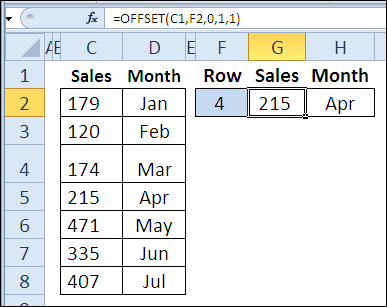
Example 1: Find sales amount for selected month

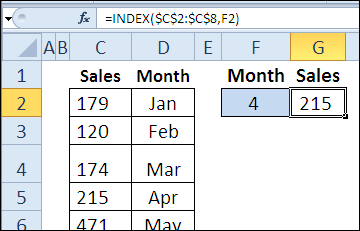
With the OFFSET function, you can return a reference to a range, based on a starting reference. In this example, we want the sales amount in cell G2:

  • starting reference is cell C1
  • number of rows to offset is entered in cell F2
  • sales amount is in column C, so the number of columns to offset is zero
  • height is 1 row
  • width is 1 column

=OFFSET(C1,F2,0,1,1)

In cell H2, there is a similar OFFSET formula, to return the month name. The only difference is the column offset — 1 instead of zero.

=OFFSET(C1,F2,1,1,1)

Note: The height and width arguments could be omitted, because we want a reference that is the same size as the starting reference. I used them in this example, to show how all the arguments work.

Find sales amount for selected month with OFFSET function

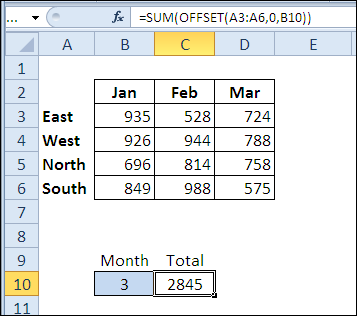
Example 2: Sum the selected month’s sales

In this example, the OFFSET function returns a reference to the sales amounts for the selected month, and the SUM function returns the total for that range.

In cell B10, the selected month number is 3, so the result is the total of the March sales.

  • starting reference is A3:A6
  • rows to offset is zero (you could omit the zero, for the same result)
  • columns to offset is entered in cell B10
  • height and width are omitted, because the reference should be the same size as the starting reference

=SUM(OFFSET(A3:A6,0,B10))

Offset02

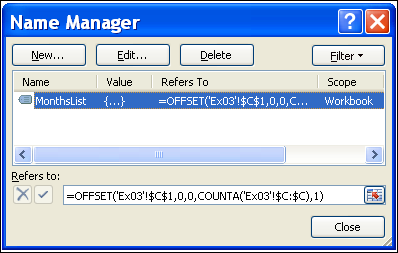
Example 3: Create a dynamic range based on count

You can also use the OFFSET function to create a dynamic range. In this example, I’ve created a name, MonthsList, with this formula:

=OFFSET(‘Ex03’!$C$1,0,0,COUNTA(‘Ex03’!$C:$C),1)

Offset03a

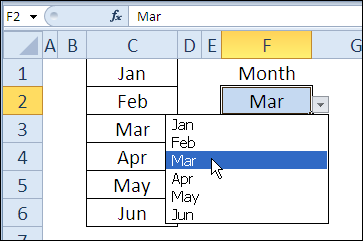
If another month is added to the list in column C, it will automatically appear in the data validation drop down list in cell F2, which uses MonthsList as its source.

Offset03b

Example 4: Sum the last n month’s sales

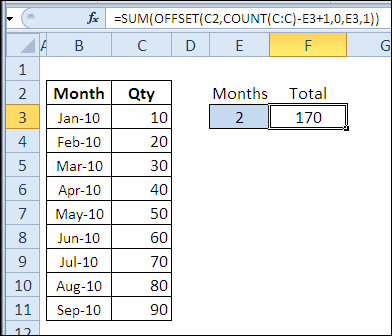
In this final example, OFFSET is combined with SUM and COUNT, to show the total for the last n months. As new quantities are added, the formula result will automatically adjust to include the latest months.

In cell E2, the number of months is 2, so the August and September amounts are summed.

  • starting reference is cell C2
  • number of rows to offset is calculated by counting numbers in column C, subtracting number in cell E3, adding 1
  • quantity is in column C, so the number of columns to offset is zero
  • height is entered in cell E3
  • width is 1 column

=SUM(OFFSET(C2,COUNT(C:C)-E3+1,0,E3,1))

Offset04

Download the OFFSET Function File

To see the formulas used in today’s examples, you can download the OFFSET function sample workbook. The file is zipped, and is in Excel 2007 file format.

Watch the OFFSET Video

To see a demonstration of the examples in the OFFSET function sample workbook, you can watch this short Excel video tutorial.

_____________
30 Excel Functions in 30 Days: 25 – REPLACE

Yesterday, in the 30XL30D challenge, we used the INDEX function to return a value or reference, based on a row and/or column number.

REPLACE Function

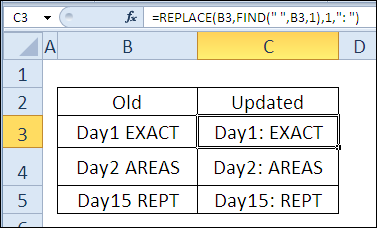
For day 25 in the challenge, we’ll examine the REPLACE function, which is in the Text category. It replaces a specified number of characters in a text string, with new text.

Continue reading “30 Excel Functions in 30 Days: 25 – REPLACE”