
Now that the 30 Excel Functions in 30 Days challenge has ended, it’s time to look at a few other features. On the Contextures page on Facebook, Lee suggested AutoFilters as a topic for some February posts. Thanks Lee! Here’s how to turn off filters in Excel table headings.
Filters in Excel Tables
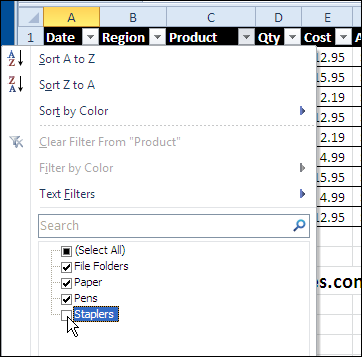
When you create an Excel Table in Excel 2007 or Excel 2010, autofilter arrows are automatically added to the heading cells. Most of the time, this is a welcome feature, and the arrows make it easy to sort and filter the columns.
Video: Create an Excel Named Table
When you work with lists in Excel, use the built-in Table feature, to make it easy to sort and filter your data. This short video shows the simple steps
Multiple Excel Tables
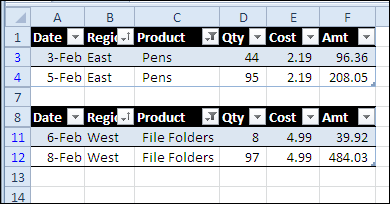
You can even create more than one Excel table on a worksheet, and have a separate filter on each table. I use this feature occasionally, when creating small tables on a summary sheet.
Just remember to stack the tables, instead of placing them side by side. That way, the filtered rows in one table won’t affect the others.
Note: If you don’t use the Excel Table feature, you’re limited to a single AutoFilter (or Advanced Filter) per worksheet.
Turn Off the Automatic Filters
Sometimes, though, you don’t want to have those filter arrows available. For example, you might set up tables because they’re a quick and easy way to create a dynamic range. Or, maybe you like the pretty colours and automatic total row.
But, you don’t want to encourage users to filter the data — all the rows should always be visible. And you know those pesky users will click the arrows, if they’re temptingly available.
To turn off the filters:
- Select a cell in the Excel Table
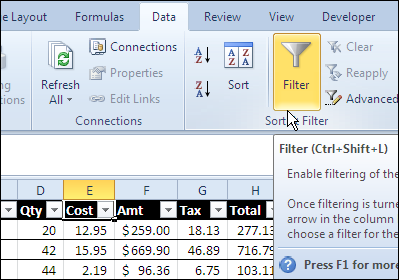
- On the Ribbon’s Data tab, click the Filter command, to turn off the filter.
Keep the Excel Table Features
After you turn off the filters, the Excel Table is still recognized as a table, so you can continue to use all its other features. Even though the filter arrows are gone, you can add a Table Style, and show Banded Rows.
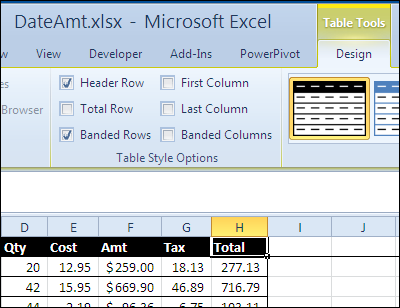
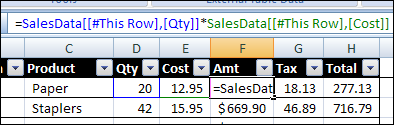
Or, create formulas that use structured referencing, instead of cell references.
__________
If I want to turn off the Automatic feature of the filter, how do I do that? I create hundreds of tables and I screenshot them through Excel; however, the sort arrows do obscure the table headings like mentioned in other comments, and so I have to manually turn off filters for hundreds of tables. Is there a way to disable the feature? Thank you