
Last Friday, there was an HLOOKUP example, and it used a dynamic lookup range — as rates were added to the lookup table, it automatically expanded to include them.
Today, we’ll take a closer look at that dynamic range, and see how the INDEX function is used to set the last cell in the range.
Count the Cells
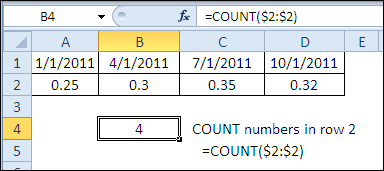
To find the last column for the INDEX function, you can use the COUNT function to count the rates that are entered in row 2.
=COUNT($2:$2)
Create a Cell Reference
The INDEX function can return a cell reference, based on a row number and column number in a reference.
Here are the arguments in the INDEX function syntax:
- INDEX(reference,row_num,column_num,area_num)
Count the Columns
Using row 2 as the reference, the COUNT function can provide the column number. There is only 1 row in the reference, so 1 is used as the row number:
=INDEX($2:$2,1,COUNT($2:$2))
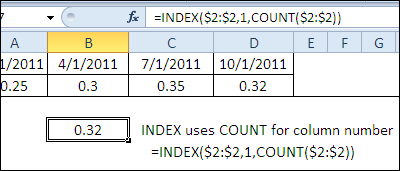
This formula creates a reference to cell D2, and its value is shown in cell B7.
Create the Dynamic Range
The same INDEX formula can be used in a defined name, to create a dynamic range.
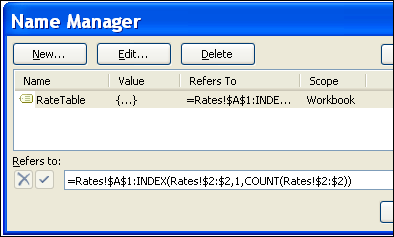
In the example shown below, the RateTable named range:
- starts in cell A1 on the Rates sheet
- ends in the cell reference created by the INDEX function.
Here is the formula used in the Name Manager:
- =Rates!$A$1:INDEX(Rates!$2:$2,1,COUNT(Rates!$2:$2))
If a rate is added or removed in row 2
- the COUNT function result will change,
- the INDEX function will return a different ending cell for the dynamic range.
Download the INDEX Dynamic Range File
To see the defined name and the INDEX examples, you can download the INDEX dynamic range sample file.
______________
Found this after 5 years, still an awesome idea to be used in dynamic named ranges instead of offset 🙂
Thanks!