
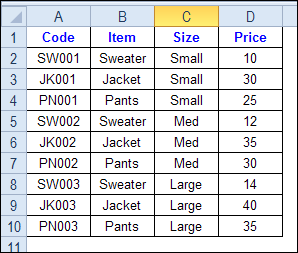
Use INDEX and MATCH together, for a powerful lookup formula. It’s similar to a VLOOKUP formula, but more flexible — the item that you’re looking for doesn’t have to be in the first column at the left. Watch the video to see how it works (there are written instructions too), and download the sample workbook to follow along.
Continue reading “Check Multiple Criteria with Excel INDEX and MATCH”
Author: Debra Dalgleish
Document Your Excel VBA Procedures
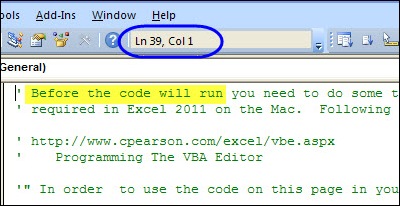
In a complicated Excel file, you might end up with several code modules, and it’s easy to lose track of what’s connected to what. Here’s how you can document your Excel VBA procedures.
Freeze Panes Disappear in Excel
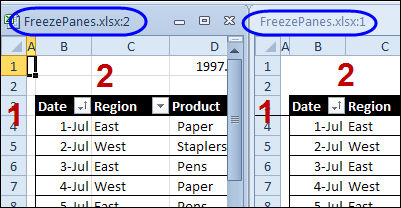
You spend time setting up your worksheets exactly the way you want them – the headings are frozen at the top of the screen, gridlines are turned off, and a few other customizations are made. Beautiful!
Check Excel Database Before Adding New Item
When you build an Excel tool or template, it’s rare that you’re ever really finished building. There’s always something that would make the tool a little better, either for your own use, or for your customers.
And that’s the case with the Excel worksheet data entry form, which I’ve just updated again.
The original version was by Dave Peterson, and the form has evolved into a version in which you can add and update items in the database.
New Features
In the latest version, I fixed an issue with the navigation. Thanks to Travis, who let me know about the problem.
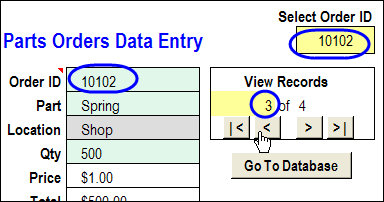
Now, when you move to a different record with the arrow buttons, the Order ID selector also updates.
You can see the Order ID, the Order ID selector, and the record number, circled in the screen shot below.
Add or Update
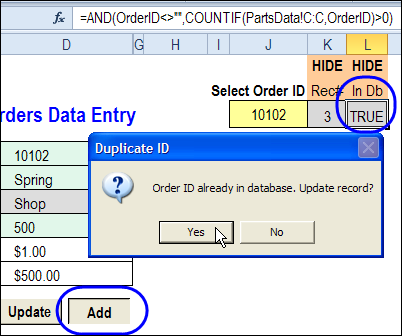
The other enhancement is a database check, when you click the Add or Update button. In a hidden column, a COUNTIF formula counts the selected Order ID occurrences in the database.
=AND(OrderID<>””,COUNTIF(PartsData!C:C,OrderID)>0)
If the Order ID is found in the database, the result is TRUE, otherwise the result is FALSE.
Warning Message
If you try to add an Order ID that already exists in the database, you’ll see a warning message, shown below.
- Click Yes, to update the record
- Or click No, enter a unique ID number, and click Add again.
Message – Not in Database
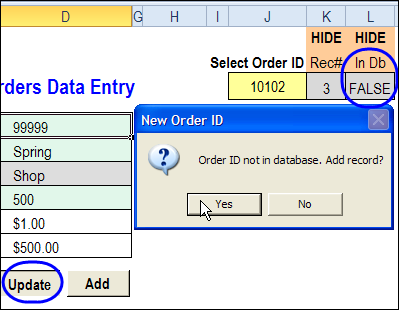
Or, if you try to update a record and it’s Order ID isn’t in the database, you’ll see a different warning.
- Click Yes to add the record, instead of updating.
- Or, click No, enter an existing ID number, and click Update again.
Download the Updated Form
To download the new version of the worksheet data entry form, please visit the the Data Entry and Update Form page on the Contextures website.
The download link is near the bottom of the page.
And if you have any ideas for future improvements, please let me know!
More Articles on the Worksheet Data Entry Forms
Website pages With Sample Files
Data Entry Worksheet Form – Basic
Worksheet Data Entry Form – Enhanced
Blog Posts
Worksheet Data Entry Form in Excel
Edit Records in Excel Worksheet Data Entry Form
New Improved Excel Data Entry Form
How to Customize the Excel Data Entry Form
Delete Orders with Excel Data Entry Form
________________________
Do You Excel in the Kitchen?
These days, I don’t have to cook too often, but company is coming tonight. So, I dug out a slow cooker recipe, and got ready to brown the meat.
My Excel Apron
Of course, I didn’t want to end up with oil spattered all over my work clothes (shorts and a t-shirt), so I grabbed the apron that my daughter made for me.
As you can see in the picture below, this is proof that I’m an EXCEL-lent cook, but not very good at ironing.

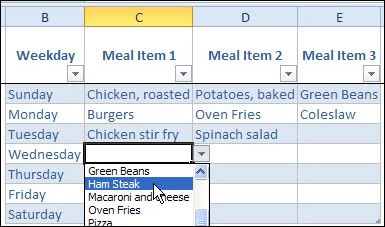
Excel Meal Planner
If you want to Excel in the kitchen, but don’t have a fancy apron like this one, you can use my Excel meal planner.
It includes a recipe selector tool, thanks to Jimmy Peña, so you can search the web for recipes.
Then, pick your meals for the week, and print the shopping list for those meals.
Holiday Dinner Planner
For special occasions, like Canada Day, or July 4th, you can use the Excel holiday dinner planner to organize a meal for a large group, or a fancy dinner for friends.
How long does it take to barbeque a package of hot dogs, and defrost an apple pie?
Dinner on the Stove
And in case you were wondering, here is the dinner that I was browning, when I had to grab that apron.
It smells great, or should I say “Excellent!”, as it simmers in the slow cooker, so I hope the company enjoys it.

___________________
How to Collect Excel Tips in Pinterest
Unless you’ve been living in a cubicle, buried under a pile of budgeting worksheets, for the past year, you’ve heard about the Pinterest website.
Some people think that it’s a site for the ladies only, where you can plan a wedding, drool over food photos and learn crafty things.
Well, those people are wrong! Weddings, food and crafts make up less than 97% of the Pinterest content. 😉
Ignore the Fluff
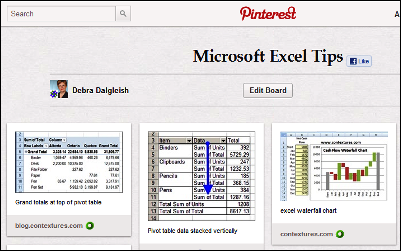
The good news is that you can ignore all the cute, fluffy stuff, and use Pinterest to visually organize your own interests – like Excel tips.
Then, when you want to find a tip later, you can scan your Pinterest board, to find the tip’s screen shot. Click on it, to go to the original Excel tip article.
New Way to Bookmark
In the old days, you could bookmark a website in your browser, then try to find it again, by looking through a long list of web browser bookmarks. And that only worked if you remembered the name of the site that you were looking for.
I find it much easier to spot an image in Pinterest, than the name of an obscure blog post in my Firefox bookmarks.
How to Get Started in Pinterest
You’ll have to request an invitation to join Pinterest, but it shouldn’t take long to get the confirmation email. And they obviously aren’t too picky about who joins, because they let me in!
Once you have your invitation, register at the site, and check out their Getting Started page, for the basic instructions.
Set Up Your Excel Tip Boards
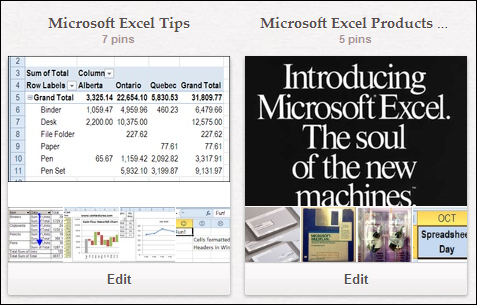
When you join Pinterest, there are some default categories that you can use to group your pinned items. It’s strange, but there aren’t any default Excel categories, so you’ll have to create your own.
You can group everything in one category, such as “Excel Tips” or break them into narrower groups, like “Excel Charts” and “Awesome Pivot Tables”.
Pin Items to Your Excel Boards
Once you have your Pinterest boards set up, you can start adding items to them. I use the Pinterest bookmarklet, which makes pinning easy.
To get it, go to the Pinterest Goodies page, and scroll to the top. Drag the Pin It button to the bookmark toolbar in your web browser. I use Firefox, so the steps might be different in another browser.
iPhone App
You can also get a Pinterest app for your iPhone, and pin items that catch your eye while you’re out and about.
Then, when you find an Excel tip that you want to pin, click the Pin It bookmarklet.
- If you aren’t logged in, you’ll see the Pinterest login screen first.
- Then it will show all the images from the current page, and you can click on the image that you want to pin.
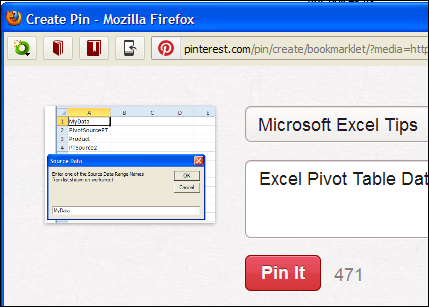
- Select a category, enter a description, and click the Pin button.
- You’ll see the pinned item in the board that you selected, the next time you check.
Follow Other Excel Tip Boards
Part of the fun of Pinterest is seeing what other people have pinned. You can follow a person, and see all their pins, or follow specific boards that you’re interested in.
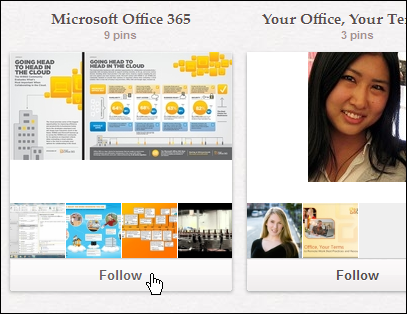
For example, if I search for Microsoft, in the People category, the Microsoft Cloud Services board comes up. I’m not interested in all their postings, but I’ll click “Follow” for the Office 365 board.
Contextures on Pinterest
I’ve set up a Contextures page on Pinterest, where I’ve got boards with different types of Excel tips.
You can follow my Contextures account, or just pick a few of the boards to follow, such as Excel Charts or Pivot Table Tips.
And if you start an Excel board, please let me know.
______________
Excel 2010 Conditional Formatting Nightmare
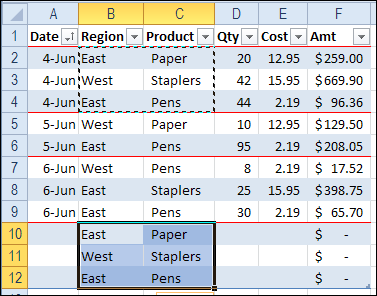
[Updated June 2018] I’m a big fan of Excel’s conditional formatting, and often use it to highlight cells on a worksheet. But this week I ran into a conditional formatting nightmare, and had to start from scratch. Fortunately, the fix didn’t take too long, but with complex formatting, things could have been much worse.
Continue reading “Excel 2010 Conditional Formatting Nightmare”
Sum Excel Rows Based on Text

Most of the time, if you’re summing numbers in Excel, a simple SUM formula will do the job.
It takes a little extra though, to sum Excel numbers in one column, based on text in a different columns.
Automatically Format an Excel File
Do you open the same type of Excel file every day, and make a few standard formatting changes, before you start to use it?
One of my clients was getting tired of manually formatting a daily list of customer information, and asked for some help.
Record a Macro
I suggested that she record a macro while formatting the file, and run the macro each day, when the new file arrives.
Other people in her company were in the same situation, so I set up a workbook with some fake data, and made a video, to show them the steps.
Excel Tips Too
I included a few Excel tips too, like using the F4 key to repeat the last action, and adding a button to the Quick Access Toolbar.
Watch the Record and Run a Macro video
If it’s something that you’d like to learn, or share with a co-worker (so they’ll stop asking you for help!), you can watch this short Excel video tutorial.
You could save time by automating some your daily tasks in Excel!
And by recording and editing a few macros, you’ll learn a bit about Excel VBA programming too!
_________________
Show Grand Total at Top of Pivot Table
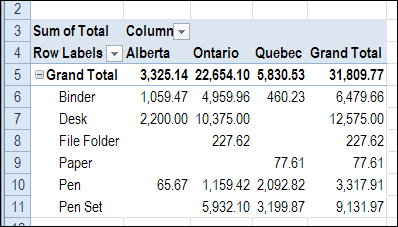
In a pivot table, you can choose to show or hide the grand totals, but you can’t change their position. However, with a quick and easy workaround (no programming required), you can show the grand total at top of pivot table, for rhe pivot table columns.