
You spend time setting up your worksheets exactly the way you want them – the headings are frozen at the top of the screen, gridlines are turned off, and a few other customizations are made. Beautiful!
Freeze Panes Disappear in Excel
When you open the file the next day, you appreciate all the effort that you put into setting things up. It’s much easier to work with the file this way.
A couple of days later, you cheerfully open your file again, and…what happened? All those special settings are gone. Nobody else has touched the file (or so they say), so how could all those settings have disappeared?
This occurred in John’s files occasionally, and he asked if I could figure out what was going wrong. Thanks John, for inspiring this blog post and video.
Blame the Windows
If this has happened to your files, you can probably stop grilling your co-workers, to find out who messed with your workbook. The most likely culprit is you – if you opened a second window in the workbook.
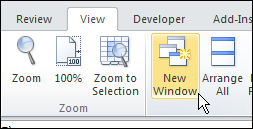
For example, you might open a second window to see the cell formulas in one window, and the formula results in another window. Or you can look at two different sheet in the same workbook, side by side.
Second Window Default Settings
What you might not notice though, is that the second window doesn’t retain the freeze panes, gridlines and other settings that you so carefully applied. It uses the default window settings.
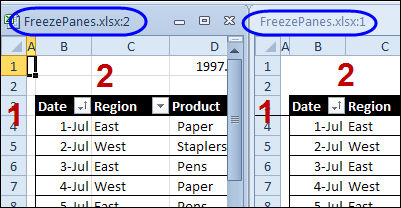
For example, in the screen shot below, the original settings are in the window at the right – FreezePanes.xlsx:1. The new window is at the left, and its window settings are different.
- Freeze Panes line missing in new window
- Gridlines visible in new window
Then, when you’re finished with the extra window, you close one of them. And, if you close the original window, instead of the second window, you’ll lose your window settings, and be left with the defaults. What a pain! Or should that be “what a pane!”
Close Windows Carefully
If you have opened one or more new windows in a workbook, be careful when you’re closing them. You’ll see a window number, along with the file name, in each window’s title bar.
Leave the original window (FreezePanes.xlsx:1) open, and close the other windows (FreezePanes.xlsx:2). That should prevent the accidental loss of your freeze panes, and other settings.
Watch the Window Settings Video
To see the steps for setting and preserving your Excel window settings, watch this short video tutorial.
_____________
Thanks a lot!!!!!
Thanks for keeping this up, this has been happening to my workbooks for quite some time and I could not figure it out.
My question now is, why hasn’t an enhancement been made to honor the settings in the workbook when a new window is opened?
VBA Code to set freeze pane when it is selected-
Private Sub Worksheet_Activate()
If ActiveWindow.FreezePanes = False Then
Dim oldSelection As Range
Set oldSelection = ActiveWindow.ActiveCell
Range(“V3”).Select ‘ <— Mention your desired location
ActiveWindow.FreezePanes = True
oldSelection.Select
Set oldSelection = Nothing
End If
End Sub