Print Numbered List of Excel Comments

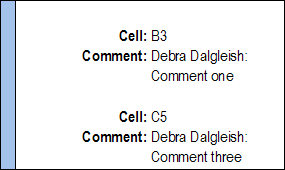
In Excel, there are two built-in options for printing comments. The first choice is to print them at the end of the worksheet.

For that selection, all the worksheet comments are listed in a single column, with labels to the left, as shown below.
CommentPrintEnd

Print As Displayed

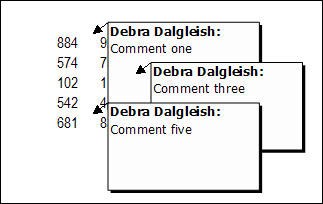
The other option is to print comments as displayed on the worksheet. Any comment that is currently visible on the worksheet will print, exactly as they appear on screen.

If you arrange things carefully, they’ll look okay, but with closely positioned comments things will look messy.
CommentPrintDisp

Print a Numbered List

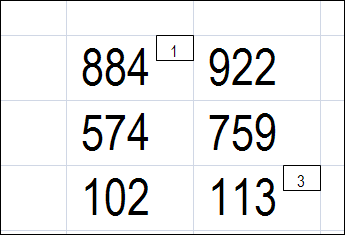
On my Contextures website, there is code that lets you show a number at the top right of each comment cell. These little rectangles cover up the red triangle that marks the comment cells.

This is a zoomed in view of the numbers.
zoomed in view of comment numbers

Macro to Print List

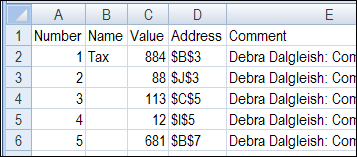
There is also sample code creating a numbered list of comments on a separate sheet. Thanks to Dave Peterson for writing that!
CommentPrintList

List Comments With Merged Cells

I avoid merged cells whenever possible, and hadn’t noticed that there was a problem listing comments that are in merged cells.

Someone contacted me last week, to see if there was a way to list those comment cells once, instead of listing all the cells in the merged area.

Here’s the list, using the old code. Cells A1:D1 are merged, and they’re all listed.
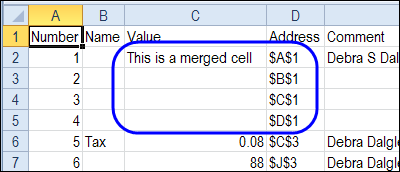
old macro - merged cell comment in numbered list
old macro – merged cell comment in numbered list

New Macro for Merged Cells

So, I’ve created a new procedure in the Excel 2007 file, and added a button to the worksheet. If your worksheet has merged cells with comments, use that button, for better results in the numbered list.

The code works with merged or normal cells, and also copies the number format from the source cell.

Here is the list created by the new code. There is only one listing for the merged cell, and the Tax cell shows the number formatted as a percentage.
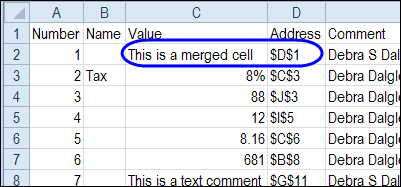
new macro - merged cell comment in numbered list
new macro – merged cell comment in numbered list

Download the Sample File

To download the sample file for Excel 2003 or Excel 2007/2010, go to the Number and List Comments section on the Comments programming page.

There’s sample code to add numbers, remove numbers and list the comments, and a zipped sample file that you can download.

The Excel 2003 numbering code didn’t work well in Excel 2007. The numbers didn’t appear in some boxes, and the boxes didn’t line up correctly in the cells. So if you’re using Excel 2007, be sure to download that version’s sample file

Both files contain macros, so you may get a warning when you open them. Enable the macros if you want to run the code.
_____________________________
Create an Excel Scenario Summary

Last week I updated the Excel Scenario page, and now I have added a video for the Excel Scenario Summary page. It shows the steps for creating an summary table ad a summary pivot table.

Static Reports

Unfortunately, both types of Scenario summary report are static, and they don’t update if the Scenario data changes.

Tip: If you create a Scenario Summary, be sure to date stamp it, or delete it before saving the workbook. You don’t want to keep potentially misleading data in your files.

Scenario Summary Formatting

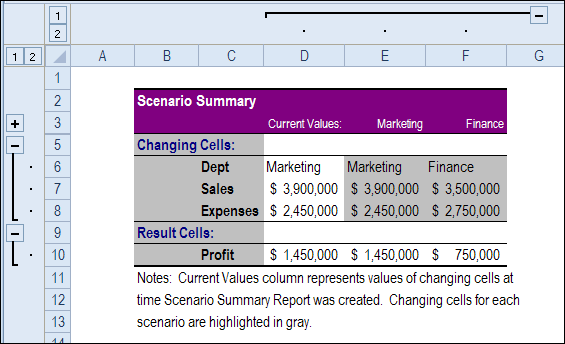
And the Scenario Summary formatting is about as ugly as Excel gets – purple and grey.

Maybe they’ll improve that in the next version! But don’t hold your breath — I doubt that it will ever be changed.

scenarios12b

Watch the Video

To see the steps for creating Scenario Summary, please watch this short video tutorial.

This video includes a tip for adding the Scenario command in the Excel 2010 Ribbon, so it is easy to switch between Scenarios.

More Tutorials

Here are links to 3 more Scenario tutorials, on my Contextures site:

Create and Show Scenarios – With Scenarios in Excel, you can store multiple versions of data, in the same cells

Automatically Show Scenarios – see how to use a macro to automatically show a Scenario, when you select its name from a drop down list on the worksheet

Scenarios Programming – Use these macros to create a list all the scenarios, or create new scenarios, or update the values for existing scenarios, from a list on the worksheet

______________________

Copy Code to Your Excel Workbook

You might find Excel code on this blog, or my Pivot Table blog, and want to copy it into your own workbooks.

I’ve updated my web page, Adding Code to an Excel Workbook, to show instructions for Excel 2010.

New Video

There’s a new video on that page too, that shows how to

  • copy Excel code from the internet
  • insert a code module in Excel
  • paste the code into the module
  • run the new macro
  • save the file as macro enabled

Video: Copy Excel VBA Code

You can watch the new video here too, if you’d like to see the steps.

In the video, the sample pivot table code was copied from the Excel Pivot Tables blog: Change All Pivot Table Value Fields to SUM

NOTE: For the Excel 2003 version of the Copy Code tutorial, please visit: Copy Code to Excel 2003 Workbook

Modify the Code

It’s not always so simple to copy Excel code, and use it in your workbooks. You might have to modify the code, by changing worksheet names, or cell references, to match what is in your file.

For example, if you copy my code for multiple selections from an Excel drop down, you might have your data validation cells in a different column. You could change the column number in the code, as shown in the following video.

Note: This code goes on a worksheet module, instead of a regular module.

_________________

Store Multiple Values With Excel Scenarios

If you’re working on the office budget, you might be collecting data from different departments.

Or maybe you’re planning your back to school spending.

  • If you get bonus at the end of your summer job, you can use some higher budget numbers.
  • If the bonus falls through, you’ll need your low budget estimates.

Store Data With Scenarios

With Excel Scenarios, you can store different sets of values (in up to 32 cells) in a workbook. Then, without any programming, you can switch between the saved values.

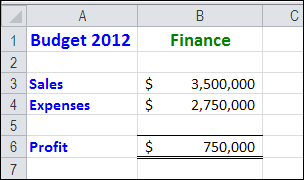
In this example, we store budget projections for two departments. View and print one department’s budget, and then switch to the other department, all in the same cells.

scenarios05a

Download the Sample File

To see the written instructions for creating scenarios, please visit the Excel Scenarios page on the Contextures website.

There is a sample file that you can download, to see how the Scenarios work.

Watch the Excel Scenarios Video

To see the steps for creating and showing scenarios, you can watch this short video tutorial. I also share tips for quickly naming cells, and automatically adding those names to your formulas.

sure to date stamp it, or delete it before saving the workbook. You don’t want to keep potentially misleading data in your files.

Scenario Summary Formatting

And the Scenario Summary formatting is about as ugly as Excel gets – purple and grey.

Maybe they’ll improve that in the next version! But don’t hold your breath — I doubt that it will ever be changed.

scenarios12b

Watch the Video

To see the steps for creating Scenario Summary, please watch this short video tutorial.

This video includes a tip for adding the Scenario command in the Excel 2010 Ribbon, so it is easy to switch between Scenarios.

More Scenario Tutorials

Here are links to 3 Scenario tutorials, on my Contextures site:

Create and Show Scenarios – With Scenarios in Excel, you can store multiple versions of data, in the same cells

Create Scenario Summaries – After you create 2 or more different Scenarios in Excel, use a Scenario Summary to show an overview of the data. This is a static report that is designed to show the Scenario data at a moment in time.

Automatically Show Scenarios – see how to use a macro to automatically show a Scenario, when you select its name from a drop down list on the worksheet

Scenarios Programming – Use these macros to create a list all the scenarios, or create new scenarios, or update the values for existing scenarios, from a list on the worksheet

____________________

Excel Dashboard High and Low Values

My clients sometimes ask for help with building Excel dashboards, so they can present a summary of their data to their customers and co-workers.

In a dashboard, you want to make the best use of limited space, and only show key information. For example, instead of showing all the sales data, you can show just the highest and lowest values.

MIN and MAX Functions

It’s easy to pull the top and bottom values from a list, by using the MIN and MAX functions. It’s a little trickier though, if you want to show the high and low amounts for a specific product in a long list.

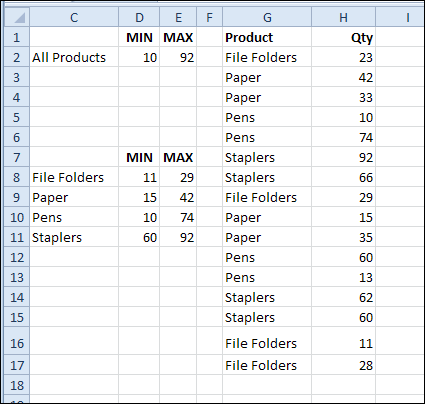
In this example, I want to calculate the MIN and MAX for each product, then put that information on the dashboard

Create a MIN IF or MAX IF formula

There’s no built-in MINIF or MAXIF function, but you can use MIN or MAX with the IF function, to create your own. The steps are shown in the video, at the end of this article.

First, to get the minimum quantity sold for File Folders, the array formula in cell D8 is:

=MIN(IF($G$2:$G$17=C8,$H$2:$H$17))

After you type the formula, press Ctrl + Shift + Enter, so it is array entered.
The same technique is used in cell E8, with MAX, instead of MIN:

=MAX(IF($G$2:$G$17=C8,$H$2:$H$17))

minmaxminifmaxif01

Excel Dashboard Course

If you’d like to add dashboard skills to your Excel tool kit, I recommend the upcoming Excel Dashboard Course offered by Mynda Treacy from My Online training Hub. Mynda is an accountant, and her dashboards focus on the numbers, not the fluff.

There are 9 sessions in the course, with video tutorials that are short and to the point. They cover the key steps and features, and you can practise the techniques in the sample files. Replay the videos as often as you need, for up to 12 months. The course includes 6 weeks of support from Mynda, so you can post questions, read comments, and ask her to review your completed dashboard.

This course is not for Excel beginners, because the fast pace could be overwhelming. Lots of material is covered, very quickly. And, if you’re already a dashboard expert, you won’t need this course. It’s designed for Excel users who are beyond the basics, and who enjoy learning by seeing a demo, then practising the new skills.

You can see the course details and a sample video here: Excel Dashboard Course

Registration is only open for two weeks, until August 14th, so don’t wait!

Watch the Min and Max Video

To see the steps for creating MIN, MAX, MIN IF and MAX IF formulas, please watch this short video tutorial.

_______________________________
Control Budget With Excel Data Validation

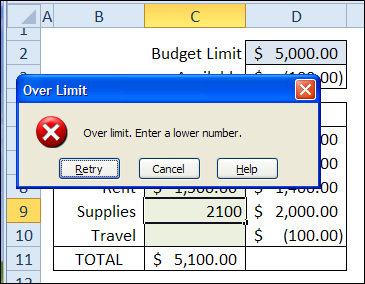
If you’re building a budget in Excel, you can limit the total amount that is entered, to help prevent anyone from going over budget.

I shared this tip a few years ago, in this blog post: Limit the Total Amount Entered in Excel

data validation custom error message - over limit
data validation custom error message – over limit

New Features

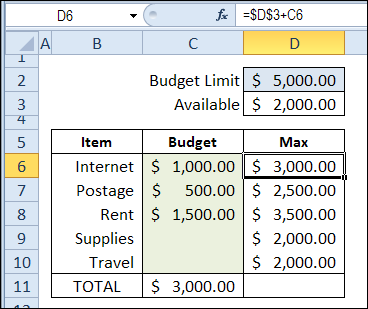
In the new version, I’ve added a few more features, to help you fill in the correct amounts.

  • Below the Budget Limit, in cell D3, you can see the amount that hasn’t been added to the budget yet.
  • In column D, you can see the maximum amount that can be entered in each row, based on the entries in other rows. This makes it easier to adjust individual items, while you finalize the budget.
data validation in cell D2 limits budget amount

And remember, data validation isn’t foolproof, so you’ll still have to check those budgets, to make sure nobody is trying to get a little extra!

Download the Sample File

To see the formulas, and test the data validation, you can download the sample budget from my Contextures website.

Go to the Sample Excel Files page, and in the Data Validation Section, look for DV0058 – Limit Budget Entries with Data Validation.

Watch the Budget Limits Video

To see the steps for setting up the data validation and formulas, to set the budget limits, you can watch this short video tutorial.

_______________________________________
Line Between Dates in Filtered List

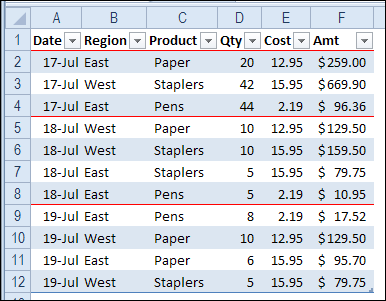
A while ago, I showed you how to add a red border at the top of a row, when a new date starts in a list.

You can read those instructions here: Separate Excel List with Automatic Lines.

Line Between Dates in Filtered List

Conditional Formatting Problem

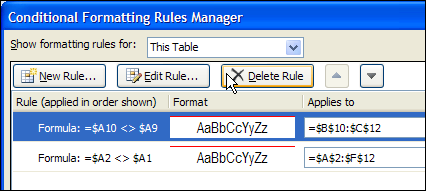
And if you’re using this technique, remember the painful lesson that I learned – don’t copy and paste within a table that has conditional formatting.

You could end up with an Excel 2010 Conditional Formatting Nightmare. And nobody wants that!

conditional formatting duplicate rules problem

Lines Disappear in Filtered Lists

Recently, I heard from Lon, who liked the tip about red line borders. But Lon noticed a problem – the line didn’t always show if the list was filtered.

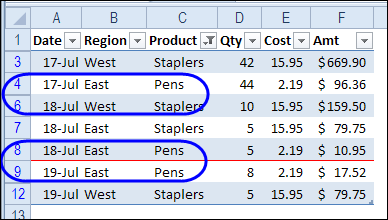
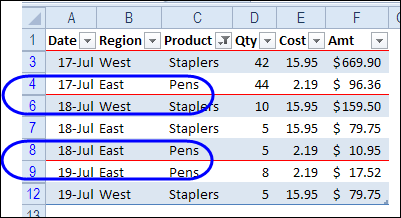
For example, if we filter the Product column, to hide Paper, the red borders for some of the dates disappear.

Lines Disappear in Filtered Lists

I hadn’t noticed the problem, because my list is usually filtered by date, to show only the latest month’s data. Since the conditional formatting is based on the date column, it would continue to work correctly.

But we can change the conditional formatting, so it works in a filtered list.

Change the Formula for Filtered Lists

To make the conditional formatting work in a filtered list, we can’t use the original formula, which was

=$A1<>$A2

That formula just compares each date to the date above it, and doesn’t care if the rows are hidden or visible.

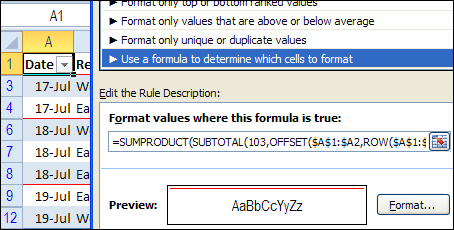
Instead, we’ll use a formula that was created by Laurent Longre. It lets you work with visible rows after a filter. For information on this formulas, read the Power Formula Technique section, in this article at John Walkenbach’s web site: Excel Experts E-letter

Here is the much longer formula that we can use, to compare dates in the visible rows only.

=SUMPRODUCT(SUBTOTAL(103,OFFSET($A$1:$A2,ROW($A$1:$A2)
-MIN(ROW($A$1:$A2)),,1)), –($A$1:$A2=$A2))=1

Note that there are two minus signs in front of the last open bracket – it’s not a long dash.

ConditionalFormatFiltered03

Date Separator Lines Show When Filtered

With the new formula, the red lines separate the dates, even if the list is filtered. In the screen shot below, the Product column is filtered to hide Paper, but the date line for July 18th shows up.

Date Separator Lines Show When Filtered

Download the Sample File

There is another example of this type of formula on my Contextures website – Count Visible Items in a Filtered List.

And you can download the sample file used in this blog from the Contextures Sample Excel Files page. In the Conditional Formatting section, look for CF0004 – Conditional Formatting in Filtered List. The zipped file is in Excel 2007/2010 format, and contains no macros.

_________________

Excel Books for Beginner to Intermediate

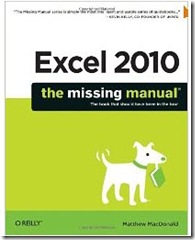
excel2010_missingmanual Stephan emailed me recently, and asked what books I’d recommend for an advanced beginner and for an intermediate user.


On the Contextures website, I’ve got a list of Excel books. They range from books for absolute beginners, to specialized books on statistics and financial modelling.

Book Suggestions

Here are the advanced beginner books that I suggested to Stephan – do you agree with these choices?

You might find these at your local library, or a nearby bookstore

  • Excel 2010: The Missing Manual; Matthew
  • MacDonald; ISBN: 1449382355; 898 pages; 2010; US$39.99
  • Microsoft Excel 2010 Step by Step; Curtis Frye; ISBN: 0735626944; 480 pages; 2010; US$29.99
  • Slaying Excel Dragons: A Beginners Guide to Conquering Excel’s Frustrations and Making Excel Fun; Mike Girvin, Bill Jelen; Holy Macro! Books; ISBN: 978-1615470006; 532 pages; 2011; US$29.95
  • Excel 2010 All-in-One For Dummies; Greg Harvey; ISBN: 0470489596; 792 pages; 2010; US$

Check the Contents

If you’re book shopping online, before you buy an Excel book on Amazon, use the “Look Inside” feature, if available, to see what the writing style is like, and check the table of contents.

The quick peek will give you a general overview of the book, and could help you decide if the book is right for you.

image

Read the Reviews

The customer reviews can be helpful too – both the negative and positive ones. Sometimes another person doesn’t like a book because it’s not for absolute beginners, and that might be a positive thing for you

. And there’s always the possibility that some of the glowing reviews were written by the author’s mother or friends! 😉

image

If you can get to a bookstore, you can flip through the Excel books there, and head home with a few that you like.

It sometimes costs a bit more than shopping online, but it’s worth it, to find the books that are best suited to your needs and learning style.

And it’s good to support your local businesses!

__________