
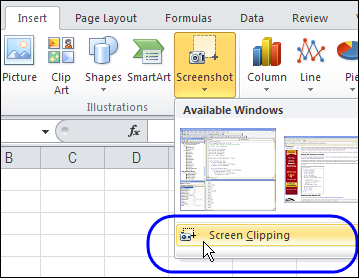
After all the fun with SmartArt charts last week, I finally noticed the Screenshot command, that’s right beside SmartArt. With the Screenshot command, you can capture an image of an entire window, or use Screen Clipping for a smaller image.
Get Rid of Number Signs in Excel
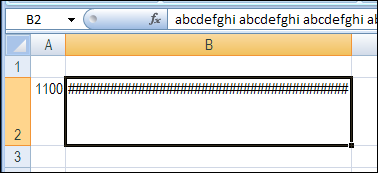
In your early days of working in Excel, you probably saw the occasional cell full of number signs (you might call them pound signs or hash marks). Here’s what you can do to get rid of number signs in Excel.
Prevent Invalid Entries in Excel UserForm
In an Excel UserForm, you can use combo boxes, to show users a drop down list of items. If all goes well, the users will select an item from the list, and life will be good.
However, the occasional user likes to get creative, and types an entry that isn’t in the drop down list. And that can cause problems!
To restrict those creative users, you can set the MatchRequired property for the combo box to True.
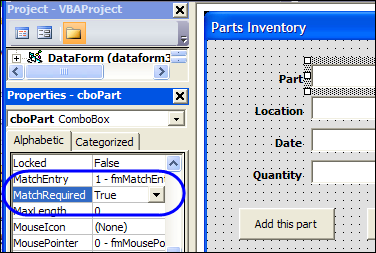
Add a Select Item
Changing that MatchRequired property can cause problems though. In this example, the Excel VBA code also tries to clear out the combo boxes, after adding an order to the parts database sheet.
Because an empty string isn’t a valid entry, an error message appears — “Invalid Property Value”.
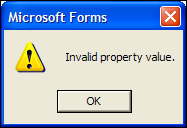
To prevent that error from appearing, you can add “Select” as the first item in the drop down list, and reset the combo boxes to that item, instead of clearing them out.
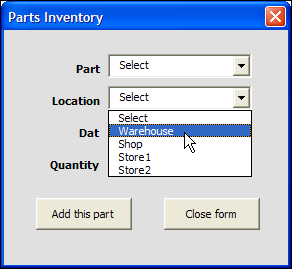
Download the Sample Combo Box Workbook
To download the sample file, go to the Excel Templates page on my Contextures site. In the UserForms section, look for UF0026 – Prevent Invalid Entries in UserForm.
The file is in Excel 2003 format, and zipped. Enable macros after opening the workbook.
Watch the Excel UserForm Combo Box Match Video
To see the steps for changing the MatchRequired setting, and editing the code, you can watch this short Excel video tutorial.
_________________
Delete Excel Drilldown Sheets Automatically
With the pivot table Show Details feature in Excel, a new sheet is inserted when you double-click on the value cell in a pivot table.
It’s a great feature for drilling into the details, but you can end up with lots of extra sheets in your workbook.
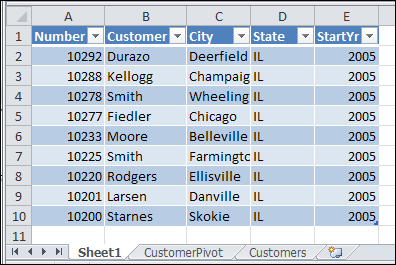
Usually, you don’t want to save the sheets, so you manually delete them before you close the file.
Automatically Name the Sheets
With event code on the pivot table’s worksheet, and in the workbook module, you can add a prefix – XShow_ – when these detail sheets are created.
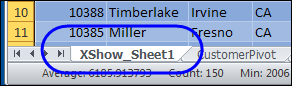
That prefix should make the sheets easier to find and delete.
Automatically Delete the Sheets
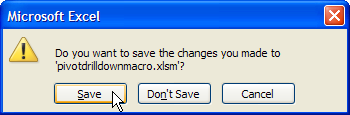
To make the cleanup task even easier, you can use event code to prompt you to delete those sheet when you’re closing the workbook.
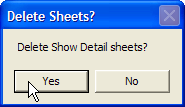
If you click Yes, all the sheets with the XShow_ prefix are deleted. Then, click Save, to save the tidied up version of the workbook.
See the Drilldown Sheet Code
For detailed instructions on adding the drilldown sheet naming and deleting code, visit the Excel Pivot Table Drilldown page on the Contextures website.
Download the Sample Drilldown File
To see how the event code names the sheets, and deletes them when closing, you can download the Pivot Table Drilldown sample file.
________________
Do Not Build This 3-D Chart in Excel
My eyes are still burning from this experiment, so read on at your own risk!
Last week, you saw this book cover, here on the Contextures blog. I asked if you, as the author, would approve the cover artwork.
Excel Power Utility Pack Sale Phase 2
This product is no longer available.
For the latest Excel courses, Excel books and Excel tools, go to the Debra’s Excel Picks page, on my Contextures website

Show UserForm When Excel File Opens
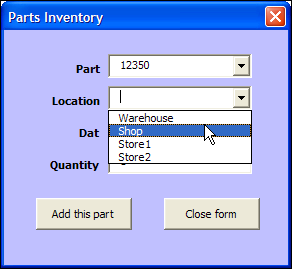
To help users enter data in a workbook, you can create an Excel UserForm, with text boxes and combo boxes. Then, with a quick bit of code, you can show UserForm when Excel file opens, so the form is easy to find and use.
Would You Approve This Excel Book Cover?
There is a list of Excel books on my Contextures website, and it hasn’t been updated recently. Today, I checked Amazon, to see what new and exciting Excel books had been released, so I could start adding them to the list.
New Excel Book
There’s a book – Excel 2010 Made Simple, by Abbott Katz — with a release date of May 31, 2011, from Apress, the publisher of my pivot table books.
Amazon lists the book as “not yet released”, but they show the cover, which you can see below.
Excel Charts Chapter
One of the chapters is on Excel charts, and the book blurb promises that you’ll learn “How to create colorful, meaningful charts”.
I hope the cover chart was selected by someone in the Apress marketing department, and not the author!
Missing Books
I’ll be updating the list of Excel books over the next few weeks, so if you know of any recent books that are missing from the list, please let me know, so I can include them. Thanks!
Make a Simple Pie Chart
And if you do need to make a pie chart in Excel, for a business report, or for the cover of your next book, keep it simple!
This video shows how to make a basic pie chart in Excel, then add formatting, labels, and other features. Use your Excel charting powers for good, not evil!
Excel Chart Links
If you want to learn more about Excel chart, but not the 3-D rainbow-coloured kind, check out the tutorials at the following links:
Box Plot Chart (Box and Whisker)
____________
Excel Weight Tracker Metric
Last year, you might have seen the Excel Weight Loss Tracker workbook that I posted, which used inches and pounds as its measurements.
Even though we use the metric system in Canada, we still track our weight in the Imperial system. (I’m not sure why.)
Stone/Pound Version
In May 2010, I posted the weight loss tracker in a Stone/Pound version, for the people who use that system.
Note: Please consult your doctor for recommended target weight and weekly weight loss goals. This workbook is designed as a recording tool only, based on the goals that you set with your doctor’s advice.
[Update] The latest version of this workbook lets you select pounds or kilograms as the measurement. To download, see the link at the end of this article.
Metric Weight Tracker
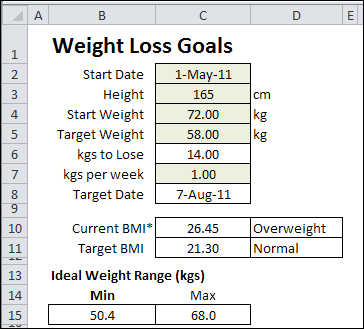
If you’d prefer to track your weight using the metric system, you can download the latest version, which uses kilos. In this version, you can enter your height in centimetres, and your weight in kilograms.
The BMI and ideal weight range are calculated based on those measurements.
The good news is that your weight is a lower number in kilograms, compared to pounds. The bad news is that your pants don’t fit any better!
Download the Excel Weight Tracker Metric
You can download a zipped copy of the Excel weight loss tracker, and try it for yourself.
The sheets are protected, with the green cells unlocked, and there’s no password on the worksheets.
There are versions for Excel 2007/Excel 2010, and Excel 2003 on the Contextures website: Excel Weight Loss Tracker
And remember, I’m not a trained medical professional, so check with your doctor for personalized weight management advice.
_____________
Multi-Column Excel Combo Box
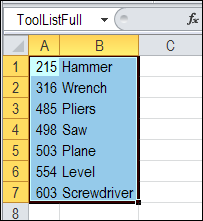
With Excel VBA programming, you can add a Combo Box to the worksheet, to show a data validation list. Usually a single column combo box is enough, like this list of weekdays, but sometimes a multi-column Excel combo box is better.