Excel Worksheet Buttons Cause Problem

Last week someone sent me an Excel file that was having problems – it wouldn’t save properly, and there were a few other strange behaviours. The file had been working well for a few years, but recently started acting up.

The file was used in a factory, where the technicians filled in data, and printed the file, a few times each day. To print, they clicked a button on the data entry sheet. A macro printed the data entry sheet, copied the latest data to a storage sheet, and cleared the data entry cells.

Danger!

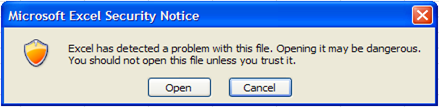
When I tried to open the file, Excel 2010 warned me that the file could be dangerous – not a good sign!

I ran the file through my virus scanner, and nothing malicious was found, so I opened the file in Excel 2003. No complaints from that version.

Excel Security Notice

What’s Hiding Under There?

When I switched to the storage sheet, there was some mysterious flickering, 2 buttons, and a partially covered button. I moved all 3 buttons, to see what was under them. Surprise! There were more buttons, and below those, more buttons.

With a bit of code, I did a quick count of the buttons on that worksheet.
Debug.Print ActiveSheet.Shapes.Count

Under the 3 visible buttons, there were almost 7000 buttons. Yikes!

Every time the original data was copied and pasted onto this sheet, the 2 original buttons were being copied and pasted on top of the previous buttons. No wonder the workbook was having problems!

Fix the Problem

To clean up the storage sheet, I deleted all of the buttons, except one copy of each.

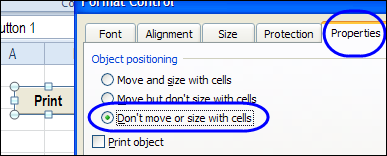
Then on the data entry sheet, I changed the button settings, so they don’t move or size with the cells.

  1. Right-click on the button (these are buttons from the Form Control toolbox)
  2. Click Format Control
  3. On the Properties tab, select ‘Don’t Move or Size with Cells’, and click OK

buttonmovesize

Now, if the data entry sheet is copied and pasted, the buttons won’t be included.

If you’re copying and pasting cells, day after day, remember to check the settings for any buttons, or other shapes, that are on those cells. Don’t get buried under a mountain of buttons!
__________

Delete Orders with Excel Data Entry Form

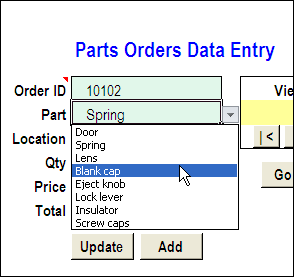
Long ago, Dave Peterson created an Excel worksheet data entry form, so you could enter records on one sheet, and store the data on another sheet. Then, you can hide the data entry sheet, so users don’t accidentally change any of the old records.

Form02

There have been a few version of the data entry form file, including the the previous version, in which you could also update the selected record. This way, the data sheet can still be hidden, but users can make changes to the existing records.

dataentry04

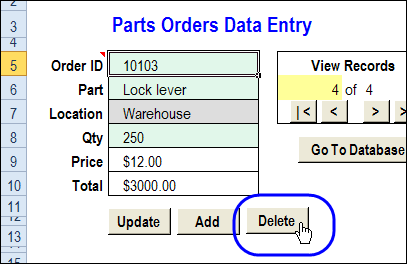
Delete the Current Record

In a comment, Bryan asked for a Delete button too. In this new version, that feature is added. (Thanks, Bryan, for the suggestion!) Use this version if you really trust your workbook users – and keep good backup files!

dataentry12

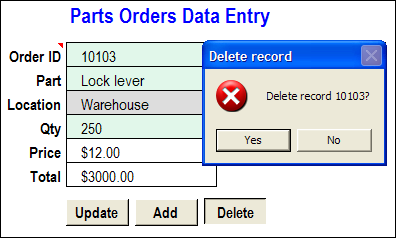
When you click the Delete button, a message appears, asking you to confirm that you want to delete the record.

dataentry13

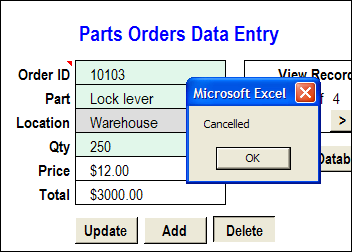
If you click No, the deletion is cancelled.

dataentry14

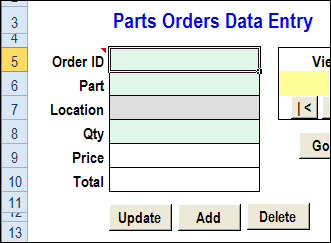
If you click Yes, the record is deleted from the database worksheet, and the data entry cells are cleared.

dataentry15

Download the Worksheet Data Entry Form

To see how the data entry form works, you can go to my Cotextures website, and download the Worksheet Data Entry Form sample file.

The file is in Excel 2003 format, and is zipped. After you unzip the file and open it, enable macros, so you can use the worksheet buttons.
_____________

Quickly Save Excel Files from Outlook

This might be more of an Outlook tip, but I get a lot of Excel attachments in my Outlook email messages. Most of those files have to be saved, and it seems to take forever for the Save As window to open. Okay, my stopwatch says it’s about 9 seconds – but it seems like forever!

When I’m working, I usually have Windows Explorer open, so I can open and copy the files from there.

I finally discovered that I can drag an attachment directly from an Outlook email into a folder in Windows Explorer.

Drag and Drop to Save Time

For example, here’s a very important Fall TV schedule file that my daughter sent to me.

  • In Outlook, I point to the attachment’s file name,
  • Drag the file onto the Window Explorer window
  • Drop it into the folder where I want to save it.
drag and drop Excel file

If there are multiple attachments, right-click on one, and click Select All. Then drag all the files to Windows Explorer.

Now, instead of 9 seconds, saving an Excel attachment takes 2 seconds. Not much, perhaps, but it adds up, over the course of a week.

And I’m sure this tip works for other types of files too, but who cares about those? 😉
___________

Excel Drop Down Lists for Country and City

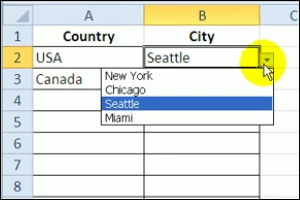
In Excel, you can use data validation to create drop down lists on a worksheet. Usually, a simple list is all that’s needed, to make it easier for people to enter the correct data. This example is a bit more complicated, and has 2 drop down lists, one for country and one for city.

Continue reading “Excel Drop Down Lists for Country and City”

Excel Custom Views Tricks

iconcustomviews We took a look at Excel Custom Views last week, and used them to filter data, and hide or show columns. The Custom Views make it easier to print weekly reports, with different layouts for each version – all in a single file, with no macros.

Here are a few Custom Views tricks that you can use. But remember, Custom Views don’t work if there are named Excel Tables in the workbook

Continue reading “Excel Custom Views Tricks”

Quick Reports With Excel Custom Views

In an Excel file, you might need to change the layout, before you print a report. For example,

  • in a customer report, the pricing columns are hidden.
  • for a supplier report, you filter for a specific product, and hide some columns.
  • for your internal reports, all the columns and rows are visible.

Continue reading “Quick Reports With Excel Custom Views”