
You probably know how to quickly copy Excel formula down a column, if there is data in the next column. But how can you do the same thing, if there are blank rows?
Problem Copying a Formula Down
Recently, I saw this tweet, from someone stuck on an Excel problem:
- An Excel problem I have never solved – easily copying a formula down tens of thousands of rows where the row next to it may be blank.
Fill Down Beside Filled Cells
Yes, it’s easy to copy a formula down a column, if the adjacent column is filled. Follow these steps to copy the formula down to the first blank cell in the adjacent column.
- Select the cell with the formula
- Point to the fill handle, at the bottom right of the selected cell
- When the pointer changes to a black plus sign, double-click the fill handle
The formula will automatically copy down to the last row of data.
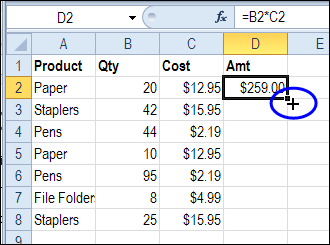
Fill Down with Empty Adjacent Column
However, if the adjacent column is empty, this fill handle trick doesn’t work. How can you quickly enter formulas in a column, if you’re setting up a workbook, with lots of empty cells?
Here’s how I do it – maybe you have another trick to do the same thing:
- Select the cell with the formula
- Click in the Name Box, and type the range where you want the formula entered. In this example, the formula is in cell D2, and it should go down to cell D2000.
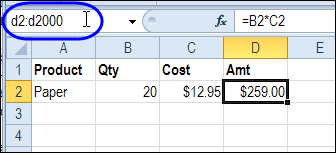
- Press the Enter key, to select the range of cells
- On the keyboard, press Ctrl + D, to fill the formula down through the selected cells.
More Data Entry Tip
For more data entry tips, go to the Data Entry page on my Contextures website. There are written steps, screen shots, and videos.
And there are more shortcuts on the Excel Double-Click Tips page too.
_________
If formula
When I copy the if formula into many adjacent cells it does not work
I use absolute reference to lock the column header
In my first reporting column
The formula picks up data from a column to the left
I end up writing the if formula in all columns
I feel that a copy and paste approach should work
Pivot tables work
But I want to instantly visualise the result in the relevant column
Many thanks for a brilliant resource
How do I copy up
Thanks for the help, it will save me many minutes of dragging formulas down thousands of rows!
Debra, thank you so much for posting this.
It may now be four years later, but that is some shortcut!
I knew about the double-click but I have a database which has formulas in A2:Y2 (referring to data in another sheet) which I needed copying down to row 127541!
Putting A2:Y127541 in the “Name” box and hitting Enter followed by Ctrl-D did exactly what I needed.
You are a star!
Thank you!
David, you’re welcome, and thanks for letting me know how the tip helped you.
YOU ARE AMAZING! I researched formulas-functions for a week. Couldn’t get any of them to correct the #NAME,etc! Almost gave up until you showed =PRODUCT as a function ( and how to do it)- WOW Your explanations are so clear and extremely workable. When do you open the Debra Dalgleish “online University”? Your webpages and connections are fine examples of HOW THEY SHOULD BE as an instructional format. With sincere APPRECIATION, Roth l.
Thank you! I’m glad the blog post helped you, and thanks for taking the time to let me know.
Was struggling to resolve this problem of copying formulas down a column adjacent to an empty column. Your solution was perfect.
Thank you!