Excel Fortune Cookies: Friday Fun

image Have you done this? After lunch in a Chinese restaurant, everyone grabs a fortune cookie, and reads their fortune aloud.

And, at the end of the printed fortune, you add, “in bed.” Maybe it’s just the groups that I hang out with, but we find this hilarious.

Fortune Cooke Game

This week, when typing, I added “in Excel” at the end of the line. That reminded me of the fortune cookie game, and it seemed like a great new version for the office crowd.

So, the next time you’re reading those fortune cookies, end with “in Excel” instead of “in bed”. Your co-workers will think that you’re a comedic genius (probably)!

Sample Fortunes

Here are a few sample fortune cookie fortunes, to get you started – in Excel.

  • A pleasant surprise is waiting for you.
  • Accept something that you cannot change, and you will feel better.
  • Practice makes perfect.
  • Stop searching forever, happiness is just next to you.
  • The smart thing to do is to begin trusting your intuitions.
  • You are admired by everyone for your talent and ability.
  • Your infinite capacity for patience will be rewarded sooner or later.

And if you have any other Excel enhanced fortunes, please add them in the comments.
___________

Change Excel Formula Results With CheckBox

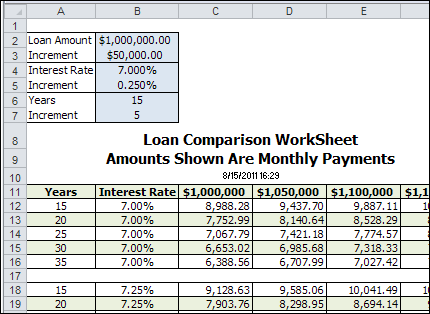
You spent hours creating an impressive table of loan payment calculations. Different loan amounts are across the top of the table, and a variety of terms and interest rates are at the left side.

At a glance, you can see the monthly payment for any combination of variables. Sweet!
loancheckbox01

Then, your boss breaks your magical spell of awesomeness, by asking you to include the total payments for each combination.

Sure, you could copy that sheet, and tweak the formulas, or add more columns, but then the workbook is

  • double the size, and
  • twice the maintenance.

Use a CheckBox

Thanks to Dave Peterson, there’s a new tutorial and sample file on the Contextures website – Excel Formula CheckBox. Instead of duplicating your work, and creating multiple sheets, you can solve the problem with a simple checkbox.

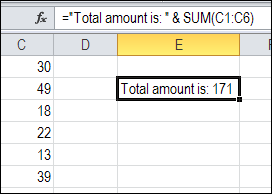
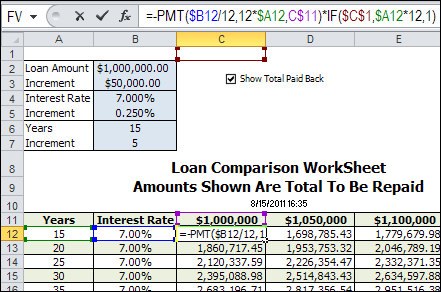
A checkbox at the top of the worksheet is linked to cell C1. If the box is checked, C1 is TRUE, and if it’s not checked, C1 is FALSE.

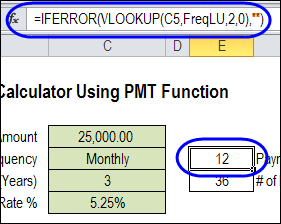
The loan payment formulas are modified, to include a reference to cell C1. The the box is checked, the monthly payment is multiplied by the total number of payments. The loan payment table shows the total amount to be repaid, instead of the monthly payment.
loancheckbox02

Other Uses for CheckBox Formulas

Of course, this technique isn’t limited to loan payment tables. You can use a checkbox selector in other workbooks too — for example, let users specify if tax should be included, or check the box if they want to see prices converted to US dollars.

Do you have any other ideas for changing the formula results with a checkbox?

Download the Sample File

For the detailed instructions, please visit the Contextures website – Excel Formula CheckBox. You can download the sample file there too.
___________

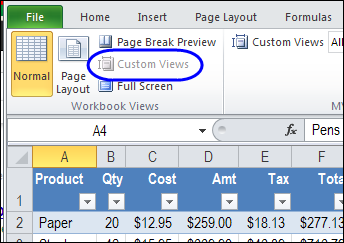
Table of Contents for Long Excel Sheet

In the comments for my post on creating a table of contents in Excel, Eden asked: “Can I create a content page within one worksheet? I have one worksheet and it is very long.” Good idea! A short table of contents at the top of a worksheet would make it easy to find specific sections on a long worksheet. Here are the steps for setting that up.

Continue reading “Table of Contents for Long Excel Sheet”

Excel Economic Data Add-in: FRED

image How bad is the economy? With FRED, the free Excel add-in from the St. Louis Federal Reserve, you can easily download and and analyze economic data.
Install the Add-In

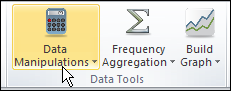
Just download and install the FRED Excel Add-in, then select and download data. Then, start your analysis:

  • choose a data manipulation (i.e., growth rate)
  • specify a date range (i.e., 1960:Q1 to 2010:Q4)
  • aggregate data to lower frequency (i.e., weekly to monthly)
  • search for data, and
  • browse the most popular data series.

Getting Started

If you’re not familiar with the FRED website, take a quick look at the FRED Add-in’s user guide, to help get started.

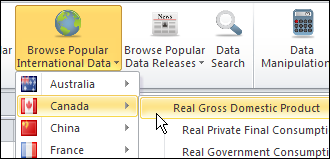
The key to pulling data is to enter a series name, so if you don’t have those memorized, select one of the Popular Data options, to get its Series ID.

FRED03

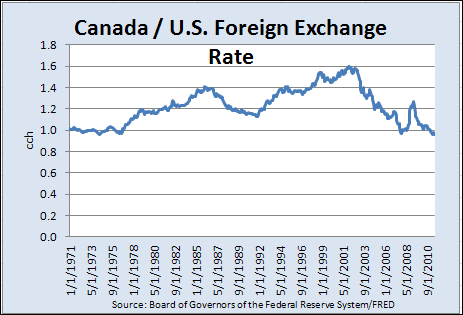
Or, use the Data Search button to find the series that you need. For example, I clicked the button, then typed Canada as the search term. This took me to the FRED website, showing a list of economic data series.

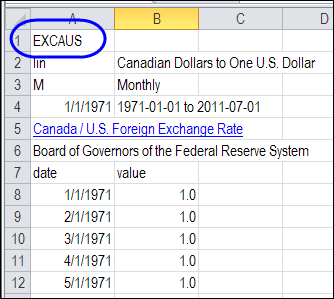
I found one that looked interesting, and pasted its ID into cell A1 on the worksheet.

Pull the Data

After you’ve entered a Series ID in cell A1, you can enter a Data Manipulation code in B1 and Frequency Aggregation code in cell C1. Or, leave those cells blank.

FRED04

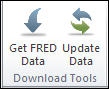
Click the Get FRED Data button, and the data downloads onto the worksheet – ready to analyze.

FRED01

Make a Chart

The FRED Add-in makes quick charts too – just click the Build Graph button, after you download the data.

FRED02

Have You Tried FRED?

Have you used the FRED Add-in for Excel? Did you like it? Wish it had more features? The FRED website talks about adding more features in future versions, so if you have some ideas, let the FRED people know!

______________

Excel Loan Payment Calculator

Can you afford that new car? Or maybe you loaned money to one of your kids, and you want to calculate a repayment schedule. (Oh yes, they will stick to the plan, without fail.)

To help you figure out the payment amounts, here is a nifty Excel loan payment calculator. (The kids will think you’re cool when you say “nifty”.)

Continue reading “Excel Loan Payment Calculator”

Excel Filter Macro: Shark Week

It’s hard to believe that Excel Advanced Filter Week is almost over. I hope that the three filter-feeding shark species, and you, have enjoyed this tribute to Discovery Channel’s Shark Week.

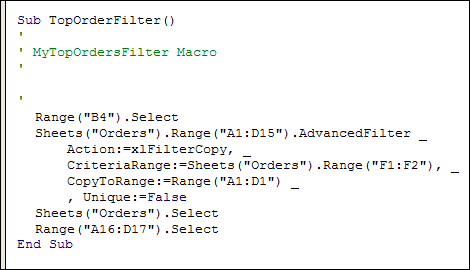
Today, we’ll see how to record a macro while using the Advanced Filter, and edit that macro, so it automatically adjusts if the data changes.

Continue reading “Excel Filter Macro: Shark Week”

Excel Filter for Blanks: Shark Week

whale shark filter feeder Last year, we celebrated the Discovery Channel’s Shark Week, by using the LARGE and FLOOR functions.

This year, we’ll pay tribute to the three known species of sharks that are filter feeders, by declaring this Excel Advanced Filter Week.

Yes, we’ll have three fun-filled, action-packed days of Excel filtering fabulousness – one day for each filter feeding shark. Please hold your applause until all three articles have been posted.

Advanced Filter Criteria Range

We’ll kick off the week’s celebrations by filtering rows with missing data (blank cells) to a different worksheet.

When you’re using an Advanced Filter, usually you would enter a heading, and one or more criteria, in a criteria range, like the one shown below.

In this example, you would be filtering the customer order list for any orders with Cookies as the product.

Advanced Filter criteria range

Blank Cells in Data

However, if you want to filter orders with a blank cell for Product, you can’t just leave the criteria range blank.

A blank criteria cell is interpreted as “No criteria”, so all the records would pass through the filter. That might be fine for a shark, but not for an Excel report.

Blank Cells in Data
Blank Cells in Data

Filter for Blanks in Advanced Filter

Instead of leaving the criteria cell blank, you can use a formula, to check for empty cells. In this example, the first product data is in cell C2, so the formula is:

=C2=””

The two double quote marks represent an empty string, so if C2 is not blank, the formula result is FALSE.

Only the records that calculate to TRUE would pass through the filter.

AdvancedFilterBlank03

Remove the Criteria Range Heading

If you’re using a formula in an Advanced Filter criteria range, the heading can’t match any of the source data headings.

You can either clear the heading cell in the criteria range, or type a different heading.

I usually clear the heading cell, because that’s quick and easy!

AdvancedFilterBlank04

Run the Advanced Filter

After you set up the criteria range, you can run the Advanced Filter. Remember, if you want the results on a different worksheet, select that destination sheet before you run the filter.

In this example, the filter is started from the Blank Orders sheet, and the list and criteria range are on the Orders sheet.

Advanced Filter Dialog Box

Download the Advanced Filter Blanks Workbook

To see the sample data, and test the filter, you can download the Advanced Filter for Blanks sample workbook. The file is in Excel 2007 format, and is zipped.

Watch the Advanced Filter for Blanks Video

To see the steps for setting up the criteria range, and running the filter, you can watch this short Excel video tutorial.

___________________