In Excel 2003, you could create a custom toolbar, and attach it to a specific workbook. I didn’t use that feature, but occasionally I receive a workbook where someone has attached a toolbar.
Keep reading, to see how you can delete a custom toolbar from the Excel Ribbon, if you don’t want to see it.
Mike Alexander, Microsoft Excel MVP, and madcap owner of DataPig Technologies, is interviewing Excel people this summer, and posting the interviews on his Bacon Bits blog. Lots of fun!
Here’s the only picture that I have of Mike, and apparently John Walkenbach has a photo of me.
Scene Stealing Squirrel
It’s funny, that picture reminds me of something, but I can’t quite remember what it is.
Hint: In case you haven’t seen online photos with that squirrel added, it was a popular Internet Meme for a few months. You can read about “Crasher Squirrel” on the Know Your Meme website.
John Walkenbach with Crasher Squirrel
The Interview Questions
Mike sent each of us a list of thought-provoking questions, then published our answers, along with his astute comments and career-enhancing photos.
This week it was my turn, and you can read the results here: DataPig’s Interview with Debra Dalgleish
Update: Mike’s website is no longer online, so I’ve found the interview on the WayBack machine, and posted at the end of this page.
Interview Photo
The first picture in Mike’s article was from a Microsoft conference that I attended in 2008.
As you can see below, I’ve already given the poor guy beside me a headache.
I’m surprised that my lightning-fast throat chop was captured on film. Or, it might not have been a throat chop. I might have been telling someone how much frosty beverage to put in my glass.
Who Plays You in the Excel Movie?
One of Mike’s interview questions was “Who plays your role in a movie about Excel?” You’ll have to read Mike’s article to see my answer.
And what about you? When they make “Excel: The Movie”, who will play your role?
____________
Mike Alexander’s Interview with Debra Dalgleish
Update: Mike’s website is no longer online, so I’ve found the interview on the WayBack machine, and posted it below, for historical reference (and a bit of humour).
It’s summer time and blog readership will be down. So I’m saving my good Excel and Access tricks for later. Right now, I m continuing a series called ‘Road of the Excel Bastards’.
This is my take on a series called Road of the Excel Masters started a long time ago by Excel MVP, Colo. In his series, he would interview Excel gurus, asking them Excel related questions.
In my version, I’m asking questions that have nothing to do with Excel. Let’s get to know our Excel gurus through the prism of 10 stupid questions.
Today’s Excel Bastard is Debra Dalgleish!
Here is Debra about to throat chop an unsuspecting victim.
Debra is the Canadian purveyor of one of the most outstanding Excel sites out there, Contextures.com, and a published author of several Excel books. What can I say about Debra? On the surface, she looks like a very serious person, but she is really just a kid at heart, up for anything fun and interesting. I bet I could talk her into ringing on doorbells then running away.
Here is my ground-breaking interview with Debra Dalgleish, Excel Guru.
DataPig: What’s your favorite thing in your refrigerator right now?
Debra: Beef tenderloin and champagne. Oh, never mind, they’re gone now.
It’s late – so Debra just whipped up a quick tenderloin and champagne meal…nothing fancy.
DataPig: Red Shirt or Blue?
Debra: No preference – please send either colour.
DataPig: How many hats do you have?
Debra: Author, blogger, consultant, mom, annoying friend….too many hats to count.
Good news – there IS a hat made specifically for annoying book-writing moms who own their own consulting business.
Here it is.
DataPig: Who plays your role in a movie about Excel?
Debra: Chuck Norris
Yeah…that makes sense.
DataPig: Which Superpower do you want: Invisibility, Flight, Strength, or Mind Reading?
Debra: Afraid of heights, no point in lifting things, can already read minds, so that leaves invisibility. Could be fun.
DataPig: What’s the title of your autobiography?
Debra: Of Mice and Men
DataPig: Who do you like better, Tom or Jerry?
Debra: Ben.
DataPig: What’s the most important part of the sandwich?
Debra: The right amount of salt
DataPig: What’s the Best thing you ever ate?
Debra: A tossed salad. I know – I’m surprised too.
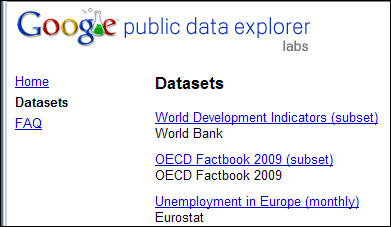
If you’re doing Excel training, or writing blog posts, or creating sample files, you might need to find some public sample data to use in Excel files. Here are a few sources to check.
A while ago, I suggested that we pick a day to celebrate as Spreadsheet Day. There was a poll to pick a date, and October 17th, the release date of VisiCalc, got the most votes.
So, we still have lots of time to plan events for this year’s Spreadsheet Day. Do you have any ideas?
Spreadsheet Day
In the meantime, we know that every day is spreadsheet day, and we can celebrate that. I’ve been looking for examples of unusual ways that people use spreadsheets, and posting them on the Spreadsheet Day blog.
Why sunflowers? Why not? They’re lined up nicely, like a spreadsheet grid, and they look like they’re celebrating.
So far, the spreadsheet examples have been intriguing, such as:
planning a spa day
drawing a town map
keeping track of World of Warcraft data
designing amusement rides
and much more to come.
Your Awesome Spreadsheet Examples
What’s the strangest thing you’ve used Excel for? If you have examples you’d like to share, please let me know, in the comments below, or by email: ddalgleish AT contextures.com.
I look forward to seeing what creative things you’re doing.
___________
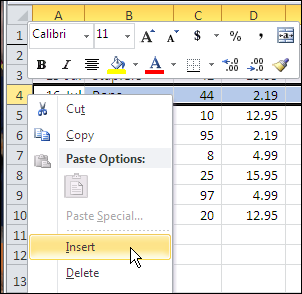
If you’ve used Excel for a while, you have lots of skills that you might assume everyone else shares. For example, you probably know how to insert more than one row in Excel, without adding them one at a time. If not, here’s how to do that.
Last week, you saw a quick tip for filtering by selection in Excel 2007. That’s helpful when you’ve found an item in a list, and want to filter for that item.
There’s another new feature in the AutoFilter dropdown, in Excel 2010.
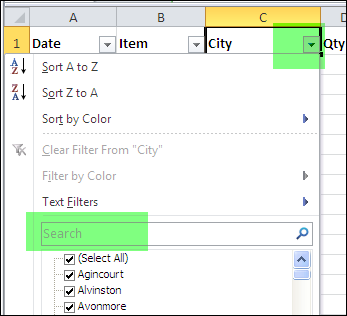
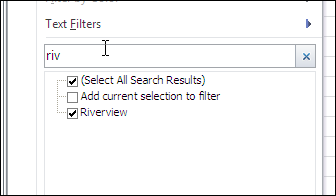
When you click the drop down arrow in the AutoFilter heading cell, you’ll see a new Search box, that wasn’t in previous versions of Excel.
This is a great way to find an item in a really long list — much quicker than scrolling down, and scanning all the list items.
Use the Search Box
For example, if you type “ri” in the Search box, only the cities with “ri” in their name will be left in the drop down list.
In the screen shot below, “riv” is in the Search box, and only one city (Riverview) is showing — the only city with that string of letters in its name.
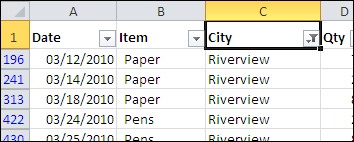
Press the Enter key to complete the search, and the worksheet is filtered for the selected city names.
Watch the Video
To see the steps in the AutoFilter Search, you can watch this short Excel tutorial video.
You’re comfortable with Excel, and can change formulas on the fly, when necessary. If you’re creating Excel workbooks for other people to use, their Excel skills probably aren’t as strong as yours.
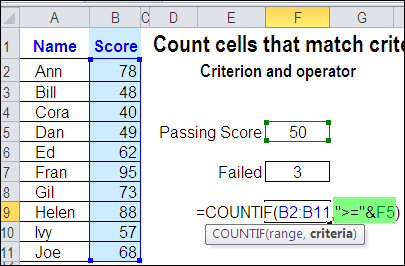
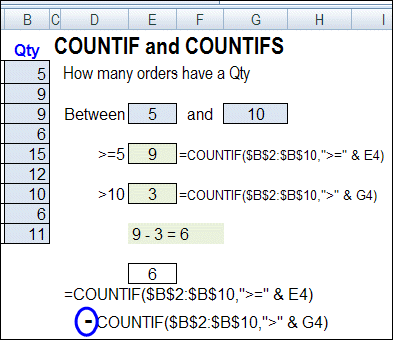
Last month we looked at the COUNTIF formula, and how you can type an operator, then refer to a worksheet cell, to set a minimum value for counting.
refer to worksheet cell in COUNTIF formula
Operator in Referenced Cell
In the comments, Kanti Chiba mentioned that the operator could be included in that referenced cell.
For example, you could type >=50 in a cell, and refer to that cell in the formula.
Create a List of Operators
I usually keep the operator in the formula, so it’s separate from the number, and users won’t have to worry about typing it. Kanti’s comment made me think about other options, and how we could let users select both the operator and the target number.
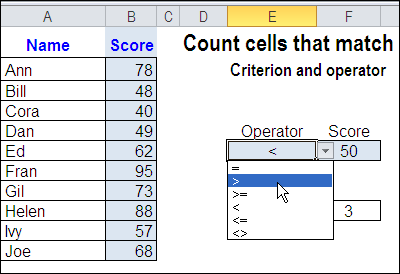
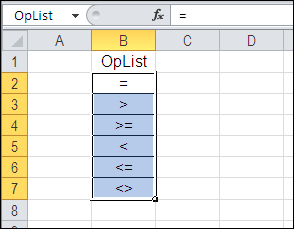
So, I typed a list of operators on a different sheet in the workbook, and named that list as OpList.
Add a Drop Down List of Operators
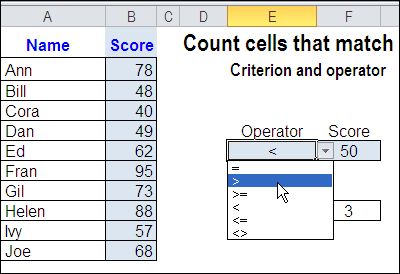
The next step was to create a drop down list of operators, in the cell to the left of the Score input cell. I used data validation to create the drop down list, then selected one of the operators.
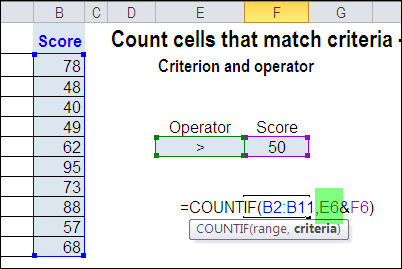
Change the COUNTIF Formula
The final step was to change the COUNTIF formula, so it refers to the Operator cell. Now the COUNTIF formula results will change, if a different operator is selected.
Watch the Video
To see the steps for creating a COUNTIF formula with a drop down list of operators, please watch this short Excel tutorial video.
More COUNTIF Links
For more examples of using the Excel COUNTIF function, see these blog posts:

 Mike Alexander, Microsoft Excel MVP, and madcap owner of DataPig Technologies, is interviewing Excel people this summer, and posting the interviews on his Bacon Bits blog. Lots of fun!