
If you’ve used Excel for a while, you have lots of skills that you might assume everyone else shares. For example, you probably know how to insert more than one row in Excel, without adding them one at a time. If not, here’s how to do that.
Excel Question
Lots of us are self-taught in Excel, and might have missed learning a shortcut or two. Recently, I saw this plea on Twitter:
Can anyone help pls? can’t work out how to add a LOT of new rows in Excel between existing data, rather than 1 at a time – ?? Many thanks!
For that person, and anyone else who needs to know, here’s the solution.
Insert Single Row with Mouse Shortcut
You can quickly insert a single row in Excel by using a mouse shortcut.
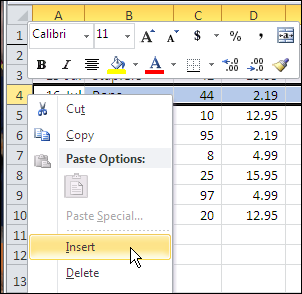
- Right-click on the row button, in the row below the point where you want the new row inserted. For example, if you want a blank row added between rows 3 and 4, right-click on the row 4 button.
- Then, in the pop-up menu, click Insert
Insert Rows with Mouse Shortcut
You’re not limited to adding one row at a time — you can quickly add multiple rows in Excel by using a mouse shortcut.
- Firstly, drag over several row buttons, to select the same number of rows that you want to add. For example, select rows 4 to 7, if you want to add 4 blank rows above row 4
- Secondly, as you drag, a pop-up (highlighted in green below) will show the number of rows currently selected.
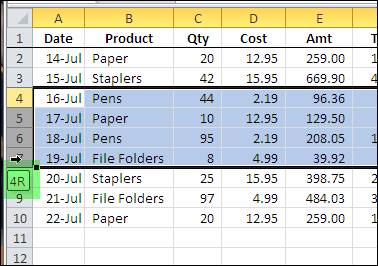
- Then, after you select the number of row that you want to add, right-click on a row button, for one of the selected rows.
- Finally, in the pop-up menu, click Insert
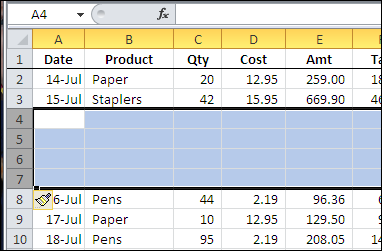
Based on the number of rows that you had selected, blank rows will be inserted, above the first selected row.
More Shortcuts
Of course, you can insert rows with an Excel keyboard shortcut too, if that’s your preference.
Firstly, use these keyboard shortcuts to select:
- Select active cell’s entire row — press Shift + Spacebar
- Add more rows to selection — press Shift, and Up arrow or Down arrow.
Then use this keyboard shortcut:
- To insert the selected number of rows, press Ctrl + + (plus sign)
And there are mouse wheel shortcuts too!
Watch the Video
To see the mouse shortcuts for inserting one or more rows in an Excel worksheet, watch this very short Excel video tutorial.
More Data Entry Tips
Click these links for more Excel data entry tips:
____________
Thank you ! thank you ! thank you
incredible, work like magic. -:)
dear sir,
please rectify my problem,
1. 1 to 10000 rows
2. totally selected
3. every 1000 nos inserting blank rows, 10 times .
4. but at the same time(at a time) 1 to 10000 rows insterting 10 balnk row s .
5. how is possible?
reply me sr…
Try as I might, I cannot get the Ctrl++ to work for inserting rows. Is there a setting in the Options that affects this? I see others have also not gotten this to work.
Thanks.
To get + you need Shift, so you need Control Shift +
CTRL + SHIFT+ (+)
1. 1 to 10000 rows
2. selected row when i want
3. inserting multiple blank rows, in the particular sillecting row
4. how is possible?
Thanks! Very Helpful!