
Automatic or manual makes me think of cars, and choosing a transmission type, but an Excel workbook can also be on Automatic or Manual calculation.
And just like a car, it’s safest if you know what type of Excel calculation mode you’re driving, before you head for the information highway.
In a car, you can tell if it’s a manual transmission, if there’s a clutch pedal, to the left of the brake pedal. In Excel, it might not be obvious whether the calculation mode is set for Automatic or Manual.
Add a Calculation Indicator
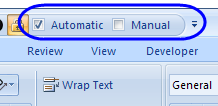
To help avoid problems, you can add Automatic and Manual to the Quick Access Toolbar (QAT) in Excel. This has two benefits:
- you can quickly see the current calculation mode,
- and you can easily change the current calculation mode.
Those check boxes are really helpful when working with big, complex files. I can easily turn calculations to Manual while making changes to the file, and then back to Automatic to make sure everything is working correctly.
Why Does Calculation Change to Manual?
Occasionally, a client will call about problems with an Excel file, that was working perfectly the day before.
Sometimes the problem can be traced to the calculation setting. Somehow, it switched to Manual, and the client doesn’t know how or why.
Even if you never change your calculation mode, it can be changed without your knowledge. The calculation mode setting is affected by the first workbook that’s opened during an Excel session.
So, if a co-worker sends you a workbook that was saved in Manual calculation mode, and you open that workbook first thing in the morning, it could affect the rest of your Excel files. With the Automatic and Manual settings visible on your QAT, you’ll have a better chance of noticing the problem.
Watch the Video
To see the effects of opening Excel workbooks with different calculation mode settings, watch this short Excel tutorial video.
___________
@sam, I skipped the Excel 2007 XML programming, and was happy to see that the Ribbon is easy to customize in Excel 2010.
@AlexJ, unfortunately I haven’t found an equivalent in Excel 2003.
@BrianR, thanks — glad the tip helped you.
You could save space by putting only one of those buttons, as generally they act like a toggle. The ‘Auto except for tables’ option is switched off as soon as you click either button anyway, so I don’t think you lose anything by not having both buttons.
How do you add the idicator to the tool bar?
Hi…
I got one file that wont stay in automatic, I go in and change it to automatic and excel update all the calculations. But on my next input it don’t calculate, I look in the settings and it back in manual mode… VERY frustrating… since it’s a big file… 🙁
anybody has any ideas?
// Carl
Thank you for helping me to sort out my current and future problems with manual/auto calc