
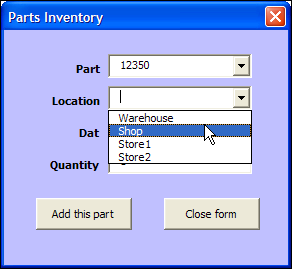
To help users enter data in a workbook, you can create an Excel UserForm, with text boxes and combo boxes. Then, with a quick bit of code, you can show UserForm when Excel file opens, so the form is easy to find and use.
Author: Debra Dalgleish
Would You Approve This Excel Book Cover?
There is a list of Excel books on my Contextures website, and it hasn’t been updated recently. Today, I checked Amazon, to see what new and exciting Excel books had been released, so I could start adding them to the list.
New Excel Book
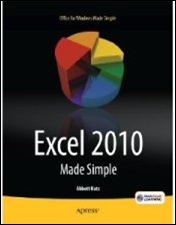
There’s a book – Excel 2010 Made Simple, by Abbott Katz — with a release date of May 31, 2011, from Apress, the publisher of my pivot table books.
Amazon lists the book as “not yet released”, but they show the cover, which you can see below.
Excel Charts Chapter
One of the chapters is on Excel charts, and the book blurb promises that you’ll learn “How to create colorful, meaningful charts”.
I hope the cover chart was selected by someone in the Apress marketing department, and not the author!
Missing Books
I’ll be updating the list of Excel books over the next few weeks, so if you know of any recent books that are missing from the list, please let me know, so I can include them. Thanks!
Make a Simple Pie Chart
And if you do need to make a pie chart in Excel, for a business report, or for the cover of your next book, keep it simple!
This video shows how to make a basic pie chart in Excel, then add formatting, labels, and other features. Use your Excel charting powers for good, not evil!
Excel Chart Links
If you want to learn more about Excel chart, but not the 3-D rainbow-coloured kind, check out the tutorials at the following links:
Box Plot Chart (Box and Whisker)
____________
Excel Weight Tracker Metric
Last year, you might have seen the Excel Weight Loss Tracker workbook that I posted, which used inches and pounds as its measurements.
Even though we use the metric system in Canada, we still track our weight in the Imperial system. (I’m not sure why.)
Stone/Pound Version
In May 2010, I posted the weight loss tracker in a Stone/Pound version, for the people who use that system.
Note: Please consult your doctor for recommended target weight and weekly weight loss goals. This workbook is designed as a recording tool only, based on the goals that you set with your doctor’s advice.
[Update] The latest version of this workbook lets you select pounds or kilograms as the measurement. To download, see the link at the end of this article.
Metric Weight Tracker
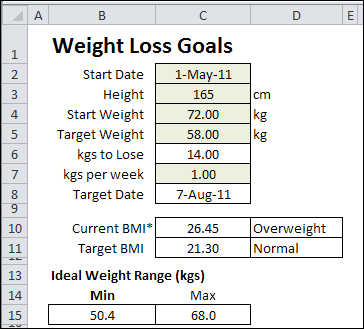
If you’d prefer to track your weight using the metric system, you can download the latest version, which uses kilos. In this version, you can enter your height in centimetres, and your weight in kilograms.
The BMI and ideal weight range are calculated based on those measurements.
The good news is that your weight is a lower number in kilograms, compared to pounds. The bad news is that your pants don’t fit any better!
Download the Excel Weight Tracker Metric
You can download a zipped copy of the Excel weight loss tracker, and try it for yourself.
The sheets are protected, with the green cells unlocked, and there’s no password on the worksheets.
There are versions for Excel 2007/Excel 2010, and Excel 2003 on the Contextures website: Excel Weight Loss Tracker
And remember, I’m not a trained medical professional, so check with your doctor for personalized weight management advice.
_____________
Multi-Column Excel Combo Box
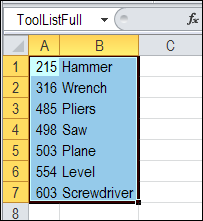
With Excel VBA programming, you can add a Combo Box to the worksheet, to show a data validation list. Usually a single column combo box is enough, like this list of weekdays, but sometimes a multi-column Excel combo box is better.
AutoFilter For Multiple Selections
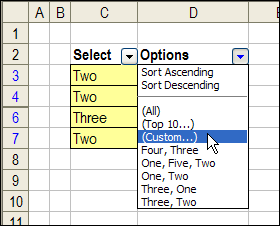
With data validation and some programming, you can select multiple items from a drop down list, and show the selections in a single cell.
Too Few Rows in New Excel Workbook
In Excel 2007 and Excel 2010, when you create a new workbook, there should be 1,048,576 rows on the worksheet.
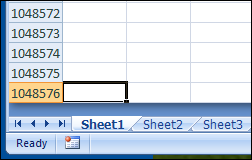
Not Enough Rows
However, one of my clients was creating new files in Excel 2007, and the sheets only had 65,536 rows, just as they did in older versions.
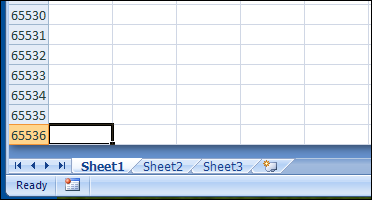
Perhaps you don’t need more rows than that, but if you’ve paid for a shiny new version, you’d like access to all of its features!
Solve the Too Few Rows Problem
At first, we thought the problem might be an old Excel 2003 template, that was starting automatically, and being used for the new workbooks.
A search of all the Templates folders didn’t turn up any suspects, so that theory was wrong.
Default Save Format
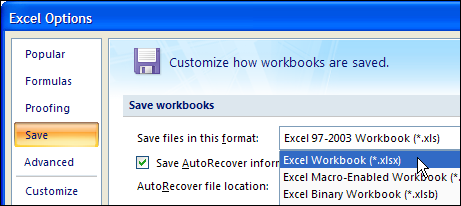
Finally, we discovered that the default format for saving files was set to Excel 97-2003 Workbook (*.xls).
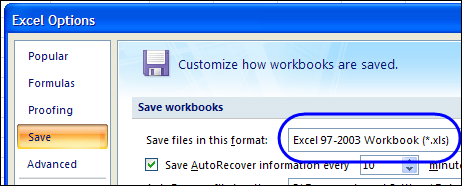
Change the File Format Setting
To get the full-sized Excel 2007 worksheets, follow the steps below:
- First, go into the Excel Options.
- Then, at the left, click on the Save category
- Next, at the right, in the Save Workbooks section, select one of the newer formats as the default for saving files.
- Finally, click OK, to close the Options window
All the Rows!
After you change that setting, the problem should disappear.
Now, when you create a new workbook, its sheets will have 1,048,576 rows.
___________
Dynamic Dependent Excel Drop Downs
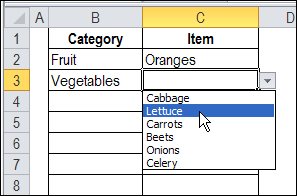
With dependent data validation, you can make one drop down list depend on the selection in another cell.
For example, select Vegetables as a category in column B, and you’ll see a drop down list of vegetables in column C.
Worksheet Data Entry or Excel UserForm
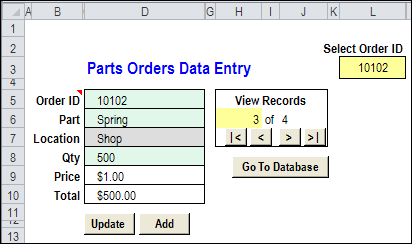
If you’re building an Excel workbook, in which users with basic Excel skills will enter data, would you create a worksheet data entry form?
In the screen shot below, you can see an example.
Excel UserForm
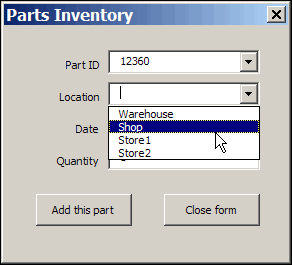
Or, do you prefer to build an Excel UserForm?
In the screen shot below, you can see a simple UserForm.
Worksheet Data Entry
With the worksheet method, you can
- hide the data sheets, and protect the data entry sheets, so users can only enter data in the unlocked cells.
- add a few navigation and function buttons, to help users with basic Excel skills.
An advantage is that you’re using built-in Excel features, like data validation and formulas, so you can reduce the development time.
Excel UserForm
The UserForm method takes longer to develop, because you’re adding another layer to the project. Advantages to this method include:
- combo boxes, which can be formatted, and have autocomplete (unlike data validation drop downs)
- tab order control, which isn’t available on the worksheet, where pressing the Tab key simply takes you to the next unlocked cell.
Which Would You Pick?
Both methods work well, and can be customized to be user-friendly and fool-resistant (nothing in Excel is fool-proof!) Programming would be required in both versions, to help with navigation, and to move data to the storage worksheets.
- The worksheet method is quicker and easier to create and maintain, and a project might take 4-5 hours to complete.
- The UserForm method is more sophisticated, and takes longer to build and maintain. The UserForm version of the same project might take 8-10 hours.
Which method would you use?
____________
Customize Excel Conditional Formatting Icons
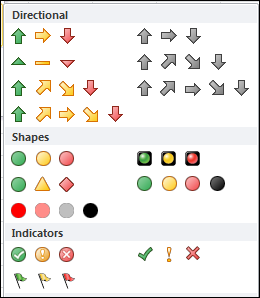
In Excel 2007 and Excel 2010, you can use icon sets in conditional formatting. There are built-in icon sets, and in Excel 2010 you can Customize Excel Conditional Formatting Icons, to some extent. Here’s how to do that, and a workaround to create icons on the worksheet instead.
Continue reading “Customize Excel Conditional Formatting Icons”
Excel Data Validation Fails
 Data validation is one of the best features in Excel. You can use it to create drop down lists, or limit what users can enter in a cell.
Unfortunately, data validation isn’t perfect, or foolproof. Users can get around the limits, by pasting data into the cell, or by using the Clear All command in a data validation cell.
Data Validation Input Errors
Someone sent me a question this week, asking how to trap input errors, despite these data validation failings:
- Hello! I was wondering, to you have any idea how to error trap a date input? I will enter dates on a specific column (complete dates such as 11/05/2010) and error trap if the input has the year of 2011 and not 2010. I know data validation does that, but only if the cell is manually inputted. If the input in the cell is pasted, it does not do that anymore.
Add the Data Validation
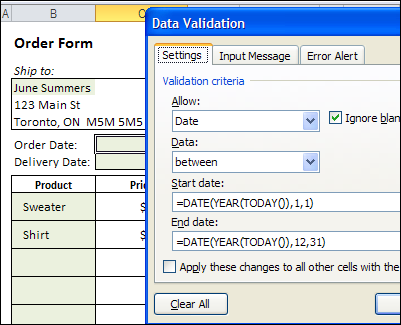
In this example, an order form has two cells for dates – an Order Date, and a Delivery Date. To ensure that a date for the current year is entered, you can use formulas in the data validation, to set a minimum and a maximum date.
Start Date formula: =DATE(YEAR(TODAY()),1,1)
End Date formula: =DATE(YEAR(TODAY()),12,31)
Check the Date
If you’re concerned that users might paste values into the cell, or clear the data validation, you can add a formula check, to ensure that a valid date was entered.
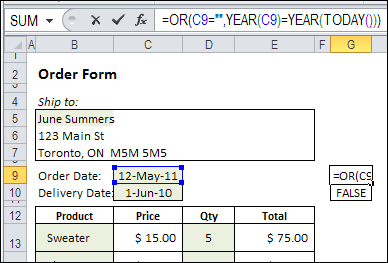
In the order form, a date check formula is entered in column G, which can be hidden.
The formula in cell G9 is:
=OR(C9=””,YEAR(C9)=YEAR(TODAY()))
The formula is copied down to cell G10, and the result is FALSE, because the date in C10 is not in the current year.
Block the Invoice Total
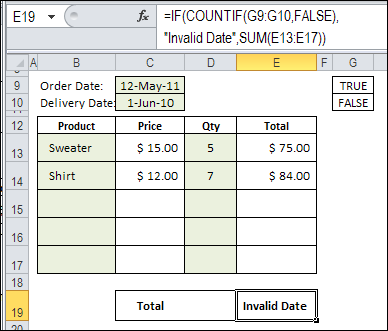
In the Invoice total cell, the formula result is “Invalid Date”, if either of the date check cells contains FALSE. If both dates are in the current year, the total sum is shown.
Here is the formula from the Invoice Total cell:
=IF(COUNTIF(G9:G10,FALSE),”Invalid Date”,SUM(E13:E17))
Other Solutions
Instead of a formula check, there are other ways to ensure that users enter valid data.
For example, you could use Excel VBA to check specific cells before printing, and cancel the printing if the entries aren’t valid.
Have you used other methods to ensure that users don’t ignore your data validation cells?
____________