Simple Project Planning With Excel Gantt Chart

If you’re building a new city, or plotting world domination, you’ll need a powerful project management tool, such as Microsoft Project.

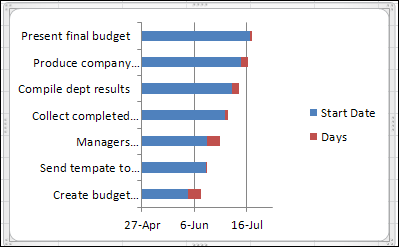
For smaller projects, you can list your tasks in Excel, and create a Gantt chart, to show the timeline. Here’s how you can do simple project planning with Excel Gantt chart – watch the video and there are written steps too.

Continue reading “Simple Project Planning With Excel Gantt Chart”

Fix Combo Box Sizing in Excel 2010

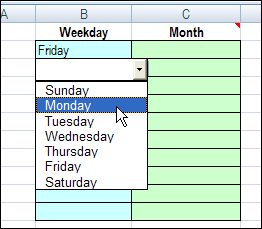
With Excel data validation, you can create drop down lists on a worksheet. However, the font size is very small, and can’t be adjusted, and you can only see 8 items at at time.

ComboBox on Worksheet

With Excel VBA programming, you can add a ComboBox to the worksheet, to show the data validation list.

In the ComboBox, you can control the font size and the number of visible items in the list.

ComboBox on Worksheet

Problems in Excel 2010

Although this technique works nicely in Excel 2007, and earlier versions, you might have a problem with the ComboBox size in Excel 2010.

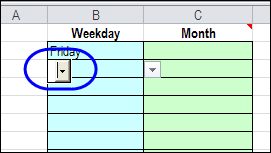
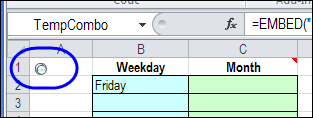
In the screen shot below, the ComboBox is about 1/4″ wide, instead of filling the entire cell.

datavalcomboboxfix02

In other workbooks, the ComboBox is so narrow that you can’t see it at all. That’s not too helpful a feature!

Fix the Problem in Excel 2010

Fortunately, the problem is easy to fix in Excel 2010, if you follow these steps.

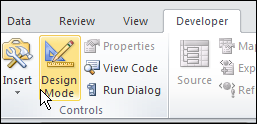
On the Developer tab, click the Design Mode command.

designmode

To select the ComboBox, type its name in the Name Box, and press Enter

datavalcomboboxfix03

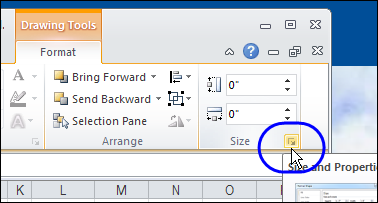
On the Ribbon, under Drawing Tools, click Format, and click the Dialog Launcher for the Size group.

datavalcomboboxfix04

Format Shape Dialog Box

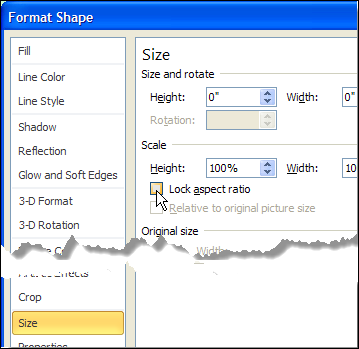
In the Format Shape dialog box, in the Size category, remove the check mark for Lock Aspect Ratio, and click OK

That should fix the ComboBox sizing problem!

Format Shape dialog box

Watch the Combo Box Sizing Video

To see the steps for changing the Size setting in Excel 2010, you can watch this short Excel video tutorial.

___________

Fuzzy Lookup Add-in for Excel 2010

If you work with data in Excel, you know what a mess it can be. I help my customers clean up data that they’ve imported from another computer system, or from reports received from another department or group.

Those files can be filled with spelling mistakes, strange abbreviations, extra spaces or missing punctuation.

Continue reading “Fuzzy Lookup Add-in for Excel 2010”

Macro to Move Pivot Table Slicer

macro to move a pivot table slicer Recently, we saw how you can use Excel Slicers, to filter fields in one or more pivot tables. This week, we’ll use a macro to move a pivot table slicer.

Overlapping Slicers

In the comments of the previous article, James asked how to keep those Slicers from overlapping the pivot tables.

  • Does anyone know how to stop slicers moving around when you make selections. This happens if the slicers are viewed on top of the pivot table data. As the pivot output data shrinks or expands the slicers move around and sometimes obscure each other. Any idea how to fix in place?

Pivot Table Update Event

One way to fix the problem of sliding Slicers is to automatically move the Slicers, any time the pivot table is updated.

To do that, you can use the PivotTableUpdate event, and a macro that moves the Slicer to the right side of the pivot table.

Slicer Caption

Each Slicer has a caption, and you can refer the the Slicer by that caption in the Excel VBA code.

In this example, the Slicer has a caption of “Region”, which is shown at the top of the Slicer.

The caption is also visible on the Excel Ribbon’s Options tab, when the Slicer is selected.

Slicer caption visible on Excel Ribbon's Options tab
Slicer caption visible on Excel Ribbon’s Options tab

Macro to Move a Pivot Table Slicer

Here is the sample code that I used.

This macro moves a pivot table slicer to the right side of the pivot table, any time the pivot table is updated.

Note: This code is stored on a regular code module.

Sub MoveSlicer()
    Dim wsPT As Worksheet
    Dim pt As PivotTable
    Dim sh As Shape
    Dim rngSh As Range
    Dim lColPT As Long
    Dim lCol As Long
    Dim lPad As Long
    Set wsPT = Worksheets("PivotSales")
    Set pt = wsPT.PivotTables("PivotDate")
    Set sh = wsPT.Shapes("Region")
    lPad = 10
    lColPT = pt.TableRange2.Columns.Count
    lCol = pt.TableRange2.Columns(lColPT).Column
    Set rngSh = wsPT.Cells(1, lCol + 1)
    sh.Left = rngSh.Left + lPad
End Sub

How the Code Works

In the code, a variable (pt) is set for the pivot table.

The code counts the columns in the pivot table’s TableRange2 range, which includes the Report Filters area. (TableRange1 does not include the report filters.)

  • lColPT = pt.TableRange2.Columns.Count

The code adds 1 to the column number that the last pivot table column is in.

  • Set rngSh = wsPT.Cells(1, lCol + 1)

A variable (lPad) sets the padding number — how much the Slicer will be moved to the right. In this example, the variable is set to 10

  • lPad = 10

Finally, the Slicer is positioned, in the column to the right of the pivot table. In that column, the Slicer’s left side is indented by the padding amount.

  • sh.Left = rngSh.Left + lPad

Pivot Table Update Code

The following code should be copied to the pivot table’s worksheet module.

It will run the macro to move a pivot table slicer (MoveSlicer), any time the PivotDate pivot table is updated.

Private Sub Worksheet_PivotTableUpdate(ByVal Target As PivotTable)
    If Target.Name = "PivotDate" Then
        MoveSlicer
    End If
End Sub

Download the Sample File

To see how the macro to move a pivot table slicer works, you can download the Excel Slicer Move Code sample workbook. The file is in xlsm format, and is zipped. You’ll have to enable macros, to test the code.
_______

How to Set up Multiple Selection Excel Drop Down

[Latest update: July 27, 2016] With a bit of Excel VBA programming, you can change an Excel data validation drop down list, so it allows multiple selections. This post is a roundup of articles on how to set up multiple selection Excel drop down lists.

Continue reading “How to Set up Multiple Selection Excel Drop Down”

Excel Power Users Hit Chicago

excelbrothers02 They didn’t ask for my advice, but Mike Alexander and Dick Kusleika need a poster for their upcoming Excel and Access Power User Workshop.

And, if you can’t make it to their Excel training workshop, I’ve listed a couple of online courses that you can check out. The list is at the bottom of this post, so take a look, if you want to bump up your Excel skills!

Excel Training in Chicago

The event is in Chicago, and who better represents that city than the Blues Brothers? Your Photoshop skills are probably better than mine (non-existent), so here is my attempt at morphing Mike and Dick into The Excel Brothers. (Sorry Mike, I had to widen your face a little!)

I’ve spent many hours with Mike and Dick at Microsoft events, and they are both extremely knowledgeable, and highly entertaining. If you can make it to Chicago next month, and want to power up your Excel and Access skills, I highly recommend signing up for this workshop.

The two day workshop runs Wednesday, May 18, 2011 – Thursday, May 19, 2011, and the schedule is jam packed with sessions that will make your Excel/Access skills even more amazing than they are now.

What You’ll Learn

Bring your laptop to the workshop, so you can follow along, and hone your skills, while Mike and Dick guide you. Here’s a summary of what you’ll learn in the sessions:

  • Automate the Data Moves between Excel and Access
  • Enhance Dashboards and Reports with External Data
  • Leverage MS Query and SQL Techniques
  • Introducing new Powerful PowerPivot capabilities
  • Automate the Building of Excel Pivot Tables and Charts from Access
  • Building client-side solutions that use SQL server as the back end
  • Create Install Files for your Excel and Access Solutions.
  • Improve your VBA skills, going beyond simple Functions and Procedures

And of course, when you attend a power user workshop like this, you’ll learn even more during the breaks and informal sessions, by chatting with Mike and Dick, and your fellow attendees.

Chicago Fun

I’ve been to Chicago a few times, and it’s my favourite city in the USA. Granted, my experience is limited – I’m comparing it to Atlantic City, Orlando, Buffalo and Seattle.

If you register for the Excel and Access Power User Workshop, add a couple of days to your trip, and spend the weekend doing touristy things in Chicago.

During a visit last fall, I saw the Blues Brothers’ police car – stalled in the middle of The Magnificent Mile!

policecar

The Chicago Mayfest is celebrated May 20-22, and it sounds like fun. Who knows – you might run into Ferris Bueller!

The 17th annual Chicago Mayfest brings in three days of celebration – featuring; Chicago’s BEST Bands, Festival Cuisine, Maypole dancing, pretzels, beer, artisans, and a broad spectrum of super cool entertainment.

Just tell your boss that you want to get to Chicago for some Excel/Access training, and Maypole dancing. Who could argue with that?

bridgeview

Online Training Courses

If you can’t make it to Chicago, there are online courses to improve your Excel power skills. I highly recommend the following two training sites, based on my experiences with their Excel courses.

Power Pivot for Excel Course

This course is offered by Mynda Treacy, at My Online Training Hub

The Power Pivot for Excel Course (affiliate link) includes 5.5 hours of video tutorials covering everything from installing Power Pivot, importing data, DAX formulas, PivotTables and more. Download the sample files, and follow along with the lessons.

In this hands-on project-based course, you will build a Power Pivot model from start to finish. The training is delivered online and tutorials are available to watch 24/7 at your own pace. Pause, rewind, replay as many times as you like.

Skillwave Courses

Ken Puls, Matt Allington, and Miguel Escobar offer courses in Power BI, Power Query, Power Pivot, and Microsoft Excel.

See course details on their Skillwave website.

There’s a free course too – Power Query Fundamentals. Start with that course, to see if the content and teaching style fits with what you need.

_____________

Show Excel Scenarios With Excel VBA

Previously, we looked at using Excel Scenarios to compare high, low and medium budgets, all in the same worksheet cells.

To make Excel Scenarios easier to use, you can add a bit of Excel Scenario programming.

Make a List of Scenarios

First, create a list of scenario names, using the ScenarioList code shown below.

Next, add a data validation drop down list, so users can select one of the scenarios.

drop down list of scenario names

Excel Scenario Selection Code

Add the following code to the worksheet module, to change the scenario, when a selection is made in the data validation drop down list.

Private Sub Worksheet_Change(ByVal Target As Range)
On Error GoTo errHandler
If ActiveSheet.Name = Me.Name Then
  If Target.Address = Range("Dept").Address Then
    ActiveSheet.Scenarios(Target.Value).Show
  End If
End If
Exit Sub
errHandler:
  If Err.Number = 1004 Then
    MsgBox "That Scenario is not available"
  Else
    MsgBox Err.Number & ": " & Err.Description
  End If
End Sub

Create a List of Excel Scenarios

To automatically create a list of scenarios, to use in the data validation drop down list, you can use Excel VBA.

This procedure creates a list of scenarios from the Budget worksheet, and sorts the list alphabetically.

Sub ScenarioList()
Dim sc As Scenario
Dim wsBudget As Worksheet
Dim wsLists As Worksheet
Dim iRow As Integer
iRow = 2  'leave row 1 for heading
Set wsBudget = Worksheets("Budget")
Set wsLists = Worksheets("Lists")
wsLists.Columns(1).ClearContents
wsLists.Cells(1, 1).Value = "Scenarios"
For Each sc In wsBudget.Scenarios
  wsLists.Cells(iRow, 1).Value = sc.Name
  iRow = iRow + 1
Next sc
With wsLists
  .Range(.Cells(1, 1), .Cells(iRow - 1, 1)) _
  .Sort Key1:=.Cells(1, 1), _
      Order1:=xlAscending, Header:=xlYes
End With
End Sub

More Excel Scenario Programming

Visit the Contextures website for more examples of Excel Scenario programming.

For example, if you want users to add more scenarios, turn off the error alert in the data validation cell.

Then, add a worksheet button that they can click, to add new scenarios.

macro button to add new scenarios

___________________

Troubleshoot Excel With Formula View

If you’re working in Excel, there are times when things don’t go right, and you have to do a bit (or a lot!) of troubleshooting.

Lets look at a couple of quick ways to troubleshoot Excel with Formula view, to see the worksheet formulas, and a simple trick for seeing both the formulas and the results.

Continue reading “Troubleshoot Excel With Formula View”