
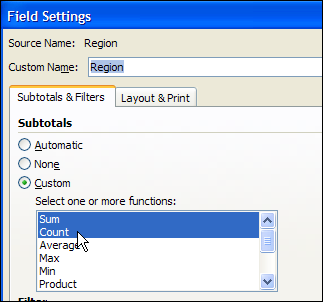
How was your weekend weather? We had a mini-blizzard yesterday, that covered the backyard with snow. But it was a good day to stay indoors, and work on Excel pivot tables!
Continue reading “Add Pivot Table Subtotals for Inner Fields”
Author: Debra Dalgleish
Set Up Golf Tee Times in Excel

There’s a Golf Tee Time Excel workbook on the Contextures site, that I’ve updated, to add a few new features.
You’ll list all the players, then set up golf tee times in Excel.
Fix Blank Excel Cells Copied From Database
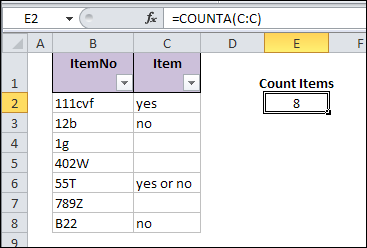
When you copy data to Excel, from another application, blank cells in the data can cause problems. Everything looks okay, at first glance, but the database blank cells don’t behave like other blank cells in the workbook. See how to fix blank Excel cells copied from a database, or created within Excel.
Continue reading “Fix Blank Excel Cells Copied From Database”
Automatically Add Sheet When Excel Opens
 On the Contextures YouTube channel, someone asked if Excel can automatically create a sheet when the file opens:
- “this question from my friend, she always need to open same file and create a new sheet with the name of the month when her is updating the data. is there any ways to skip the above process?”
Video Answer
Since the question came from YouTube, I provided the answer in a video, which you can see at the end of this blog post.
If you prefer to see the code, or download a sample file, you can find the details below.
How the Add Sheet Code Works
The goal is to add a worksheet with the month name, when the Excel file opens. We only want that to happen at the start of the month, if the sheet doesn’t exist already.
We’ll write a macro that:
- figures out what the current month is
- checks for a sheet with that name
- adds that sheet, if it doesn’t exist
The Add Worksheet Code
Insert a regular module in the workbook, and paste in the following code. I used yyyy-mm as the sheet name format, but you could use a different format.
For example, to see the full month name, use mmmm as the format.
Sub AddMonthWkst()
Dim ws As Worksheet
Dim strName As String
Dim bCheck As Boolean
On Error Resume Next
strName = Format(Date, "yyyy_mm")
bCheck = Len(Sheets(strName).Name) > 0
If bCheck = False Then
  Set ws = Worksheets.Add(Before:=Sheets(1))
  ws.Name = strName
End If
End Sub
Run the Code Automatically
To make the code run automatically, when the workbook opens, you’ll create a Workbook_Open event.
Paste the following code on the ThisWorksheet module:
Private Sub Workbook_Open()
    AddMonthWkst
End Sub
Download the Sample File
To see the workbook and the Add Worksheet code, you can download the Add Worksheet sample file.
The file is in Excel 2007 format, and zipped. It contains macros, so you’ll need to enable them, to see the code working.
Watch the Add Worksheet Automatically Video
To see the steps for creating the code, and making it run automatically, you can watch this Excel Video Tutorial.
_____________
Excel Function Friday: Track Driver Hours
Thanks for your formula suggestions on Wednesday’s blog post about promotional pricing.
Here’s another formula example, and I’m sure you’ll have alternate methods for this problem too.
Driver Limits
In some countries, there are limits to the hours that truck drivers can work in a string of consecutive days.
In this example, the limit is 60 hours, in any period of 7 consecutive days.
Worksheet Entry Cells
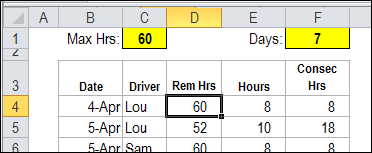
The maximum hours is entered in cell C1, and the number of consecutive days is entered in cell F1.
If the regulations change, it will be easy to change those settings.
Calculate Remaining Hours
To help prevent drivers from going over their limits, we’ll set up a table where the daily hours are entered.
The date and driver name are entered in each row, in columns B and C.
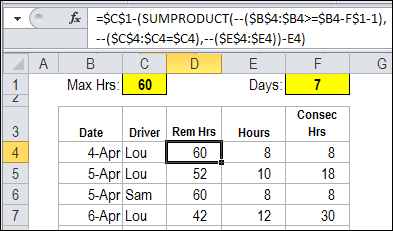
In column D, the following SUMPRODUCT formula calculates how many hours the driver has remaining, in the current 7 day period.
=$C$1-(SUMPRODUCT(--($B$4:$B4>=$B4-F$1-1), --($C$4:$C4=$C4), --($E$4:$E4))-E4)
The SUMPRODUCT formula checks all the rows above the formula’s row, where:
- the date within the 7 day range
- the driver name matches the name in the current row.
That amount is subtracted from the maximum hours allowed.
Calculate the Consecutive Hours
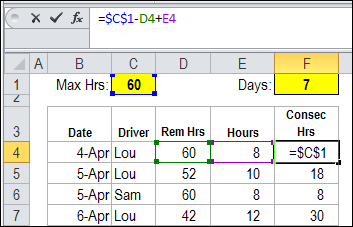
The current hours are typed in column E, and a simple formula in column F calculates the total for a consecutive 7 day period.
=$C$1-D4+E4
Highlight the Violations
With Conditional Formatting, you can highlight any cells where the total consecutive hours exceeds the maximum allowed.
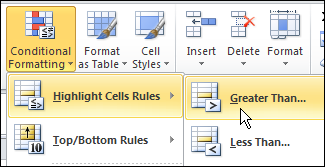
- On the Ribbon’s Home tab, click Conditional Formatting
- Click Highlight Cells Rules, and then click Greater Than
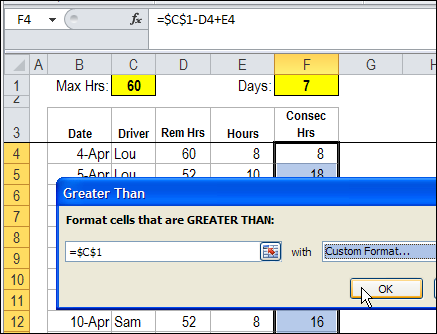
- In the Greater Than dialog box, select cell C1 as the limit in the text box.
- Select one of the preset format, or create a custom format to highlight the cells.
View the Results
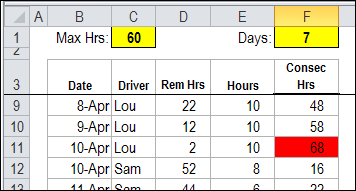
With the conditional formatting applied, it’s easy to see where the trouble is.
In this example, Lou has gone over the limit on April 10th.
Download the Driver Limit Sample File
To see the data and the formulas, you can download the Driver Hours Limit sample file. The file is zipped, and is in Excel 2003 format.
There is also a pivot table that totals the drivers’ hours per calendar week.
__________
Excel Price Lookup: VLOOKUP or INDEX
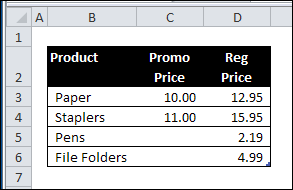
This week, Glen emailed me for advice on extracting prices from a lookup table. Some products have a promotional price each month, but other products are sold at the regular price.
Pricing Lookup Table
I’m blocking email attachments these days, so I can’t show you the exact setup of Glen’s Excel worksheet.
However, a simplified version might look something like this:
Use VLOOKUP to Find Pricing
In his email, Glen mentioned that he is using a VLOOKUP formula.
- If there is a promotional price, he wants VLOOKUP to return the value from the Promo Price column.
- If there is no promotional price, Glen wants the price from the Regular Price column.
Use IF Function
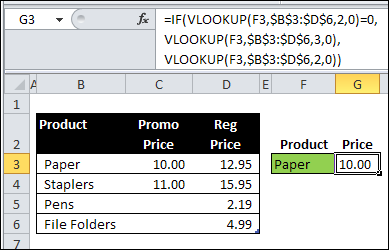
To do that, Glen could use the IF function, with VLOOKUP:
=IF(VLOOKUP(F3,$B$3:$D$6,2,0)=0,
VLOOKUP(F3,$B$3:$D$6,3,0),
VLOOKUP(F3,$B$3:$D$6,2,0))
CHOOSE the Right Price
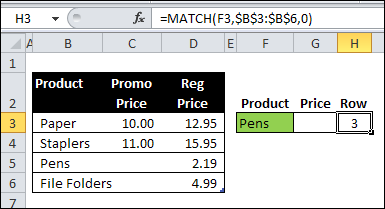
Another option is to use the MATCH function to find the row that the product is in.
In the screen shot below, the following formula is in cell H3:
=MATCH(F3,$B$3:$B$6,0)
CHOOSE and INDEX Functions
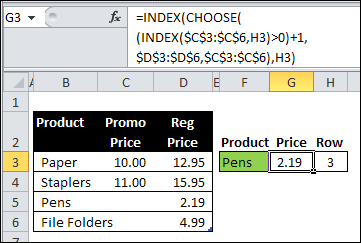
Next, in cell G3, use the CHOOSE function and the INDEX function, to get the correct price:
=INDEX(CHOOSE((INDEX($C$3:$C$6,H3)>0)+1,
$D$3:$D$6,$C$3:$C$6),H3)
How the CHOOSE Formula Works
In this example, the CHOOSE function selects the correct pricing column to use for the prices. The outer INDEX function returns the price from the selected column.
First, the inner INDEX function returns the price from the promo column, for the selected product, and we check to see if the price is greater than zero:
INDEX($C$3:$C$6,H3)>0
- If there is NO promo price, the result is FALSE (0)
- If there IS a promo price, the result is TRUE (1)
Next, we add 1 to that result, so
- FALSE=1
- TRUE=2.
CHOOSE the Range
Next, the CHOOSE function returns a reference to the selected range.
- FALSE (1) = $D$3:$D$6
- TRUE (2) = $C$3:$C$6
Finally, the first INDEX function returns a price from the selected column, in the row for the selected product.
How Would You Solve the Problem?
I’m sure there are several other ways to solve Glen’s lookup problem. What formula would you use?
________________
Filter Pivot Charts in Excel 2010
In Excel 2007, there was a PivotChart Filter Pane, and you had to open that if you wanted to filter the pivot chart. Things have improved in Excel 2010, and the PivotChart Filter Pane is gone.
Desert Island Excel Files
 Over the past few days, I’ve been without my desktop computer, which is on its way back to the repair shop.
Fortunately, most of my files were available on the external hard drive, and online storage, so there were no major catastrophes. Well, none that I’ve discovered yet!
Personal Macro File
Unfortunately, my personal Excel macros add-in file wasn’t backed up, so I had to work without it for a while.
You don’t realize how often you use something, until it’s missing!
Your Desert Island Excel Files
My Excel tip for you today is – Remember to back up ALL your Excel files, including the add-ins, toolbars, and other key files.
Imagine that you and your laptop will be abandoned on a desert island.
- Do you have everything installed that you’ll need for Excel survival?
- Or will you be voted off the island?
Check Your Backup System
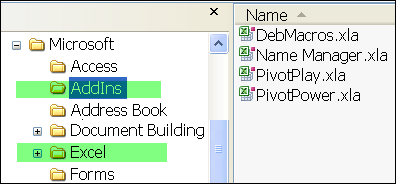
Make sure your backup system is copying files from the C:Documents and Settings/YourName/Application Data/Microsoft folder, such as the Addins and Excel files.
Island Internet Access
And let’s hope that desert island has internet access, so you can send email to your clients, and use the files that you have stored in your online storage folders!
What are your desert island backup plans?
__________
Excel Snow Days
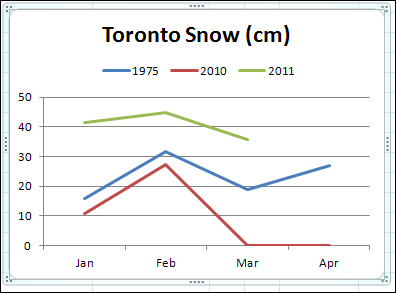
It snowed here all day on Wednesday, and caused traffic problems and backaches. Usually the city clears the streets very efficiently, but things were a mess on Wednesday.
Maybe some of the snow removal contracts expired in mid-March, so the full fleet wasn’t available.
Excel Totals for Top 3 Plus Other
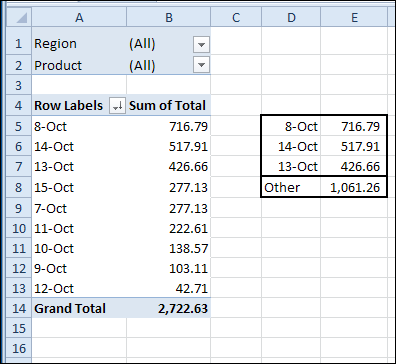
In a pivot table, you can use the built-in Top 10 command, to show the Top 10 or Bottom 3, or almost any other top/bottom summary.
In this post, you’ll see how to filter for the top 3, and show a total for “other”, with all of the remaining amounts.