
Yesterday, in the 30XL30D challenge, we got details on our operating environment, with the INFO function, and learned that it can no longer help with our memory issues. (Neither ours, nor Excel’s!)
CHOOSE Function
For day 5 in the challenge, we’ll examine the CHOOSE function.
Excel CHOOSE Function
The CHOOSE function, from the Lookup and Reference category, picks from a list of options, based on a number. In most cases though, it would be better to CHOOSE a different function, like INDEX and MATCH, or VLOOKUP. We’ll investigate those functions later in the challenge.
So, let’s take a look at the CHOOSE information and examples, and see what it can do, and what its weaknesses are. If you have other tips or examples, please share them in the comments.
Function 05: CHOOSE
The CHOOSE function returns a value from a list, based on an index number.
How Could You Use CHOOSE?
The CHOOSE function can return a specific numbered item from a list, such as:
- For month number, return the fiscal quarter number
- Based on starting date, calculate the next Monday
- For store number, show a sum of sales
CHOOSE Syntax
The CHOOSE function has the following syntax:
- CHOOSE(index_num,value1,value2,…)
- index_number must be between 1 and 254 (or 29 in Excel 2003 and earlier)
- index_number can be typed in the function, or can be a formula or cell reference
- index_number fractions will be truncated to the lowest integer, before using
- value arguments can be numbers, cell references, defined names, formulas, functions, or text
CHOOSE Traps
In Excel 2003, and earlier versions, the CHOOSE function is limited to numbers between 1 and 29. Lookup lists are usually easier to manage on a worksheet, instead of having them typed in a formula. With VLOOKUP or MATCH functions, you can refer to a worksheet list.
Example 1: Fiscal Quarter for Month Number
The CHOOSE function works well with a simple list of numbers as the values. For example, if cell B2 contains a month number, a CHOOSE formula can calculate the fiscal quarter for that month. In the example shown below, the fiscal year starts in July.
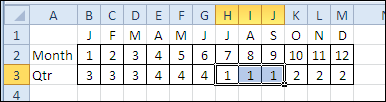
There are 12 values listed in the formula, representing the months from 1 to 12. The fiscal year starts in July, so months 7, 8 and 9 are in quarter 1. In the table below, you can see the fiscal quarter below each month number.
For the CHOOSE function, you’ll enter the quarter value for each month, in the order that they appear in the table above. In the list of values for the CHOOSE function, items 7, 8 and 9 — for July, August and September, have a value of 1.
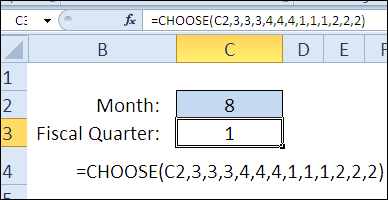
=CHOOSE(C2,3,3,3,4,4,4,1,1,1,2,2,2)
Enter a month number in cell C2, and the Fiscal Quarter is calculated by the CHOOSE function, in cell C3
Example 2: Calculate Date of Next Monday
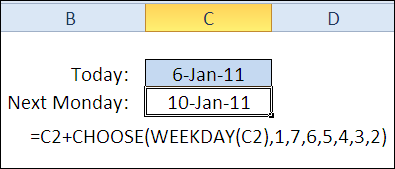
The CHOOSE function can be combined with other functions, like WEEKDAY, to calculate upcoming dates. For example, if you’re in a club that meets every Monday night, you can find next Monday’s date, based on today’s date.
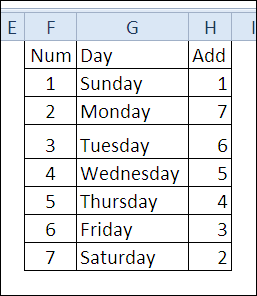
In the table below, you can see the weekday number for each day. In column H, you can see the number of days to each weekday, to get to the next Monday. On Sunday, you would need to add 1 day. If it’s Monday, there are 7 days till next Monday, and so on.
With the current date in cell C2, the formula in cell C3 uses the WEEKDAY and CHOOSE functions to calculate the next Monday.
=C2+CHOOSE(WEEKDAY(C2),1,7,6,5,4,3,2)
Example 3: Show Sales Total for Selected Store
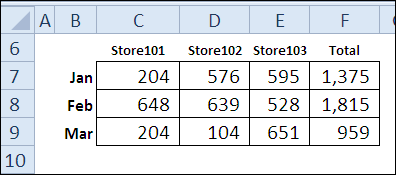
You can use CHOOSE in formulas with other functions too, like SUM. In this example, we can get a total sales for a specific store, by entering its number in the CHOOSE function, and list the ranges to total for each store.
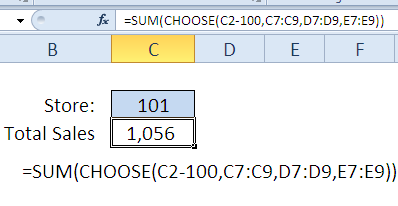
In this example, the store number (101, 102 or 103) is entered in cell C2. To get the index_number value, as 1, 2 or 3, instead of 101, 102, or 103, you can use a formula: C2-100.
The sales numbers for each store are in a separate column, as show below.
Inside the SUM function, the CHOOSE function will be evaluated first, and returns the correct range for the SUM, for the selected store.
=SUM(CHOOSE(C2-100,C7:C9,D7:D9,E7:E9))
This is example of a situation where other functions, like INDEX and MATCH, would be more efficient, and we’ll see how they work, later in the challenge.
Download the CHOOSE Function File
To see the formulas used in today’s examples, you can download the CHOOSE function sample workbook. The file is zipped, and is in Excel 2007 file format.
Watch the CHOOSE Video
To see a demonstration of the examples in the CHOOSE function sample workbook, you can watch this short Excel video tutorial.
_____________
[…] could use the TYPE function with CHOOSE, to multiply valid numbers, or show a message, if something else is […]
[…] the CHOOSE function returns a reference to the selected […]
If i add more than 28 Values in Choose Function then i got Message ” More Arguments have been specified for this Function than are allowed in the current file format”.
So what should i have to do?
I want to add approx 200 Values in Choose Function.
Instead of CHOOSE, put the list of 200 values in a column on another worksheet. In the next column, add the numbers 1 to 200, so you can sort the list later, if necessary.
Then, use the INDEX function to find an item from that list.
For example, if the items are listed in G1:G200, type a number in cell B1, and put this formula in cell C1:
=INDEX($G$1:$G$200,B1)