Quickly Find Excel Ribbon Commands

If you have been using the Ribbon in Excel 2007 or Excel 2010 for a while, you can probably find most of the commands that you need. It’s those infrequently used commands that cause the problems. You knew where they were on the old menu bar, but where the heck are they on the Ribbon?

[Update: This Microsoft download is no longer available]

The Office Labs people at Microsoft have taken pity on our poor, fumbling fingers, and come up with a solution – the Search Commands add-in. This free tool lets you type the name of a command, and magically find it. Think of all the time that you’ll save!

For now, at least, the add-in is only available in English, and works in Word, Excel and PowerPoint. It requires Windows XP, or later, operating system.

Download the Search Commands Add-In

To install the Search Commands add-in, go to the download page on the  Microsoft site.

Optional – Click on the plus signs, to see

  • Details
  • System Requirements
  • Install Instructions

Then, click on the Download button, to get the file. Next, run the downloaded file, to install the add-in.

Search for Commands

After you run the setup program, to install the add-in, a Search Commands tab automatically appears on the Ribbon.
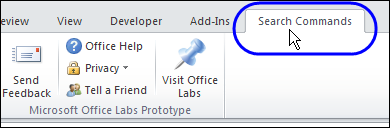
searchcommand02

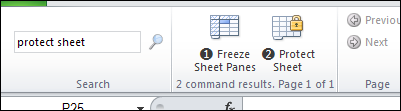
  • In the Search box, at the left end of the Ribbon, type the name of the command that you want to use. For example, if you can’t find the command to protect the worksheet, type “Protect” or “Protect Sheet”.
  • Click the magnifying glass symbol, to start the search
  • One or more commands that match your search term will appear in the search results section, to the right of the search box.
searchcommand03

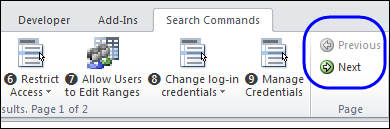
If there are several commands that match your search words, you might need to use the Previous and Next buttons to scroll through the list of commands.

For example, if you type “Protect”, instead of “Protect Sheet”, there are 16 commands found, shown on 2 pages.
searchcommand04

Use the Search Results

If the search results include the command that you were looking for, just click on it, to run that command. Quick and easy!

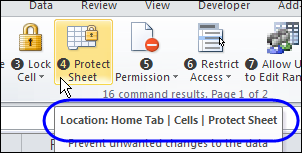
And to find out where that command lives on the Ribbon, point to the command, before you click it. The popup description shows the location of the command, by listing the Tab, command group, and command name.
searchcommand05

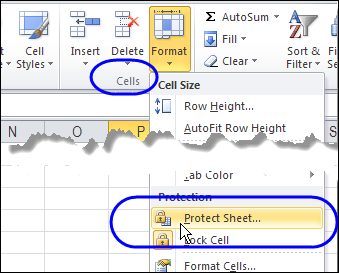
It’s funny – I didn’t realize that the Protect Sheet command was also on the Home tab. I expected it to point to the command on the Review tab. It must look for the first instance of the command in the Ribbon tabs.

Also, the location description doesn’t mention that you have to click the Format command, to see the Protect Sheet command, so you might need to do a bit of searching, to find the exact location.
searchcommand06

Commands Not in the Ribbon

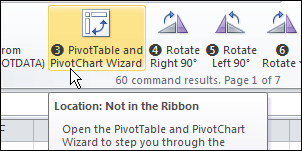
Another nice feature of the Search Commands add-in is that it even finds some commands that aren’t in the Ribbon.

For example, if you type Pivot, it shows the PivotTable and PivotChart Wizard command.
searchcommand07

Room for Improvement

The Search Commands add-in is a work in progress, so it’s not perfect yet.

  • It should have full descriptions of the location, as mentioned in the Protect Sheet example above.
  • The Search Commands tab doesn’t shrink, when you make the Excel window narrower, like other tabs do.
  • Include settings that are in the Excel Options window, like hiding zeros on the worksheet, or changing to R1C1 Reference Style.

What features would you like to see in the add-in?

Customize Excel Ribbon Tab

You can also customize the Excel Ribbon, by moving or removing the groups on a default Ribbon tab. In this video, see how to move groups on the Data tab, so the tools that are used most often are in the middle of the tab, and easier to reach.

Related Articles

Excel Ribbon — Getting Started

Excel Ribbon – Custom Tab

__________________

Last Row Incorrect With Excel Table

When you’re working with Excel VBA, you might want find the last row with data, so you can paste new data in the row below that.

The following code works up from the last row on the worksheet, until it hits a cell with data. It’s like using the End key and Up arrow, to manually move from the bottom of the worksheet.

Sub GetLastRow()
Dim ws As Worksheet
Dim lRow As Long
Set ws = ActiveSheet
lRow = ws.Cells(Rows.Count, 1).End(xlUp).Row
MsgBox lRow
End Sub

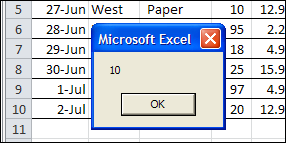
In the sample sheet, the last data in column A is in row 10, and that’s the result when running the code.

lastrowtable01

Unexpected Result

This week, I was using similar code in a client’s workbook, to find the last row of data. The data was in a named Excel table, and the last couple of rows in the table were blank. I wanted to find the last row with data, so I could change the table definition, to end at that last row.

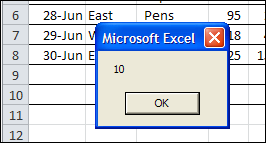
When I used the same Excel VBA code, the last row wasn’t what I expected – it found the last row in the named table, even though that row was empty.

lastrowtable02

I’m sure that information is helpful in some situations, but it sure wasn’t going to help me resize the table!

My Last Row Workaround

There might be a more sophisticated solution to this problem, but I added a line of code to resize the table, so it ends at row 2.

Then, the code found the correct last row of data, and resize the table to end at that row.

Sub ResizeTheTable()
Dim ws As Worksheet
Dim lRow As Long
Set ws = ActiveSheet
ws.ListObjects(1).Resize ws.Range("$A$1:$H$2")
lRow = ws.Cells(Rows.Count, 1).End(xlUp).Row
ws.ListObjects(1).Resize ws.Range("$A$1:$H$" & lRow)
MsgBox lRow
End Sub

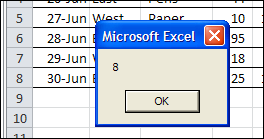
That fixed the problem, and the table resized correctly.

lastrowtable03

A Better Solution?

Have you run into this problem with named Excel tables? How did you solve it?

Video: Create an Excel Named Table

When you work with lists in Excel, use the built-in Table feature, to make it easy to sort and filter your data. This short video shows the simple steps


____________

Select Pivot Table Function From Worksheet Drop Down

Last week, Chandoo interviewed me for his Online Excel VBA School, and we talked about using VBA with Excel Pivot Tables.

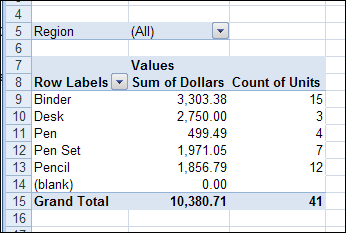
If you drop a field into the Values area, and that field contains blank cells or text, it’s added as “Count of”, instead of “Sum of”.

PivotFunctionChange01

With a macro, you can quickly change all the fields from Count to Sum, instead of fixing each pivot table summary function manually.

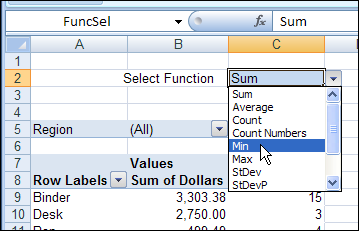
Select a Summary Function

One way to let users change the function is to create a drop down list of functions on the worksheet. Then, event code runs when the cell changes, and the selected function is shown in the pivot table.

PivotFunctionChange02

The cell with the drop down list is named FuncSel, as you can see in the NameBox in the screen shot above.

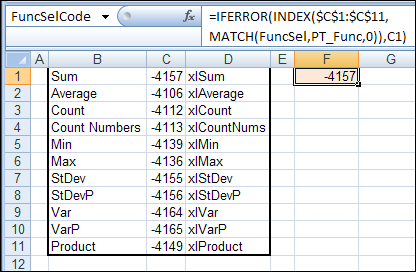
On another sheet, that could be hidden from the users, there is a list of functions, and a formula that looks up the numeric value for each function. The cell with the formula is named FuncSelCode.

PivotFunctionChange03

How It Works

When the FuncSel cell is changed, the Worksheet_Change code on that sheet runs.

Private Sub Worksheet_Change(ByVal Target As Range)
If Target.Address = Me.Range("FuncSel").Address Then
    ChangeAllData (wksLists.Range("FuncSelCode").Value)
End If
End Sub

The ChangeAllData procedure runs, using the numeric value in the FuncSelCode cell, and changes all the data fields in the pivot table.

Sub ChangeAllData(lFn As Long)
'changes data fields to selected function
On Error GoTo errHandler
Dim pt As PivotTable
Dim pf As PivotField
Dim ws As Worksheet
Application.ScreenUpdating = False
Set pt = wksPTSales.PivotTables(1)
On Error GoTo errHandler
pt.ManualUpdate = True
For Each pf In pt.DataFields
  pf.Function = lFn
Next pf
pt.ManualUpdate = False
exitHandler:
Set pf = Nothing
Set pt = Nothing
Application.ScreenUpdating = True
Exit Sub
errHandler:
GoTo exitHandler
End Sub

Download the Sample File

To see the code, and test it with the sample data, you can download the Pivot Table Summary Function Change workbook.

The file is in Excel 2007 format, and zipped. Enable macros when you open the file.
______________

Find Best Price With Excel INDEX and MATCH

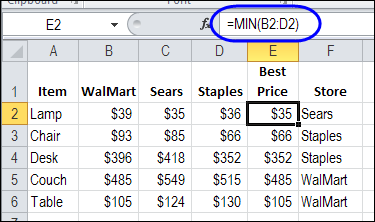
If you’re setting up a new office, or going grocery shopping, you can use Excel to compare prices. Find best price with Excel INDEX and MATCH functions, combined with MIN. This will help you calculate the lowest price for each item, and see which store sells at that price. Then, print a list, and go shopping!

Continue reading “Find Best Price With Excel INDEX and MATCH”

Prevent Invalid Entries in Excel UserForm

In an Excel UserForm, you can use combo boxes, to show users a drop down list of items. If all goes well, the users will select an item from the list, and life will be good.

However, the occasional user likes to get creative, and types an entry that isn’t in the drop down list. And that can cause problems!

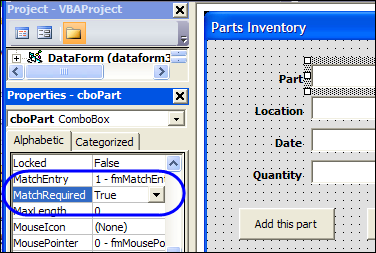
To restrict those creative users, you can set the MatchRequired property for the combo box to True.

userformcombomatch02

Add a Select Item

Changing that MatchRequired property can cause problems though. In this example, the Excel VBA code also tries to clear out the combo boxes, after adding an order to the parts database sheet.

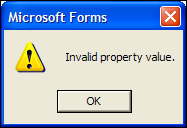
Because an empty string isn’t a valid entry, an error message appears — “Invalid Property Value”.

userformcombomatch03

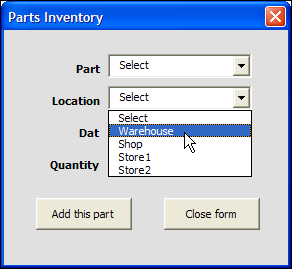
To prevent that error from appearing, you can add “Select” as the first item in the drop down list, and reset the combo boxes to that item, instead of clearing them out.

userformcombomatch01

Download the Sample Combo Box Workbook

To download the sample file, go to the Excel Templates page on my Contextures site. In the UserForms section, look for UF0026 – Prevent Invalid Entries in UserForm.

The file is in Excel 2003 format, and zipped. Enable macros after opening the workbook.

Watch the Excel UserForm Combo Box Match Video

To see the steps for changing the MatchRequired setting, and editing the code, you can watch this short Excel video tutorial.

_________________

Delete Excel Drilldown Sheets Automatically

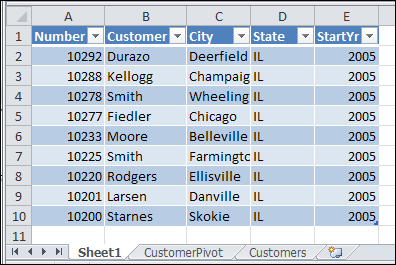
With the pivot table Show Details feature in Excel, a new sheet is inserted when you double-click on the value cell in a pivot table.

It’s a great feature for drilling into the details, but you can end up with lots of extra sheets in your workbook.

showdetails03

Usually, you don’t want to save the sheets, so you manually delete them before you close the file.

Automatically Name the Sheets

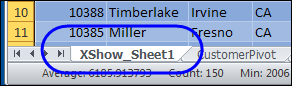
With event code on the pivot table’s worksheet, and in the workbook module, you can add a prefix – XShow_ – when these detail sheets are created.

showdetails06

That prefix should make the sheets easier to find and delete.

Automatically Delete the Sheets

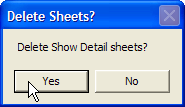
To make the cleanup task even easier, you can use event code to prompt you to delete those sheet when you’re closing the workbook.

showdetails04

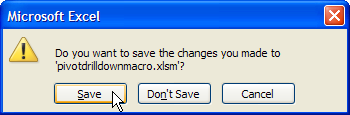
If you click Yes, all the sheets with the XShow_ prefix are deleted. Then, click Save, to save the tidied up version of the workbook.

showdetails05

See the Drilldown Sheet Code

For detailed instructions on adding the drilldown sheet naming and deleting code, visit the Excel Pivot Table Drilldown page on the Contextures website.

Download the Sample Drilldown File

To see how the event code names the sheets, and deletes them when closing, you can download the Pivot Table Drilldown sample file.
________________