Go Undercover With Hidden Excel Worksheets

hiddenAn Excel workbook certainly isn’t Fort Knox, and the information you store there isn’t too secure. If someone opens your Excel workbook, and is determined to see everything in there, they’ll probably be able to.

However, if your goal is simply to make a workbook easier for people to use, you can hide some of the worksheets, so users don’t accidentally change their contents.

For example, if your data entry worksheet has data validation drop downs, you can store the lists on a different sheet, and hide that sheet.

Hide an Excel Worksheet

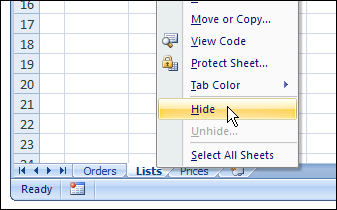
To quickly hide a worksheet in Excel 2007, right-click on the sheet tab, and click Hide.
SheetHide01

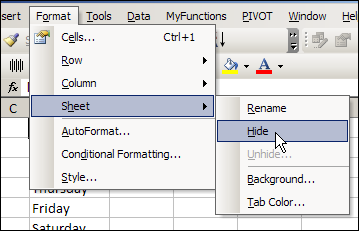
If you’re using an earlier version of Excel, activate the sheet that you want to hide. Then, click the Format menu, then click Sheet, and click Hide.
SheetHide05

Show an Excel Worksheet

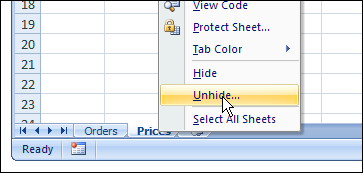
To show the hidden sheet again, right-click any sheet tab, then click Unhide. (In earlier versions of Excel, click the Format menu, then click Sheet, and click Unhide.)
SheetHide02

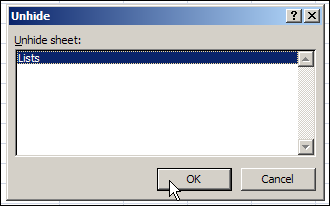
In the Unhide dialog box, click on a sheet name, and click OK.
SheetHide03

Really, Really Hide an Excel Worksheet

If you want to hide a worksheet a little better, you can use a special technique that keeps it from appearing in the Unhide list.

  • First, to open the Visual Basic Editor (VBE), press the Alt + F11 keys.
  • In the Project Explorer, at the left of the VBE window, locate your workbook.
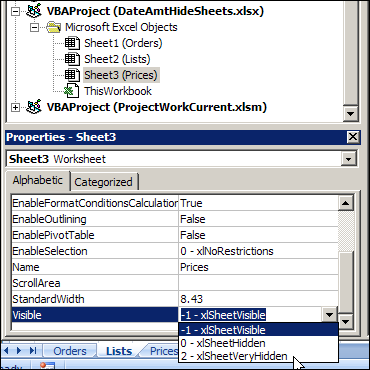
  • In the Microsoft Excel Objects folder for your workbook, click on the sheet that you want to hide
  • If the Properties window is not showing, press the F4 key to open it
  • At the bottom of the Properties window, in the Visible property, change the setting to -2 – xlSheetVeryHidden
  • Close the VBE and return to Excel

SheetHide04

The sheet is now hidden, and its name won’t appear on the Unhide list.

Watch the Excel Hidden Sheets Video

To see the steps for hiding Excel worksheets, you can watch this short Excel video tutorial.

______________
Sort Data With Excel Custom Lists

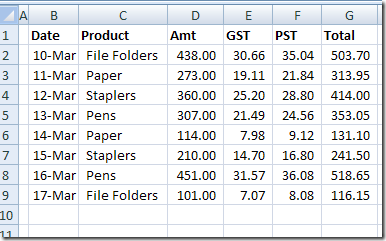
You know how to sort an Excel list alphabetically, and with Excel 2007 you can even sort an Excel list by colour.

Did you know that you can also create a custom list in Excel and use that to sort your data, instead of sorting in alphabetical or numerical order?

See how, in the written steps and video below

Sort by Custom List

Instead of sorting the products in this table alphabetically, we’ll create a custom list of products, and use it when sorting the list.

CustomSort01

Create a Custom List in Excel

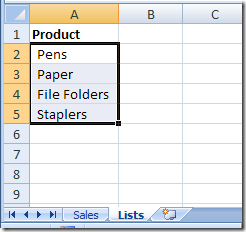
You can create a custom list in Excel by importing a list from a worksheet, or by typing a new list. In this example, there is a worksheet named Lists, and it contains a product list.

We’ll import that list, to create the custom list.

CustomSort02

To open the custom list window:

  • Select the cells that contain the list items
  • On the Ribbon, click the File Tab (or the Office Button in Excel 2007)
  • Then click Options.
  • Excel 2010 and later: Click the Advanced category, then scroll down to the General section
  • Excel 2007: Click the Popular category, then look in the Top Options section
  • Click Edit Custom Lists

To add a custom list:

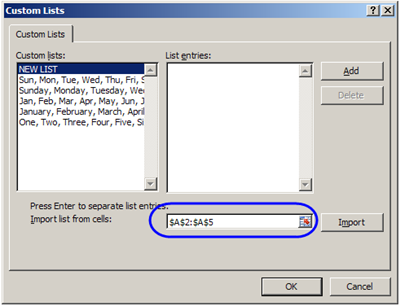
  • In the Custom Lists dialog box, the list address — $A$2:$A$5 — should appear in the Import range box. If not, you can click in the Import range box, and type a range, or select a range on the worksheet.

CustomSort04

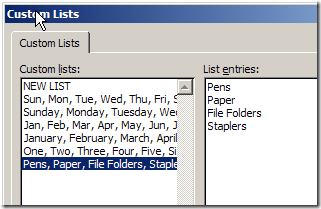
  • To add the selected range as a custom list, click the Import button.
  • The list items will appear in the List entries section of the Custom List dialog box, and at the end of the list of existing Custom Lists.

CustomSort05

  • Click OK to close the Custom Lists dialog box, and click OK to close the Excel Options window.

Use the Custom List

You can use the custom lists when sorting, and you can also use them with the AutoFill feature. Type any item from a custom list in a cell, then use the Fill handle to complete the list.

CustomSort07

Sort Excel List in Custom Order

To sort your list based on your custom list, follow these steps:

  • Select a cell in the table that you want to sort.
  • On the Ribbon’s Data tab, click Sort
  • In the Sort dialog box, select a Column from the first drop down, and select Values from the Sort On drop down.
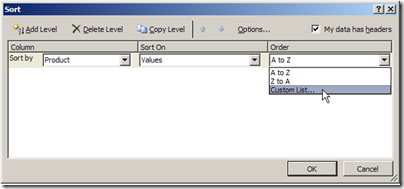
  • In the Order drop down, click Custom List
  • In the Custom List dialog box, select your custom list, and click OK
Sort Excel List in Custom Order
  • Click OK to close the Sort dialog box

The list is sorted in the order of the items in your custom list.

Watch the Excel Sort Video

To see the steps for adding an Excel Custom List, then sorting by that Custom List, watch this short Excel video tutorial.

____________

Back In Time With Microsoft Excel

A very nice email, from someone who visited the Contextures website, made me think about how long I’ve been using Excel.

My guess was that I’d started around 1987, so I fired up the old Mac laptop, and dug some old floppies out of the storage cupboard.

Excel 3.0 on Mac PowerBook

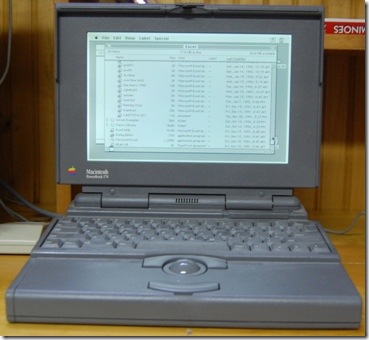
In the photo below, you can see my Mac PowerBook 170 laptop, from late 1991. It’s running the Mac version of Excel 3.0.

There’s a Mac 128K model in the back room too, but I didn’t have the strength to dig that out. (I hope the producers of the tv series, The Hoarders, don’t call me now.)

Mac PowerBook 170 running Mac Excel 3.0

Excel Files

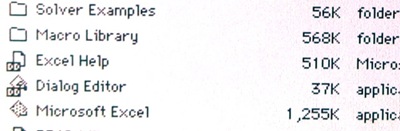
As you can see, the application files were much smaller in Excel 3.0. Of course, that still took a good chunk out of my 40MB hard drive.

Do you remember the days when a Microsoft Office application was just over a megabyte in size?

ExcelMac02

Flashy Excel Charts

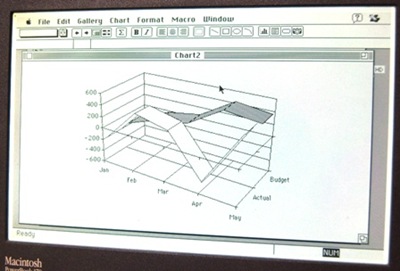
Even though the machine didn’t have colour, I was still able to make some pretty flashy 3-D charts in the old days.

I have no idea what this was supposed to show, but maybe it was the results of an Olympic ski jumping event.

ExcelMac03

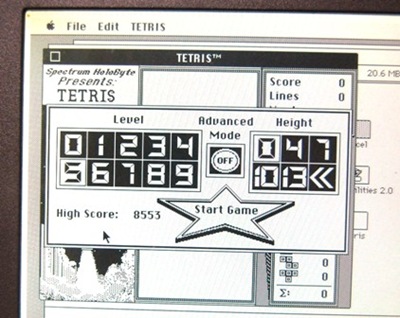
Black and White Tetris

I’m sure that I never wasted any time playing TETRIS, when I was supposed to be working on Excel files.

And it must have been harder to play back then, when all the Tetris shapes were the same shade of grey!

ExcelMac04

Sorting a List

Way back then (and until Excel 2007), we were only able to sort by 3 levels, and we couldn’t sort by colour.

That didn’t matter much to me, since I didn’t have colour!

Sorting a List in Excel 3.0

My Oldest Excel File

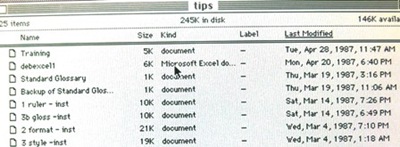
There may be something older on a floppy disk at the back of the storage cupboard, but I finally found an Excel file that I’d worked on in April 1987. I was creating some Excel training files, to be used by Apple vendors.

ExcelMac06

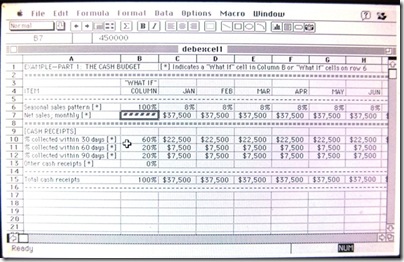
The Excel 3.0 File and Excel Toolbar

Here’s what the file looked like, and it’s interesting to see the minimalist toolbar too. Do you remember what all those icons were for?

Excel 3.0 File and Excel Toolbar

How Long Have You Used Excel?

There’s an Excel poll on my Debra D blog, so if you have a minute, please go and answer the question – How Long Have You Been Using Excel?

[update: the poll is closed now]

Spreadsheet Demo From May 1987

In an episode of Computer Chronicles from May 1987, the guests talked about spreadsheets.

This video shows an Excel demo, by Mike Slade from Microsoft, using a Macintosh. He shows multiple worksheets open at the same time, links the sheets, creates a chart, and runs a macro.

____________

Sort By Colour in Excel

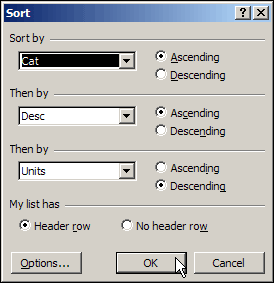
In the old days, the Sort dialog box in Excel only had 3 levels.

However, with a bit of planning, you could sort Excel data by 4 columns or more, and once you learned that trick, life was good. Or at least it was sort of good. 😉

Sort dialog box in Excel 2003

Sorting in Excel 2007

In Excel 2007, the Sort dialog box is much fancier, and you can include up to 64 sorting levels.

I’ve never needed anywhere near that many – 5 or 6 fields is plenty for most tables that I’ve had to sort.

Sort By Colour

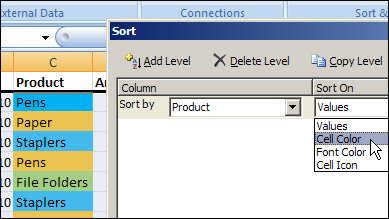
Another new feature in Excel 2007 is the ability to sort by cell or font colour, or by cell icon.

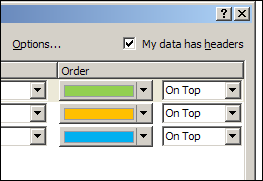
sort by cell or font colour

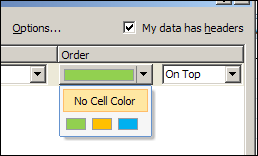
If you have different colours in a column, you can choose one to show up at the top or bottom of a sorted list.

SortColour02

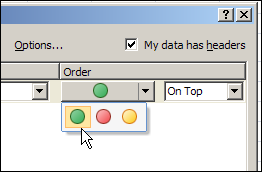
If you used conditional formatting to add cell icons, such as traffic lights, you can sort by those icons.

SortColour06

To put the colours or cell icons in a specific order, you can add the same field multiple times in the Sort dialog box, and choose a different colour or cell icon for each sorting level.

This won’t be too difficult if you have only a few colours in the list, but will be more challenging if you have lots of colours.

SortColour03

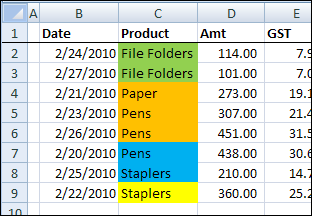
Worksheet List Sorted by Colour

The list on my worksheet, that was previously sorted by date, is now sorted by the colours, in the order that I selected above.

Yellow isn’t in the Sort level specifications, so it appears at the bottom of the list.

Worksheet List Sorted by Colour

Sort By Colour At Your Own Risk

Even though you can sort by colour now, I wouldn’t recommend it. I’ve seen too many rainbow coloured Excel worksheets, where nobody can remember what the colours mean.

Is yellow good? Is blue bad? Is there a colour code somewhere?

Sort By Text or Number

I’d rather add another column in the worksheet, and put a number code or text comment there. S

o, instead of marking the overdue accounts with a red fill colour, type “Overdue” in another column, or use a formula to calculate which accounts are overdue.

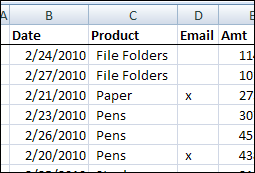
Or, instead of highlighting the customer names that you want to send an email to, type an X in an Email column.

Then, you can sort or filter the Overdue accounts or the Email column, to focus on the rows of interest.

Mark X in Email Column

Do You Sort By Colour?

Maybe I’m missing something, and the feature is working well for you. Some people must have asked for the feature, since they added it to Excel 2007.

In your Excel worksheets, do you ever sort by colour? In what kind of lists or situations is it most helpful for you?
_______________

More Room to Work in Excel 2007

You might not love the Ribbon in Excel 2007, but the user interface does have new features that are an improvement over Excel 2003.

The new features are useful when you’re working with large formulas or long names. There are written steps and a video below, that show those features

Change the Formula Bar Height

In Excel 2003, if you click on a cell that contains a long formula, it can spill onto the worksheet, hiding the column headings.

It’s nice to see the formula, if you want to edit it, but annoying if you’re trying to do something else.

LongFormula01

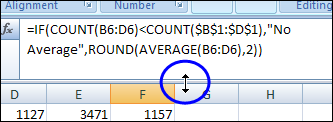
In Excel 2007, you can adjust the height of the formula bar, and the long formulas don’t cover the worksheet. To adjust the height:

  1. Point to the bar at the bottom of the formula bar.
  2. When the pointer changes to a two headed arrow, drag up or down, to change the formula bar height
Change Formula Bar Height

Restore Formula Bar Height

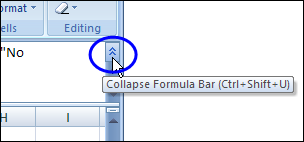
After you’ve adjusted the height, you can quickly restore it to its previous height, by clicking the Collapse Formula Bar button.

FormulaBarHeight03

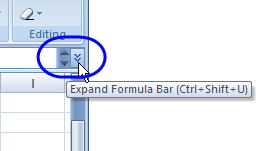
When the formula is collapsed, the button changes to Expand Formula Bar. Click that to return to the previous height setting.

FormulaBarHeight04

Also, if the formula is too long to show in the formula bar at its current height, scroll buttons appear, as you can see in the screen shot above.

You can click the scroll buttons to view the formula, if you don’t want to change the formula bar height.

Widen the Name Box

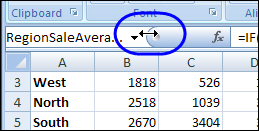
Another new feature that I find really helpful is the ability to widen the Name Box. Instead of just seeing the start of a long name, and three dots, you can widen the Name Box to see the entire name.

To adjust the Name Box width, point to the dividing line at the right edge of the Name Box, and drag to the right.

Widen the Name Box
Widen the Name Box

Restore Name Box Width

To return to the default Name Box width, double-click the dividing line. (At least I think it’s the default width – I’ve changed my settings too many times to remember exactly.)

Excel’s Help says, “The maximum width of the name box is half of the width of the worksheet.” However, I’m able to widen the Name Box to the full width of the worksheet, and narrow it to nothing.

Maybe that restriction applied in the Beta version, and the Help wasn’t changed.

Do You Use These Features?

I’ve used Excel for so many years without these features, that I often forget they’re available. Long formulas can be hidden in the formula bar when condensed, because they don’t spill onto the worksheet, the way they used to.

If a formula is cut off in a logical place, you might not even realize that part of it is hidden. Those scroll buttons are very subtle, and are the only clue that a formula doesn’t fit.

Do you remember to use the new sizing features? Do you prefer them to the Excel static settings?

Watch the Video

Here’s a short video that shows the new features for adjusting the formula bar height and the Name Box width.

It also shows how to temporarily collapse the Ribbon, so only the tabs are visible. That gives you an extra inch of space, if you need it when working on a large worksheet.

_______________

We Need a Spreadsheet Day

Yesterday, Seth Godin suggested that we should invent a holiday to celebrate the things that we love. For example, today is Family Day here in Ontario, Canada, a holiday that has only existed for a couple of years. It’s nice to have the day off, and that gave me the chance to think about other holidays.

How about a Spreadsheet Day, to honour Excel, and the other spreadsheets that people use? There are other spreadsheets, aren’t there?

I searched Google, and nothing relevant came up for the keyword phrase, “Spreadsheet Day”. That’s shocking!

Next, I checked a couple of sites that list all the obscure holidays and special days, but found nothing similar listed there either.

There are plenty of obscure holidays, including Pi Day on March 14th, and there’s even a Pickle Day, on November 14th. But no Spreadsheet Day.

What Day Would Work Best?

We should select a suitable day to celebrate spreadsheets, without conflicting with any of the other important holidays.

The first cell in an Excel worksheet is A1, so that could guide the holiday date selection.

The first “A” month is April, but April 1st is April Fools’ Day, and it would be best to avoid that. Also, April is tax month in Canada and the USA, so Excel users might not be in the mood to celebrate.

How about August 1st? There’s not much happening in August, and no other holidays on that date, that I can see. That would be a good date for Spreadsheet Day. Or maybe you have a better suggestion.

How Could We Celebrate?

What activities could we plan for Spreadsheet Day?

  • The 50 yard dashboard?
  • Rowing competitions?
  • All day cell-ebrations?
  • Sitting in a Lotus position?
  • Pie Chart eating contests?

Do you have any other ideas?

Spreadsheet Day 2010

There’s still time to organize a Spreadsheet Day for 2010, if we get started now. Let the hijinks, shenanigans and monkey business begin!

____________
Happy New Year With Excel Fireworks

Happy New Year! All the best in 2010, and I hope you’re looking forward to the release of Office 2010.

Excel Fireworks

I thought about creating some fireworks in Excel, then discovered that Andy Pope already made some, based on an XY scatter chart.

Fortunately, there’s no noise, so if your head hurts a little today, the fireworks won’t make it worse.

In Andy’s workbook, you can set the number of rockets, the sparks in each rocket, and the effect of gravity. That could keep you busy for hours!

Excel Fireworks by Andy Pope

Excel Scrolling Banner

Andy also has a sample Excel workbook with scrolling text.

If you’re feeling adventurous, you could combine Andy’s two workbooks to show Happy New Year, and a fireworks display.

Excel Scrolling Banner

More New Year’s Day Fun

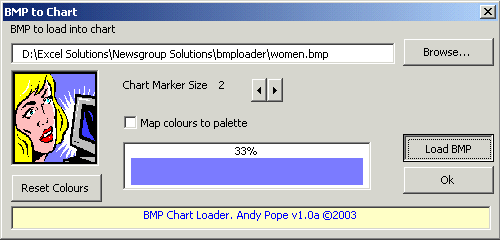
And for one more bit of Excel fun on New Year’s Day, Andy Pope has a free tool for converting a normal BMP image into an Excel scatter chart.

Here’s a screen shot of the BMP to Chart dialog box, where you can select a BMP format image file.

Andy Pope's BMP to Chart tool
Andy Pope’s BMP to Chart tool

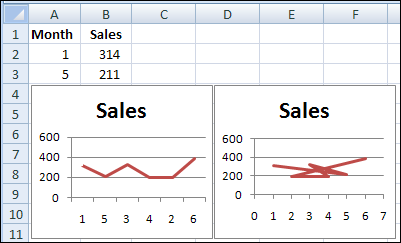
Line Chart vs Scatter Chart

If you’re not familiar with Excel scatter charts, take a look at my blog post that compares Excel line charts and scatter charts.

difference between line chart (left) and scatter chart (right)

_________________
Excel New Year’s Resolutions 2010

NewYears What will you do better in Excel next year? Do you have any Excel bad habits that you’ll break? Are there any Excel skill areas that you’ll improve?

Excel Resolutions

Based on the questions that I see in the Excel newsgroups and forums, lots of people could resolve to do one or more of these things:

  • Save your Excel files every few minutes as you work on them. Jan Karel Pieterse has a terrific (and free) Excel add-in – AutoSafe – that will automate the saves for you, and it’s way better than Excel’s built in autosave feature.
  • Make backup copies of every important Excel file, and update those backups regularly. Yes, something will go wrong eventually, and those backups are lifesavers.
  • Add an instruction sheet to your key Excel files and complex worksheets. Then, if you’re away for a holiday, your co-workers won’t have to call you with frantic questions, or mess things up on their own. Maybe that’s what happened to the banking industry.

My Excel Resolutions

Here are my Excel goals for 2010:

  • Spend a couple of hours each week working with the Excel 2010 beta, and PowerPivot for Excel add-in, so I’m ready to roll when the final version is released.
  • Make better notes when I write and edit code. Sometimes it’s clear what the code is doing, but I can’t remember why I decided to do things a specific way. A few notes could save time and frustration later.
  • Update my Pivot Table add-in so all the features work in Excel 2007. Jon Peltier is planning a series on creating Excel add-ins, so that could give me some ideas for improving my add-in.

Your Excel Goals for 2010

What about you? Do you have an Excel goals for 2010 that you’d like to share?

Making your Excel resolutions public might help you stick to them!
____________

Quick Excel Tips: Paste Values and Sort

How long is your attention span? It’s a short work week, so let’s start it off with a couple of quick Excel tips. And when I say “Quick,” I mean, “Don’t blink, or you’ll miss them.”

I recorded a few quick Excel tips, and posted them in the Excel Quick Tips playlist on my Contextures YouTube channel.

If you can’t sit still through a lengthy 2 minute video, this might be the solution!

Select a Random Name

The first video shows you how to select a random name from a list. Enter the RAND function in the column adjacent to the list of name.

Then, sort the column with the RAND function, and the name at the top is the winner.

This is the same technique that I used to select winners in my Excel Summer Giveaway and Excel Fall Giveaway contests.

You can see the RAND function being used in the Excel random name draw video.

Paste Formulas as Values

In the second video, you can see how to use the mouse to copy cells that contain formulas, and paste the results as values.

If that was too quick for you, there’s a longer version of this video that shows the Paste Values in Excel with a Mouse Shortcut technique.
_____________

Compare Budgets With Excel Scenarios

Should you spend extravagantly this Christmas, or go cheap, or spend somewhere in the middle?

You can use Excel Scenarios to store several versions of a budget, and compare the results. Let’s set up a worksheet where we can compare three scenarios for holiday spending.

Set Up the Worksheet

The first step is to set up the worksheet. Some of the cells will be the same in each Excel scenario, and other cells will change.

Note: There’s a limit of 32 changing cells in an Excel Scenario.

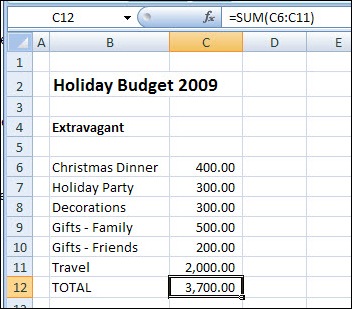
  • On a worksheet named Budget, add headings, spending categories, and amounts, as shown in the screen shot below.
  • Add a Total label, and a sum of the spending amounts.
Excel Scenario for Extravagant holiday budget

Create the First Scenario

The first scenario is for Extravagant spending, which will contain the highest amounts.

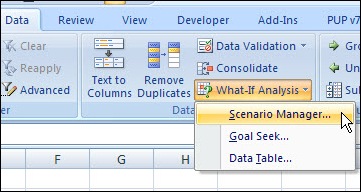
  • On the Ribbon, click the Data tab.
  • Click What-If Analysis, then click Scenario Manager. (In earlier versions, click Tools>Scenarios)

Excel Scenario

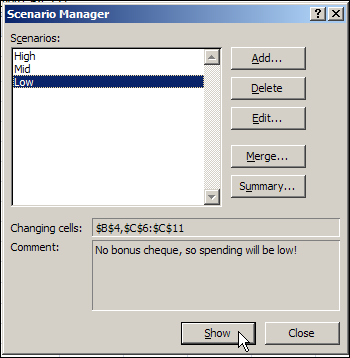
  • In the Scenario Manager, click Add
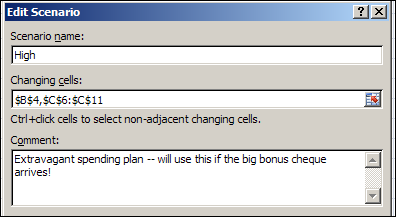
  • Type name for the Scenario. For this example, use High.
  • Clear the Changing cells box
  • With the cursor in the Changing cells box, click cell B4 on the worksheet. That’s one of the cells that will change in each scenario.
  • Hold the Ctrl key, and select cells C6:C11. Do not include any of the category labels, or the total cells.
  • (optional) Enter a comment that describes the scenario.
  • Click OK to close the Edit Scenario box.

Excel Scenario 03

Add the Scenario Values

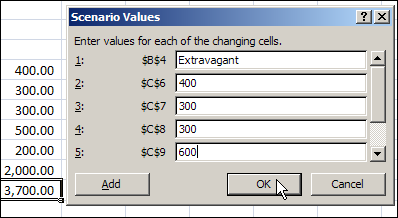
The Scenario Values dialog box opens, with a box for each changing cell. It automatically displays the current value in each changing cell. You could modify one or more of the existing values, or leave them as is.

We’ll make the Gifts – Family amount a bit higher, and leave the other values untouched.

  • For item 5, change the value from 500 to 600.
  • Click OK to return to the Scenario Manager. Notice that the value on the worksheet didn’t change – it still shows 500 as the amount for Gifts – Family.
Add Excel Scenario values

Create Another Scenario

You can add more scenarios by changing the worksheet values, and following the steps that you used to build the first scenario.

Or, you can add an Excel scenario directly into the Scenario Manager.

  1. In the Scenario Manager, click Add
  2. Type name for the next scenario. For the second scenario, use Mid.
  3. Leave the existing cells in Changing cells box
  4. (optional) Enter a comment that describes the second scenario.
  5. Click OK to close the Add Scenario box.
  6. In the Scenario Values dialog box, enter the worksheet heading and values for the second scenario.
  7. Click OK to return to the Scenario Manager.
  8. Create the third scenario – Low – and enter the lowest amounts for that scenario.
  9. Click Close, to return to the worksheet.

Show a Scenario

Once you have created the Excel Scenarios, you can show them.

On the worksheet, the original values for Extravagant scenario are showing.

To change to a different scenario, follow these steps:

  1. On the Ribbon, click the Data tab.
  2. Click What-If Analysis, then click Scenario Manager. (In earlier versions, click Tools>Scenarios)
  3. In the list of Scenarios, click on a Scenario name
  4. Click the Show button, then click Close.
Show a Scenario
Show a Scenario

Show the Excel Scenario Summary

After you create the Excel Scenarios, you can view them in an Excel Scenario Summary. This lets you see the values and totals side-by-side, for an overall comparison.

Note: The Excel Scenario Summary does NOT update automatically if you change the scenario values. You can delete the old summary and create a new one.

To create a Scenario Summary:

  • On the Ribbon, click the Data tab.
  • Click What-If Analysis, then click Scenario Manager. (In earlier versions, click Tools>Scenarios)
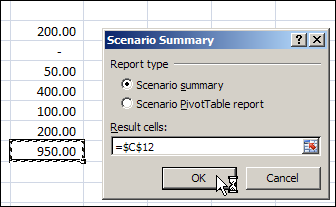
  • In the Scenario Manager, click Summary
  • In the Scenario Summary dialog box, for Report type, select Scenario Summary
  • Click in the Result cells box, and on the worksheet, click the Total calculation cell (C12).
  • Click OK, to close the dialog box.

Excel Scenario 06

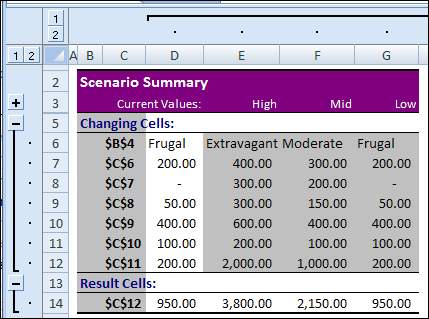
A Scenario Summary sheet is added to the workbook.

  • To show or hide the details, click the + / – buttons at the left side and top of the worksheet

Excel Scenario 07

Improve the Scenario Summary

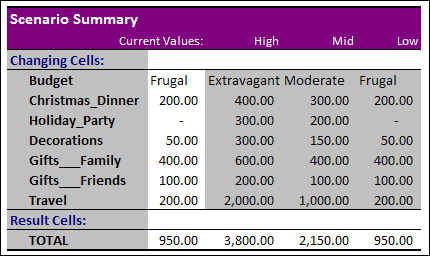
In the Scenario Summary shown above, the changing cells are shown as addresses.

If you name the value cells, the Scenario Summary will show those names, instead of the cell addresses.

ExcelScenario08

You could probably change the colour scheme too, unless you’re a big fan of grey and purple!

P.S. There’s more information on Excel Scenario Summary settings, and programming examples, on my Contextures website.
___________________