Without family, where would Excel blog ideas come from?
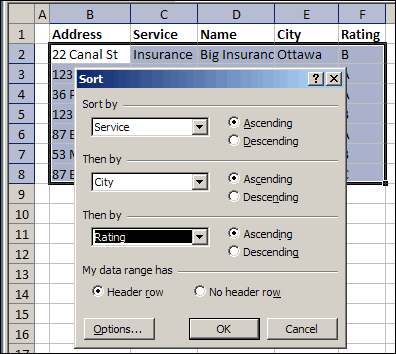
My daughter called today, and asked how to sort more than 3 columns in Excel. She uses Excel 2003, and the Sort dialog box only allows three column choices.
There’s no box to choose the fourth column – Name.
Sort dialog box in Excel 2003
Sort By Multiple Columns
Obviously, she didn’t check my website, where she would have found the instructions to sort by four columns in Excel.
You can sort in groups of 3, working up from the least important to the most important.
So, I told her to sort the fourth column (Name), then the first three (Service, City, Rating).
Sorting in Excel 2007
If you like to sort lots of columns, you’ll be happier in Excel 2007. There, you can sort up to 64 columns at one time.
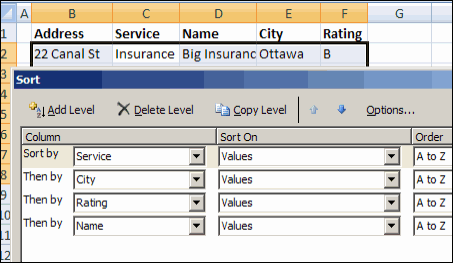
If my daughter had Excel 2007, she could choose all four columns, and sort them in one step.
In the Sort dialog box, click the Add Level button, to include another column in the sort specifications.
Sort dialog box in Excel 2007
Automating the Sort
If you turn on the macro recorder while sorting in Excel 2007, you can create a macro to sort the table.
Then, run that macro later, when you need to sort the table again, using the same settings.
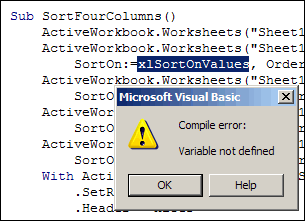
Macro Error in Excel 2003
However, if you’re sending the workbook to someone who uses Excel 2003, they’ll get an error message if they try to run your sort code.
Just like families, sometimes the different generations don’t communicate too well. 😉 Because the sort feature changed so much in Excel 2007, the older versions don’t recognize some of the new properties.
Sort Macro for All Excel Versions
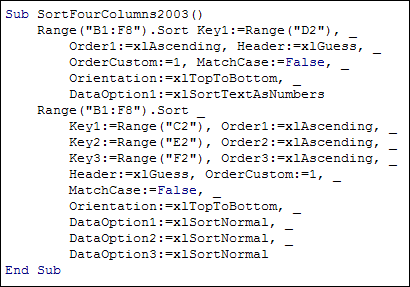
If you plan to use the workbook in both versions of Excel, record the sort macro in Excel 2003. This will also run without problems in Excel 2007.
Here’s the code from this example, with the Name in column D being sorted first.
You open lots of Excel files every day, and sometimes open the same file several times.
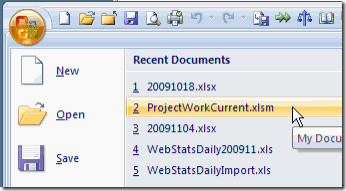
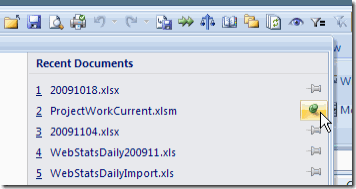
In Excel 2007, if you click the Office Button, you can see a list of documents that you’ve opened recently. Click on file name, to open that file again.
List of Recently Used Documents
Change the Number of Documents
My Recent Documents List was showing 17 files, and I guess that’s the default number, since I don’t remember changing it.
Instead of leaving the default setting, you can show more or fewer files.
To change the setting:
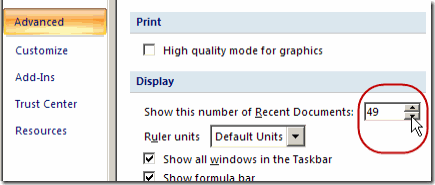
Click the Office Button, then click the Excel Options button
Click the Advanced category
In the Display section, change the number for Show this number of Recent Documents.
Click OK, to close the Excel Options window.
Show this number of Recent Documents
The maximum number of files is 50, but that many might not show unless you have a really tall monitor.
Change the Setting in Excel 2003
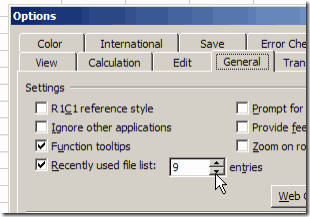
In Excel 2003, the maximum number of files you can show in the list is 9. To change the setting:
On the Tools menu, click Options.
On the General tab, change the number for the Recently Used File List.
Click OK, to close the Option dialog box.
Clear the Recent Documents List
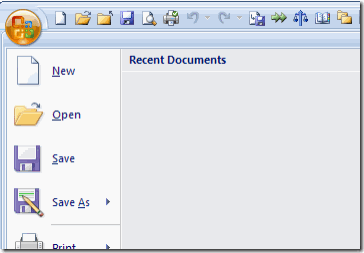
In either version of Excel, you can clear the list, by changing the number to zero.
In Excel 2003, you can also remove the check mark from the Recently Used File List setting.
After the list is cleared, you can change the setting to a higher number, to start building the list again.
Pin Items to the List
Normally, the older items in the list drop off the bottom, as new files are opened. In Excel 2007, there’s a push pin icon at the right of each file name. To keep a file on the list, click that push pin, to activate it.
This is another one of the Excel 2007 features that I didn’t notice until recently. (Maybe that’s why it’s call the Recent Documents list!) Now I use it quite often, to “stick” files that I’m working with for a few days.
In the screen shot below, the ProjectWorkCurrent.xlsm file is pinned to the list. Instead of the flat grey push pin, there’s a vertical green push pin.
That file will work it’s way down the list, if it’s not opened for a while, but it will stick to the list, and won’t drop off.
Almost a year ago, we talked about creating a table of contents sheet in Excel. In that post, one of the suggestions was to type a list of sheets on a worksheet, then change each sheet name into a hyperlink.
Today, you’ll see a quicker way to create hyperlinks — by dragging and dropping. There are written steps and a video below.
For the past 82 years (approximately), I’ve used Excel almost every day. Along the way, I’ve learned a few tricks, and produced some sophisticated workbooks.
One of the joys of Excel is that there’s always something new to learn. And this week I learned how to freeze panes to hide rows in Excel.
How much time do you spend trying to find and fix error in your Excel workbooks? Or even worse, fixing errors in other people’s workbooks.
Test Your Workbooks
Earlier this month, I showed how you can do some simple troubleshooting for Excel formulas, in this article: See Formulas on an Excel Worksheet
After he read that article, Patrick O’Beirne, author of Spreadsheet Check and Control , asked if I’d like a review copy of his new Excel add-in, XLTest. This tool is designed to test your workbooks, in Excel 2007 and earlier versions
[Update] This Excel add-in is no longer available.
Getting Started With Add-In
Even though all my workbooks are error free 😉 I accepted Patrick’s offer.
Note: I did not get paid to review this add-in, and I do not earn any commissions on its sales.
Patrick sent the add-in, instructions, and a couple of sample files.
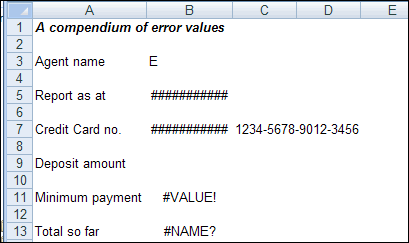
Here’s a screen shot of the first sample. If your files look like this, you might need more help than this add-in can provide!
screen shot of the first sample
The Add-In Commands
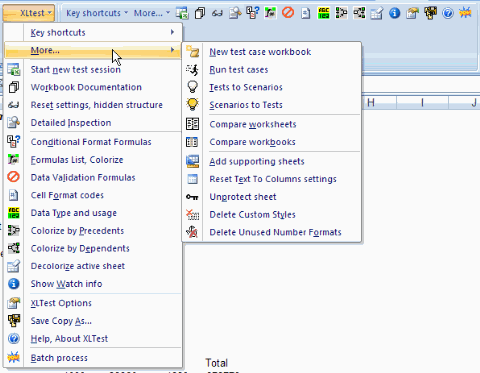
After I installed the add-in, a drop-down menu appeared on the Ribbon, as well as all the icons.
I’d rather have just the drop-down menu, so maybe there’s a way to turn off one or the other.
Key Shortcuts
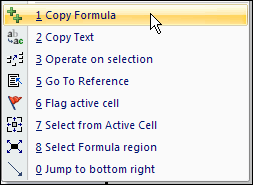
The add-in adds 8 key shortcuts that you can see in the Ribbon, and in the popup menu that appears when you right-click a cell.
Since the add-in features these shortcuts, let’s look at a few of those first.
Copy Formula: This is handy if you want to move a formula without changing the relative references. It’s quicker than copying the formula from the Formula Bar, and pasting it into another cell, which is the way I’d do it without this shortcut.
Operate on Selection: Select non-contiguous cells, in multiple rows and columns, then move or copy them to a different location. If you try this in Excel, you’ll get an error, so this shortcut could really save you some time and aggravation. To get this to work in Excel 2007, I had to select the top left cell last.
Select Formula Region: Selects all the cells in the current region that have the same formula (in relative R1C1 terms) as the active cell. This helps you see if you’ve entered or updated a formula in all the relevant cells. Excel’s error checking could flag those cells for you, but I usually have that turned off because it clutters up the worksheet.
Jump to Bottom Right: I use Ctrl+End to go to the bottom right, so I’d rather have another feature shortcut here.
Document Your Workbook
The rest of the commands let you test your workbooks for errors, starting with the Start New Test Session command.
It opens a dialog box that lets you choose from 4 options for keeping logs, recording settings, opening files and closing open workbooks.
Next, you can document your workbook with the Worksheet Documentation command. Select all the options, or just a few, and list the results in a new workbook or existing one.
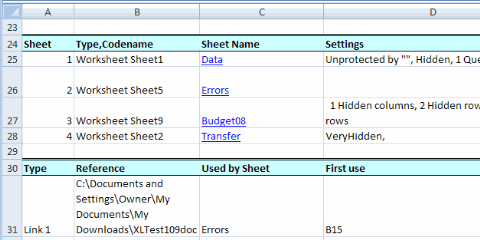
All the details are reported in a well organized worksheet. Here’s a small section of the report for the demo file.
details are reported in a well organized worksheet
Custom Number Formats
In Excel 2007, when I selected Number Formats with the other options, the Format Cells dialog box stayed open, and none of the Custom Number Formats were listed in the documentation.
Everything else was correctly documented though, including the VBA modules.
Inspect Your Workbook
For me, the main feature in the XL Test add-in is the Detailed Inspection. Instead of spending hours or days combing through your worksheets, click a button and get a report in a few seconds.
Again, there were problems with reporting the Number Formats, but I’m sure Patrick can sort that out quickly.
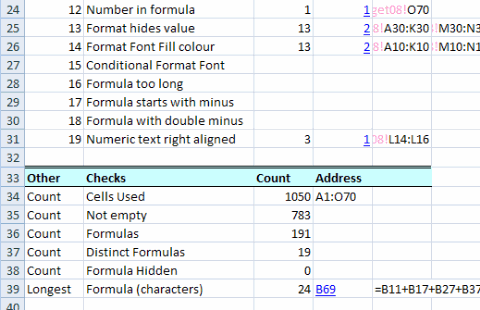
It creates a detailed report, with errors and other problems listed. You can quickly focus on the crucial errors, and get things fixed.
I don’t know what happens if you choose to see errors in separate cells, and there are more errors than columns. Maybe it wraps around, or maybe its head explodes!
Other Tests for Your Workbook
There are several other tests that you can run in the XLTest add-in. For example, colour and document the data validation, conditional formatting or number formats on a worksheet.
These test will quickly highlight any cells in a range that are different than their neighbours, and allow you to fix them.
After testing, you can click the add-in command to clear all the fill colour from a worksheet. Since the tests also add rectangle shapes with hyperlinks, it would help if those could also be removed with a single click.
The add-in also has a command for Batch Testing, so you can run all the tests on a workbook, with a single click, instead of running each test individually.
The documentation warns of Excel memory problems if you try this on a large workbook.
Additional Features
Test Cases: The XLTest add-in can run a list of tests, and create a report on the results of each test. Use this to ensure that a new version of a workbook works the same as the previous version, except where you have intentionally changed things. The add-in will also convert any existing Scenarios to test cases, so you can run those.
Comparison: With the add-in, you can compare worksheets or workbooks, and create a detailed list of differences. For workbooks, even the VBA code is compared.
Housekeeping: There are several housekeeping features, such as creating a table of contents, unprotecting a sheet, and deleting custom styles.
Functions: The add-in also adds 14 functions to Excel, such as GetFormula, ColorName and FileSize.
Should You Buy the XLTest Add-in?
If you’re an expert programmer, you might have your own code that does error testing, comparison and housekeeping, so you won’t need Patrick’s add-in.
If you don’t have your own code, this add-in would be well worth its purchase price (£199, approx $296 US), in the time you’d save in looking for errors, and other tests.
Yes, the add-in is more expensive than many other utilities that I’ve seen. It’s a bargain though, when compared to hiring an Excel programmer or trying to do the testing yourself.
Inherited Workbooks
For workbooks that you’ve inherited from colleagues or clients, you might not even know where to begin the error hunt.
The XLTest add-in can do most of the detective work for you – it even unprotects and unhides sheets, rows and columns.
And, of course, the real value in XLTest is in finding those critical errors that you didn’t even know you should look for.
If the add-in saves your job, it’s priceless!
____________
It’s Thanksgiving Day in Canada, so some of us will be eating turkey and watching football. However, we don’t limit ourselves to one day, like the USA – we celebrate for three days!
Tomorrow, eight feet of snow will fall, and we’ll stay inside for the rest of the winter. 😉
Computer Chronicles 1987
For those of you who don’t have football to watch today, here’s a program that you might find interesting.
It’s an episode of Computer Chronicles from May 1987, with the guests talking about two types of spreadsheets — Microsoft Excel, and Trapeze.
An Excel Demo
The episode starts with a discussion of “look and feel” and related lawsuits. Then, at the 8:00 mark in the program, the Excel demo starts, with Mike Slade from Microsoft, using a Macintosh.
He shows multiple worksheets open at the same time, links the sheets, creates a chart, and runs something called a macro.
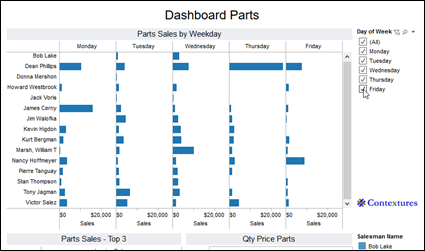
You can make fancy, interactive dashboards in Excel too! For examples, tips, videos and ideas, go to the following dashboard pages on my Contextures site:
Dashboard Course Review – A detailed review of Mynda Treacy’s online Excel Dashboard course, which she opens 3-4 times each year, on her website.
Dashboard Problems Survey Results – I ran a survey, to ask if people used Excel Dashboards – Yes or No, and what problems they encountered. The detailed results and replies are shown on this page
Dashboard Templates– This page has sample Excel dashboard templates that you can download, to help you get started, or add new features to your existing dashboards
Dashboard Tips – These examples show common Excel dashboard mistakes, and how to fix them
Well, I finally finished creating all the names in my client’s Excel workbook, and sent the file back to them.
To help my client see what I’d done, I created a list of the names in the workbook, and sent it along with the main file.
It was also a quick way for me to double-check the names and their formulas.
Create the List of Names
Here are the steps to create a list of names:
Insert a new worksheet, or select a cell in a blank area of an existing worksheet. On the Ribbon, click the Formulas tab.
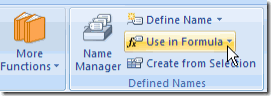
In the Defined Names group, click Use in Formula
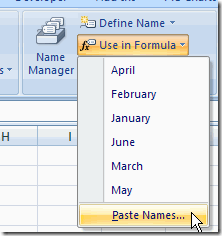
At the bottom of the list of names, click Paste Names (In Excel 2003, click Insert | Name | Paste)
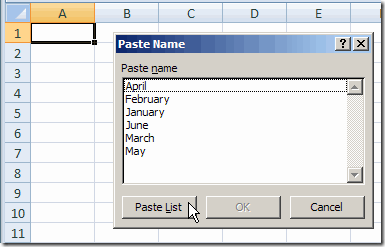
In the Paste Name dialog box, click Paste List.
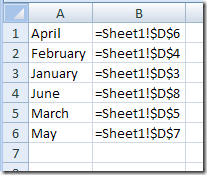
A 2-column list of names will be inserted, starting in the selected cell, so make sure you have room for your list.
Excel Name List on worksheet
What’s in the List?
The list of names will contain all the workbook level names, unless there’s a duplicate sheet level name on the sheet where the name list is pasted.
In that case, the sheet level name appears in the list, instead of the workbook level name.
Name Manager Add-In
I’ve mentioned Jan Karel Pieterse’s Name Manager before, as one of my favourite Excel add-ins.
If you’re working with names, in any version of Excel, you should download and install it. It’s free, easy to install, and simple, but powerful, to use.
This week I’m working on a giant Excel workbook, and my client wants all the data entry cells named.
There are about 600 cells to name, so I’m looking for ways to same some time.
Use the Name Box
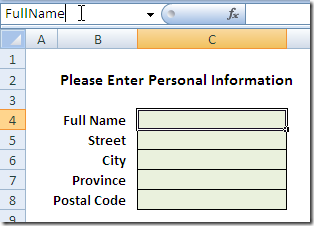
A quick way to name a cell is to click in the Name Box, type the name, the press the Enter key.
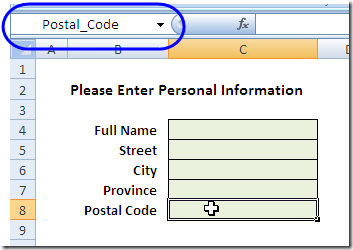
In the screen shot below, cell C4 is being named as FullName.
Type name in Name Box
Create From Selection
Even quicker is to use the Create Names feature, and name the cells based on the labels in adjacent cells .
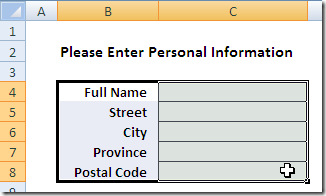
Here, the cells with labels, and the data entry cells, are selected (B4:C8).
Select Labels and Cells
Ribbon Command
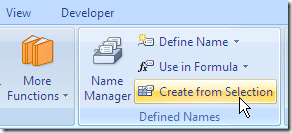
Then, on the Ribbon, click the Formulas tab
Next, click Create From Selection.
Or, in Excel 2003, click Insert | Name | Create.
Create From Selection dialog box
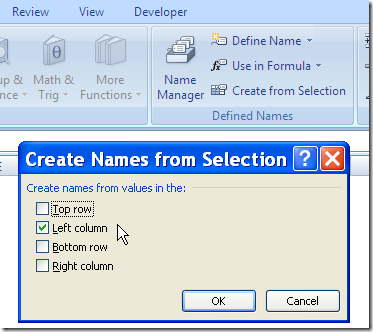
In the Create From Selection dialog box, select the location of the labels.
In this example, the labels are in the left column of the selected cells.
Then click OK to create the names.
Create From Selection dialog box
Name a Range of Cells
In this example, I named a single cell with each label. You can select multiple cells adjacent to each label, and the label will name the range of cells.
Valid Characters in Names
If the labels contains spaces, they’re replaced with an underscore.
Other invalid characters, such as ampersand ( & ) and hashtag / pound sign (# ) will be removed or replaced by an underscore character.
If you name a range of cells in Excel, you can use that name in a formula, or as the source for a data validation list, or as the data source for a pivot table.