Excel INDEX MATCH Lookup Formula

Recently, my daughter, Sarah, broke her foot, and has had two surgeries, with orthopaedic specialists trying to put all the pieces back together.

I stayed with her for a few days after the latest surgery, to help her out.
One night, just as I was dozing off, I got a message on my iPhone. It was my daughter, texting from the next room.

  • “Are you still awake?”
  • “Yes, what do you need?”
  • “I need help with Excel.”

That made me laugh, and I went in to see what help she needed.

Event Planning with Excel

Sarah is the event planner at Movember Canada, and is organizing launch parties for this year’s Movember events, across Canada.

“During November each year, Movember is responsible for the sprouting of moustaches on thousands of men’s faces, in Canada and around the world. With their “Mo’s”, these men raise vital funds and awareness for men’s health, specifically prostate cancer and male mental health initiatives.”

Of course, event planning is more difficult when you’re confined to your bed, but she’s been going non-stop, despite her injuries.

Apparently the surgical staff had to pry the phone from her hand in the last seconds before she was wheeled into the operating room. Now that’s job dedication!

Excel List of Invitees

Sarah had a list of invitees to the Movember events, and was trying to match email addresses with a short list of people who had not responded to their invitations.

The short list did not include the city name, and she wanted to pull that data from the original list.

Here, using some fake data that I created, is an example of the Excel worksheet, with the long list, and short list.

fake names in mailing list

Solving Problem With Index and Match

Like many other Excel problems, this one can be solved with a combination INDEX/MATCH formula.

  • The MATCH function finds the email in the original list, based on an exact match
  • The INDEX function pulls the City from that email address’ row.

INDEX/MATCH Formula

In cell J4, I entered the following formula:

=INDEX($D$4:$D$1000,MATCH(I4,$E$4:$E$1000,0))

The formula looks for the city in column D, in the row where the matching email address was found in column E.

Copy Formula Down

Next, I copied the formula down to the last row in the short list, and all the cities showed up in the short list.

mailinglistcity02

Finally, I copied the City cells in the short list, and pasted them as values, because the formulas weren’t needed any more.

Back to Sleep

It only took a couple of minutes to fix my daughter’s Excel problem, and she thanked me for coming to the rescue.

It warms a mother’s heart to know that her children grew up to be productive adults, who use Excel every day.  Sarah might not remember that formula later, but that will give her a reason to call me the next time that she’s stuck in Excel.

After helping out, I headed back to the guest room, and fell asleep. I’m not sure how much longer Sarah kept working, but probably way too long.

And if you’re growing a moustache in support of Movember, please let me know!

Movember Logo
Movember Logo

_____________________

Find Text With INDEX and MATCH

Is there a harder working team in Excel, than the reliable duo of INDEX and MATCH? These functions work beautifully together, with MATCH identifying the location of an item, and INDEX pulling the results out from the murky depths of data. See how to find text with INDEX and MATCH.

Continue reading “Find Text With INDEX and MATCH”

Change Functions With Excel Drop Down List

Last year, I shared a technique for selecting a function name from a drop down list, and that changed the formulas in a summary row on the worksheet.

Select Function Name

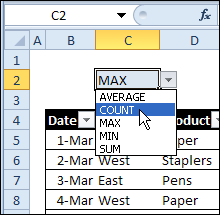
For example, from the drop down list in cell C2:

  • Choose the MAX function, to see the highest amounts in a lists of sales orders.
  • Next, choose the SUM function, to see the total amount in the lists of orders
  • Or, choose the COUNT function, to get the total count
drop down list of function names in cell C2

This technique runs on formulas, not macros, and is a great way to show different information in a small amount of worksheet space.

It could be perfect for an interactive Excel dashboard, where people can choose the information they want to see.

Watch the Video

I’ve finally made a video that shows how to create this changeable summary, and create a drop down list of functions.

You can watch the video here, and for written instructions, and the sample file download, visit this page: Change Excel Function With Subtotals

As I show in the video, to alternate between functions, such as SUM, AVERAGE or MAX in a summary row, use the Subtotal function in your formulas.

Then, add a drop down list of functions on the worksheet, using the Excel data validation feature. Next, select the function you want, to see those results in the summary.

This technique does not require macros — the formulas create the changing summaries.

________________

Excel Dashboard High and Low Values

My clients sometimes ask for help with building Excel dashboards, so they can present a summary of their data to their customers and co-workers.

In a dashboard, you want to make the best use of limited space, and only show key information. For example, instead of showing all the sales data, you can show just the highest and lowest values.

MIN and MAX Functions

It’s easy to pull the top and bottom values from a list, by using the MIN and MAX functions. It’s a little trickier though, if you want to show the high and low amounts for a specific product in a long list.

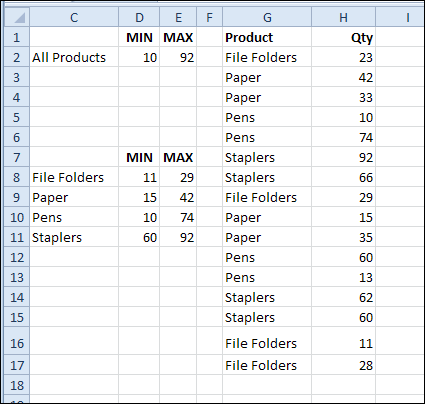
In this example, I want to calculate the MIN and MAX for each product, then put that information on the dashboard

Create a MIN IF or MAX IF formula

There’s no built-in MINIF or MAXIF function, but you can use MIN or MAX with the IF function, to create your own. The steps are shown in the video, at the end of this article.

First, to get the minimum quantity sold for File Folders, the array formula in cell D8 is:

=MIN(IF($G$2:$G$17=C8,$H$2:$H$17))

After you type the formula, press Ctrl + Shift + Enter, so it is array entered.
The same technique is used in cell E8, with MAX, instead of MIN:

=MAX(IF($G$2:$G$17=C8,$H$2:$H$17))

minmaxminifmaxif01

Excel Dashboard Course

If you’d like to add dashboard skills to your Excel tool kit, I recommend the upcoming Excel Dashboard Course offered by Mynda Treacy from My Online training Hub. Mynda is an accountant, and her dashboards focus on the numbers, not the fluff.

There are 9 sessions in the course, with video tutorials that are short and to the point. They cover the key steps and features, and you can practise the techniques in the sample files. Replay the videos as often as you need, for up to 12 months. The course includes 6 weeks of support from Mynda, so you can post questions, read comments, and ask her to review your completed dashboard.

This course is not for Excel beginners, because the fast pace could be overwhelming. Lots of material is covered, very quickly. And, if you’re already a dashboard expert, you won’t need this course. It’s designed for Excel users who are beyond the basics, and who enjoy learning by seeing a demo, then practising the new skills.

You can see the course details and a sample video here: Excel Dashboard Course

Registration is only open for two weeks, until August 14th, so don’t wait!

Watch the Min and Max Video

To see the steps for creating MIN, MAX, MIN IF and MAX IF formulas, please watch this short video tutorial.

_______________________________

Check Multiple Criteria with Excel INDEX and MATCH

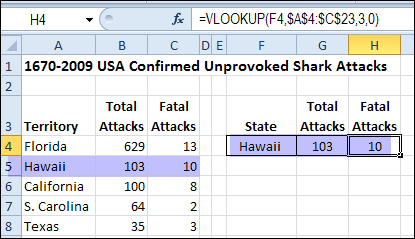
Use INDEX and MATCH together, for a powerful lookup formula. It’s similar to a VLOOKUP formula, but more flexible — the item that you’re looking for doesn’t have to be in the first column at the left. Watch the video to see how it works (there are written instructions too), and download the sample workbook to follow along.
Continue reading “Check Multiple Criteria with Excel INDEX and MATCH”

Keep Track of Time in Excel

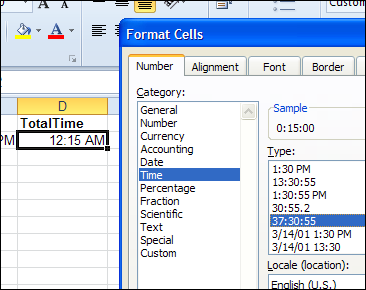
If you’re working on a project, you might need to keep track of time in Excel, so you can tell a client how much time you’ve spent on their project, and get paid for your work. Or, use the time data to see how much of your day is spent on productive tasks, and how much is spent Googling and tweeting.
Continue reading “Keep Track of Time in Excel”

Excel Formulas Not Calculating

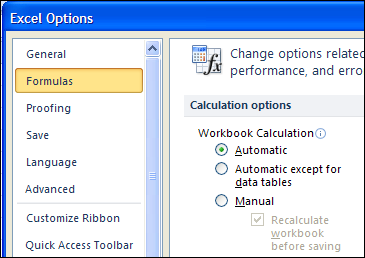
What happens when good Excel formulas go bad? A workbook of mine that worked fine for several years, when using Excel 2003, suddenly refused to update all the formulas, after a switch to Excel 2010. Even more mysterious, the calculations worked fine on some machines, but not others. Why are Excel formulas not calculating on some computers?

Hint: It wasn’t one of the obvious solutions.

Continue reading “Excel Formulas Not Calculating”