
What happens when good Excel formulas go bad? A workbook of mine that worked fine for several years, when using Excel 2003, suddenly refused to update all the formulas, after a switch to Excel 2010. Even more mysterious, the calculations worked fine on some machines, but not others. Why are Excel formulas not calculating on some computers?
Hint: It wasn’t one of the obvious solutions.
Check for Automatic Calculation
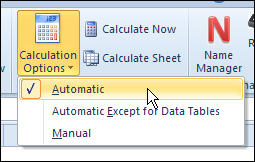
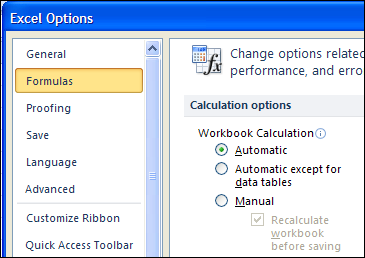
When someone complains about Excel formulas not calculating , it’s usually because the Calculation setting has been changed to Manual, instead of Automatic.
That can happen if the first workbook that you open in an Excel session was saved as Manual calculation. That setting affects all the other workbooks the you open during that session.
In this case, the workbook calculation was set to Automatic on all the machines – that’s the first thing we checked.
To check the setting, click the Formulas tab on the Excel Ribbon, and click the Calculate Options drop down.
Or, go to the Excel Options window, and click Formulas.
Force the Calculation
Even if the Calculation option is set for Manual, you can use a Ribbon command or keyboard shortcut to force a calculation.
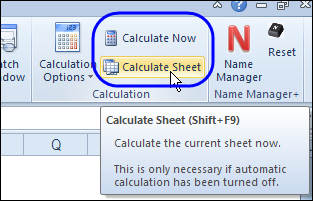
Click the Formulas tab on the Excel Ribbon, and click Calculate Now or Calculate Sheet.
n the tooltip that is shown in the screen shot below, you can see that the shortcut for Calculate Sheet is Shift + F9.
We tried using the Calculation shortcuts, including Ctrl + Alt + Shift + F9 (that one recalculates everything, and starts your car).
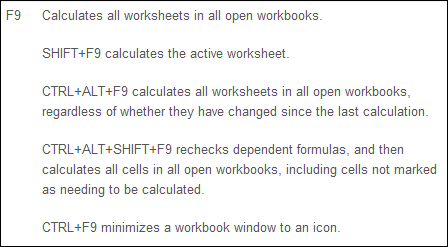
However, none of the shortcuts had any effect on the non-calculating cells in this workbook. I also tried a macro that did a full calculation, and that didn’t work either. Sigh.
Kick Start the Formulas with VBA
Next I wrote a macro that replaced all the “=” signs at the start of all formulas in the workbook. This has a similar effect to manually selecting a cell, clicking in formula bar and pressing the Enter key, to recalculate the cell.
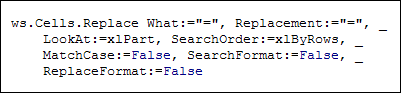
Sometimes that brings a tired formula back to life, but not in this case. These formulas weren’t sleeping, they were deceased!
Change the Named Range in the Formula
I spent a considerable amount of time in Google, looking for other suggestions, but didn’t find anything new. So, I kept tweaking and testing, going through the file one worksheet at a time.
Finally, I found the formulas that seemed to be causing the problem. They were SUMIF formulas that referred to a named range on another worksheet.
=IF(B7=””,0,SUMIF(DataEntryStep2a,E7,$D$7:$D$22))
There was no obvious reason why that wouldn’t work in Excel 2010, but I was getting desperate. So, I changed the named range to a worksheet reference, using cells on the same worksheet.
=IF(B7=””,0,SUMIF($E$7:$E$22,E7,$D$7:$D$22))
Miraculously, that solved the problem! I held my breath, while we tested on a few more machines, and everything calculated as it was supposed to.
Why that worked, I have no idea, but if you run into a similar problem, maybe it will help you too. Of course, this solution could stop working again, at the next lunar eclipse!
[Update] There is problem with SUMIF, SUMIFS, AVERAGEIF and AVERAGEIFS, in Excel 2010, when the references are on a different sheet. Thanks to Stuart Valentine, who posted a link to a discussion of this SUMIFS problem. My named range was on a different sheet, so the location was the problem.
Watch the Video
In most cases though, the problem is the Automatic Calculation setting.
To see the effects of opening Excel workbooks with different calculation option settings, watch this short Excel tutorial video.
_______________
Hi,
I have created vba to creatable from the consolidated data in a sheet1. After a table structure is created, the macro will populate the values based on the formula.
in my macro there are 3 tables. the 1st table is getting created with appropriate values based on the formula. during the process od 2nd and 3rd table, formula which is applied for grandtotal sums the above table. This is the area where the error is starting and proceeds the same for the remaining tables.
I don’t have any issues when this macro is run in my system. when this gets run on the other system, this error occurs. Any fix for this. EXCEL 2013
I’m dealing with the same basic situation in Excel 2003 except that only a few cells not only won’t calculate but displayed the formula. I deleted the formulas (a SUMIF) and used the formula bar to construct the formula, but to no avail. The formula is very simple, nothing fancy. And to make it more frustrating all my other formulas are working fine. I’ve exited Excel, rebooting the computer, etc. Finally, I remembered I had first written the formula using range names instead of references the very first time I entered the formulas in those cells. So I wrote the formulas in different locations a row or two away and a couple columns over. Presto! Go figure.
Hi
I am having problems with the Substitute formula.
I am trying to substitute a name (in column K) for a specified number (in a new column). K2 has lots of random names, including the six names in my formula. This is what I currently have:
=SUBSTITUTE(SUBSTITUTE(SUBSTITUTE(SUBSTITUTE(SUBSTITUTE(SUBSTITUTE(K2, “Justitia”, “886.57”), “Euryalus”, “946.17”), “Warrior”, “1642”), “Leviathan”, “1707.95”), “Fortitude”, “1718.17”), ”York”, “1743”)
What I get is: #NAME? and the green triangle in the corner of the cell.
Thanks