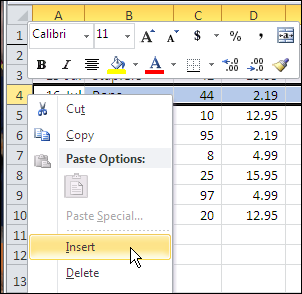
If you’ve used Excel for a while, you have lots of skills that you might assume everyone else shares. For example, you probably know how to insert more than one row in Excel, without adding them one at a time. If not, here’s how to do that.
New Search Feature in Excel 2010 AutoFilter
Last week, you saw a quick tip for filtering by selection in Excel 2007. That’s helpful when you’ve found an item in a list, and want to filter for that item.
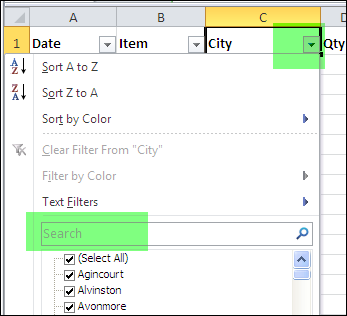
There’s another new feature in the AutoFilter dropdown, in Excel 2010.
When you click the drop down arrow in the AutoFilter heading cell, you’ll see a new Search box, that wasn’t in previous versions of Excel.

This is a great way to find an item in a really long list — much quicker than scrolling down, and scanning all the list items.
Use the Search Box
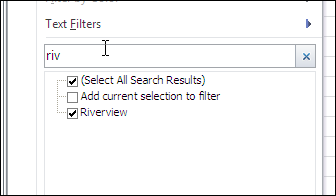
For example, if you type “ri” in the Search box, only the cities with “ri” in their name will be left in the drop down list.
In the screen shot below, “riv” is in the Search box, and only one city (Riverview) is showing — the only city with that string of letters in its name.

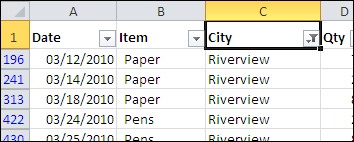
Press the Enter key to complete the search, and the worksheet is filtered for the selected city names.

Watch the Video
To see the steps in the AutoFilter Search, you can watch this short Excel tutorial video.
____________
Quickly Change Criteria for Excel COUNTIF Function
You’re comfortable with Excel, and can change formulas on the fly, when necessary. If you’re creating Excel workbooks for other people to use, their Excel skills probably aren’t as strong as yours.
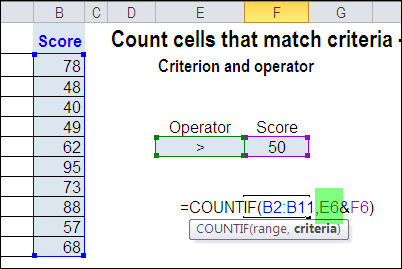
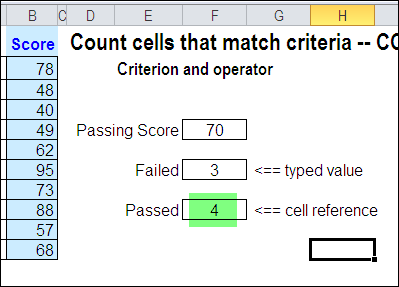
Last month we looked at the COUNTIF formula, and how you can type an operator, then refer to a worksheet cell, to set a minimum value for counting.

Operator in Referenced Cell
In the comments, Kanti Chiba mentioned that the operator could be included in that referenced cell.
For example, you could type >=50 in a cell, and refer to that cell in the formula.
Create a List of Operators
I usually keep the operator in the formula, so it’s separate from the number, and users won’t have to worry about typing it. Kanti’s comment made me think about other options, and how we could let users select both the operator and the target number.
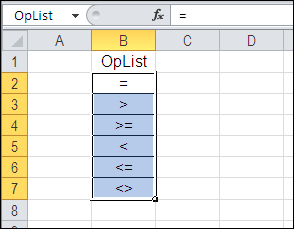
So, I typed a list of operators on a different sheet in the workbook, and named that list as OpList.

Add a Drop Down List of Operators
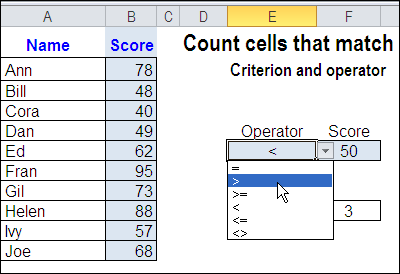
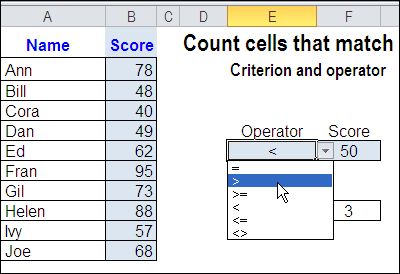
The next step was to create a drop down list of operators, in the cell to the left of the Score input cell. I used data validation to create the drop down list, then selected one of the operators.

Change the COUNTIF Formula
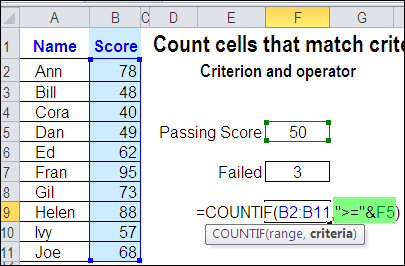
The final step was to change the COUNTIF formula, so it refers to the Operator cell. Now the COUNTIF formula results will change, if a different operator is selected.

Watch the Video
To see the steps for creating a COUNTIF formula with a drop down list of operators, please watch this short Excel tutorial video.
More COUNTIF Links
For more examples of using the Excel COUNTIF function, see these blog posts:
Check Winning Numbers with COUNTIF
Use COUNTIFS for Multiple Criteria
Count Cells Greater Than Set Amount
____________
Excel VBA Video: Show Message Before Printing
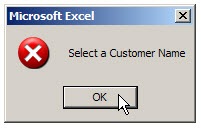
If the customer name is missing from an Excel worksheet order form, you’ll waste paper if you print that order form, and then have to reprint it.
See how to prevent that from happening, with a macro to show a message before printing.
Continue reading “Excel VBA Video: Show Message Before Printing”
Filter for Selected Item in Excel List
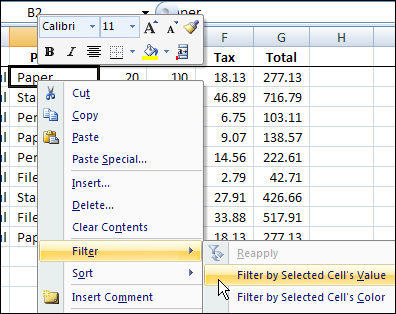
Last month you saw a quick way to filter for the selected item in a pivot table, and today you’ll see a similar technique for a worksheet list in Excel 2007.
Tip: For the Excel 2003 quick filter instructions see AutoFilter By Selection in Excel
Fast Excel Tips for a Holiday Weekend
Yesterday was Canada Day, and Sunday is the July 4th celebration in the USA, so your brain might be in holiday mode today.
Instead of a long, complicated blog post, here are a few quick Excel tips, in very, very, short videos. The longest one is 15 seconds!
Change Number of Sheets in New Excel Files
You don’t have to live with the default number of sheets in a new Excel file. Instead of having 3 blank sheets in each new workbook, you can reduce the number, or increase it.
There are many more Workbook Tips on my Contextures site.
Customize the Excel Status Bar
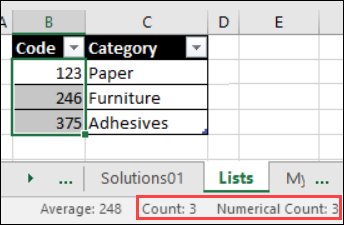
You can add or remove the features on the Excel 2007 Status Bar. For example, add new summary functions in the AutoCalc section, or show the status of special keys, such as Caps Lock or Num Lock.
There are many more Status Bar Tips on my Contextures website. For example, use the statistics section to help with formula troubleshooting.

Lock the Top Section of a Worksheet
If you want to be able to see the top few rows of a worksheet, even if you scroll down, you can freeze them.
There are many more Freeze Panes Tips on my Contextures site.
More Quick Excel Tips
If your brain can absorb a few more quick tips, check out the Excel Quick Tips Videos on the Contextures website. Happy Holidays!
_____________
Excel Newsgroups Disappeared-Find Excel Help Resources
In the past, I highly recommended the Excel newsgroups as a place to go for help. However, earlier this month, Microsoft shut down their newsgroup servers, where thousands of people every month had gone to post their Excel questions, and the Excel newsgroups disappeared.
[Updated 2020-12-09]
Continue reading “Excel Newsgroups Disappeared-Find Excel Help Resources”
Count Cells Greater Than Set Amount With Excel COUNTIF Function
One of the tasks you have to do quite often in Excel is to count things. Here’s how to count cells greater than set amount with Excel COUNTIF function.
Continue reading “Count Cells Greater Than Set Amount With Excel COUNTIF Function”
Invalid Entries Allowed in Data Validation
Why are invalid entries allowed in Data Validation sometimes?
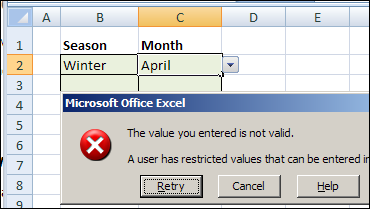
Have you ever set up a data validation drop down list, so you can select valid items from a drop down list. But instead, Excel allows people to type anything they want into that cell?
See why that happens, and how you can prevent the invalid entry problem.
Continue reading “Invalid Entries Allowed in Data Validation”
Conditional Formatting for Currency Symbol
If you sell products in several countries, you might want to show the prices in different currencies.
In Excel 2010 and later, you can use conditional formatting for currency symbol changes.
See how to use those settings, you can change the number format based on a cell’s value, to show a specific currency for the country that’s selected.
There are written steps and a video below
Continue reading “Conditional Formatting for Currency Symbol”