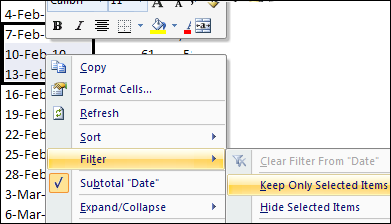
It’s finally summer, and you need to stay cool, even when you’re using Excel. Here’s an energy-efficient and fast way to find and delete Excel rows. You can select several rows that contain similar data, and delete them all at the same time.
If you add pictures to an Excel workbook, the file size can increase pretty quickly. And if you’re updating the pictures occasionally, perhaps for a product catalogue, you’d have to remember to update all the Excel files that have those pictures.
Instead of adding the pictures to the Excel file, Ron Coderre has created a sample workbook that displays pictures from a network file folder or even a web folder.
You can distribute Excel workbooks with links to the picture files, and that will mean smaller files, and easier updates
Enter the Picture File Info
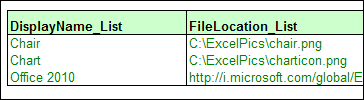
In the Excel workbook where you want the pictures, create a list of picture names, with file path and file names in the adjacent column. In the example shown below, two files are in the C drive, and one is on the internet.
create a list of picture names
Named Range
In Ron’s sample file, the list of picture file names is in a range named LU_DisplayName. The picture names and file locations are in a range named LU_Name_FileLoc_XRef.
Select a Picture
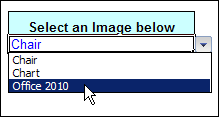
Using data validation, Ron created a drop down list where users can select one of the picture file names. The data validation cell is named rngDisplayName.
A VLOOKUP formula returns the location of the selected picture file, in a cell named rngFileLocation.
The selected picture is displayed in a range named rngPicDisplayCells.
How It Works
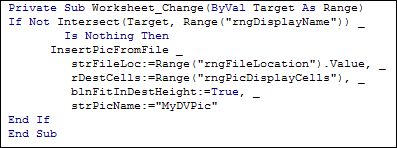
To make the selected picture show on the worksheet, Ron added some event code to the worksheet. When the data validation cells changes, the code runs, and shows the selected picture file.
Detailed Instructions
In Ron’s sample file, you can view the detailed instructions for setting up the workbook and displaying the pictures.
He describes the data validation setup, the named range formulas and the VBA code to make everything work.
In the “Charts and Graphs” section, look for “RCH0002 – Insert Pictures from Folder”.
The file contains macros, so you’ll have to enable them to test the file. There are two versions of the file — one for Excel 2007 an done for earlier versions. Both sample files are zipped.
__________________
How can you get missing data to show up in your Excel pivot table, showing a count of zero? AlexJ encountered this problem recently, and sent me his solution, to share with you.
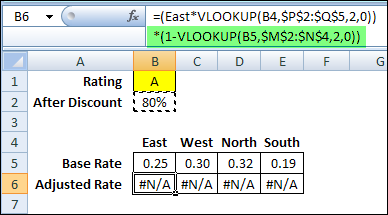
You’ve probably used the Excel Paste Special command to multiply cells by a specific percentage, or to add the same amount to a group of cells. Today, you’ll see how to update multiple Excel formula cells in one step.
The giveaway prize was a copy of Microsoft Office 2010, a Flip video camera, and a Seagate 1TB hard drive.
Of course, I used Excel to select the winner, from all the valid comment entries. I typed the comment numbers onto an Excel worksheet, with RAND functions in the adjacent column. Then, I calculated the workbook 3 times, to mix up the RAND results.
Finally, I sorted the RAND column in ascending order, and the comment number at the top was the winner. To satisfy the auditors, here’s a video of the random comment number selection.
And the Winner Is…
As you saw in the video, the random number selected was 22 — the comment by Naomi B. Robbins. Congratulations, Naomi! You win the prize package:
one (1) copy of Microsoft Office 2010: Home and Business
a Flip Ultra HD Camcorder
a Seagate FreeAgent Desk Hard Drive (1 TB)
The prize value is approximately $589 USD, and someone from Ignite Social Media will be in touch with Naomi to arrange delivery.
Thanks for Entering
Thanks for entering the giveaway, and thanks to Ignite Social Media for sponsoring it. I hope you saw a few new features in Excel 2010 that you’re looking forward to using!
____________
If you’re working with an Excel pivot table, you might want to temporarily hide one or more of the items in a Row field or Column field. To do that, you probably click the drop down arrow for the Row or Column Labels, then remove the check mark for items you want to remove.
As the storm clouds rolled in yesterday afternoon, I tweeted about saving my Excel files more frequently, as a safety precaution.
There were a couple of responses, asking why I didn’t use Excel’s AutoSave feature, and Jon Peltier reminded me to use AutoSafe — Jan Karel Pieterse’s free add-in.
AutoSave Add-In
I mentioned AutoSafe in my Excel New Year’s Resolutions 2010 blog post, oh so long ago. Of course, I’ve kept all my resolutions — how about you?
Installing AutoSafe
Even though I’m a creature of habit, and like to manually save my files, or click my Backup macro button, I decide to install AutoSafe. Good timing too, since Jan Karel uploaded a new version on June 1st.
While downloading AutoSafe, I also grabbed a copy of the companion add-in, AutoSafe VBE. It backs up your Excel code, so that should also be handy to have.
I unzipped the download file, and double-clicked on the setup.exe file. The installation wizard warned me to close my Excel files, and the installation was quick and easy.
Setting up AutoSafe
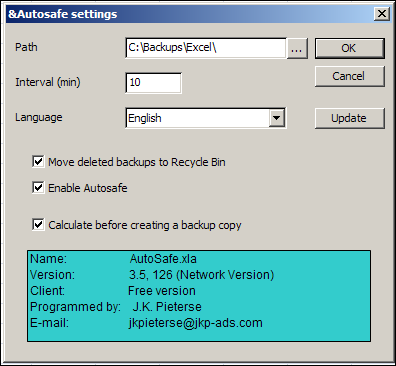
When I opened Excel 2007, the add-ins appeared on the Ribbon’s Add-ins tab. Click the AutoSafe command to open a dialog box where you can change the settings.
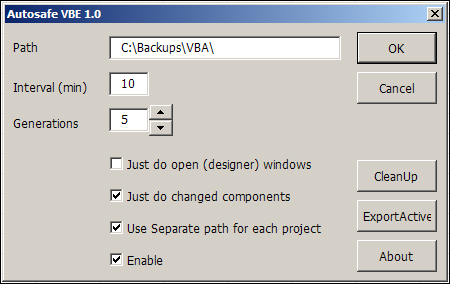
Choose the folder where you want the backup files stored, and the interval for the saves, and select any other options you want. To check for new versions, click the Update button.
Autosafe Settings Dialog Box
Setting Up AutoSafe VBE
The settings for AutoSafe VBE are similar, and you can also set the number of generations that you want to save. The CleanUp button clears out all the old files for you.
Old Habits
It’s hard to break old habits, so I’ll probably continue to press Ctrl + S every few minutes, to save my work. It won’t hurt to have some extra help though, especially when working on code revisions. Thanks Jan Karel, for this wonderful free add-in.
And I don’t know why, but typing “old habits” reminded me of The Flying Nun, starring Sally Field. Ah yes, the golden age of television! Here’s the opening segment, for those who don’t know what the heck I’m talking about.
Have you installed Office 2010 yet? Would you like to win a copy, along with a couple of other great prizes? [for USA residents only]
In this short video, Microsoft employees and customers talk about the benefits of Excel 2010, both for the users and the IT department. Watch carefully — there will be a test later!
VIDEO IS NO LONGER AVAILABLE
The Future of Productivity Giveaway
The nice people at Ignite Social Media invited me to participate in a giveaway [for USA residents only], as part of the Office 2010 launch. No free stuff for me, but one of you can win a cool prize package. Yes, there’s probably a better adjective than “cool” — at least I didn’t say “groovy”. 😉
The Prize Package
one (1) copy of Microsoft Office 2010: Home and Business
a Flip Ultra HD Camcorder
a Seagate FreeAgent Desk Hard Drive (1 TB)
Here’s a picture of the prize package, obviously not shown to scale! The pictures are from the Microsoft Store site, so the actual prizes might look different. Based on the prices shown in the Microsoft Store, the prize value is approximately $589 USD.
How to Enter
The giveaway is a scavenger hunt, so you’ll have to watch the video (at the top of this post) to find an answer to this question:
How does Excel 2010 make data analysis and reporting better/easier?
Add a comment below, with a unique, relevant answer to the question shown above. (Don’t just copy someone else’s comment!)
The Giveaway Rules
You must be a resident of the Unites States of America.
The entry deadline is 12:00 noon (Eastern time zone) on Tuesday, June 8th, 2010.
One entry per person – any additional entries will be deleted from the draw
A random draw will select the winner from all valid entries.
Winner will be notified by email, so please provide a valid email address. This will not be publicly visible, but will be shared with the contest organizers at Ignite Social Media, so they can contact the winner to arrange delivery.
The winner will be announced in this blog on Wednesday, June 9th.
More Future of Productivity Events
This widget has more videos, and you can click to learn more about the Future of Productivity launch.