30 Excel Functions in 30 Days: 07 – CODE

Icon30DayCongratulations! You’ve made it to the first weekend in the 30XL30D challenge, including yesterday’s investigation of the FIXED function.

CODE Function

We’ll take it easy today, and look at a function that doesn’t have too many examples — the CODE function. It can work with other functions, in long, complicated formulas, but today we’ll focus on what it can do on its own, and in simple formulas.

So, let’s take a look at the CODE information and examples, and if you have other tips or examples, please share them in the comments. Wear your secret deCODEr ring, if you have one.

Function 07: CODE

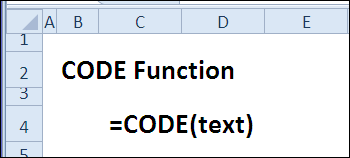
The CODE function returns a numeric code for the first character in a text string. For Windows, the returned code is from the ANSI character set, and for Macintosh, the code is from the Macintosh character set.

Code00

How Could You Use CODE?

The CODE function can help unravel mysteries in your data, such as:

  • What hidden character is at the end of imported text?
  • How can I type a special symbol in a cell?

CODE Syntax

The CODE function has the following syntax:

  • CODE(text)
    • text is the text string from which you want the first character’s code

CODE Traps

Results could be different if you switch to a different operating system. The codes for the ASCII character set (codes 32 to 126) are consistent, and most can be found on your keyboard.

However, the characters for the higher numbers (129 to 254) may vary, as you can see in the comparison charts shown here:

Differences between ANSI, ISO-8859-1 and MacRoman character sets

For example, the ANSI code 189 is ½ and for the Macintosh it is O

Example 1: Get Hidden Character’s Code

When you copy text from a website, it might include hidden characters. The CODE function can be used to identify what those hidden characters are.

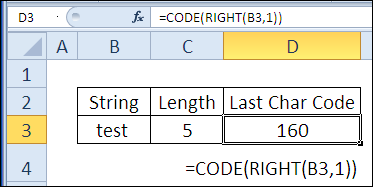
For example, there is a text string in cell B3, and only “test” is visible — 4 characters. In cell C3, the LEN function shows that there are 5 characters in cell B3.

To identify the last character’s code, you can use the RIGHT function, to return the last character. Then, use the CODE function to return the code for that character.

=CODE(RIGHT(B3,1))

Get Hidden Character's Code with CODE Function
Get Hidden Character’s Code with CODE Function

In cell D3, the RIGHT/CODE formula shows that the last character has the code 160, which is a non-breaking space used on websites.

Example 2: Find a Symbol’s Code

To insert special characters in an Excel worksheet, you can use the Symbol command on the Ribbon’s Insert tab. For example, you can insert a degree symbol ° or a copyright symbol ©.

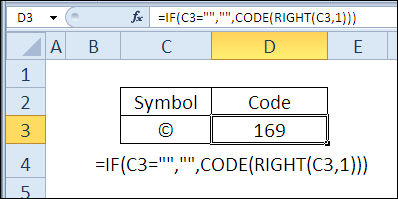
After you insert a symbol, you can determine its code, by using the CODE function

=IF(C3=””,””,CODE(RIGHT(C3,1)))

Code02

Once you know the code, you can use the numeric keypad (not the regular numbers) to insert the symbol. The code for the copyright symbol is 169. Follow these steps to enter that symbol in a cell.

On a keyboard with a numeric keypad

  1. On the keyboard, press the Alt key
  2. On the numeric keypad, type the code as a 4-digit number (add leading zeros if necessary): 0169
  3. Press Enter, to see the copyright symbol in the cell.

On a keyboard with no numeric keypad

On your laptop, you might need to press special keys to use the numeric keypad function. Check the owner’s manual, for directions. Here’s what works on my Dell laptop.

  1. Press the Fn key, and the F4 key, to enable NumLock
  2. Locate the numeric keypad within the letters on the keyboard. On my keyboard, J=1, K=2, etc.
  3. Press the Alt key, and the Fn key, and using the numeric keypad, type the code as a 4-digit number (add leading zeros if necessary): 0169
  4. Press Enter, to see the copyright symbol in the cell.
  5. When finished, press the Fn key, and the F4 key, to disable NumLock

Download the CODE Function File

To see the formulas used in today’s examples, you can download the CODE function sample workbook. The file is zipped, and is in Excel 2007 file format.

Watch the CODE Video

To see a demonstration of the examples in the CODE function sample workbook, you can watch this short Excel video tutorial.

_____________

30 Excel Functions in 30 Days: 06 – FIXED

Yesterday, in the 30XL30D challenge, we picked an item from a list with the CHOOSE function, and learned that other functions might be a better MATCH when doing a LOOKUP.

FIXED Function

For day 6 in the challenge, we’ll examine the FIXED function, which formats a number with decimals and commas, and returns the result as text.

Continue reading “30 Excel Functions in 30 Days: 06 – FIXED”

30 Excel Functions in 30 Days: 05 – CHOOSE

Yesterday, in the 30XL30D challenge, we got details on our operating environment, with the INFO function, and learned that it can no longer help with our memory issues. (Neither ours, nor Excel’s!)

CHOOSE Function

For day 5 in the challenge, we’ll examine the CHOOSE function.

Continue reading “30 Excel Functions in 30 Days: 05 – CHOOSE”

30 Excel Functions in 30 Days: 04 – INFO

Icon30DayYesterday, in the 30XL30D challenge, we cleaned things up with the TRIM function, and learned that it’s no SUBSTITUTE for calorie counting.

INFO Function

For day 4 in the challenge, we’ll examine the INFO function. Excel Help warns us to be careful with this function, or we could reveal private information to other users.

So, let’s take a look at the INFO information and examples, and if you have other tips or examples, please share them in the comments. And remember to guard your secrets!

Function 04: INFO

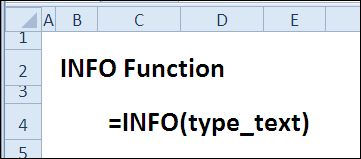
The INFO function shows information about the current operating environment.

Info00

How Could You Use INFO?

The INFO function can show information about the Excel application, such as:

  • Microsoft Excel version
  • Number of active worksheets
  • Current recalculation mode

In previous versions of Excel you could also get memory information (“memavail”, “memused”, and “totmem”), but those type_text items are no longer supported.

INFO Syntax

The INFO function has the following syntax:

  • INFO(type_text)
    • type_text is one of the following items, that specifies what information you want.
    • “directory” Path of current directory
    • “numfile” Number of active worksheets in open workbooks.
    • “origin” Absolute cell reference of top left visible
    • “osversion” Current operating system version, as text.
    • “recalc” Current recalculation mode; “Automatic” or “Manual”.
    • “release” Microsoft Excel version, as text.
    • “system” Name of the operating environment: “pcdos” or “mac”

INFO Traps

In Excel’s Help file, there is a warning that you should use the INFO function with caution, because it could reveal confidential information to other users.

For example, you might not want other people to see the file path that your Excel workbook is in. If you’re sending an Excel file to someone else, be sure to remove any data that you don’t want to share!

Example 1: Microsoft Excel version

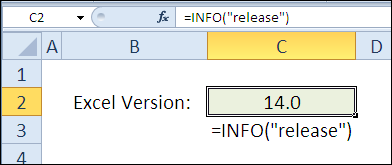
With the “release” value, you can use the INFO function to show what version of Excel is being used. The result is text, not a number.

In the screenshot below, Excel 2010 is being used, so the version number is 14.0.

=INFO(“release”)

Get Microsoft Excel version with INFO Function

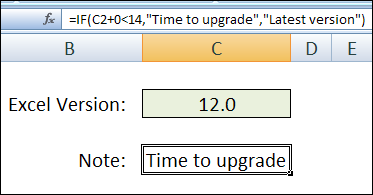
You could use the result to display a message, based on version number.
=IF(C2+0<14,”Time to upgrade”,”Latest version”)

Info01b

Example 2: Number of active worksheets

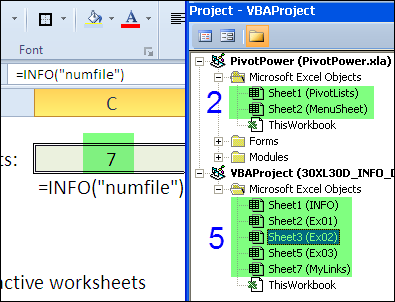
With the “numfile” type_text value, the INFO function can show the number of active worksheets in all open workbooks. This number includes hidden sheets, sheets in hidden workbooks, and sheets in add-ins.

In this example, an add-in is running, and it has two worksheets, and the visible workbook has five worksheets. The total sheets returned by the INFO function is seven.

=INFO(“numfile”)

Info02

Example 3: Current recalculation mode

Instead of typing the type_text value as a string in the INFO function, you can refer to a cell that contains one of the valid values.

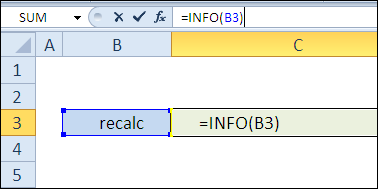
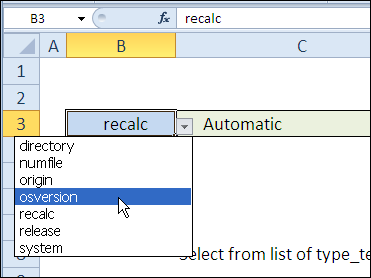
In this example, there is a data validation drop down list in cell B3, and the INFO function refers to it.

=INFO(B3)

Info03

When “recalc” is selected, the result shows that the current recalculation mode is Automatic.

Info03b

Download the INFO Function File

To see the formulas used in today’s examples, you can download the INFO function sample workbook. The file is zipped, and is in Excel 2007 file format.

Watch the INFO Video

To see a demonstration of the examples in the INFO function sample workbook, you can watch this short Excel video tutorial.

_____________

30 Excel Functions in 30 Days: 03 – TRIM

Icon30DayYesterday, in the 30XL30D challenge, we took a poke at the lazy brother-in-law function — AREAS. It’s not used much in the working world, but you saw how the 3 reference operators work, so I hope that was useful!

TRIM Function

For day 3 in the challenge, we’ll examine the TRIM function. In January, some people are trying to TRIM a few pounds, and my Excel Calorie Counter and Excel Weight Loss Tracker workbooks are popular.

Unfortunately, the TRIM function won’t help with the pounds, but can remove extra spaces from a text string.

So, let’s take a look at the TRIM information and examples, and if you have other tips or examples, please share them in the comments. And good luck with the calorie counting!

Function 03: TRIM

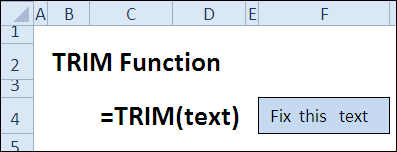
The TRIM function removes all the spaces in a text string, except for single spaces between words.

Trim00

How Could You Use TRIM?

The TRIM function can help with the cleanup of text that you’ve downloaded from a website, or imported from another application. The TRIM function:

  • Removes spaces from start and end of text string
  • Removes all except single spaces between words
  • Does NOT remove some special space characters copied from websites

TRIM Syntax

The TRIM function has the following syntax:

  • TRIM(text)
    • text is a cell reference or text string from which you want spaces removed.

TRIM Traps

The TRIM function only removes standard space characters from the text. If you copy text from a website, it might contain special non-breaking space characters, and the TRIM function will not remove those.

Example 1: Removes spaces from start and end of text string

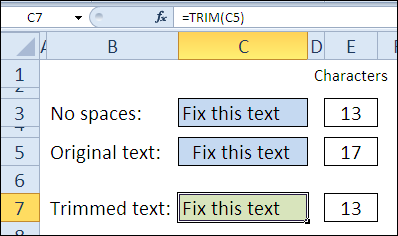
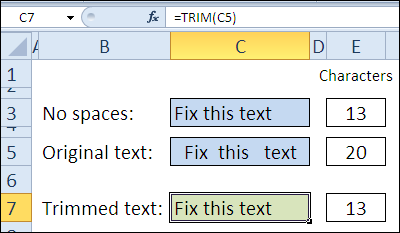
You can use the TRIM function to remove all the space characters at the start and end of a text string. In the screenshot below, there are 2 extra spaces at the start and 2 at the end of the text in cell C5.

The TRIM function in cell C7 removes those 4 spaces.

=TRIM(C5)

Removes extra spaces from text string with TRIM Function

Example 2: Removes all except single spaces between words

You can use the TRIM function to extra space characters between words in a text string. In the screenshot below, there are 3 extra spaces between the words in cell C5.

The TRIM function in cell C7 removes those extra spaces, as well as the 2 spaces at the start and 2 spaces at the end of the text string.

=TRIM(C5)

Trim02

Example 3: Does NOT remove some space characters

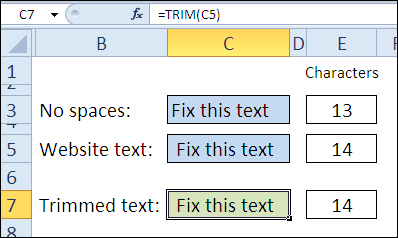
The TRIM function does NOT remove some space characters, such as a non-breaking space copied from a website. In the screenshot below, Cell C5 contains one non-breaking space, and that is not trimmed.

=TRIM(C5)

You can manually delete the non-breaking space character, or use the SUBSTITUTE function or a macro. You’ll see other ways to clean up your data during the 30 Excel Functions in 30 Days challenge.

Trim03

Download the TRIM Function File

To see the formulas used in today’s examples, you can download the TRIM function sample workbook. The file is zipped, and is in Excel 2007 file format.

Watch the TRIM Video

To see a demonstration of the examples in the TRIM function sample workbook, you can watch this short Excel video tutorial.

_____________

30 Excel Functions in 30 Days: 02 – AREAS

Icon30DayYesterday we started the 30XL30D challenge with the action-packed, fun-filled, EXACT function. It had several examples and ways to apply it in your own workbooks.

AREAS Function

Today we’ll investigate the AREAS function, and it’s a bit lighter in the usefulness department (to put it politely). It’s like the lazy brother-in-law, in a bad sitcom, who lies on your couch, and drinks your beer.

But, even a layabout can have a purpose. That lazy brother-in-law can serve as an example for your children, of how NOT to behave. As for the AREAS function, we can use it to see how the 3 different reference operators work, and how they affect the formula results.

So, let’s take a look at the AREAS information and examples, and if you have other examples, please share them in the comments. But don’t send me your brother-in-law!

Function 02: AREAS

The AREAS function returns the number of areas in a reference — an area is a range of contiguous cells or a single cell. The cells can be empty, or contain data – that has no effect on the count.

Areas00

How Could You Use AREAS?

The AREAS function doesn’t have many real-world uses, but it’s an interesting example of how the reference operators work. You can use the AREAS function to do the following:

  • Count the number of areas in a range
  • Count the number of intersections for multiple ranges
  • Calculate an area number for an INDEX function

AREAS Syntax

The AREAS function has the following syntax:

  • AREAS(reference)
    • reference can be a single cell or range, or can refer to multiple areas.

Reference Operators

When entering references, you can use any of the 3 reference operators:

: colon A1:B4 Range all cells between, and including, the two references
, comma A1, B2 Union combine multiple references into one
space A1 B3 Intersection cells common to the references

AREAS Traps

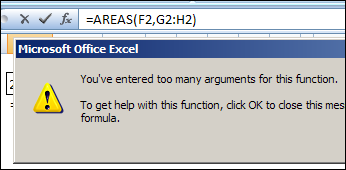
If you are using a comma in the AREAS function, to refer to multiple ranges or cells, add another set of parentheses.

=AREAS((F2,G2:H2))

Otherwise, the comma will be interpreted as a field separator, and you’ll get a “too many arguments” error.

Areas06

Example 1: Count the Areas in a Range

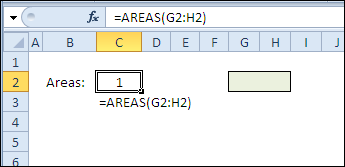
You can use the AREAS function with a simple range reference, and the count will be 1.

=AREAS(G2:H2)

Count the Areas in a Range with AREAS function

Example 2: Count the Areas in Multiple References

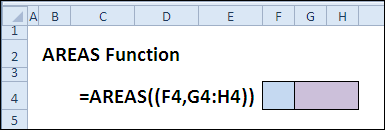
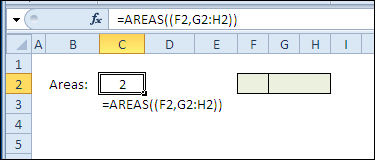
You can use the AREAS function with multiple references, to get a total count of areas. Because a comma is used as the union operator, you’ll need to add an extra set of parentheses in the formula.

=AREAS((F2,G2:H2))

The two ranges in the reference are adjacent, but are counted as separate areas, so the formula result is 2.

Areas02

Example 3: Count the Areas in Overlapping References

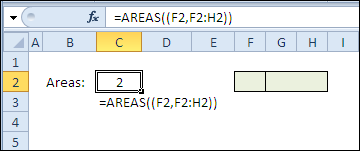
Even if the references overlap, or one reference is completely within another, when using the comma as the union operator, each area will be counted separately.

=AREAS((F2,F2:H2))

The two references overlap, and F2 is completely within the F2:H2 range, but they are counted as separate areas, so the formula result is 2.

Areas03

Example 4: Count the Areas in Intersecting References

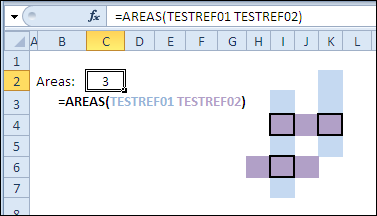
When you use the space character to create an intersection from the references, the intersection areas will be counted.

=AREAS(TESTREF01 TESTREF02)

The named range TESTREF01 is coloured blue and TESTREF02 is coloured purple. These ranges intersect at three points, outlined with bold borders, so the formula result is 3.

Areas04

Example 5: Calculate the Area Number for INDEX

The INDEX function, in Reference form, can use area number as its final argument.

INDEX(reference,row_num,column_num,area_num)

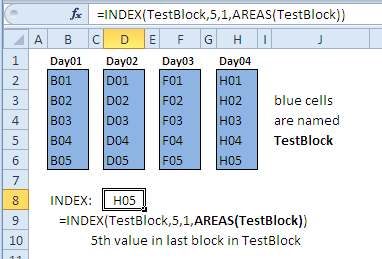
This example, based on an Excel newsgroup post by Leo Heuser, refers to a non-contiguous named range – TestBlock.

In the INDEX formula, TestBlock is the reference, and the AREAS function calculates the number of areas in the TestBlock range.

To get the value from TestBlock, row 5, column 1, last area, use this formula:

=INDEX(TestBlock,5,1,AREAS(TestBlock))

The last area is Day04, and the 5th value in Day04 is H05, which is the formula result.

Areas05

Download the AREAS Function File

To see the formulas used in today’s demo, you can download the AREAS function sample workbook. The file is zipped, and is in Excel 2007 file format.

Try to use each function in your own workbooks. Then, for extra brain-sticking power, teach a friend or co-worker how to use each function. When you explain it to someone else, you’ll remember it better.

Watch the AREAS Video

To see a demonstration of the examples in the AREAS function sample workbook, you can watch this Excel video tutorial.

_____________

Excel Advanced Filter Update

Here’s the final video update for this week — Automatically Copy Excel Data to Another Sheet. This video now shows the steps in Excel 2010 or Excel 2007, instead of Excel 2003.

To wrap up this week of updates, here are links to a few of my previous Excel Advanced Filter articles and posts. You probably know all the basics, but maybe you’ve missed a few of these tips and tricks.

Note: Remember — the 30 Excel Functions in 30 Days challenge starts January 2nd. See you then!

Watch the Excel 2010 Advance Filter Video

See how to automatically copy data to a different worksheet, with an Advanced Filter, in Excel 2010 or Excel 2007.

There is a full transcript after the video.

Video Transcript

In Excel, you can use an Advanced Filter to pull data from a table and put it somewhere else in the workbook, either on the same sheet or a different sheet.

In this example, we have a list of orders and we would like to pull the orders with the highest totals and put them on a different sheet in the workbook. I would like to get the date and the customer for each of the high priced orders.

Criteria Area

Back on the Orders sheet, I’ve started a criteria area here. I’m using total, which is the column where the order amount is in the main table. That’s the criteria heading, and below that I’m going to enter my criterion, which is greater than 1500.

I only want orders where the total is greater than 1500. I’m not putting dollar signs in here. It’s just the number that I wanted to check.

We want to pull orders onto a different worksheet. In this case, we have to start on this destination worksheet, and I want to stay away from the cells near the heading. So, I’m just going to click a cell somewhere in an empty area of the worksheet.

Start Filter

To start the filter on the ribbon, I’ll go to the Data tab and click Advanced. In the Advanced Filter dialog, I’m going to select Copy to Another Location.

The List range is my main table. So, I’ll click here, then go to the Orders sheet and select the entire table, including the headings. That’s entered as the list range.

My Criteria range, I’ll click in that cell. Go back to the Orders sheet where I created my criteria range and select the heading cell and the criteria cell below that.

For CopyTo, this is where I want the data to end up. I’ll click here and select my two heading cells on the TopOrders sheet and I’ll click OK, and there are the 3 orders where the total is higher than 1500.

If we look back, we can see 1, 2, 3 orders, and those have been copied automatically to the other worksheet using an Advanced Filter.

_________________

Excel Conditional Formatting Update

The holidays are a great time to catch up on tasks. I’ve updated another popular Excel video — Colour a Row Based on a Cell Value in Excel.

To continue the conditional formatting theme, here are a few articles that you might have missed, when they were originally posted.

Watch the Conditional Formatting Video

Watch this short video to see how to colour a row based on a cell value in Excel.

There is a full transcript following the video.

Video Transcript:

With Excel’s conditional formatting, you can easily highlight a cell if it’s over or under a certain value, or if it meets a value that you’ve set.

But in some cases, instead of just a single cell, you might like to highlight a whole row in a table, if one of the cells in that row is over a certain number or under.

In this case, we would like to highlight each row in this list if the number of units sold is greater than 75.

So to do that, I’m going to select all of the rows, all of the columns in each row. So I’ve selected from A2 down to D10.

On the Ribbon, on the Home tab, I’ll click Conditional Formatting, and none of these preset rules will do exactly what I want. So I’m going down to New Rule, and in here I’ll select a formula.

So I’m going to use a formula to determine how to color each row.

When I click that, there’s a spot where I can put the formula.

I want to, in each row, look at the value that’s in column B. So I’ll type =

And we want, from every column, we want to look at column B. So we have to lock that cell. We don’t want it to be relative, we want it to be absolute.

So type a $ to lock that in. And then B.

And we want, in this case, the active cell we can see is white, where the other cells are highlighted with blue.

We can see that, in the name box, A2 is showing up. So that’s the active cell, so the active row is 2. So I’m going to type 2 here.

We’re going to check what’s in B2 and see if it’s greater than 75. So that’s our test.

And if it is greater than 75, we want to format it. So I’ll click Format and I’ll choose a fill color, maybe a blue color and click OK, and click OK again.

And now, any row where the number of units is greater than 75, all four cells in that row are colored blue.

______________

Excel Data Validation Update

I’ve finally updated my Data Validation intro video, so it shows the steps for creating a drop down list in Excel 2010, instead of Excel 2003.

Note: These instructions apply to Excel 2007 too, in case you’re using that version.

Data Validation Drop-Down List

Data Validation Articles

In honour of this momentous occasion, here are links to a few of my previous Excel Data Validation articles and posts.

You probably know all the basics, but maybe you’ve missed a few of these tips and tricks.

Show or Hide User Tips In Excel – AlexJ shows how to let users turn data validation messages on or off, by choosing TRUE or FALSE from a drop down list.

Dependent Data Validation From a Sorted List – Select an item in the first drop down list, and related items are shown in the second drop down list.

Limit the Total Amount Entered in Excel – use Data Validation to limit the total amount that users enter in a group of cells.

Select Multiple Items from Excel Data Validation List – instead of selecting just one item from a data validation drop down, you can select two or more.

Plan Your Party Seating with Excel – too late for Christmas dinner, but this might help with your New Year’s festivities.

Note: Remember to vote for the Excel functions that you’d like to learn more about during the 30 Excel Functions in 30 Days challenge, starting January 2nd.

Watch the Excel Drop Down List Video

The shiny new video is below, in case you’d like to see the steps for making a drop down list in an Excel worksheet.

________________