
 Yesterday we started the 30XL30D challenge with the action-packed, fun-filled, EXACT function. It had several examples and ways to apply it in your own workbooks.
AREAS Function
Today we’ll investigate the AREAS function, and it’s a bit lighter in the usefulness department (to put it politely). It’s like the lazy brother-in-law, in a bad sitcom, who lies on your couch, and drinks your beer.
But, even a layabout can have a purpose. That lazy brother-in-law can serve as an example for your children, of how NOT to behave. As for the AREAS function, we can use it to see how the 3 different reference operators work, and how they affect the formula results.
So, let’s take a look at the AREAS information and examples, and if you have other examples, please share them in the comments. But don’t send me your brother-in-law!
Function 02: AREAS
The AREAS function returns the number of areas in a reference — an area is a range of contiguous cells or a single cell. The cells can be empty, or contain data – that has no effect on the count.
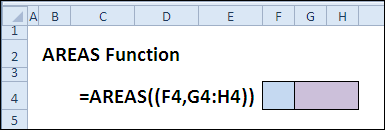
How Could You Use AREAS?
The AREAS function doesn’t have many real-world uses, but it’s an interesting example of how the reference operators work. You can use the AREAS function to do the following:
- Count the number of areas in a range
- Count the number of intersections for multiple ranges
- Calculate an area number for an INDEX function
AREAS Syntax
The AREAS function has the following syntax:
- AREAS(reference)
- reference can be a single cell or range, or can refer to multiple areas.
Reference Operators
When entering references, you can use any of the 3 reference operators:
| : | colon | A1:B4 | Range | all cells between, and including, the two references |
| , | comma | A1, B2 | Union | combine multiple references into one |
| space | A1 B3 | Intersection | cells common to the references |
AREAS Traps
If you are using a comma in the AREAS function, to refer to multiple ranges or cells, add another set of parentheses.
=AREAS((F2,G2:H2))
Otherwise, the comma will be interpreted as a field separator, and you’ll get a “too many arguments” error.
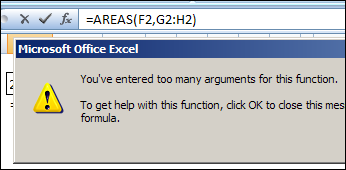
Example 1: Count the Areas in a Range
You can use the AREAS function with a simple range reference, and the count will be 1.
=AREAS(G2:H2)
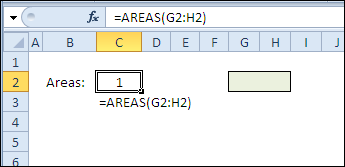
Example 2: Count the Areas in Multiple References
You can use the AREAS function with multiple references, to get a total count of areas. Because a comma is used as the union operator, you’ll need to add an extra set of parentheses in the formula.
=AREAS((F2,G2:H2))
The two ranges in the reference are adjacent, but are counted as separate areas, so the formula result is 2.
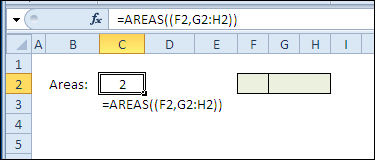
Example 3: Count the Areas in Overlapping References
Even if the references overlap, or one reference is completely within another, when using the comma as the union operator, each area will be counted separately.
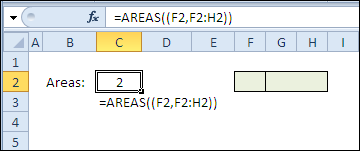
=AREAS((F2,F2:H2))
The two references overlap, and F2 is completely within the F2:H2 range, but they are counted as separate areas, so the formula result is 2.
Example 4: Count the Areas in Intersecting References
When you use the space character to create an intersection from the references, the intersection areas will be counted.
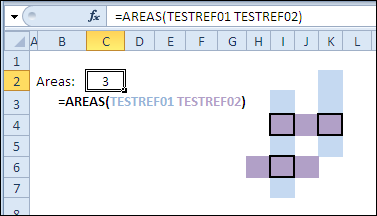
=AREAS(TESTREF01 TESTREF02)
The named range TESTREF01 is coloured blue and TESTREF02 is coloured purple. These ranges intersect at three points, outlined with bold borders, so the formula result is 3.
Example 5: Calculate the Area Number for INDEX
The INDEX function, in Reference form, can use area number as its final argument.
INDEX(reference,row_num,column_num,area_num)
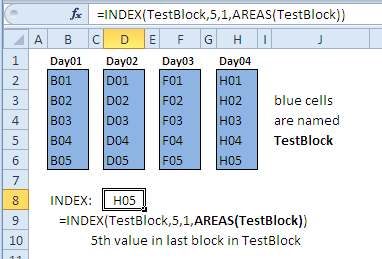
This example, based on an Excel newsgroup post by Leo Heuser, refers to a non-contiguous named range – TestBlock.
In the INDEX formula, TestBlock is the reference, and the AREAS function calculates the number of areas in the TestBlock range.
To get the value from TestBlock, row 5, column 1, last area, use this formula:
=INDEX(TestBlock,5,1,AREAS(TestBlock))
The last area is Day04, and the 5th value in Day04 is H05, which is the formula result.
Download the AREAS Function File
To see the formulas used in today’s demo, you can download the AREAS function sample workbook. The file is zipped, and is in Excel 2007 file format.
Try to use each function in your own workbooks. Then, for extra brain-sticking power, teach a friend or co-worker how to use each function. When you explain it to someone else, you’ll remember it better.
Watch the AREAS Video
To see a demonstration of the examples in the AREAS function sample workbook, you can watch this Excel video tutorial.
_____________
16 thoughts on “30 Excel Functions in 30 Days: 02 – AREAS”