30 Excel Functions in 30 Days: 17 – ERROR.TYPE

Icon30DayYesterday, in the 30XL30D challenge, we found values with the LOOKUP function, and we’ll use that function again today, when working with error results.

ERROR.TYPE Function

For day 17 in the challenge, we’ll examine the ERROR.TYPE function. It can identify specific types of errors, and you can use that information to help with troubleshooting.

So, let’s take a look at the ERROR.TYPE information and examples, and if you have other tips or examples, please share them in the comments.

Watch the ERROR.TYPE Video

To see a demonstration of the examples in the ERROR.TYPE function sample workbook, you can watch this short Excel video tutorial.

Function 17: ERROR.TYPE

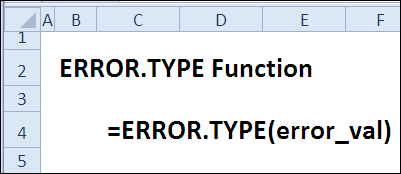
The ERROR.TYPE function identifies an error type by number, or returns #N/A if no error is found.

ErrorType00

How Could You Use ERROR.TYPE?

With the ERROR.TYPE function, you can:

  • identify an error type
  • help users troubleshoot error results

ERROR.TYPE Syntax

The ERROR.TYPE function has the following syntax:

  • ERROR.TYPE(error_val)
    • error_val is the error that you want to identify
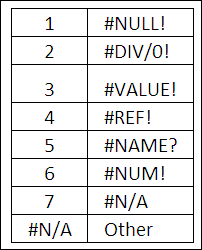
    • ERROR.TYPE codes:
      • 1…..#NULL!
      • 2…..#DIV/0!
      • 3…..#VALUE!
      • 4…..#REF!
      • 5…..#NAME?
      • 6…..#NUM!
      • 7…..#N/A
      • #N/A..Other

ERROR.TYPE Traps

If the error_val is not an error, the result of the ERROR.TYPE function is an #N/A error. You can avoid this, by using ISERROR to test for an error, as shown in Example 2.

Example 1: Identify the Error Type

With the ERROR.TYPE function you can check a cell, to identify which error it contains.

If there isn’t an error in the cell, the result is #N/A, instead of an error type code number.

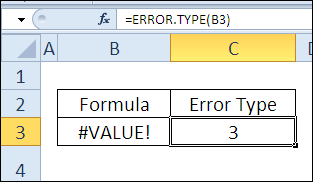
=ERROR.TYPE(B3)

Identify the Error Type with ERROR.TYPE Function

In this example, cell B3 contains #VALUE!, so the error type is 3.

ErrorType01b

Example 2: Help Users Troubleshoot Errors

By combining the ERROR.TYPE function with other functions, you can help users troubleshoot error results in a cell.

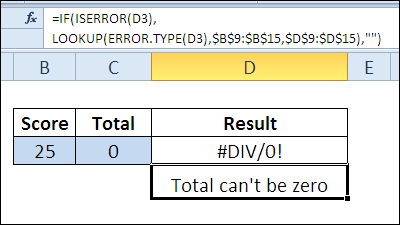
In this example, numbers should be entered in cells B3 and C3.

  • If text is entered, the result in D3 is a #VALUE! error.
  • If a zero is entered in cell C3, the result is a #DIV/0! error.

In cell D4, ISERROR checks for an error, and the ERROR.TYPE function returns a number for the error. The LOOKUP function finds the applicable troubleshooting message from a table of error type codes, and displays it.

=IF(ISERROR(D3), LOOKUP(ERROR.TYPE(D3), $B$9:$B$15, $D$9:$D$15),””)

ErrorType02a

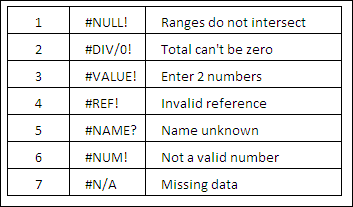
Here’s the lookup table, with Error Type numbers, and messages.

ErrorType02b

Download the ERROR.TYPE Function File

To see the formulas used in today’s examples, you can go to the Excel Formula Error Values page on my Contextures site.

On that page, go to the Download section, to get the ERROR.TYPE function sample workbook. The file is zipped, and is in xlsx file format, with no macros.

_____________

30 Excel Functions in 30 Days: 16 – LOOKUP

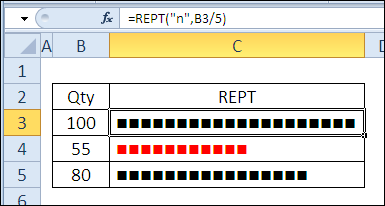
Yesterday, in the 30XL30D challenge, we had some fun with the REPT function, and created in-cell charts and a tally sheet. Now it’s Monday, and time to put those thinking caps back on!

LOOKUP Function

For day 16 in the challenge, we’ll examine the LOOKUP function. It’s a close friend of VLOOKUP and HLOOKUP, but works in a slightly different way.

So, let’s take a look at the LOOKUP information and examples, and if you have other tips or examples, please share them in the comments.

Function 16: LOOKUP

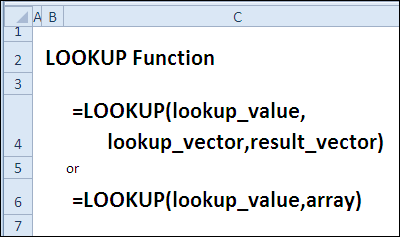
The LOOKUP function returns a value from a one-row or one-column range, or from an array, which can have multiple rows and columns.

Lookup00

How Could You Use LOOKUP?

The LOOKUP function can return a result, based on a lookup value, such as:

  • Find last number in a column
  • Find latest month with negative amount
  • Convert student percentages to letter grades

LOOKUP Syntax

The LOOKUP function has two syntax forms — Vector and Array. With Vector form, it looks for a value in a specified column or row, and with Array form, it looks in the first row or column of an array.

The Vector form has the following syntax:

  • LOOKUP(lookup_value,lookup_vector,result_vector)
    • lookup_value can be text, number, logical value, a name or a reference
    • lookup_vector is a range with only one row or one column
    • result_vector is a range with only one row or one column
    • lookup_vector and result_vector must be the same size

The Array form has the following syntax:

  • LOOKUP(lookup_value,array)
    • lookup_value can be text, number, logical value, a name or a reference
    • searches based on the array dimensions:
      • if there are more columns than rows, it searches in the first row
      • if equal number, or more rows, it searches first column
    • returns value from same position in last row/column

LOOKUP Traps

  • The LOOKUP function doesn’t have an option for Exact Match, which both VLOOKUP and HLOOKUP have. If the lookup value isn’t found, it matches the largest value that is less than the lookup value.
  • The lookup array or vector must be sorted in ascending order, or the result might be incorrect.
  • If the first value in the lookup array/vector is bigger than the lookup value, the result is an #N/A error.

Example 1: Find Last Number in Column

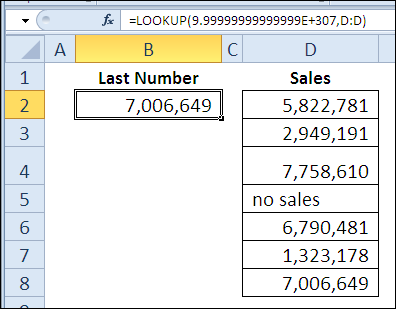
In the Array form, you can use the LOOKUP function to find the last number in a column.

The specifications in Excel’s Help list 9.99999999999999E+307 as the largest number allowed to be typed into a cell. In this formula, that number is entered as the lookup value. Assuming that large number won’t be found, the last number in column D is returned.

In this example, the numbers in column D do not have to be sorted, and there are text entries included in the column.

=LOOKUP(9.99999999999999E+307,D:D)

Find Last Number in Column with LOOKUP function

Example 2: Find Latest Month With Negative Amount

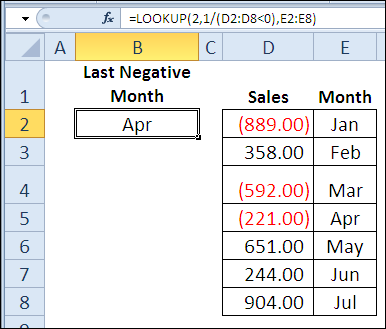
This example uses LOOKUP in its Vector form, with sales amounts in column D, and month names in column E. Things didn’t go well for a few months, and there are negative amounts in the sales column.

To find the last month with a negative amount, this LOOKUP formula tests each sales amount to see if it’s less than zero. Then, 1 is divided by that result, and returns either a 1 or a #DIV/0! error.

The lookup value is 2, which won’t be found, so the last 1 is used, to return the month name from column E.

=LOOKUP(2,1/(D2:D8<0),E2:E8)

Lookup02

Example 3: Convert student percentages to letter grades

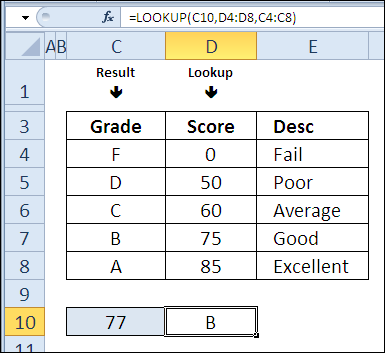
Just as you did with the VLOOKUP formula, you can use LOOKUP, in its Vector form, to find the letter grade for a student’s percentage score. With LOOKUP, the percentage do not have to be in the first column of the lookup table — you can specify any column.

Here, the scores are in column D, sorted in ascending order, and letter grades are in column C, to the left of the lookup column.

=LOOKUP(C10,D4:D8,C4:C8)

Lookup03

Download the LOOKUP Function File

To see the formulas used in today’s examples, you can download the LOOKUP function sample workbook.

The file is zipped, and is in Excel xlsx file format — no macros.

Watch the LOOKUP Video

To see a demonstration of the examples in the LOOKUP function sample workbook, you can watch this short Excel video tutorial.

_____________
30 Excel Functions in 30 Days: 15 – REPT

Yesterday, in the 30XL30D challenge, we took things easy, with the T function.

REPT Function

For day 15 in the challenge, we’ll examine the REPT function, which repeats a text string, a specified number of times. It’s another Text function, and has a few interesting uses.

Continue reading “30 Excel Functions in 30 Days: 15 – REPT”

30 Excel Functions in 30 Days: 14 – T

Welcome to another weekend in the 30XL30D challenge, and you’re probably exhausted from a long week of Excel work, and yesterday’s complicated example for the TRANPOSE function.

Excel T Function

For day 14 in the challenge, we’ll examine the Excel T function

Continue reading “30 Excel Functions in 30 Days: 14 – T”

30 Excel Functions in 30 Days: 12 – COLUMNS

Icon30DayYesterday, in the 30XL30D challenge, we got cell details with the CELL function, and learned that it’s useful for a few things, like extracting a worksheet name.

COLUMNS Function

For day 12 in the challenge, we’ll examine the COLUMNS function. Will this function be as useful? Or is it just another lazy function, like AREAS? Well, it does count the columns, as promised, and plays well with others, but nothing too exotic or powerful here.

So, let’s take a look at the COLUMNS information and examples, and if you have other tips or examples, please share them in the comments.

Function 12: COLUMNS

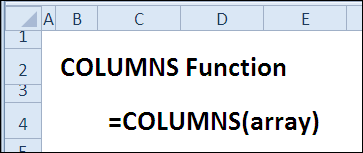
The COLUMNS function returns the number of columns in an array or reference.

Columns00

How Could You Use COLUMNS?

The COLUMNS function can show the size of a table or named range:

  • Count columns in an Excel Table
  • Sum last column in a named range

COLUMNS Syntax

The COLUMNS function has the following syntax:

  • COLUMNS(array)
    • array is an array or array formula, or reference to a range.

COLUMNS Traps

If you’re using a range reference, it must be a contiguous range.

Example 1: Count Columns in an Excel Table

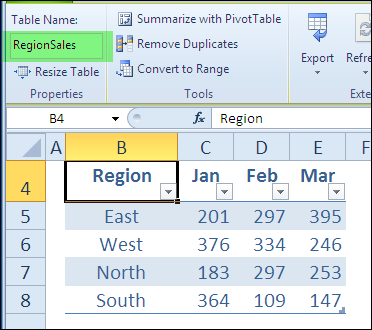
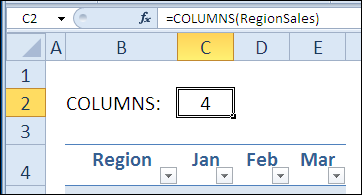
In Excel 2007 and Excel 2010, you can create a formatted Excel table, and refer to its name in a formula. In this example, there is a table named RegionSales,

Count Columns in an Excel Table with COLUMNS Function

and the COLUMNS function counts the number of columns in that table.

=COLUMNS(RegionSales)

Columns02

Example 2: Sum Last Column in Named Range

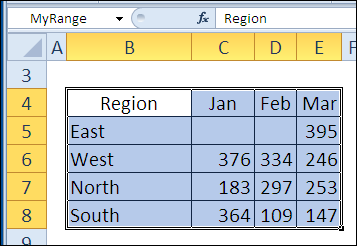
If you combine the COLUMNS function with SUM and INDEX, you can get the total for the last column in a named range. Here, the range is named MyRange,

Columns03

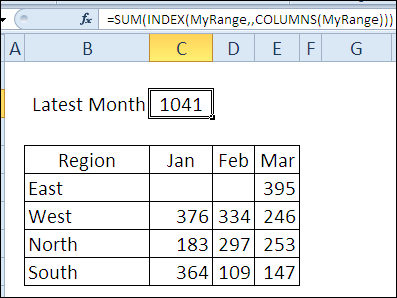
and this formula sums the last column in the named range.

=SUM(INDEX(MyRange,,COLUMNS(MyRange)))

Columns04

Download the COLUMNS Function File

To see the formulas used in today’s examples, you can download the COLUMNS function sample workbook. The file is zipped, and is in Excel 2007 file format.

Watch the COLUMNS Video

To see a demonstration of the examples in the COLUMNS function sample workbook, you can watch this short Excel video tutorial.

_____________

30 Excel Functions in 30 Days: 11 – CELL

In Day 4 of the 30XL30D challenge, we got details about the operating environment, with the INFO function — things like the Excel version and recalculation mode.

CELL Function

For day 11 in the challenge, we’ll examine the CELL function, which gives you information about cell formatting, contents and location. CELL is similar to the INFO function, with a list of types that you can enter, but has 2 arguments, instead of only one.

Continue reading “30 Excel Functions in 30 Days: 11 – CELL”

30 Excel Functions in 30 Days: 10 – HLOOKUP

For day 10 in the 30XL30D challenge, we’ll examine the HLOOKUP function. Not too surprisingly, this Microsoft Excel function is very similar to VLOOKUP, and works with items that are in a Horizontal list.

Less Popular Than VLOOKUP

Poor HLOOKUP isn’t as popular as its sibling, VLOOKUP,  though, because most tables are set up with the lookup values listed vertically.

When was the last time that you wanted to do a horizontal lookup?

Do you ever need to search for a value horizontally, across a row, and then return a value from that column, in a specific row below?

Anyway, let’s give HLOOKUP its moment in the spotlight, and take a look at its information and examples.

Remember, if you have other tips or examples, please share them in the comments.

Function 10: HLOOKUP

The HLOOKUP function looks for a value horizontally, in the first row of a table, and then it returns another value from a different row, in the same column, in that table.

How Could You Use HLOOKUP?

The HLOOKUP function can either find exact matches in the lookup row, or it can find the closest match. For example, an HLOOKUP formula can:

  • Find the sales total in a selected region
  • Find rate in effect on selected date

HLOOKUP Syntax

The HLOOKUP function has the following syntax (sequence of arguments):

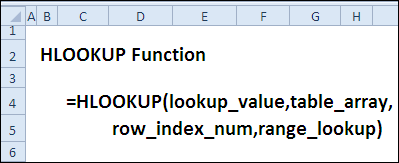
  • HLOOKUP(lookup_value,table_array,row_index_num,range_lookup)
    • lookup_value: the value that you want to look for in the first row of the lookup range — it can either be a value, or a cell reference.
    • table_array: the lookup table — this can be a range reference or a range name, with 2 or more columns in the range. Be sure that the lookup values are in the top row or a table.
    • row_index_num: the row that has the value you want returned, based on the row number within the table. NOTE: This can be different from the worksheetrow number.
    • [range_lookup]: for an exact match, use FALSE or 0 in this argument; for an approximate match, use TRUE or 1, with the lookup value row sorted horizontally, in ascending order.

HLOOKUP Traps

Like VLOOKUP, the HLOOKUP function can be slow, especially if you are doing a text string match, in an unsorted table, where an exact match is requested.

Wherever possible, use a table that is sorted by the first row, in ascending order, and use an approximate match, instead of an exact match.

Tip: You can use MATCH or COUNTIF to check for the value first, to make sure it is in the table’s first row. This can make the calculation much faster in some situations.

HLOOKUP Alternatives

Other Excel functions, such as INDEX and MATCH, can be used to return values from a table, instead of HLOOKUP, and those functions are more efficient.

We will look at the INDEX and MATCH functions later in the 30 Day challenge, and you will see examples of how flexible and powerful those functions are.

Tip: See examples for INDEX and MATCH on my Contextures site: INDEX and MATCH Functions

Also, see these pages on my site, for examples of related lookup functions:

Compare Lookup Functions

VLOOKUP Function

Example 1: Find the Sales for a Selected Region

The HLOOKUP function always looks for a value in the top row of the lookup table.

In this example, we will find the sales total for a selected region — East, West, North or South. Those region names are in the first row of the lookup range, and they are NOT sorted in ascending order.

For our financial report, it is important to get the correct sales amount as our formula result, so the following settings the HLOOKUP function will find an exact match.

Worksheet Setup – Example 1

Here are the details on the Excel worksheet setup for this example. You can see the worksheet in the screen shot below:

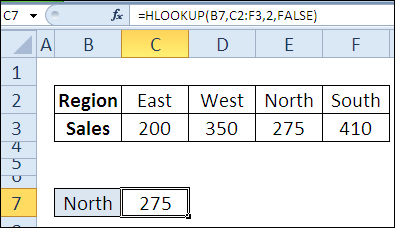
  • a region name is entered in cell B7
  • the region lookup table has two rows, and is in range C2:F3
  • sales total is in row 2 of the table.
  • FALSE is used in the last argument, to find an exact match for the lookup value.

The HLOOKUP Formula

The formula in cell C7 is:

  • =HLOOKUP(B7,C2:F3,2,FALSE)
Find the Sales for a Selected Region with HLOOKUP Function

HLOOKUP Error Result

Sometimes, you might get an error resulet with an HLOOKUP formula, as you can see in the screen shot below.

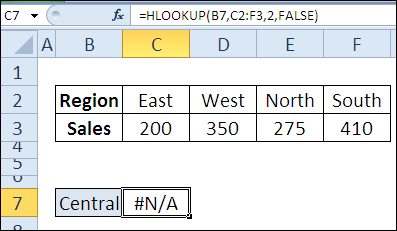
In this case, the region name, “Central”, was not found in the first row of the lookup table, so the HLOOKUP formula result is an error value —  #N/A

Example 2: Find Rate for Selected Date

In most cases, an exact match is required when using the HLOOKUP function,  but sometimes an approximate match works better.

For example, if rates change at the start of each quarter, only those quarterly dates are entered as column headings. It would not be practical to enter every single date in the heading row!

Instead of trying to find an exact match for the date, with HLOOKUP and an approximate match, you can find the rate that went into effect on the closest date.

Worksheet Setup Notes

Here are the details on the worksheet setup for Example 2. You can see the worksheet in the screen shot below:

In this example:

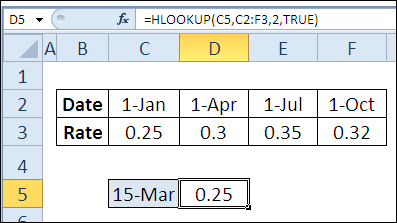
  • a date is entered in cell C5
  • the rate lookup table has two rows, and is in range C2:F3
  • the lookup table is sorted by the Date row, in ascending order
  • dates are in the top row of a table
  • rate is in row 2 of the table.
  • TRUE is used in the last argument, so HLOOKUP will find an approximate match for the lookup value.

Hlookup03

HLOOKUP Formula Example 2

The formula in cell D5 is:

  • =HLOOKUP(C5,C2:F3,2,TRUE)

How Approximate Match Works

Here is how the approximate match works, in this example:

  • If the exact lookup date is not found in the first row of the table, so the HLOOKUP formula finds the next largest value that is less than lookup_value.
  • The lookup value in this example is March 15th.
  • That value is not in the date row, so the HLOOKUP function returns the rate for January 1st (0.25).
  • January 1st is the largest date in the heading row, that is LESS than the lookup date of March 15th

More HLOOKUP Examples

For more HLOOKUP examples, and for tips on fixing HLOOKUP formula problems, go to this page on my Contextures site:

How to Use Excel HLOOKUP Function and Fix Problems

On that page, you’ll see how to:

  • use HLOOKUP with the COUNTIF function, for faster calculations
  • create an HLOOKUP formula for 2 criteria
  • interpret any HLOOKUP error results – #VALUE! and #REF! and #N/A
  • fix problems when looking up dates or numbers
  • and much more!

Download the HLOOKUP Function File

To see both of the formulas used in today’s 30 Functions in 30 Days challenge examples, you can download the HLOOKUP function sample workbook.

The file is zipped, and is in Excel’s xlsx file format. The workbook does not contain any macros.

Tip: Use this workbook to follow along with the HLOOKUP video, in the next section.

Watch the HLOOKUP Video

To see a demonstration of the examples in the HLOOKUP function sample workbook, you can watch this short Excel video tutorial.

_______________________________

30 Excel Functions in 30 Days: 09 – VLOOKUP

Icon30DayFor day 9 in the 30XL30D challenge, we’ll examine the VLOOKUP function. As you can guess by its name, this is one of the Lookup functions, and works with items that are in a Vertical list.

Other functions might do a better job of pulling data from a table (see VLOOKUP traps section below), but VLOOKUP is the lookup function that people try first.

Some people get the hang of it right away, and others struggle to make it work. Yes, this function has some flaws, but once you understand how it works, you’ll be ready to move on to some of the other lookup options.

So, let’s take a look at the VLOOKUP information and examples, and if you have other tips or examples, please share them in the comments. And remember to guard your secrets!

Function 09: VLOOKUP

The VLOOKUP function looks for a value in the first column in a table, and returns another value from the same row in that table.

Vlookup00

How Could You Use VLOOKUP?

The VLOOKUP function can find exact matches in the lookup column, or the closest match, so it can:

  • Find the price of a selected product
  • Convert student percentages to letter grades

VLOOKUP Syntax

The VLOOKUP function has the following syntax:

  • VLOOKUP(lookup_value,table_array,col_index_num,range_lookup)
    • lookup_value: the value that you want to look for — it can be a value, or a cell reference.
    • table_array: the lookup table — this can be a range reference or a range name, with 2 or more columns.
    • col_index_num: the column that has the value you want returned, based on the column number within the table.
    • [range_lookup]: for an exact match, use FALSE or 0; for an approximate match, use TRUE or 1, with the lookup value column sorted in ascending order..

VLOOKUP Traps

VLOOKUP can be slow, especially when doing a text string match, in an unsorted table, where an exact match is requested. Wherever possible, use a table that is sorted by the first column, in ascending order, and use an approximate match.

You can use MATCH or COUNTIF to check for the value first, to make sure it is in the table’s first column (see example 3 below).

Other functions, such as INDEX and MATCH, can be used to return values from a table, and are more efficient. We’ll look at those functions later in the challenge, and see how flexible and powerful they are.

Example 1: Find the Price for a Selected Item

The VLOOKUP function looks for a value in the left column of the lookup table.

In this example, we’ll find the price for a selected product. It’s important to get the correct price, so the following settings are used:

  • a product name is entered in cell B7
  • the pricing lookup table has two columns, and is in range B3:C5
  • price is in column 2 of the table.
  • FALSE is used in the last argument, to find an exact match for the lookup value.

The formula in cell C7 is:

=VLOOKUP(B7,B3:C5,2,FALSE)

Find the Price for a Selected Item with VLOOKUP Function

If the product name is not found in the first column of the lookup table, the VLOOKUP formula result is #N/A

Vlookup02

Example 2: Convert Percentages to Letter Grades

Usually, an exact match is required when using VLOOKUP, but sometimes an approximate match works better. For example, when converting student percentages to letter grades, you wouldn’t want to type every possible percentage in the lookup table.

Instead, you could enter the lowest percentage for each letter grade, and then use VLOOKUP with an approximate match. In this example:

  • a percentage is entered in cell C9
  • the percentage lookup table has two columns, and is in range C3:D7
  • the lookup table is sorted by the percentage column, in ascending order
  • letter grade is in column 2 of the table.
  • TRUE is used in the last argument, to find an approximate match for the lookup value.

The formula in cell D9 is:

=VLOOKUP(C9,C3:D7,2,TRUE)

If the percentage is not found in the first column of the lookup table, the VLOOKUP formula result is the next largest value that is less than lookup_value.

The lookup value in this example is 77. That value is not in the percentage column, so the value for 75 (B) is returned.

Vlookup03

Example 3: Find Exact Price With Approximate Match

The VLOOKUP function can be slow when doing an exact match for a text string.

In this example, we’ll find the price for a selected product, without using the Exact Match setting. To prevent incorrect results:

  • the lookup table is sorted by the first column, in ascending order
  • COUNTIF checks for the value, to prevent incorrect results

The formula in cell C7 is:

=IF(COUNTIF(B3:B5,B7),VLOOKUP(B7,B3:C5,2,TRUE),0)

Vlookup04

If the product name is not found in the first column of the lookup table, the VLOOKUP formula result is 0.

Vlookup05

Download the VLOOKUP Function File

To see the formulas used in today’s examples, you can download the VLOOKUP function sample workbook. The file is zipped, and is in Excel 2007 file format.

More VLOOKUP Info and Examples

  • For more VLOOKUP examples, you can visit the VLOOKUP page on the Contextures website.
  • Check out Chandoo’s blog, where he had an entire VLOOKUP week, with tips and examples.
  • For suggestions on speeding up a lookup formula, see Charles Williams’ page on Optimizing Lookups.

Watch the VLOOKUP Videos

To see a demonstration of the examples in the VLOOKUP function sample workbook, you can watch these 2 short Excel video tutorials.

Find Product Price with VLOOKUP

Convert Percentages to Letter Grades

_____________

30 Excel Functions in 30 Days: 08 – CHAR

Yesterday, in the 30XL30D challenge, we found character code numbers with the CODE function, and used it to reveal hidden characters.

CHAR Function

For day 8 in the challenge, we’ll examine the CODE function’s evil twin — the CHAR function.

Continue reading “30 Excel Functions in 30 Days: 08 – CHAR”