Excel Pivot Table from Multiple Sheets Update

If you have similar data on two or more worksheets, you might want to combine that data in a pivot table, to show the summarized results.

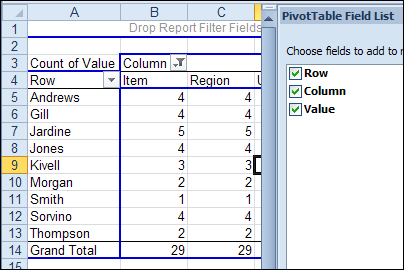
Unfortunately, the pivot table from data on multiple sheets can be a disappointment.
pivotmultipleconsol01

Create a Pivot Table with Programming

A couple of years ago, Excel MVP, Kirill Lapin (KL), shared a sample file that he created, with amendments by Hector Miguel Orozco Diaz.

It uses code to automatically create a pivot table from multiple sheets in a workbook.

You can read the details here: Create a Pivot Table from Multiple Sheets.

Revised Solution

Kirill’s sample file was created as a conceptual prototype, and targeted advanced VBA users. The code has minimal error handling and compatibility checks.

However, the sample file was extremely popular, and Excel users at all skill levels wanted to adopt this solution in their own applications. To make things easier, Kirill has created a similar solution based on ADO.

Advantages:

  1. No need for temporary file generation
  2. The code is faster and less prone to errors

Disadvantages:

  1. No manual refresh of the PivotTable
  2. Need to rebuild connection from the scratch to update the cache with new data

Download the ADO Sample File

You can download the new ADO version of the file from the Contextures website: PT0024 – Pivot Table from Multiple Sheets – ADO version.

There is also a “Plug and Play” version of the file, at the same link.
________________
Change Excel Comment Shape

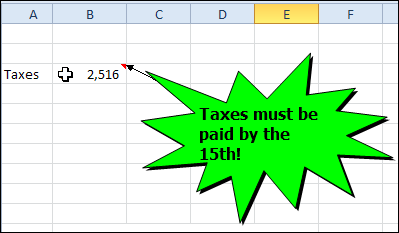
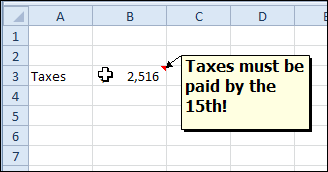
When you insert a comment in Excel, a rather boring yellow rectangle appears, where you can add your text.

commentshapechange00

That’s all very proper and dignified, but sometimes you want something a bit more attention-getting.

commentshapechange01

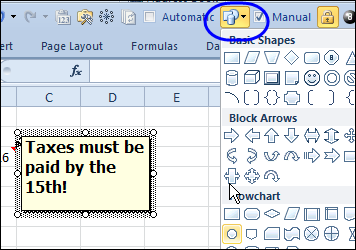
In the good old days of Excel 2003, it was easy to change the comment shape, with a simple right-click. In Excel 2007 and Excel 2010, you need to add a command to the QAT, so you can change the comment shape.

Add the Change Shape Command to the QAT

  • At the right end of the QAT, click the drop down arrow
  • Click More Commands
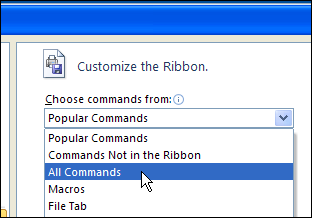
  • In the Choose Commands From drop down, click All Commands

commentshapechange02

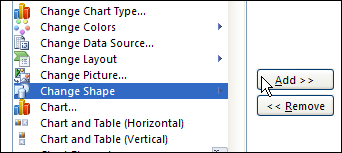
  • In the list of commands, click Change Shape, and click Add, to move it to the Quick Access Toolbar

commentshapechange03

  • Close the Excel Options window.

Change the Comment Shape

  • Right-click the cell which contains the comment.
  • Choose Edit Comment
  • Click on the border of the comment, to select it.

commentshapechange04

  • On the QAT, click the Change Shape command, and click on a shape to select it.

commentshapechange05

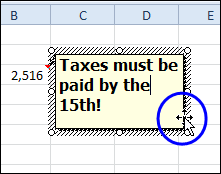
  • If necessary, drag the corner handle of the comment, to adjust its size, to fit the text.
  • When finished, click outside the comment.

Watch the Video

To see the steps for adding the Change Shape command to the QAT and changing the comment shape in Excel 2010 or Excel 2007, you can watch this short Excel video tutorial.

_____________________

Excel Christmas Planner

I’m just getting back from a vacation in South Carolina, where I didn’t use Excel too often, except to add up all my Christmas shopping expenses.

If you’re on my shopping list, you might be getting a basket from the Charleston market.

DSC_0211

Or maybe you’d like some of the local barbeque sauce or a bag of grits?

DSC_0208

Christmas Planner

There are only 10 days until Christmas, and I’m almost ready. How about you?

If you’re still planning and shopping, there is an Excel Christmas planner on the Contextures website, that you can use to help you stay organized.

The Excel Christmas planner has a budget sheet, where you can plan and track your spending.

image

Christmas Gift List

If you’re lucky, you don’t have too many gifts to buy. But even for a few gifts, it helps to make a list to keep track of costs.

The Excel Christmas planner helps you track your gifts too.

ChristmasGiftList

Christmas Tasks

The Excel Christmas planner has other sheets too, including a Christmas task list, so you can keep track of all those important things you’re supposed to do over the next few days.

You don’t want to realize on December 24th that no one has ordered the turkey!

ChristmasTaskList

Winter Weather

It was nice to spend some time in the warmer weather, and yes, it’s colder back here in Canada, but at least we don’t have to watch for alligators! Now I’d better go and order that turkey.

DSC_0161

_______________

Create Excel Chart With Shortcut Keys

To create a chart in Excel, you can select the chart data on the worksheet, then use the Ribbon commands to insert the chart. Or, for a quicker way, you can create an Excel chart with shortcut keys. See how to insert a chart, and change an Excel setting, so it inserts a specific chart type.

Continue reading “Create Excel Chart With Shortcut Keys”

Customize Excel Right-Click Menus

iconmenurighterDo you ever right-click on something in Excel, and the command that you wanted to use isn’t on that pop-up menu?
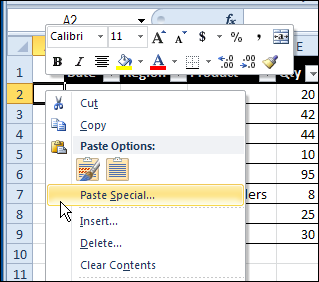
For example, if right-click on a cell, there is no command to turn off the gridlines.

menurighter01

If you can’t find the command on the right-click menu, you have to go to the Excel Ribbon or Quick Access Toolbar (QAT) instead, and try to find the command on one of the tabs there.

What commands would you add to a right-click menu? Are there commands that you added to the QAT, that would be even better in a popup menu?

Customize the Right-Click Menus

Fortunately, Doug Glancy has created a solution to the right-click menu problem, with his MenuRighter Add-in. With Doug’s free add-in, you can add commands to the pop-up menus, so the items that you need are easy to find.

The add-in is not for sissies! You need to know where the commands were on the old Excel 2003 menus – or be willing to poke around and find them.

Then, you select the right-click menu where you want to add the command, and click the buttons to add the command, and save the changes.

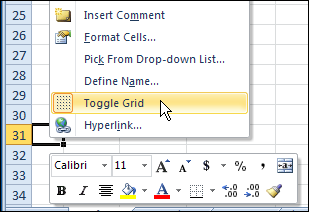
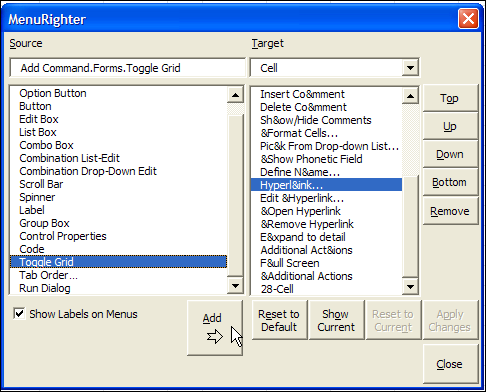
In the screen shot below, I have selected the ToggleGrid command from the Forms toolbar, and am adding it to the Cell popup menu, just above the Hyperlink command.

menurighter02

Find the Right Right Menu

There is a large collection of Targets, so it can be tricky to select the correct one. There are two Cell targets, so how can you decide which right menu is the right one?

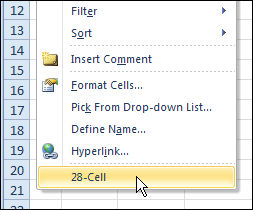
While the MenuRighter is open, you can check the box for Show Labels on Menus. At the bottom of the list at the right, you can see the identity for the selected Cell target – 28-Cell.

If I right-click on cell A2, the popup menu also shows 28-Cell, so that confirms that I selected the Cell target that I want.

menurighter03

Use the Modified Right-Click Menus

After I added the Toggle Grid command to the Cell menu, I clicked Apply Changes, and closed the MenuRighter window.

Then, I can right-click on a cell, and turn the gridlines on or off.

menurighter04

It’s a command that I use frequently, so it’s very convenient to have it in the right-click menu. Thanks Doug, you made life in Excel a little easier!

Download the MenuRighter Add-in

For more instructions, and to download the MenuRighter add-in, you can visit Doug Glancy’s website: MenuRighter Add-in.

Watch the MenuRighter Video

To see the steps for adding a command to a right-click menu, by using the free MenuRighter add-in, you can watch this short Excel video tutorial.

___________________

Excel VLOOKUP Troubleshooting

You’re admired by your co-workers, thanks to your awesome Excel skills. Cupcakes magically appear on your desk, in thanks for your help with complex formulas.

Your boss keeps stretching the budget, to accommodate the huge bonuses you get, in reward for your amazing talents. Well, that might not be the exact situation, but I’m sure your skills are appreciated!

VLOOKUP Trouble

Then, one day, it all goes horribly wrong. Your boss needs a report in 15 minutes, and you can’t get a seemingly simple VLOOKUP formula to work.

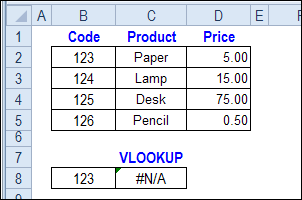
You can see the target product numbers in the lookup table, but the formula result is #N/A, instead of the product price.

formula result is #N/A

You don’t want to lose your Excel Expert badge over something this trivial, so how will you solve the problem?

Text or Number?

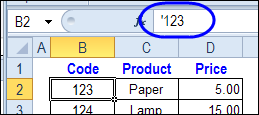
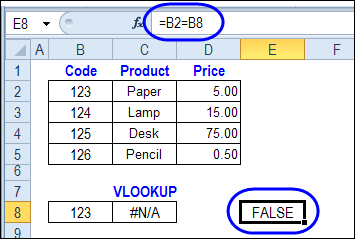
A common cause for this VLOOKUP error is that one of the values is a number, and the other is text. In this example, the lookup table codes in cell B2:B5 are stored as text values – they have a leading apostrophe.

The lookup code, in cell B8, is entered as a number – no leading apostrophe.

vlookuptroubleshoot02

So, it looks like cells B2 and B8 are equal, but Excel sees them as different values.

vlookuptroubleshoot03

Fix the Text Values

The easiest solution to the the VLOOKUP problem in this example is to convert the text values to numbers, so the codes in the table match your lookup values.

Or, type an apostrophe in front of your lookup code in cell B8, so it’s a text value too.

Change the VLOOKUP Formula

If you can’t fix the data, you can convert the lookup value in the Excel VLOOKUP formula. Here is the original VLOOKUP formula, that returned an #N/A error.

=VLOOKUP(B8,$B$2:$D$5,2,FALSE)

If you add an empty string to the end of the value in cell B8, the lookup number will be converted to a text string. The revised formula is:

=VLOOKUP(B8 & “”,$B$2:$D$5,2,FALSE)

This formula will also work if cell B8 contains a text value – adding the empty string won’t change the value.

More Excel VLOOKUP Troubleshooting

If this VLOOKUP formula fix doesn’t solve the problem, there are more Excel VLOOKUP troubleshooting tips on the Contextures website.
Have you run into this problem? How did you fix it?

Watch the Excel VLOOKUP Troubleshooting Video

To see the steps for fixing the Excel VLOOKUP problem, you can watch this short Excel video tutorial.

___________________