Someone emailed me for help with an Excel AutoFilter last week. He wanted to type the criteria onto a worksheet, and have the filtered results shown automatically.
There are some built-in options for filtering by text, and keep reading to see a worksheet version that Roger Govier designed.
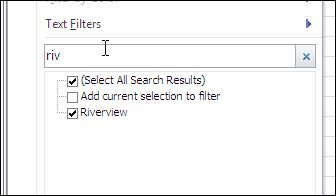
AutoFilter Search in Excel 2010
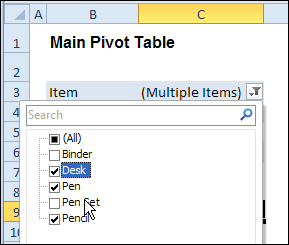
There is a new feature in Excel 2010 that provides easy searching, though not on the worksheet. You can see an example here, for the Excel 2010 AutoFilter search feature.
AutoFilter Search in Earlier Versions
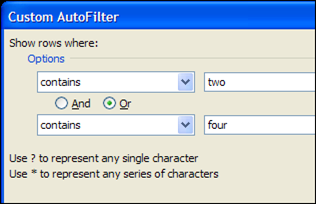
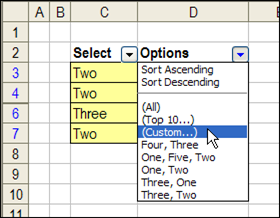
In earlier versions of Excel, you can filter for text, but it’s a bit more work. In Excel 2007 you can use a text filter, which opens the Custom AutoFilter dialog box
In Excel 2003, use the Custom option on the AutoFilter drop down.
Roger Govier’s FastFilter
If you’d like to enter the AutoFilter criteria on the worksheet, instead of a search box or dialog box, you can use Roger Govier’s FastFilter sample Excel file.
He has set up a table on the worksheet, with an empty row above the table. In that row, you can type one or more criteria, and when you press the Enter key, the table is automatically filtered.
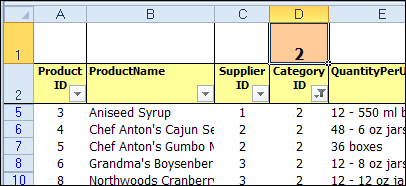
For a simple filter, type an exact match for a value, and press Enter. In the screen shot below, the table is showing only the items from category 2.
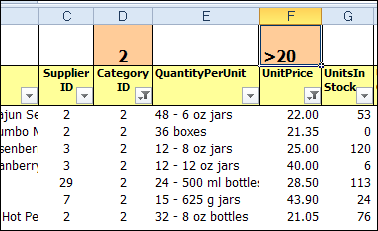
You can also use operators, and in the next screen shot I’ve added a “>20” criterion in the Unit Price column.
Use WildCard Characters
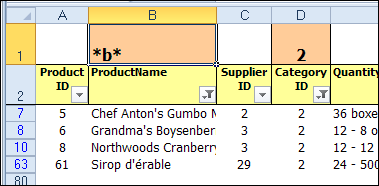
If you’re trying to find a specific string of characters in a column, you can use the * and ? wildcard characters. In the next screen shot, I used *b* in the product name column, to find any products that have a “b” somewhere in the name.
Use Multiple Criteria in a Column
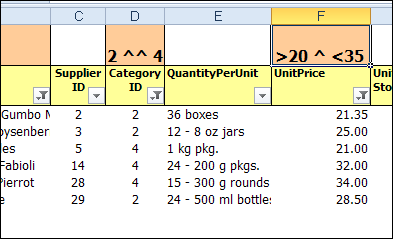
You can use special characters for OR (^^) and AND (^), to combine multiple criteria in a single heading cell. In the Category ID column, I used the ^^ characters to find category 2 OR 4. In the Unit Price column, the ^ character limits the price to >20 AND <35.
Remove the Criteria
To clear the filter from a column, just click on the criteria cell, and press the Delete key on your keyboard. If you want to clear all the filters, select all the criteria cells, and press Delete.
Download the Sample File
To download the sample file, you can visit Roger’s Sample Files page on the Contextures website. In the Filters section, look for FL0001 – Fast Filter. There is a download link for the FastFilter zipped file.
The file is in Excel 2003 format, and will work in later versions too. After you open the file, enable macros, so you can test the automatic filter feature.
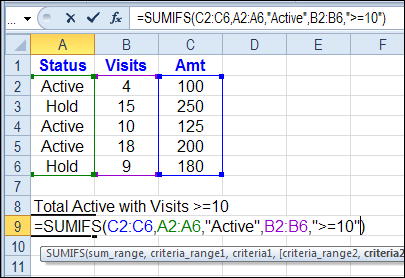
In Excel 2007 and Excel 2010, you can use the new COUNTIFS function to count, based on multiple criteria.
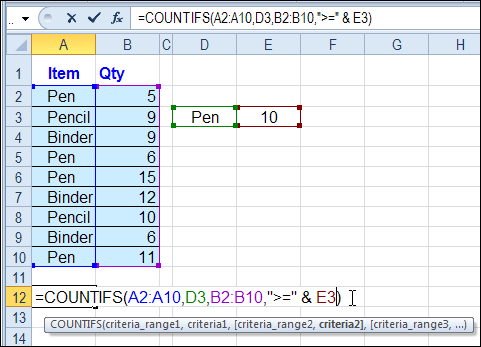
For example, in a list of orders, you can find out how many orders were for pens, and had a quantity of 10 or more.
Page Updates
I have updated the Contextures COUNT Functions page, to include a COUNTIFS example, and video demo.
If you are using Excel 2003, or earlier versions, you can use the SUMPRODUCT function instead. There is an example for that function on the COUNT page too.
Watch the COUNTIFS Video
To see the steps for using the COUNTIFS function, you can watch this short Excel video tutorial. The written steps are on the Contextures COUNT Functions page.
There is a complete transcript of the tutorial directly beneath the video.
VIDEO TRANSCRIPT
Counting With Criteria
In Excel you can count using criteria with the COUNTIF function.
In later versions of Excel (2007 and later) you can count multiple criteria with the COUNTIFS function.
So here we have a list of items that we’ve sold and the quantity for each.
We would like to find the number of orders where a pen was the item sold and the quantity is greater than 10.
First Criteria
So in this cell I’m going to start with an equal sign and then type COUNTIFS an open bracket and the first thing I’m going to check is the item that was sold.
The range, first range is A2:A10. Then I’ll type a comma and the criteria for that range I’m just going to type in here inside double quotes pen, and then another comma.
That’s the first thing we’re going to check, is what item was sold.
Additional Criteria
Next will be the quantity so I’ll select the range that has the quantities, another comma and we want quantity greater than or equal to 10 so within double quotes
I’ll do a greater than symbol, equal, and a 10, then another double quote
Close the bracket and press Enter. There were two orders for pen where the quantity is greater than 10. Instead of typing these criteria in here I can refer to a cell.
So instead of typing pen inside double quotes, I could click on a cell where I have typed the word pen. The same for this criteria for the quantity
I’m going to take out the 10 just by deleting that, leaving the operators within the double quotes.
Adjustments
Then I’ll type an ampersand and the cell that has the number. So this is greater than or equal to whatever number is in cell E3.
When I press ENTER I get the same result. It’s just easier to change.
Then I could type a 5 here now, and we see that there were 4 orders where the quantity is greater than or equal to 5 instead of the 10 that we had in there before.
So this formula is much more flexible if you use cell references, rather than typing the values in as hard-coded values.
Have you ever written an Excel proficiency exam? Maybe you’ll have some advice or tips for the person who wrote to me this week, asking for help with the Excel Expert 2007 exam.
He’s having trouble with the macros and custom functions that will be part of the test.
It’s been a long time since I wrote the Excel Expert exam, that was part of the old Microsoft Office User Specialist series. The exam has probably changed many times since then, but back then it was a mixture of multiple choice questions and simulated workbooks (if I’m remembering correctly!)
Anyway, I passed, and the certificate is still proudly displayed on my office wall. Well, it’s pinned to the wall, behind the door, but it’s still in good shape! Wow, June 1999 – that was a long time ago.
The Excel Expert Test
The Microsoft website has a list of topics that are covered on the exam, including this section on Managing Macros and User-Defined Functions:
Record and edit a macro.
This objective may include but is not limited to: recording a macro and editing a macro in Visual Basic for Applications (VBA)
Manage existing macros.
This objective may include but is not limited to: moving macros between workbooks, assigning a shortcut key to an existing macro, assigning a macro to a button in a worksheet, and configuring macro security levels
Create a user-defined function (UDF).
Record and Edit a Macro
There are written instructions and a video on the Contextures website, for recording and testing a macro in Excel. That article briefly discusses macro security levels, and showing the Developer tab.
To see how to edit a recorded macro, you can watch the video on this blog post: Excel VBA Edit Your Recorded Macro. There are written instructions there too, in case you’d prefer to read about it.
Manage Existing Macros
If you need to copy macros into a workbook, or from one workbook to another, there are instructions here: Adding Code to a Workbook
For details on assigning a macro to a worksheet button, take a look at this page: Excel VBA Worksheet Macro Buttons. To see the code and buttons, you can download the sample workbook from that page.
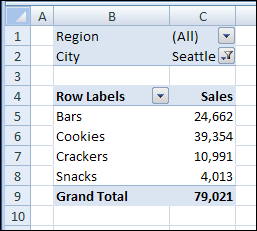
To focus on specific data in a pivot table, you can use report filters or field filters. You can also hide Pivot Table detail without filtering — use the expand and collapse buttons to show or hide details.
Rick mentioned that this formula ignores cells with formulas that are displaying the empty string. If your situation is such that you need to identify formula cells that might be displaying the empty string, then change the xlValues argument to xlFormulas.
Revised Excel VBA Code
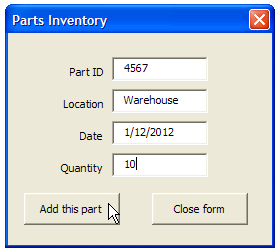
So, I changed the Part Data Entry code, to use the Find method for finding the last row. I replaced this old line of code:
'find first empty row in database
iRow = ws.Cells(Rows.Count, 1) _
  .End(xlUp).Offset(1, 0).Row
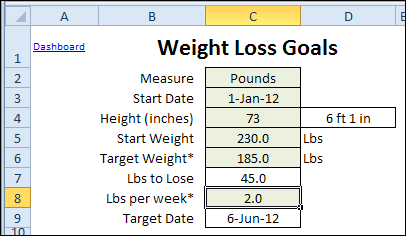
You know how tough it can be to maintain two versions of the same file. It creates twice as much work for you, and no extra rewards! So, instead of having two versions of the Excel weight loss tracker – pounds and kilograms – I’ve rolled them into one workbook.
For now, there is a separate file for the stone measurements, because it has a different layout on the data entry sheet. If possible, I’ll roll that version in later.
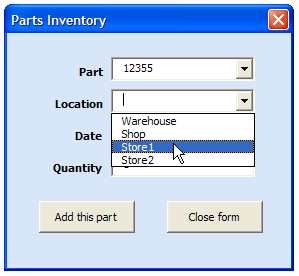
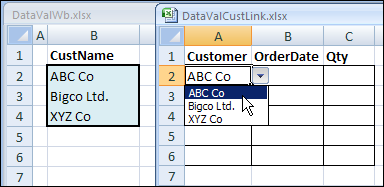
In the screen shot shown below, the original list is in the workbook at the left. The drop downs are in a different workbook, on the right.
There Is a Catch
My preference would be to keep the lists and drop downs in the same workbook, but if you need to have them in separate files, this technique will allow you to do that.
There’s one catch though, when using this data validation technique. The source workbook, which contains the original list, must also be open, when you are using the drop down lists.
So, it’s not a perfect solution, but it’s fairly easy to implement, as long as you remember to open the other workbook too.
Excel 2010 Instructions
I’ve just uploaded a video with instructions for this technique in Excel 2010, so you can see the steps for creating the named ranges and data validation drop down lists.
There is a new sample file on the Contextures website, with a macro to change all pivot tables with one selection, when you change a report filter in one pivot table.