Use Slicers to Filter a Table in Excel 2010

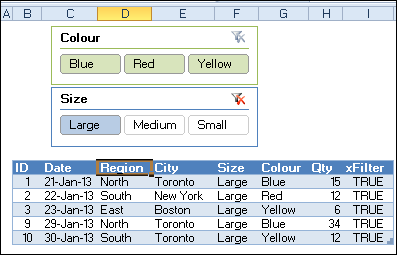
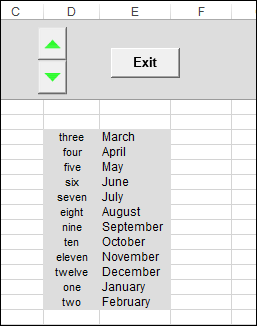
Pivot table filtering was improved in Excel 2010, when Slicers were introduced. Instead of using the drop down lists in the pivot table headings, you can click on a Slicer, to quickly filter the pivot table. You couldn’t use Slicers to filter a table in Excel 2010 though.

Continue reading “Use Slicers to Filter a Table in Excel 2010”

Counting Query Tables in Excel

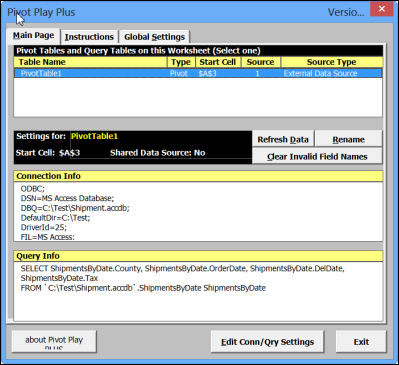
A few years ago, Ron Coderre created his PivotPlay PLUS Add-in that you can download from my Contextures site. This free add-in was designed for Excel 2003, and lets you view and edit the connection strings for pivot tables and query tables that are based on external data queries.

Continue reading “Counting Query Tables in Excel”

Highlight Duplicate Records in an Excel List

With Excel’s conditional formatting, you can highlight cells based on specific rules. There are some built-in rules available, and you can use formulas to create your own formatting rules.

Watch the Video

To see the steps for setting up the conditional formatting, watch this short video. The written steps are below the video.
To download the sample file, go to my Contextures website: Highlight Duplicate Records in a List

Highlight Duplicates

In this example, we want highlight duplicate records in a table. There is a built-in rule for highlighting duplicate values in a single column, but nothing that will check an entire row.

built-in rule for highlighting duplicate values

So, we’ll create our own rule, and it will require a new column on the worksheet, before we add the conditional formatting.

Concatenate the Data

In the sample data, there are two identical rows, and these should be highlighted after we apply our conditional formatting.

two identical rows in sample data

The first step is to use the CONCATENATE function to combine all the data into one cell in each row.

Add a new heading in cell G1 – AllData – and in cell G2, enter this formula, to combine the data from all the cells in that row.

=CONCATENATE(A2,B2,C2,D2,E2,F2)

formula to combine the data

Next, copy the formula down to the last row of data.

Apply the Conditional Formatting

Then, a conditional formatting rule is set, to color the rows that are duplicate records. We’ll use the COUNTIF function to check for duplicates in the AllData column.

=COUNTIF($G$2:$G$8,$G2)>1

create new conditional formatting rule

If there is more than one instance of a data combination, that indicates a duplicate row, and the cells in columns A:F will be coloured. The two rows with duplicate records are highlighted, so our conditional formatting formula worked!

duplicate records are highlighted

Download the Sample File

For detailed instructions, and to download the sample file, go to my Contextures website: Highlight Duplicate Records in a List

_________________________