
With Excel’s conditional formatting, you can highlight cells based on specific rules. There are some built-in rules available, and you can use formulas to create your own formatting rules.
Watch the Video
To see the steps for setting up the conditional formatting, watch this short video. The written steps are below the video.
To download the sample file, go to my Contextures website: Highlight Duplicate Records in a List
Highlight Duplicates
In this example, we want highlight duplicate records in a table. There is a built-in rule for highlighting duplicate values in a single column, but nothing that will check an entire row.
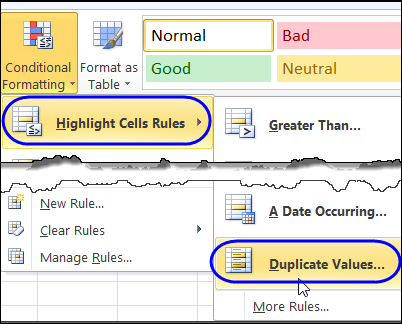
So, we’ll create our own rule, and it will require a new column on the worksheet, before we add the conditional formatting.
Concatenate the Data
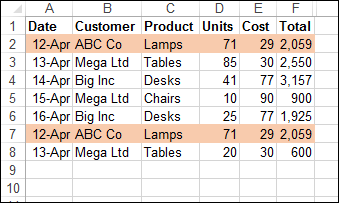
In the sample data, there are two identical rows, and these should be highlighted after we apply our conditional formatting.
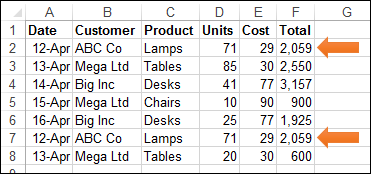
The first step is to use the CONCATENATE function to combine all the data into one cell in each row.
Add a new heading in cell G1 – AllData – and in cell G2, enter this formula, to combine the data from all the cells in that row.
=CONCATENATE(A2,B2,C2,D2,E2,F2)
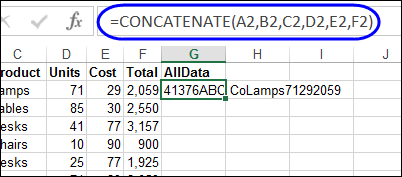
Next, copy the formula down to the last row of data.
Apply the Conditional Formatting
Then, a conditional formatting rule is set, to color the rows that are duplicate records. We’ll use the COUNTIF function to check for duplicates in the AllData column.
=COUNTIF($G$2:$G$8,$G2)>1
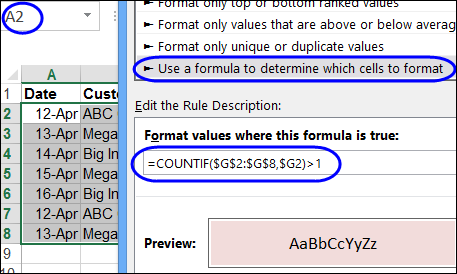
If there is more than one instance of a data combination, that indicates a duplicate row, and the cells in columns A:F will be coloured. The two rows with duplicate records are highlighted, so our conditional formatting formula worked!
Download the Sample File
For detailed instructions, and to download the sample file, go to my Contextures website: Highlight Duplicate Records in a List
_________________________
I created a mock set of columns (Last name, First name) to test why Conditional formatting is not working for me on my real data. I used the MATCH formula and found an error (extra space after a , ) It resulted in one False and I could see the extra space. But it did not find another that had a , after “Last name”. My columns had one that needed be concatenated. Conditional formatting did yield duplicates.Also is there a way to request the duplicates to be put into a new column?
thanks in advance,
Maggie
I have a 2-column list with “telephone-number” in one column and “comment” in the other (the “comment” column may be empty).
How can I identify and remove duplicate telephone-numbers even if the comments are different?
The “Remove duplicates” function only removes duplicate telephone-numbers if the respective comments are identical.
Example:
999999999;Home
999999999;Ann
999999999;Home
Excel only identifies the first and the third row as duplicates.
If I select the first column only, duplicate telephone numbers get removed, however, the comments no longer match as none got removed.
Thanks for helping
Bruno
Select both columns, and in the Remove Duplicates dialog box, remove the check mark from the Comment heading.
There is a video here that shows the steps:
http://blog.contextures.com/archives/2013/11/26/remove-duplicates-in-excel-2013-list/
Hi,
i have a list of employee names which has a the full name(s) of the employees now the requirement is we need a separate fields for First name and last name what formula i can use to do this?
Can i delete back the “Concenated” column and leaving the duplicates data only???
I have a data set which requires an exact formula due to case sensitivity. What would I use instead of =COUNTIF($G$2:$G$8,$G2)>1
Thank you all for sharing your knowledge, I appreciate it!