
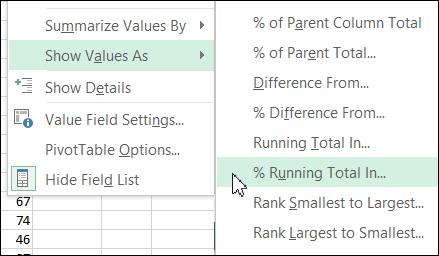
If you’re using a pivot table, there are built in features that lets you show a running total, or a percent running total. Here’s the command to show a % Running Total in a pivot table.
No Worksheet Command
If you’re using worksheet formulas, instead of a pivot table, there’s nothing built in that will automatically create a running total for you.
Fortunately, with a simple SUM formula, you can calculate the running total in each row, to see how your bank account is doing.
Use the SUM Function
In this example, there are withdrawal and deposit amounts in cells C2:C6. We could use the SUM function to total the amounts in column C, and that would give us the current total.
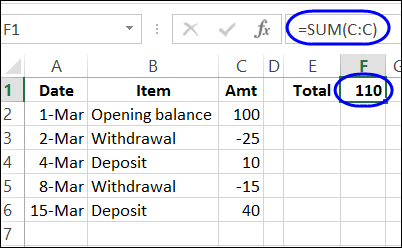
Instead, we’ll use the SUM function in each row, to calculate the running total. We’ll be able to see the total after each withdrawal and deposit.
Enter the Formula
The formula in cell D2 is: =SUM(C$2:C2)
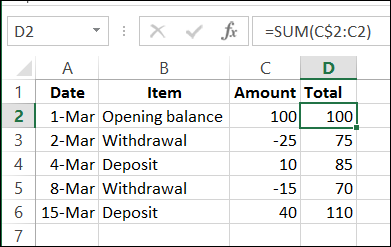
That $ sign locks the reference to row 2, at the start of the sum, so it doesn’t change when the formula is copied down to cell D6.
The ending cell – C2 – is a relative reference, so the ending point changes for each row. For example, in cell D6, the formula shows C6 as the ending cell for the SUM formula.
Watch the Video
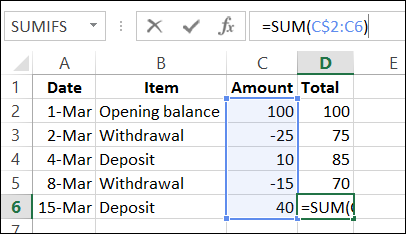
To see the steps for creating a running total on a worksheet, watch this short video.
There are more examples, and written steps, on the Running Totals page on my Contextures site.
_______________________
Why do the values in my column of running total have “$” in front of them? They are not an amount of money and I don’t want it there. I used =SUM(D$6:D6)). I hope you can assist
@christine, check the number formatting in that column. You can set it to General, or Number format.