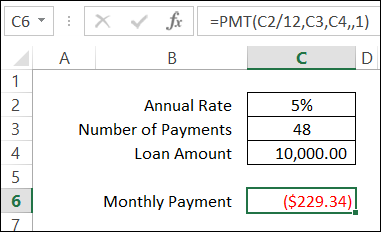
Even if you’re not a financial wizard, you’ve probably had to figure out a loan payment at least once in your life. Fortunately, Excel makes it easy to calculate loan payments, with the PMT function.
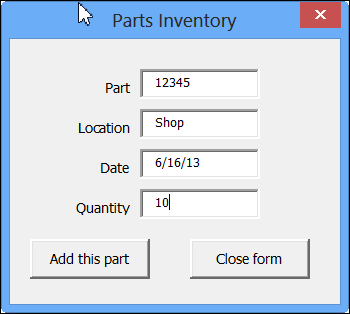
With some VBA programming, you can create an Excel UserForm, to use for data entry. Click a button, and the data is stored on a hidden worksheet, and the form is cleared out, so you can start a new entry.
If you’re just getting started with Excel UserForms, the short video below shows how a completed form works.
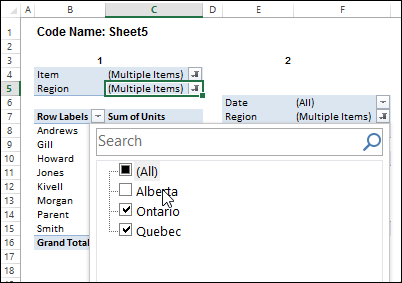
In the screen shot below, one of the report filters in a pivot table is about to be changed. If you have multiple pivot tables in a workbook, you can use programming to update all (or some) of the pivot tables, if one pivot table’s filters are changed.
A box plot (box and whisker chart) lets you show how numbers are distributed in a set of data. Excel doesn’t have a built-in chart type for a box plot, but you can create a simple box plot in Excel, using a stacked column chart, and error bars.
There are lots of Excel function tips and tutorials on my Contextures website, and here on the Contextures blog.
To help me keep track of everything, I’ve created an interactive list of the Excel functions, that you can see here: Interactive Excel Functions List
interactive list of Excel functions
Sort and Filter
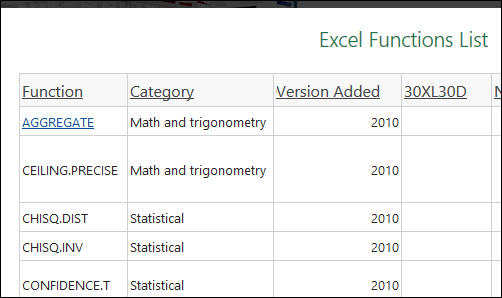
On the web page, you can click the green button to open the interactive version of the list. Then, click on a heading to sort the list by that column, such as Category or Version Added.
To filter, click on a column name at the left, and select one of the items to filter. For example, in the screen shot above, the list is filtered to show the functions that were added in Excel 2010.
Click a Link
Some of the function names are hyperlinks – click those to go to my web page or blog post with an example for that function.
For example, click the AGGREGATE link, to see the examples for this versatile new function in Excel 2010.
I’ll be adding more function examples over the coming months, and will update this list to include the new links.
Video Tutorials
I’ve also updated the Video Tutorials Index page. In addition to the video links, I’ve added video playlists, so you can see all the videos in a specific category, such as Data Validation.
In the sample playlist below – Excel Functions — click the “Playlist” list at the bottom left of the video screen. You should see a scrollable list of videos in that category, and click on any video to start the playlist.
There are currently 73 videos in this playlist, and the total time is 3 hours and 51 minutes.
Have you seen this? When you open an Excel file, or switch to a different worksheet, there’s a large “Page 1” watermark in the middle of the sheet. What is it, and how did it get there?
The IF function lets you test something in Excel, and show one result if the test result is TRUE, and another result for FALSE. For example:
=IF(“Debra met Excel MVPs last week”,”Show Picture”,”No Picture”)
And yes, I did meet some Excel MVPs last week, and you can see a picture at the end of this article.
Check Cell Value
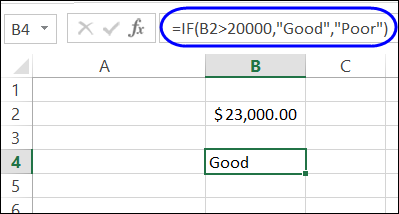
As another example of the IF function, you can check the value in a cell, and show “Good” if the value is $20,000 or more. For lower amounts, the result is “Poor”.
=IF(B2>20000,”Good”,”Poor”)
Excel IF formula
Nested IF Functions
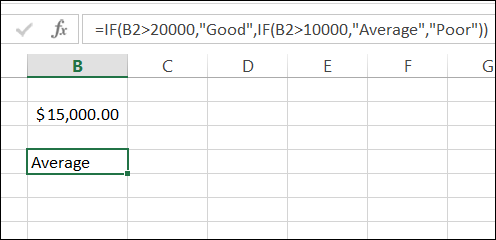
You can use more than one IF function in a formula too. Instead of just Good or Poor, you can nest a second IF in the formula, to test for a lower amount – $10,000 – and rate those results as “Average”.
Last week, I attended an MVP Open Day at Microsoft Canada, and enjoyed spending time with fellow Excel MVPs, Vittorio Covato, Domenic Tamburino, and Eduardo Pineiro.
They’re all formula experts, who share their Excel expertise in the online forums. “IF” you’ve asked a formula question online, there’s a good chance that they’ve helped you with a solution.
Excel MVPs
In the photo below, you can see Vittorio and Domenic, who kindly allowed me to share this picture with you. Okay, I might have strong-armed them into agreeing, but I thought that you’d like to meet them too.
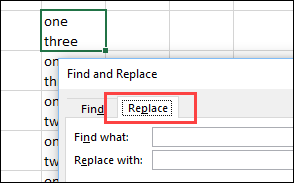
When you want to create a line break (line feed) in a cell, you press Alt + Enter, to start a new line. You can put one or more line breaks in a cell, to make the contents easier to read. But how can you find and replace line breaks in Excel? Continue reading “Find and Replace Line Breaks in Excel”
Last week someone sent me a lovely email, describing a young woman’s career beginnings. They said I could share the story with you, but asked to remain anonymous.
Maybe your career began in a similar way.
Did you start out with an Excel career in mind?
Did you struggle at first, and did Excel help you move forward?
Did you help someone else get ahead, by giving them a few Excel pointers?
The Story
Here’s the story from the email:
My daughter had a very rough first year of work after completing a marketing degree, basically having to act as a receptionist and assistant dogsbody to lots of people.
Then she landed a job at a small firm where she found they were doing things extremely manually. I introduced her to pivot tables, and with a bit of help, she has completely transformed their spreadsheets so they can do in minutes what took them days and weeks, without any errors.
The best part is that her new skills and spreadsheets have, for the first time, given her something she can call her own, and respect from her colleagues. She is fiercely proud of her work, and keen to learn more. What a transformation!
It’s hard to imagine that pivots could be girl power, but here they were.
Go pivots!
Did you know what a dogsbody was? I’d never heard that before, but Wikipedia explained that it’s someone who does grunt work.
It’s great to see that people are getting recognition for their Excel skills, and saving time, and reducing errors in their work.
Excel Resources
If you’re trying to learn more about Excel, but don’t have a free consultant at home, you’ll find lots of free tutorials here on this blog, on my pivot table blog, and on my Contextures website.
And for the latest Excel courses, Excel books and Excel tools, go to the Debra’s Excel Picks page, on my Contextures website