Compare Budgets With Excel Scenarios

Should you spend extravagantly this Christmas, or go cheap, or spend somewhere in the middle?

You can use Excel Scenarios to store several versions of a budget, and compare the results. Let’s set up a worksheet where we can compare three scenarios for holiday spending.

Set Up the Worksheet

The first step is to set up the worksheet. Some of the cells will be the same in each Excel scenario, and other cells will change.

Note: There’s a limit of 32 changing cells in an Excel Scenario.

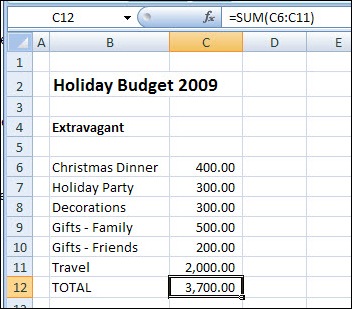
  • On a worksheet named Budget, add headings, spending categories, and amounts, as shown in the screen shot below.
  • Add a Total label, and a sum of the spending amounts.
Excel Scenario for Extravagant holiday budget

Create the First Scenario

The first scenario is for Extravagant spending, which will contain the highest amounts.

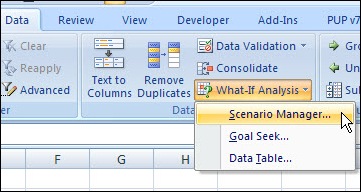
  • On the Ribbon, click the Data tab.
  • Click What-If Analysis, then click Scenario Manager. (In earlier versions, click Tools>Scenarios)

Excel Scenario

  • In the Scenario Manager, click Add
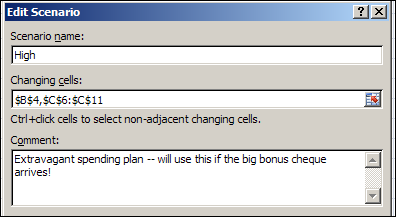
  • Type name for the Scenario. For this example, use High.
  • Clear the Changing cells box
  • With the cursor in the Changing cells box, click cell B4 on the worksheet. That’s one of the cells that will change in each scenario.
  • Hold the Ctrl key, and select cells C6:C11. Do not include any of the category labels, or the total cells.
  • (optional) Enter a comment that describes the scenario.
  • Click OK to close the Edit Scenario box.

Excel Scenario 03

Add the Scenario Values

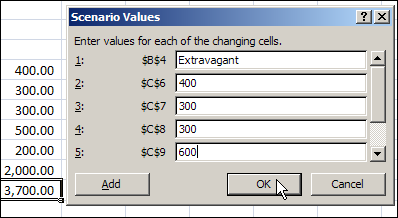
The Scenario Values dialog box opens, with a box for each changing cell. It automatically displays the current value in each changing cell. You could modify one or more of the existing values, or leave them as is.

We’ll make the Gifts – Family amount a bit higher, and leave the other values untouched.

  • For item 5, change the value from 500 to 600.
  • Click OK to return to the Scenario Manager. Notice that the value on the worksheet didn’t change – it still shows 500 as the amount for Gifts – Family.
Add Excel Scenario values

Create Another Scenario

You can add more scenarios by changing the worksheet values, and following the steps that you used to build the first scenario.

Or, you can add an Excel scenario directly into the Scenario Manager.

  1. In the Scenario Manager, click Add
  2. Type name for the next scenario. For the second scenario, use Mid.
  3. Leave the existing cells in Changing cells box
  4. (optional) Enter a comment that describes the second scenario.
  5. Click OK to close the Add Scenario box.
  6. In the Scenario Values dialog box, enter the worksheet heading and values for the second scenario.
  7. Click OK to return to the Scenario Manager.
  8. Create the third scenario – Low – and enter the lowest amounts for that scenario.
  9. Click Close, to return to the worksheet.

Show a Scenario

Once you have created the Excel Scenarios, you can show them.

On the worksheet, the original values for Extravagant scenario are showing.

To change to a different scenario, follow these steps:

  1. On the Ribbon, click the Data tab.
  2. Click What-If Analysis, then click Scenario Manager. (In earlier versions, click Tools>Scenarios)
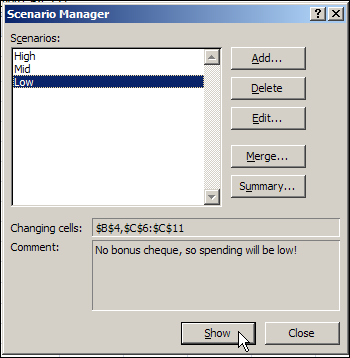
  3. In the list of Scenarios, click on a Scenario name
  4. Click the Show button, then click Close.
Show a Scenario
Show a Scenario

Show the Excel Scenario Summary

After you create the Excel Scenarios, you can view them in an Excel Scenario Summary. This lets you see the values and totals side-by-side, for an overall comparison.

Note: The Excel Scenario Summary does NOT update automatically if you change the scenario values. You can delete the old summary and create a new one.

To create a Scenario Summary:

  • On the Ribbon, click the Data tab.
  • Click What-If Analysis, then click Scenario Manager. (In earlier versions, click Tools>Scenarios)
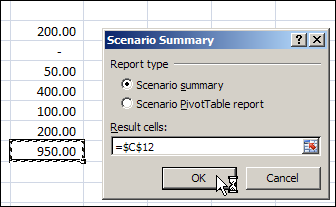
  • In the Scenario Manager, click Summary
  • In the Scenario Summary dialog box, for Report type, select Scenario Summary
  • Click in the Result cells box, and on the worksheet, click the Total calculation cell (C12).
  • Click OK, to close the dialog box.

Excel Scenario 06

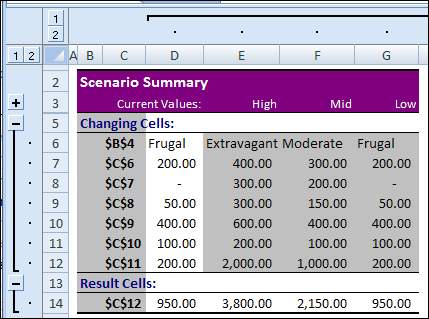
A Scenario Summary sheet is added to the workbook.

  • To show or hide the details, click the + / – buttons at the left side and top of the worksheet

Excel Scenario 07

Improve the Scenario Summary

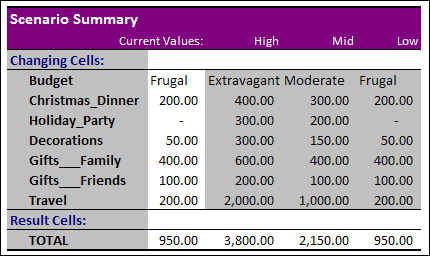
In the Scenario Summary shown above, the changing cells are shown as addresses.

If you name the value cells, the Scenario Summary will show those names, instead of the cell addresses.

ExcelScenario08

You could probably change the colour scheme too, unless you’re a big fan of grey and purple!

P.S. There’s more information on Excel Scenario Summary settings, and programming examples, on my Contextures website.
___________________

Remove Duplicates Command in Excel

In Excel 2003 and earlier versions, you can use an Advanced Filter to remove duplicates. In Excel 2007, there’s a new command on the Ribbon to make it easier to remove duplicates from a list.

Be careful with the Excel 2007 Remove Duplicates feature though – it really removes the duplicates. If you use an Advanced Filter instead, you have the option of hiding duplicates, or creating a unique list in a new location.

How It Works

Update: Jason Morin asked a few questions about the Remove Duplicates feature, and how it works, so I’ll answer the questions here. (Thanks Jason!)

1) Does the new Duplicates capability discern between text strings and numerical values that look the same on the screen?

No, it treats the text strings and numbers the same. If the list has a 10 and a ’10, they’ll be treated as duplicates. There isn’t a settings option that I can see, where you can adjust this. In the Advanced Filter feature, those would be seen as 2 unique items.

2) What about non-visible characters in the cell? Does it consider “Pen” and “Pen ” the same? As a user I would view this as a duplicate, but Excel may not.

No, those won’t be treated as duplicates, because the space character in the second entry makes it different. Advanced Filter would do the same.

3) How does it decide WHICH duplicate to remove in the data set?

The first instance of each item is left, and all subsequent entries are deleted.

4) I assume if I’m working with record set (>1 column), I need to concatenate data from columns to create a unique identifier for each record, then run the Duplicates on the new column I created.

You can use the check marks in the Remove Duplicates dialog box, and select all the columns you want to include. Only if all the included columns are duplicated, will an item be removed. Advanced Filter works the same way, but without the check marks.

Remove Duplicates

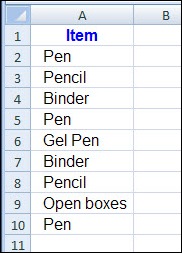
In this example, the list in cells A1:A10 contains a few duplicates.

Remove Duplicates 01

Follow these steps to remove the duplicates.

  • Select any cell in the list, or select the entire list
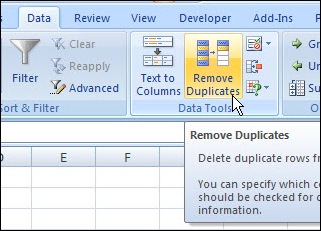
  • On the Ribbon’s Data tab, click Remove Duplicates.

Remove Duplicates 02

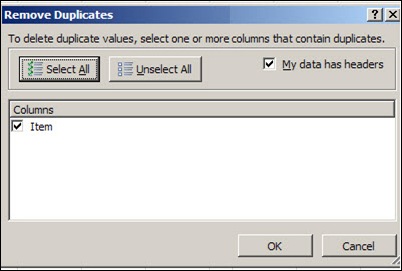
  • In the Remove Duplicates dialog box, select the column(s) that you want to remove duplicates from
  • Check the box for My Data Has Headers, if applicable, then click OK.
Remove Duplicates dialog box
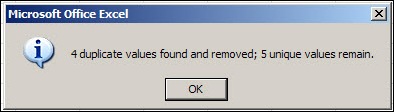
  • A confirmation message will appear, showing the number of duplicates removed, and the number of unique items remaining. Click OK to close the message.

RemoveDups04

Watch the Remove Duplicates Video

Here’s a very short video that shows the steps to remove duplicates in Excel 2007.

______________

Excel CONVERT Function-Celsius to Fahrenheit

Let it snow! One of the advantages of working from home in Canada, is that you don’t have to go out in rush hour, on snowy days. I can sit in my office, basking in the glow of the computer monitor, mesmerized by the flickering of the modem lights.

But eventually I’ll have to go out to do some shovelling, in the sub-zero temperatures. Later, while thawing out, I’ll create an Excel file, to track the miserable temperature and snowfall accumulation.

A Matter of Degree

thermometer We record our temperatures in Celsius, while our neighbours in the USA use a Fahrenheit scale. So, while I’m shivering on a -10°C day, it seems much warmer across the lake, where it’s a balmy 8°F.

I’m sure there are good reasons why the USA didn’t switch to the metric system when Canada did, but for now, we can use Excel to convert the temperatures.

Use Arithmetic

Maybe the temperature in the USA really isn’t as warm as it seems.

To convert the temperature from Fahrenheit to Celsius , you can use this formula:

  • °C = (°F – 32) x 5/9

If the Fahrenheit temperature is in cell B2, put this formula in cell C2:

  • =(B2 – 32) * 5/9

When I convert that balmy 8°F, it makes me feel better – it’s actually colder there, at -13°C.

Let Excel Convert It

That formula isn’t too difficult, but it might be hard to remember if your brain is affected by the cold weather. An easier way to convert the temperature is to use Excel’s CONVERT function.

  • Note: If you’re using Excel 2003, or an earlier version, you’ll need to install the Analysis ToolPak to use the CONVERT function.

Excel CONVERT Function

With the CONVERT function, you refer to the cell that contains the amount that you want to convert. Then you enter the original unit of measurement, and then the new unit of measurement.

We want to convert the value in cell B2, from Celsius (“C”) to Fahrenheit (“F”).

  • =CONVERT(B2,”C”,”F”)

Later, I can use CONVERT to see how many inches of snow we got, when the weather channel reports the snowfall in centimetres.

Excel Help for CONVERT Units

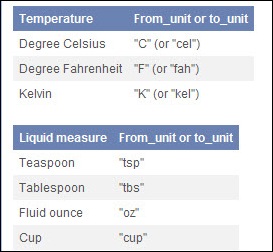
If you aren’t sure what code to use for each unit of measurement, you can check the list in Excel’s help for the CONVERT function.

Excel Help for CONVERT Units

Now I have to go and figure out how many glasses of wine are in that 750 ml bottle. I think the answer might be – not enough!

wineglass
___________

What Is Polar Chart in Excel

Have you ever made a Polar Chart in Excel? Or are you like me, and only have a vague idea of what a Polar Chart is (or no idea at all)?

I’ve made thousands of Excel charts over the years, but never made a Polar Chart.

Excel Add-In for Polar Charts

Excel MVP, Andy Pope, has just released a new version of his free Polar Chart add-in, and here’s an example of the charts it can create.

Continue reading “What Is Polar Chart in Excel”

Excel VBA: Switch Column Headings to Numbers

It’s Friday, and your brain is almost full, but let’s try to cram a little bit of Excel VBA in there before the weekend.

We’ve talked about the Excel Column Headings before, and seen how to change the Reference Style setting from R1C1 (Numbers) to A1 (Letters).

That setting is pretty well hidden, and it’s a bit of a pain to switch on and off.

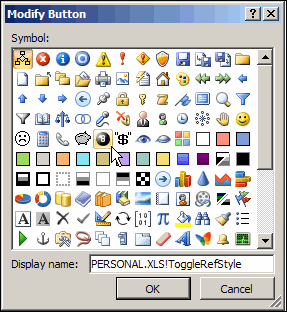
We’ll create a macro that will let us quickly switch from A1 to R1C1, or from R1C1 to A1.

Continue reading “Excel VBA: Switch Column Headings to Numbers”

Drill Into Data With PowerPivot

Have you tried Microsoft PowerPivot for Excel 2010 (formerly Gemini)? It’s a powerful data analysis add-in for Excel, and is part of the Office 2010 Beta.

If you haven’t downloaded the Beta, you can test PowerPivot in the hands-on Virtual Lab.

That’s where I tested PowerPivot last weekend, and hit a few snags, but was impressed by what PowerPivot can do.

Testing PowerPivot

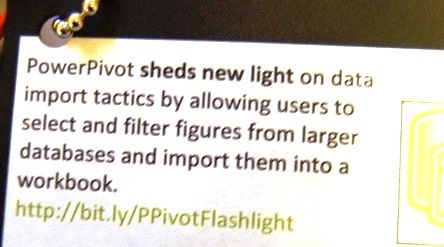
On Friday, a surprise package arrived in my mailbox – a set of power tools! It was a promotion for last week’s release of PowerPivot, and the power tools had clever labels, like this one on the flashlight.

FlashLabel

Did the power tools influence my decision to try PowerPivot?

Of course! Testing PowerPivot was already on my To Do list, and the power tools inspired me to move it to the top.

Will the gift influence my testing? Nope. I’ll still tell you exactly what I think.

The PowerPivot Add-In

I had trouble with the virtual lab on my desktop computer, and couldn’t get the ActiveX control installed.

Next, I tried on my laptop, which is newer, and everything went smoothly there. Both machines are Windows XP, and I used Internet Explorer 8 as the browser.

Start the Virtual Lab

Once the virtual lab was running, it was easy to get started, and work with PowerPivot in Excel.

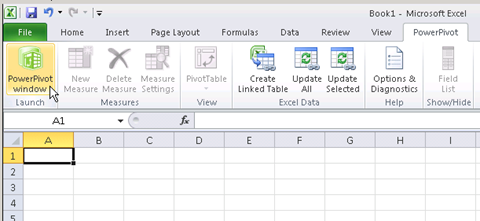
The PowerPivot add-in creates a new tab on the Excel Ribbon.

PowerPivot tab on Excel Ribbon

Launch PowerPivot

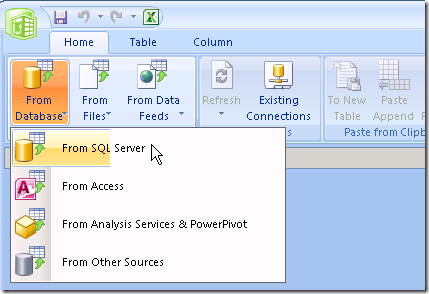
Click PowerPivot Window, to launch the add-in, and open the PowerPivot client window. From there, you can connect to data from a variety of sources.

I’d normally connect to Access data, but in this example I used the SQL Server connection.

PowerPivot Data

Select a Table in Data Source

Next, select a table from the data source, and PowerPivot can automatically select related tables. You can also filter the selected data, before importing it.

In the virtual lab, I connected to a Sales table that had almost 4 million records, and it took just a couple of minutes to import.

The Imported Data

In the PowerPivot client window, each table is on a separate tab.

You can change the tab names, and add calculated fields in the tables.

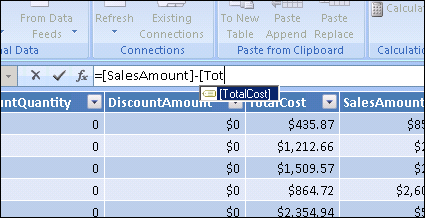
The formula bar looks just like Excel’s, and the field names appear automatically when you start typing.

PowerPivot Formula Bar

Create a Pivot Table and Pivot Chart

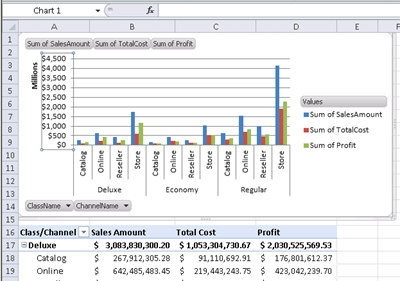
You can create a pivot table and pivot chart from the data, using the PowerPivot Task Pane (called the Gemini Task Pane in the virtual lab).

The pivot table and pivot chart weren’t connected though – adding fields to one, didn’t affect the other.

I’m not sure if that was a bug in the virtual lab, or a Beta feature that will be fixed later.

PowerPivot PivotTable

Add Slicers

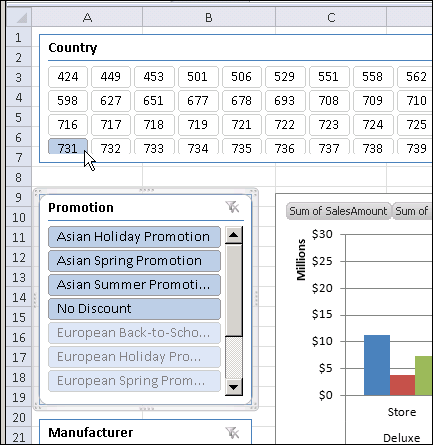
You can also add horizontal and vertical Slicers to the pivot table and pivot chart, to filter the data that’s displayed.

PowerPivot Slicers

Try PowerPivot Yourself

This was just a quick overview of the PowerPivot test in the PowerPivot virtual lab. If you don’t have the Office 2010 Beta installed, I’d recommend this as a great way to see what PowerPivot can do.

It took me about an hour to go through the 3 modules, while making notes and taking screenshots.

Read the PowerPivot Instructions

There’s a button to download a PDF file with the instructions, but that didn’t work, so I copied the instructions and pasted them into Word.

It was easier to read the instructions in Word, where I could increase the Zoom level. Also, the instructions disappeared at one point, and I would have had to start over, if I hadn’t made a copy.

The virtual machine hung on me a couple of times, and I don’t see a way to start anywhere except the beginning.

Restarting was annoying, but it was pretty quick to go through the steps the second time.

_______________

For more information on PowerPivot, see the PowerPivot Team blog.

For more information on Excel Pivot Tables and Excel Pivot Charts, see the Pivot Table FAQs on my Contextures website.

___________________

Excel VBA Edit Your Recorded Macro

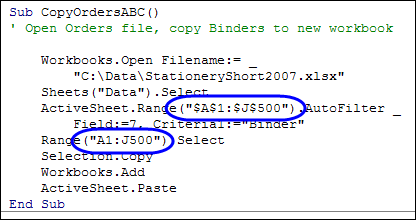
Last week was Recruit a New VBA Programmer Week on the Daily Dose of Excel blog, so we pitched in by recording an Excel macro, and running it.

I’ve updated that article, by adding a video, so you can see all the gory details, step-by-step.

This week we’ll look at the Excel VBA code that the Macro Recorder created, and make a minor change, to edit your recorded macro.

Continue reading “Excel VBA Edit Your Recorded Macro”

Excel Time Formula Examples

Yes, Excel can help you have a good TIME. It’s also useful if you’re looking for a DATE, or the perfect MATCH. (Insert your own bad puns here.)

Today we’ll focus on the TIME function, because one of my clients recently wanted some help with that.

What Time Is It?

There are a couple of keyboards shortcuts for entering the date or time.

  • To enter the current date on a worksheet, press the Ctrl key, and tap the ; key.
  • To enter the current time, press Ctrl and Shift, and tap the ; key

If you want the date or time to update when you open the workbook, you can use a formula instead.

  • To enter the date with a formula, type: =TODAY()
  • To enter the date and time with a formula, type: =NOW()

Is It Too Late?

My client’s workbook had a cell with a process start time.

To help avoid errors, he wanted to check if the current time was later than the start time.

Compare Times in Excel

Worksheet Time Calculations

The formula in cell C6 compares C4 to C2. I

  • f the time in C4 is greater than the time in C2, the result is TRUE.
  • Because C4 is empty in this screen shot, the result is FALSE.

Excel NOW Function

If we use the NOW function in C4, it includes the date, as well as the current time.

As a result, even though the time in C4 is 8:17 AM, its value is much higher than the 9:00 AM time in C2.

I’ve added temporary formulas in column D, so you can see the numeric value for each cell in column C, in the screen shot below.

Now Function in Excel

Formula to Remove Date Value

To calculate the current time value in C4, we can change the formula, to remove the date value.

The TRUNC function removes the fractional part of a number, so we’ll subtract TRUNC(NOW()) from the NOW function.

=NOW()-TRUNC(NOW())

Translated to English, the formula is: (DATE and TIME) minus DATE

The revised formula leaves the time value only in C4, and now the value in D4 is lower than the value in D2.

The formula in C6 now shows the correct result of FALSE.

Revised Formula with NOW and TRUNC

More Date and Time Info

For more examples of Excel Date and Time functions, go to the Excel Date and Time page on my Contextures site.

___________