You have an Excel order form with a long list of products to select. After a customer enters quantities for the products they want to order, you want to print an invoice for the selected items.
Select the Products
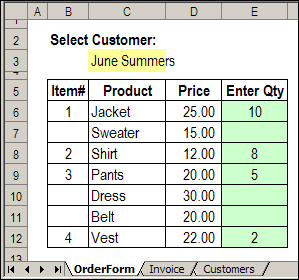
Here’s the OrderForm sheet, where quantities have been entered for four of the products, in column E.
Excel Order Form with quantities entered
Formula Adds Numbers
Formulas in column B check the quantity column (E).
If the quantity is filled in, then the next available number is calculated.
=IF(E6>0,MAX($B$5:B5)+1,””)
Print the Order
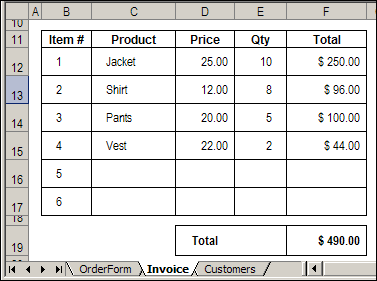
On the Invoice sheet, formulas pull the data from the Order form. For example, this formula shows the name of the first product that was ordered:
[Update Nov. 15, 2015 – Adapx, Inc. has ceased operations]
I loved the idea of a pen that could magically send my data to Excel, but it didn’t work out as well as I’d hoped. 😉 Anyway, here’s my review of Capturx Forms for Excel, made by Adapx, Inc.
For the past couple of years, I’ve worked with a client that has factories around the world. As part of their safety program, employees fill in printed checklists, then send them to the Safety Officer, who enters the data in Excel. As you can imagine, this takes time, and is prone to data entry errors.
An Enticing Offer
Recently, I was asked if I’d like to test a digital pen and Capturx Forms for Excel. With it, I could create and print blank forms in Excel, then use the pen to fill them in. Later, that data could be imported into Excel, with one click of a button.
That sounded good, so I accepted the offer, and the pen and software arrived a few days later. If the product worked well, my client could test it in their plants, and possibly save some time and headaches.
Well, it took a while, but I’m finally done testing. I loved some of the features, but there were frustrations and disappointments along the way.
Stalling on the Installation
Installation was the first obstacle to overcome. Several components had to be installed before the Capturx program, and it took several tries before everything finally worked.
I won’t bore you with all the details, but I seriously considered putting everything back into the box and returning it.
I’m not sure if there was a problem with my hardware, or conflicting software, or something else. The documentation didn’t provide any tips for installation problems, nor did the company website. There’s product information online, but no search feature that I could find.
It’s Not You, It’s Your Printer
Thrilled at finally getting the program to work, I created a simple form, and was ready to test the digital pen. Oops! You need to print the forms on one of the compatible printers. I have a black and white laser printer, not one of the colour postscript laser printer on the list.
When I told the company rep about the problem, she sent some sample forms by courier. I was able to keep testing, without buying a new printer. Whew! Here’s one of the sample forms that I used for the test.
Also, while reading the printer information, I noticed that the dot pattern that’s printed on the forms “gets used up as you print.”
When the dot pattern is gone, you need to purchase more from the Adapx website. So, if you use this solution, you’ll have some ongoing costs.
The Good News
Once I was up and running, my mood definitely improved. I filled in a couple of forms with the digital pen, then docked the pen in its base. In Excel 2007, a Capturx tab appeared on the Ribbon, and with a single click, I imported the forms’ data.
I could compare the imported data to the original writing, and easily make changes where necessary.
From the Master Template sheet, I could create a summary of all the imported forms.
summary of all the imported forms
The summary cells are linked to the original sheets, so they’ll update if you change the forms’ data. However, new sheets aren’t added automatically. You have to delete the summary sheet, and create a new one.
A Few More Problems
I hit a few more snags while working with the Capturx Forms for Excel add-in. For example, it was painfully slow to move through the workbook. When I clicked on a different sheet tab, it took several seconds for the sheet to activate.
Excel has crashed a few times while using it, especially when trying the Sort Worksheets feature. When I deleted the Summary sheet, the sort feature worked, but it took more than 10 minutes to complete.
The sample workbook has 95 completed forms in it, which seems like a reasonable number. In a real life situation, you’d probably have many more forms than that.
Maybe the features work well in a smaller workbook, but that somewhat defeats the purpose of digital input.
The Final Word on Capturx Forms for Excel
I had high hopes for the digital pen and Capturx Forms for Excel, and some of those dreams came true. The pen worked like a charm, and even with my bad handwriting, there was a good recognition rate for the imported data.
For me, the main drawback is the slow performance. If you’re collecting lots of data, how could you manage it with this software? Maybe you could use Excel to import the data, then export it to Access, or another database.
Also, the Help could be better, with a search function on the website. For example, I couldn’t figure out how to create a Summary sheet, and nothing in the notes or built-in help provided any clues.
After several experiments, I finally got it working. The company is currently offering online training sessions, so that might help with some of the confusing features.
There’s potential for a great product, but Capturx Forms for Excel needs some improvement before I can recommend it to my clients.
The Movie
If you’d like to see the digital pen and Capturx Forms for Excel in action (I cut out the inaction bits), you can watch this short video.
Naming Excel sheets – how hard can it be? Last month, we looked at sheet names, and saw the problems that were caused by using an apostrophe. This week, I found another sheet name problem.
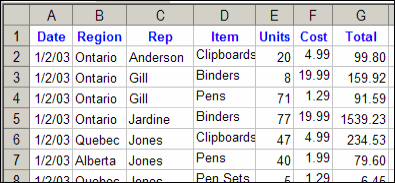
The file has a macro that creates individual sheets for each sales rep, filtering data from a master sheet, like the one shown below.
List of orders with sales rep names
Second Time Around
Mr. X said he could run the macro once, then got an error the next time he tried to run it. His email also included those dreaded words, “I made some changes.”
Unfortunately, there was no clue as to what those changes were, but at least he attached the problem file.
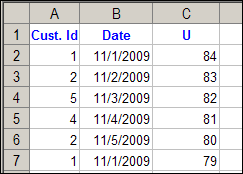
Instead of Rep names, he wanted to created a worksheet for each customer ID.
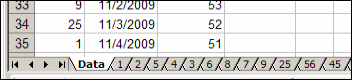
Sheets with Number Names
Sure enough, the macro created all the sheets, without problems, the first time it ran.
Then, as promised, I got an error the second time that it ran.
And mysteriously, the Data sheet had been cleared.
The Numbers Game
What happened? Well, the code runs though the list of Customer ID numbers, and if a sheet doesn’t exist for that number, it creates one.
If the sheet does exist, it clears the sheet, then adds the new data.
When the code got to customer ID 1, instead of clearing the “1” sheet, it cleared the first sheet, Data, which has an index number of 1.
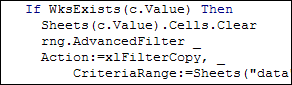
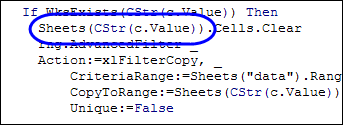
To fix the problem, I changed the c.Value reference in the code to CStr(c.Value)).
Now, instead of looking for the sheet with an index number of 1, it looked for a sheet with a name of “1”.
Watch the Numbers
If you use numbers as sheet names, such as a sheet for each day of the month, be careful how you refer to those sheets in your code.
You don’t want to end up like Mr. X, with blank sheets, and error messages!
______________
Without family, where would Excel blog ideas come from?
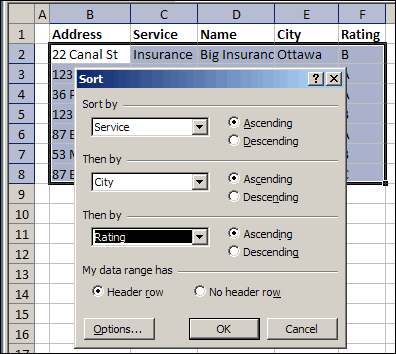
My daughter called today, and asked how to sort more than 3 columns in Excel. She uses Excel 2003, and the Sort dialog box only allows three column choices.
There’s no box to choose the fourth column – Name.
Sort dialog box in Excel 2003
Sort By Multiple Columns
Obviously, she didn’t check my website, where she would have found the instructions to sort by four columns in Excel.
You can sort in groups of 3, working up from the least important to the most important.
So, I told her to sort the fourth column (Name), then the first three (Service, City, Rating).
Sorting in Excel 2007
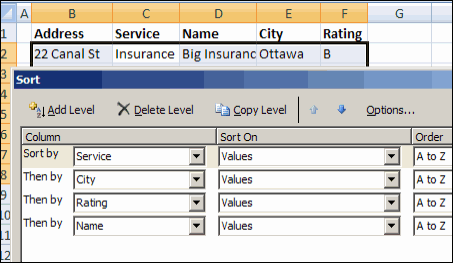
If you like to sort lots of columns, you’ll be happier in Excel 2007. There, you can sort up to 64 columns at one time.
If my daughter had Excel 2007, she could choose all four columns, and sort them in one step.
In the Sort dialog box, click the Add Level button, to include another column in the sort specifications.
Sort dialog box in Excel 2007
Automating the Sort
If you turn on the macro recorder while sorting in Excel 2007, you can create a macro to sort the table.
Then, run that macro later, when you need to sort the table again, using the same settings.
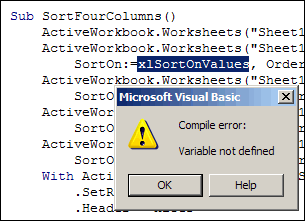
Macro Error in Excel 2003
However, if you’re sending the workbook to someone who uses Excel 2003, they’ll get an error message if they try to run your sort code.
Just like families, sometimes the different generations don’t communicate too well. 😉 Because the sort feature changed so much in Excel 2007, the older versions don’t recognize some of the new properties.
Sort Macro for All Excel Versions
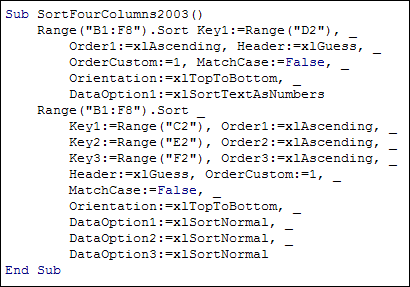
If you plan to use the workbook in both versions of Excel, record the sort macro in Excel 2003. This will also run without problems in Excel 2007.
Here’s the code from this example, with the Name in column D being sorted first.
I know about those problems, and am careful to avoid them.
A Simple Filter
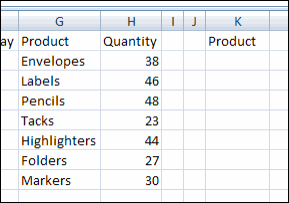
This week, as part of a larger procedure, I had an advanced filter, similar to the one shown below.
Filter for Unique Products
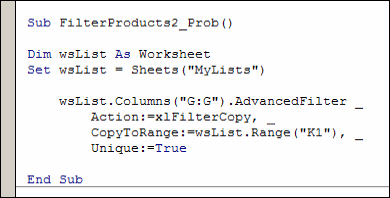
The code was designed to pull a list of unique products from column G, and put it in column K.
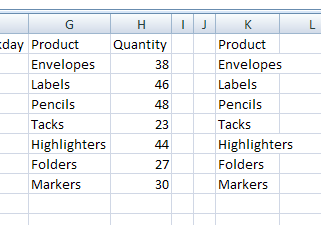
In this example, all 7 products in column G are unique, so they all should have been filtered to column K.
However, after I ran the filter, there was nothing in column K, except the heading!
Leftovers Clog the Filter
I checked, and the headings were an exact match, so that wasn’t the problem.
I checked the code carefully, and everything looked okay. Similar code had run hundreds of times, without a hiccup.
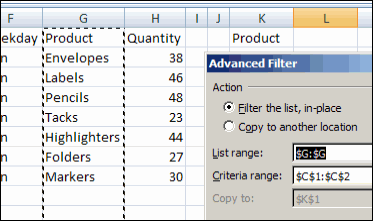
To troubleshoot, I tried to run the advanced filter manually, and in the screen shot below, you can see what appeared in the Advanced Filter dialog box when it opened.
Hmmm. There, in the Criteria Range box, was the range from a previous advanced filter.
Clear Criteria Range Setting
I cleared out the Criteria Range setting, and the filter ran without problems.
As expected, all 7 products showed up in column K.
Change Advanced Filter Macro Code
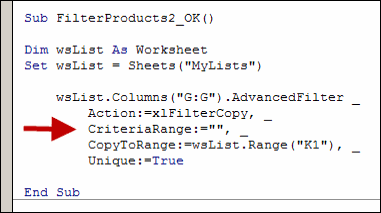
To prevent the macro problem from happening again in the future, I revised the macro code.
Even though the advanced filter didn’t use a criteria range, I added one to the code, with the setting as an empty string.
Good Housekeeping Prevents Clogging
With that change, the code ran perfectly, even if a previous filter had a criteria range.
To prevent your own advanced filter headaches, add that empty criteria range to your code, if you’re not using a criteria range.
It will clear out the setting, in case a previous advanced filter used a criteria range.
I’ll certainly do that from now on!
__________________
It’s been quite a while since the last one, but I’ve finally posted another list of Excel Twitters.
The Twitter spam was making it too tough to collect the interesting tweets, and that’s why I stopped. However, I managed to create a few search settings that helped a bit, and this new list is the result.
The new Excel Twitters list is on my Excel Theatre blog, where I have all the archived Excel Twitters posts, plus some Excel video tutorials, and a few other things.
Excel Takeaways
My friend, Heather Mak, has started a new blog – Five Takeaways. In the blog, Heather and friends will “interview subject matter experts and ask them to provide the five takeaways (hence the name) of a subject area.”
UPDATE: The blog is no longer online
She asked if I’d like to create a list of five takeaways for Excel, so I’m working on it. If you’d like to help, please add a comment with one or more things that you’d include as an Excel takeaway. Thanks!
Excel Trials
I’ve been testing some Excel products recently and here’s one that I tried this weekend.
[update] This add-in is no longer available
Mathias Brandewinder of Clear Lines Consulting sent me a link to Akin, an Excel file comparison program.
This is a free download, and was very simple to install. Open the Akin program, and select two Excel files to load.
Akin compares the files, and highlights the cells on the selected sheets, where there are differences.
You can click on a row or column heading, or the Select All button, to see only the cells where there are differences.
Find Differences in Large Worksheets
That feature is useful in a large worksheet, letting you focus on the differences, without searching through the sheets manually.
The program is easy to use, and a good tool to use if you’re trying to find changes that someone else has made in a file. It shows changes to both values and formulas.
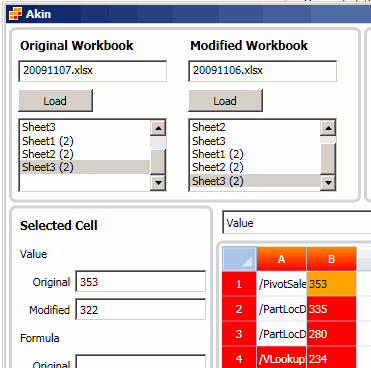
Here’s a screen shot of the Akin window, with the original and modified value in cell B1 shown.
You open lots of Excel files every day, and sometimes open the same file several times.
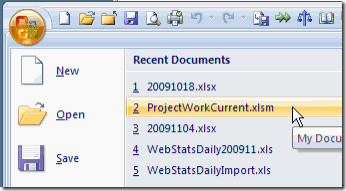
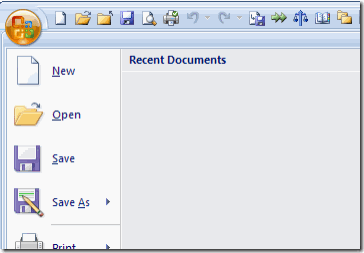
In Excel 2007, if you click the Office Button, you can see a list of documents that you’ve opened recently. Click on file name, to open that file again.
List of Recently Used Documents
Change the Number of Documents
My Recent Documents List was showing 17 files, and I guess that’s the default number, since I don’t remember changing it.
Instead of leaving the default setting, you can show more or fewer files.
To change the setting:
Click the Office Button, then click the Excel Options button
Click the Advanced category
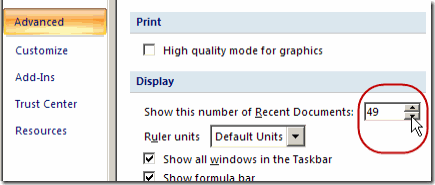
In the Display section, change the number for Show this number of Recent Documents.
Click OK, to close the Excel Options window.
Show this number of Recent Documents
The maximum number of files is 50, but that many might not show unless you have a really tall monitor.
Change the Setting in Excel 2003
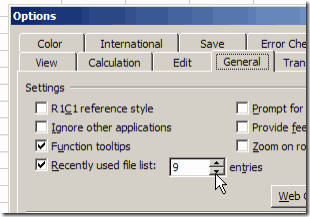
In Excel 2003, the maximum number of files you can show in the list is 9. To change the setting:
On the Tools menu, click Options.
On the General tab, change the number for the Recently Used File List.
Click OK, to close the Option dialog box.
Clear the Recent Documents List
In either version of Excel, you can clear the list, by changing the number to zero.
In Excel 2003, you can also remove the check mark from the Recently Used File List setting.
After the list is cleared, you can change the setting to a higher number, to start building the list again.
Pin Items to the List
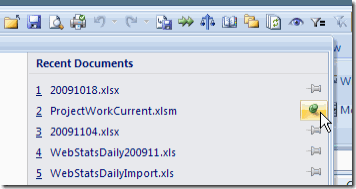
Normally, the older items in the list drop off the bottom, as new files are opened. In Excel 2007, there’s a push pin icon at the right of each file name. To keep a file on the list, click that push pin, to activate it.
This is another one of the Excel 2007 features that I didn’t notice until recently. (Maybe that’s why it’s call the Recent Documents list!) Now I use it quite often, to “stick” files that I’m working with for a few days.
In the screen shot below, the ProjectWorkCurrent.xlsm file is pinned to the list. Instead of the flat grey push pin, there’s a vertical green push pin.
That file will work it’s way down the list, if it’s not opened for a while, but it will stick to the list, and won’t drop off.
Almost a year ago, we talked about creating a table of contents sheet in Excel. In that post, one of the suggestions was to type a list of sheets on a worksheet, then change each sheet name into a hyperlink.
Today, you’ll see a quicker way to create hyperlinks — by dragging and dropping. There are written steps and a video below.