Usually, Excel add-ins are installed in Excel’s default folder for Add-ins. My instructions show you how to find that folder, or choose a different folder, if you prefer.
Free Excel Add-ins
I use a few free add-ins that make Excel even better, and asked other people what free add-ins they use, and would recommend.
I compiled a list, starting with my favourites. Maybe you’ll see a few that you can download and install, and make working in Excel a bit easier.
For the latest Excel courses, Excel books and Excel add-ins and tools, go to the Debra’s Excel Picks page, on my Contextures website
I’ve listed my top picks for Excel courses, add-ins, books, and Excel tools. See how to raise your skills to expert level, and get tools that will save you time
For the past 82 years (approximately), I’ve used Excel almost every day. Along the way, I’ve learned a few tricks, and produced some sophisticated workbooks.
One of the joys of Excel is that there’s always something new to learn. And this week I learned how to freeze panes to hide rows in Excel.
Thanks for participating in the Very Scary Fall Giveaway for Excel Nerds! Your Excel horror stories were truly frightening, and the costume ideas were very creative. Thanks again to the generous prize donors:
As a bonus for everyone who entered the giveaway, Patrick O’Beirne has an entertaining pdf file — “The Devil’s guide to creating spreadsheets.” If you’d like a copy, send me an email at ddalgleish @ contextures.com and I’ll email you a link to the download.
And the Winners Are…
I did a random draw of prizes and entries, using the macro that I created for the Summer Giveaway for Excel Nerds. You can see the Summer video there, and download the macro sample file.
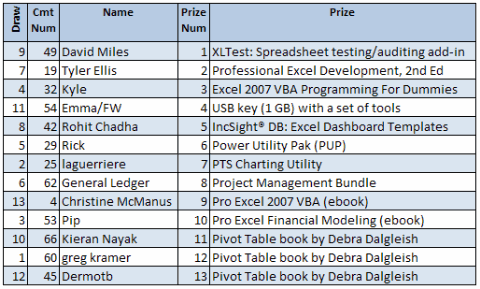
After the numbers were selected, I used VLOOKUP formulas to pull the prize names and winner names from the original lists of numbered prizes and entries. Congratulations to all the winners! Here’s the list:
Collect Your Prize
I’ll send an email to all the winners today, with instructions for claiming your prize. If you’re on the list of winners, and don’t receive an email by end of today, please let me know at ddalgleish @ contextures.com or add a comment here.
Please reply by 5 PM (Eastern time zone) on Monday November 9, 2009, or your prize will be forfeited.
______________
Do you have Excel horror stories, that you like to tell around the campfire, to scare your friends?
One of my recent Excel horror stories involves Excel sheet names. I set up a client’s workbook with pre-formatted data entry sheets, so sales managers could plan their annual product promotions.
They would rename the data entry sheets while working, to make it easier to navigate the completed workbook.
Hidden Sheet With Formulas
On a hidden summary sheet in the workbook, I added formulas to calculate the sheet names.
In another column on that sheet, a few Excel INDIRECT function formulas pulled data from specific cells on each data entry sheet, and other formulas created grand totals.
At the front of the workbook, the summary data was displayed in a monthly calendar, for sales managers to review. It was a work of art!
The Scary Phone Call
Everything worked well in testing, so we distributed the files to all the sales managers, and they started filling in their data.
The next day, the phone rang – some of the workbooks were “broken.”
Budget deadlines were looming, and the sales managers with broken files were in a panic. They sent me a couple of problem files, so I could figure out what was wrong.
Summary Sheet Formula Errors
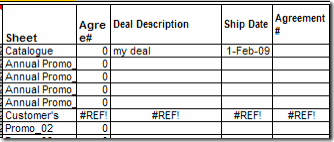
On the Summary sheet, some of the formulas were working correctly, but others showed #REF! errors.
Comparing the good and bad sheets, I couldn’t see any problems with the data that had been entered, at first glance.
Summary Sheet Formula Errors
Sheet Name Apostrophes
Finally, after checking a few of the problem sheets, I spotted a similarity.
All of the problem sheets included an apostrophe in the sheet name!
I removed the apostrophes, and the problem was solved.
All the data showed up in the summary sheets, and the world was in harmony once again.
Note: For the next version of the workbook, I updated the workbook’s Summary sheet formulas, using the Excel SUBSTITUTE function.
Sheet Naming Rules
I hadn’t anticipated that problem, since I never use apostrophes in sheet names. They’re valid characters for a sheet name, but maybe they shouldn’t be.
It’s hard to find the sheet naming rules in Excel’s help, but you may have seen an Excel error message that lists them.
The name can’t be more than 31 characters
You can’t leave the sheet tab blank
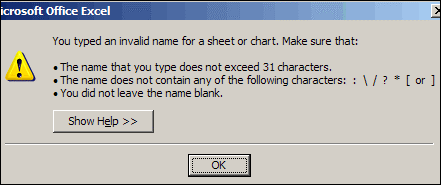
Only a few characters are listed as invalid, like the following ones from the error message below:
: \ / ? * [ ]
colon, back slash, forward slash, question mark, asterisk, open square bracket, close square bracket
Apostrophes are okay though!
Excel error message: You typed an invalid name for a sheet or chart”
Sheet Naming Suggestions
In addition to those rules, I have a couple of guidelines of my own.
Use only letters, numbers and underscores in sheet names.
Sometimes I have to use a space character, if a client requests specific sheet names, but I try to avoid it.
For example, I’d use SalesData or Sales_Data, not Sales Data.
And please – don’t use apostrophes!
Use different names for worksheets and named ranges, to avoid confusion.
It’s time for another Excel giveaway! Hallowe’en is just around the corner, so let’s find out what Excel Nerds do to celebrate. I’ve been given some awesome Excel utilities, books, and ebooks to give away, so let’s have some fun. Rules are at the end of this article.
UPDATE: This giveaway has ended.
To enter, write an original (and suitable for work!) comment below, describing either:
A) an Excel related costume (real or imagined). For example, here’s a picture of my daughter and son, many years ago, ready for some trick-or-treating. My daughter was dressed as The Formula Doctor and my son was an early prototype of an Excel Web app. I’m sure they won’t mind me posting this picture, but if you see them, maybe you shouldn’t mention it. 😉
OR
B) your scariest Excel related experience. I’m sure you’ve had horrifying days, buried under spreadsheets, and workbooks that come back to haunt you. Tell the other readers about one of those gruesome times. Remember, misery loves company. We’ll feel sorry for you, as soon as we stop laughing.
The submission deadline is 12:00 noon (Eastern Daylight Time) on Tuesday, October 27, 2009. Winners will be announced here on October 28th.
Note: You can make as many comments as you like, but only the first one will count as your entry.
The Ghastly Goodies
Some scarily smart Excel authors, developers and publishers have contributed a monstrous mound of books and utilities for me to give away as treats.
Thanks to all the contributors – Patrick “Ogre” O’Beirne, Jan Karel “The Creeper” Pieterse, Charley “Crypt-Kicker” Kyd, John “Walking Dead” Walkenbach, Jon “Petrifier” Peltier, “Chiller” Chandoo and Matt “Killer” Kennedy.
one copy of IncSight® DB: Excel Dashboard Templates Linked to Data — “Set up your first Excel dashboard report in less than an hour. Add any number of reports. You can update your reports in seconds because they’re linked to an Excel database.”
The winner can select one of the two versions available:
one copy of the Power Utility Pak (PUP). — “Power Utility Pak Version 6 (PUP v6) is a useful collection of add-ins that brings significant new functionality to Excel. When PUP is installed, you can do things with Excel that you never thought were possible.”
The winner can select one of the two versions available:
Power Utility Pak v6 for Excel 2000, Excel 2002 and Excel 2003
one copy of a PTS Charting Utility – “When installed the utilities provide buttons on the Excel menu or ribbon that allow you to select a regular worksheet range and create a specialized and customized Excel chart.”
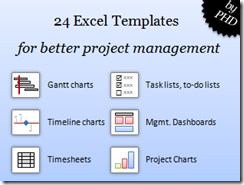
one copy of the newly released Project Management Bundle of templates for Excel — “The bundle contains 24 highly reusable excel templates for project planning, task management, timesheets, issue tracking, risk logging, status reporting and more.”
The winner can select one of the two versions available:
Project Management Bundle for Excel 2007
Project Management Bundle for Excel 2003
Apress Publishers
From Matt Kennedy of Apress, 2 prizes – e-books that you can download from the Apress website:
And finally, from Contextures – 3 prizes. The 3 winners can each select one of my pivot table books:
Beginning Pivot Tables in Excel 2007
Excel 2007 PivotTables Recipes
Excel Pivot Tables Recipe Book
The Rigid Rules
To enter, submit an original (and suitable for work!) comment below, describing either an Excel-related costume or horrifying Excel-related experience
The comment must be submitted before the deadline of 12:00 noon (Eastern Daylight Time) on Tuesday, October 27, 2009
One entry per person – any additional entries will be deleted from the draw
A random draw will select each prize and its winner. No substitution of prizes.
Winners will be notified by email, so please provide a valid email address. This will not be publicly visible, but may be shared with the contest sponsors, so they can contact prize winners to arrange delivery.
Physical prizes will be shipped, postage paid, but taxes or other charges (if any) will be the responsibility of the recipient.
How much time do you spend trying to find and fix error in your Excel workbooks? Or even worse, fixing errors in other people’s workbooks.
Test Your Workbooks
Earlier this month, I showed how you can do some simple troubleshooting for Excel formulas, in this article: See Formulas on an Excel Worksheet
After he read that article, Patrick O’Beirne, author of Spreadsheet Check and Control , asked if I’d like a review copy of his new Excel add-in, XLTest. This tool is designed to test your workbooks, in Excel 2007 and earlier versions
[Update] This Excel add-in is no longer available.
Getting Started With Add-In
Even though all my workbooks are error free 😉 I accepted Patrick’s offer.
Note: I did not get paid to review this add-in, and I do not earn any commissions on its sales.
Patrick sent the add-in, instructions, and a couple of sample files.
Here’s a screen shot of the first sample. If your files look like this, you might need more help than this add-in can provide!
screen shot of the first sample
The Add-In Commands
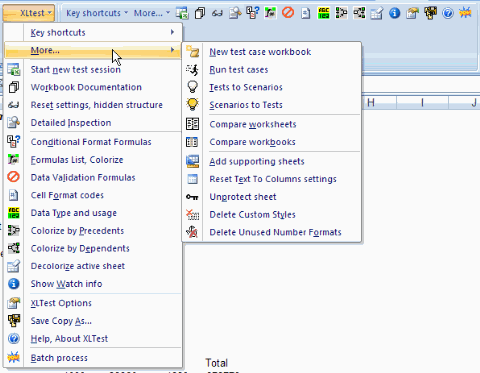
After I installed the add-in, a drop-down menu appeared on the Ribbon, as well as all the icons.
I’d rather have just the drop-down menu, so maybe there’s a way to turn off one or the other.
Key Shortcuts
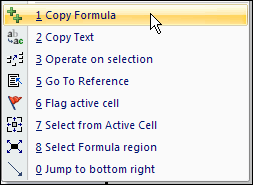
The add-in adds 8 key shortcuts that you can see in the Ribbon, and in the popup menu that appears when you right-click a cell.
Since the add-in features these shortcuts, let’s look at a few of those first.
Copy Formula: This is handy if you want to move a formula without changing the relative references. It’s quicker than copying the formula from the Formula Bar, and pasting it into another cell, which is the way I’d do it without this shortcut.
Operate on Selection: Select non-contiguous cells, in multiple rows and columns, then move or copy them to a different location. If you try this in Excel, you’ll get an error, so this shortcut could really save you some time and aggravation. To get this to work in Excel 2007, I had to select the top left cell last.
Select Formula Region: Selects all the cells in the current region that have the same formula (in relative R1C1 terms) as the active cell. This helps you see if you’ve entered or updated a formula in all the relevant cells. Excel’s error checking could flag those cells for you, but I usually have that turned off because it clutters up the worksheet.
Jump to Bottom Right: I use Ctrl+End to go to the bottom right, so I’d rather have another feature shortcut here.
Document Your Workbook
The rest of the commands let you test your workbooks for errors, starting with the Start New Test Session command.
It opens a dialog box that lets you choose from 4 options for keeping logs, recording settings, opening files and closing open workbooks.
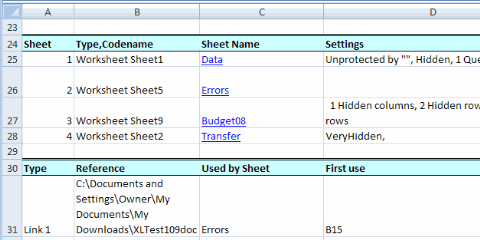
Next, you can document your workbook with the Worksheet Documentation command. Select all the options, or just a few, and list the results in a new workbook or existing one.
All the details are reported in a well organized worksheet. Here’s a small section of the report for the demo file.
details are reported in a well organized worksheet
Custom Number Formats
In Excel 2007, when I selected Number Formats with the other options, the Format Cells dialog box stayed open, and none of the Custom Number Formats were listed in the documentation.
Everything else was correctly documented though, including the VBA modules.
Inspect Your Workbook
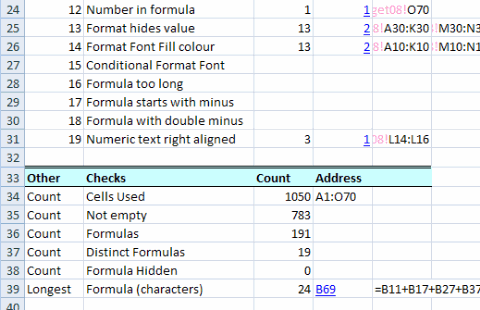
For me, the main feature in the XL Test add-in is the Detailed Inspection. Instead of spending hours or days combing through your worksheets, click a button and get a report in a few seconds.
Again, there were problems with reporting the Number Formats, but I’m sure Patrick can sort that out quickly.
It creates a detailed report, with errors and other problems listed. You can quickly focus on the crucial errors, and get things fixed.
I don’t know what happens if you choose to see errors in separate cells, and there are more errors than columns. Maybe it wraps around, or maybe its head explodes!
Other Tests for Your Workbook
There are several other tests that you can run in the XLTest add-in. For example, colour and document the data validation, conditional formatting or number formats on a worksheet.
These test will quickly highlight any cells in a range that are different than their neighbours, and allow you to fix them.
After testing, you can click the add-in command to clear all the fill colour from a worksheet. Since the tests also add rectangle shapes with hyperlinks, it would help if those could also be removed with a single click.
The add-in also has a command for Batch Testing, so you can run all the tests on a workbook, with a single click, instead of running each test individually.
The documentation warns of Excel memory problems if you try this on a large workbook.
Additional Features
Test Cases: The XLTest add-in can run a list of tests, and create a report on the results of each test. Use this to ensure that a new version of a workbook works the same as the previous version, except where you have intentionally changed things. The add-in will also convert any existing Scenarios to test cases, so you can run those.
Comparison: With the add-in, you can compare worksheets or workbooks, and create a detailed list of differences. For workbooks, even the VBA code is compared.
Housekeeping: There are several housekeeping features, such as creating a table of contents, unprotecting a sheet, and deleting custom styles.
Functions: The add-in also adds 14 functions to Excel, such as GetFormula, ColorName and FileSize.
Should You Buy the XLTest Add-in?
If you’re an expert programmer, you might have your own code that does error testing, comparison and housekeeping, so you won’t need Patrick’s add-in.
If you don’t have your own code, this add-in would be well worth its purchase price (£199, approx $296 US), in the time you’d save in looking for errors, and other tests.
Yes, the add-in is more expensive than many other utilities that I’ve seen. It’s a bargain though, when compared to hiring an Excel programmer or trying to do the testing yourself.
Inherited Workbooks
For workbooks that you’ve inherited from colleagues or clients, you might not even know where to begin the error hunt.
The XLTest add-in can do most of the detective work for you – it even unprotects and unhides sheets, rows and columns.
And, of course, the real value in XLTest is in finding those critical errors that you didn’t even know you should look for.
If the add-in saves your job, it’s priceless!
____________
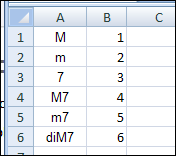
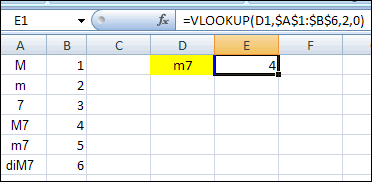
However, this does NOT work in our sample table, because it stops at the M7, and that’s not an exact match for the lookup value m7.
Case Sensitive INDEX MATCH
The Microsoft article has other sample formulas, including an INDEX MATCH, but they all have the same problem — they stop at the M7 above the m7 value.
Fortunately, a search in Google Groups led me to an array formula posted by my old friend, former Excel MVP Peo Sjoblom.
For our table, Peo’s formula would be this array-entered INDEX, MATCH and EXACT combination:
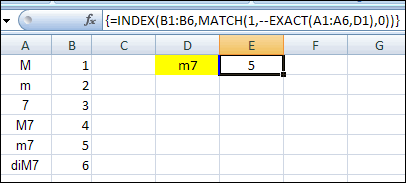
=INDEX(B1:B6,MATCH(1,--EXACT(A1:A6,D1),0))
Note: To array-enter this formula, type the formula, then press Ctrl+Shift+Enter. Curly brackets will automatically appear at the start and end of the formula.
Case Sensitive Formula – Correct Result
In the screenshot below, the revised formula is entered in cell E1.
Its formula is visible in the Formula bar, and the correct result of 5, is showing in cell E1.
The formula finds an exact, case-sensitive match for the lookup value, m7, that I typed in cell D1
You depend on Excel spreadsheets to show accurate data and analysis.
Enter the wrong data and the results will be incorrect, and that could have a negative impact on your business or reputation.
Safeguard Data Entry
Here are 3 ways to help safeguard your data entry, and I’m sure you use a few other methods in your worksheets too.
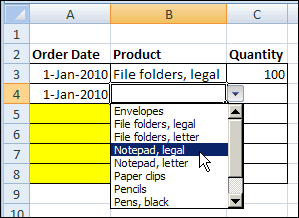
Here’s a screen shot of a data entry worksheet, where I’ve used each of those technique, to help people enter valid data.
But remember, these techniques help make your Excel files idiot resistant, not idiot proof!
You’ve met people, right? They’re very creative at finding ways around your helpful Excel data entry safeguards.
Data Validation Drop Down and colour coding
1) Use Keyboard Shortcuts
Keyboard shortcuts save you time and can prevent errors. Quickly enter the current date and time, or copy the cell above, instead of re-typing.
To enter the current date: Ctrl + ;
To enter the current time: Ctrl + :
To copy from the cell above: Ctrl + D
2) Use Drop Down Lists
Instead of allowing free-form data entry, you can add drop down lists to the worksheet using the Excel data validation feature.
For example, create a list of product names, and select from that list.
This prevents typos, and only valid entries are allowed. Then, if a product is discontinued, remove it from the list, and it won’t appear in the drop down for new entries.
To create a drop down list, follow these steps:
On a blank worksheet, create a list of items for the drop down list.
To name the list, select all the items, then click in the Name Box, at the left of the formula bar. Type a one word name for the list, such as Product_List then press the Enter key.
On the data entry sheet, select the cells where you want the drop down list.
On the Excel Ribbon, click the Data tab, then click Data Validation.
In the Data Validation dialog box, for Allow, select List.
In the Source box, type an equal sign, then the name of your list: =Product_List
Click OK.
3) Highlight Missing Data With Colour
Use a bright colour to highlight data entry cells that are empty. This makes it easy to spot the cells that have to be filled in.
To highlight an empty cell:
Select the cells that you want to highlight (to select non-adjacent cells, press the Ctrl key, then click on cells)
On the Excel Ribbon, click the Home tab, click Conditional Formatting, and click New Rule
In the Select a Rule Type section, click Use a Formula to Determine Which Cells to Format
In the Format Values Where This Formula is True box, type a formula that checks the active cell (Name Box shows active cell address), using double quote marks (“”) to test for an empty string. For example: =A3=””
Click Format, on the Fill tab select a color, then click OK, twice.
What Are Your Data Entry Safeguards?
What techniques do you use in your Excel files, to help people enter valid data?
It’s Thanksgiving Day in Canada, so some of us will be eating turkey and watching football. However, we don’t limit ourselves to one day, like the USA – we celebrate for three days!
Tomorrow, eight feet of snow will fall, and we’ll stay inside for the rest of the winter. 😉
Computer Chronicles 1987
For those of you who don’t have football to watch today, here’s a program that you might find interesting.
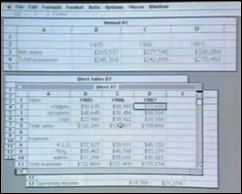
It’s an episode of Computer Chronicles from May 1987, with the guests talking about two types of spreadsheets — Microsoft Excel, and Trapeze.
An Excel Demo
The episode starts with a discussion of “look and feel” and related lawsuits. Then, at the 8:00 mark in the program, the Excel demo starts, with Mike Slade from Microsoft, using a Macintosh.
He shows multiple worksheets open at the same time, links the sheets, creates a chart, and runs something called a macro.