Last week I was testing a client’s workbook, and had filled in all the data entry cells, to make sure everything was working correctly.
Find Data Entry Cells
Before sending the workbook back to my client, I wanted to clear all the data entry cells.
Instead of selecting each cell individually, and clearing it, it would be easier to clear groups of adjacent cells where possible.
However, some cells had formulas, and I didn’t want to accidentally clear any of those.
If the formulas are visible, that would prevent the problem.
See Formulas in Excel 2003
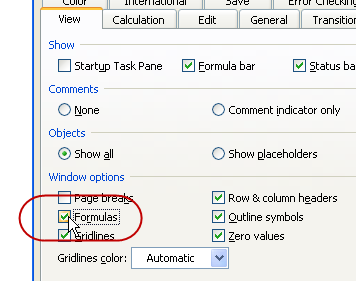
If you’re using Excel 2003, follow these steps to see the formulas on the worksheet:
On the Tools menu, click Options
On the View tab, add a check mark to Formulas.
See Formulas in Excel 2007
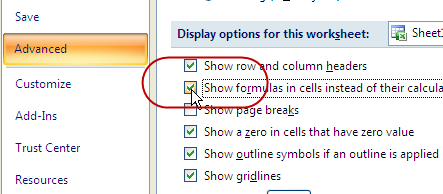
If you’re using Excel 2007, follow these steps to see the formulas on the worksheet, instead of the formula results:
Click the Office button, then click Excel Options
Click the Advanced category
In the Display Options for This Worksheet section, add a check mark to
Show formulas in cells instead of their calculated results.
Show or Hide Formulas with a Keyboard Shortcut
The keyboard shortcut to show or hide the formulas is
Ctrl + `
The symbol at the right is an accent grave, and that key is above the Tab key on the my laptop’s keyboard. It might be in a different location on yours
The accent grave looks similar to an apostrophe, but its top leans to the left, instead of being straight up and down.
You can make fancy, interactive dashboards in Excel too! For examples, tips, videos and ideas, go to the following dashboard pages on my Contextures site:
Dashboard Course Review – A detailed review of Mynda Treacy’s online Excel Dashboard course, which she opens 3-4 times each year, on her website.
Dashboard Problems Survey Results – I ran a survey, to ask if people used Excel Dashboards – Yes or No, and what problems they encountered. The detailed results and replies are shown on this page
Dashboard Templates– This page has sample Excel dashboard templates that you can download, to help you get started, or add new features to your existing dashboards
Dashboard Tips – These examples show common Excel dashboard mistakes, and how to fix them
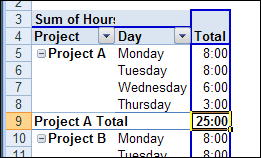
In an Excel file, you might record the time that employee work on specific projects. For example, an employee worked on Project A for 8 hours Monday, 8 hours Tuesday, 6 hours Wednesday and 3 hours Thursday, for a total of 25 hours. Later, you can show total hours in a Pivot Table. Continue reading “Show Total Hours in a Pivot Table”
The downside of that technique is that it’s harder to pick out the sections in a report. The headings don’t pop off the page — they’re buried in a long list of items.
Well, I finally finished creating all the names in my client’s Excel workbook, and sent the file back to them.
To help my client see what I’d done, I created a list of the names in the workbook, and sent it along with the main file.
It was also a quick way for me to double-check the names and their formulas.
Create the List of Names
Here are the steps to create a list of names:
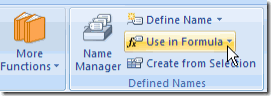
Insert a new worksheet, or select a cell in a blank area of an existing worksheet. On the Ribbon, click the Formulas tab.
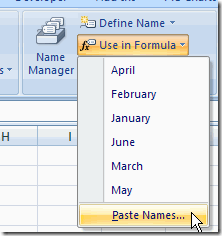
In the Defined Names group, click Use in Formula
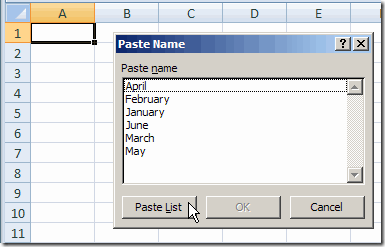
At the bottom of the list of names, click Paste Names (In Excel 2003, click Insert | Name | Paste)
In the Paste Name dialog box, click Paste List.
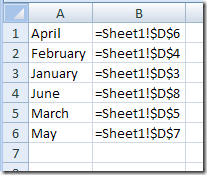
A 2-column list of names will be inserted, starting in the selected cell, so make sure you have room for your list.
Excel Name List on worksheet
What’s in the List?
The list of names will contain all the workbook level names, unless there’s a duplicate sheet level name on the sheet where the name list is pasted.
In that case, the sheet level name appears in the list, instead of the workbook level name.
Name Manager Add-In
I’ve mentioned Jan Karel Pieterse’s Name Manager before, as one of my favourite Excel add-ins.
If you’re working with names, in any version of Excel, you should download and install it. It’s free, easy to install, and simple, but powerful, to use.
This week I’m working on a giant Excel workbook, and my client wants all the data entry cells named.
There are about 600 cells to name, so I’m looking for ways to same some time.
Use the Name Box
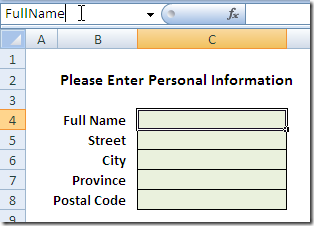
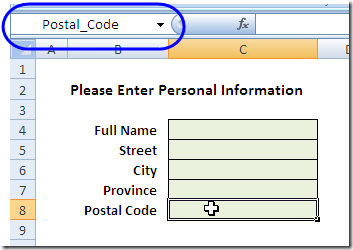
A quick way to name a cell is to click in the Name Box, type the name, the press the Enter key.
In the screen shot below, cell C4 is being named as FullName.
Type name in Name Box
Create From Selection
Even quicker is to use the Create Names feature, and name the cells based on the labels in adjacent cells .
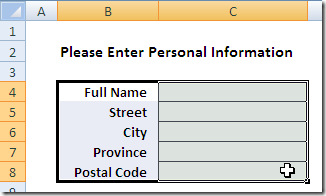
Here, the cells with labels, and the data entry cells, are selected (B4:C8).
Select Labels and Cells
Ribbon Command
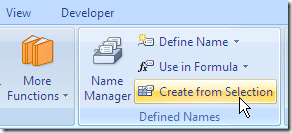
Then, on the Ribbon, click the Formulas tab
Next, click Create From Selection.
Or, in Excel 2003, click Insert | Name | Create.
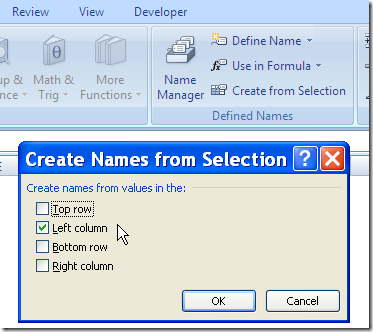
Create From Selection dialog box
In the Create From Selection dialog box, select the location of the labels.
In this example, the labels are in the left column of the selected cells.
Then click OK to create the names.
Create From Selection dialog box
Name a Range of Cells
In this example, I named a single cell with each label. You can select multiple cells adjacent to each label, and the label will name the range of cells.
Valid Characters in Names
If the labels contains spaces, they’re replaced with an underscore.
Other invalid characters, such as ampersand ( & ) and hashtag / pound sign (# ) will be removed or replaced by an underscore character.
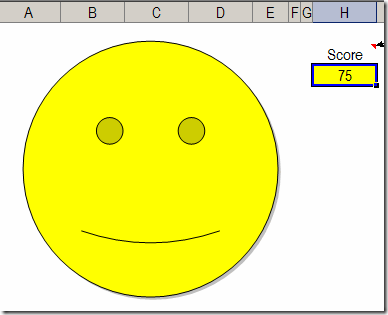
A few years ago, I added a sample workbook on my site, that features an adjustable Smiley Face Chart.
Type a number between 0 and 100, and the mouth changes from a smile to a frown, based on the score.
Excel Smiley Face Chart-Interactive Adjustable
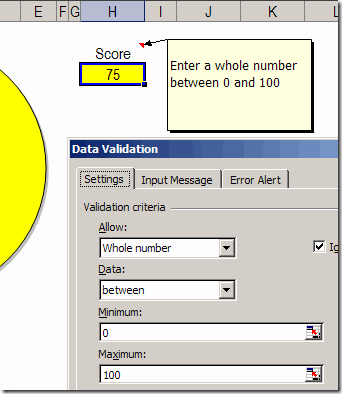
Score Cell Data Validation
The Score cell, H3, has data validation, to ensure that users enter a valid number.
Below, you can see the data validation settings that are used in the Score cell.
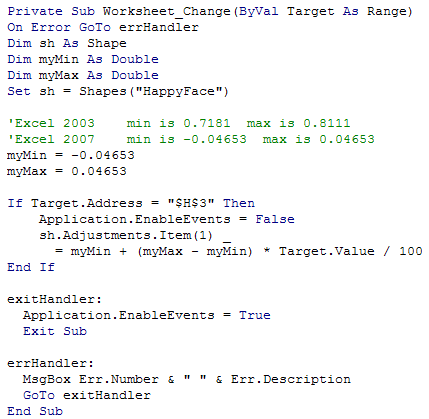
When you change the value in the Score cell, the Worksheet Change event code runs, and changes the curve of the mouth. You can see the code in the next section of this article.
A couple of years ago, John Walkenbach announced his scientific breakthrough in Smiley Chart development, using a scatter chart to create the smile.
I remained loyal to my version though, and it has served me well over the years.
Using the Smiley Chart in Excel 2007
The Smiley Face chart is still very popular, and is downloaded hundreds of times every month. So, I opened it in Excel 2007 recently, and was surprised to find that it didn’t work correctly. I changed the score, and nothing happened.
First, I made sure that I had enabled macros, because the event code needs to run when the code is changed. Sometimes it’s easy to overlook that Security warning, just above the Formula bar.
Macros were enabled, so that wasn’t the problem. Eventually, I figured out that the degree settings for the smile are different in Excel 2007, so I added a new page to the sample workbook, using those settings.
Why did the setting change? I have no idea. Anyway, here’s the code, showing the minimum and maximum settings, for both Excel 2007 and Excel 2003.
You’ve probably used an Excel data validation drop down list, where you can click the arrow, and select an item to fill the cell. With a bit of programming, you can customize a drop down list, to select multiple items.