
A few years ago, I added a sample workbook on my site, that features an adjustable Smiley Face Chart.
Type a number between 0 and 100, and the mouth changes from a smile to a frown, based on the score.
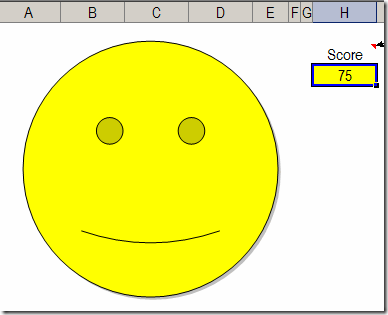
Score Cell Data Validation
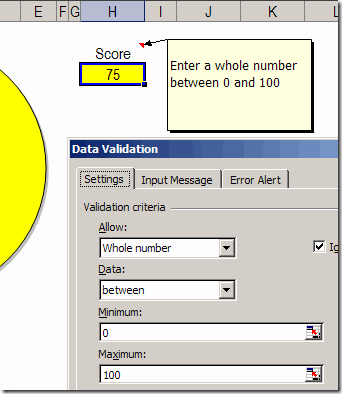
The Score cell, H3, has data validation, to ensure that users enter a valid number.
Below, you can see the data validation settings that are used in the Score cell.
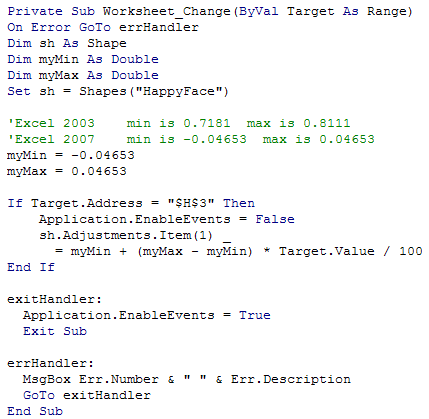
When you change the value in the Score cell, the Worksheet Change event code runs, and changes the curve of the mouth. You can see the code in the next section of this article.
A couple of years ago, John Walkenbach announced his scientific breakthrough in Smiley Chart development, using a scatter chart to create the smile.
I remained loyal to my version though, and it has served me well over the years.
Using the Smiley Chart in Excel 2007
The Smiley Face chart is still very popular, and is downloaded hundreds of times every month. So, I opened it in Excel 2007 recently, and was surprised to find that it didn’t work correctly. I changed the score, and nothing happened.
First, I made sure that I had enabled macros, because the event code needs to run when the code is changed. Sometimes it’s easy to overlook that Security warning, just above the Formula bar.
Macros were enabled, so that wasn’t the problem. Eventually, I figured out that the degree settings for the smile are different in Excel 2007, so I added a new page to the sample workbook, using those settings.
Why did the setting change? I have no idea. Anyway, here’s the code, showing the minimum and maximum settings, for both Excel 2007 and Excel 2003.
Download the Smiley Chart Sample File
You can download the zipped Smiley Chart sample file from my Contextures site. On the Sample Files page, look for DV0018 – Happy Face Gauge.
__________
Thankyou so much
I have had to look so far and wide to find out how modify the face expressions. Then I found your tutorial and it worked first try!