
If you’ve imported data into Excel, you might need to clean it up before you can use it. The video, and written steps below, show how to fill blank cells in Excel to complete a table.
Missing Data in Imported Table
For example, your imported data might have Region headings in column A, Employee subheadings in column B, and sales data in columns C and D.
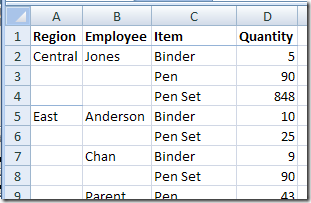
If you want to filter or sort this data, you need to fill in the blanks in columns A and B, by copying each heading into the blank cells below it.
Select the Empty Cells
To select the empty cells, use Excel’s built in feature:
- Select columns A and B, that contain the blank cells.
- On the Ribbon’s Home tab, click Find & Select
- Click Go To Special
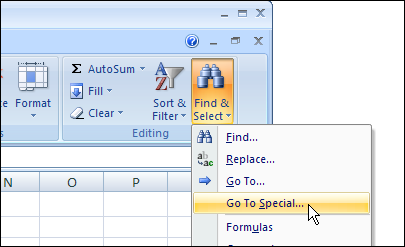
- In the Go To Special dialog box, click Blanks, then click OK
Enter a Formula
To copy the value from the first heading above each blank cell, you can enter a formula.
- With the blank cells selected, type an equal sign, to start the formula.
- On the keyboard, press the up arrow. This enters a reference to the cell above – cell A2 in this example.
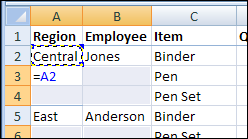
- Press the Ctrl key and tap the Enter key, to enter the formula in all the selected cells.
Change the Formulas to Values
Before you sort or filter the data, change the formulas to values. Otherwise, you’ll end up with a mess.
Note: Do this carefully if other cells in the columns contain formulas. You don’t want to accidentally change those formulas to values.
- Select the columns where you filled in the blanks with formulas
- On the Ribbon’s Home tab, click Copy.
- Click Copy
- With the columns still selected, click the drop down arrow on the Paste command
- Click Paste Values
The blank cells are now filled in with values, and you can safely sort or filter the list.
Fill Blank Cells With a Macro
If filling blanks is something that you do frequently, you can automate the process with a macro.
There’s sample code, by Dave Peterson, on my website:
Fill Blank Cells Programmatically
Video: Fill Blank Cells in Excel
This short video shows how to fill in the blank cells in Excel. Also, see the newer video, in the next section
Update: Video – Fill Blank Cells
Here is a newer version of the Fill Blank Cells Video, that I recorded in 2013.
________________
[…] For written instructions please read the article Fill Blank Cells in Excel to Complete a Table […]
It’s very useful for me . Thank you very much for sharing the tips!!. 🙂
Have a nice day to you!
I am in awe of the effects EXCEL has and the knowlege of most of the users