Excelerators Giveaway for Excel Power Users

Excelerators_promo2Are you an Excel power user? Answer a few quick questions at the Excelerators Quiz site, and find out how you rate. You could even win a nice prize here at the Contextures blog!

The team at PowerPivot for Microsoft Excel 2010 created the Excelerators Quiz, and to make the challenge more exciting, they’re sponsoring a giveaway here on the Contextures blog (for USA residents only).

The blog giveaway prize has a total value of over $250, and will include a Dell ST2310 23 inch flat panel monitor, keyboard, and mouse. You’ll be even more powerful if you have those tools!

Enter the Giveaway

What does it take to be an Excel power user? What kind of quiz questions would you create? We’ll create our own Excel quiz here in the comments. Maybe it’ll be better than the Excelerators Quiz!

To enter the giveaway, after you take the Excelerators Quiz, come back here and add a comment. In your comment:

  • Create your own unique question for the Excelerators Quiz.
  • Make your question multiple choice, with the correct answer as one of the four options.

You can contribute more than one question, but only your first question will be entered in the giveaway draw.

The Giveaway Rules

  • You must be a legal resident of the Unites States of America.
  • To enter, submit an original Excelerators quiz question in the comments below, with the correct answer as one of the 4 multiple choice options
  • The comment must be submitted before the deadline of 12:00 noon (Eastern Time) on Thursday, January 28th, 2010
  • One entry per person – any additional entries will be deleted from the draw
  • A random draw will select the winner from all valid entries.
  • Winner will be notified by email, so please provide a valid email address. This will not be publicly visible, but will be shared with the contest organizers at Ignite Social Media, so they can contact the winner to arrange delivery.

The Alpha Geek Challenge

The PowerPivot team has also launched an Alpha Geek Challenge for more advanced excel geeks. Donald Farmer will host a PowerPivot competition in which the Grand Prize winner will receive an all-expenses paid trip to the 2010 Microsoft BI Conference in New Orleans, LA in June.

After you finish the Excelerators Quiz, and the giveaway contest here, see how you do in the Alpha Geek Challenge!
________

Excel OFFSET Function-Fish for Data

That’s my dad in the picture below, proudly holding the catch of the day. He tried to teach me how to fish, but without much success. (Worms…ewwww.)

my dad with his catch of the day

Fishing with OFFSET Function

This week someone asked me to explain the Excel OFFSET function, saying “Please teach me to fish.” That’s when it struck me that using OFFSET is similar to fishing.

  • When you’re fishing, you can dip into a pond with a bamboo pole and a small hook, or head out to sea, and cast a large net. Or you can fish the way we do in Canada, through a small hole in the ice, but that’s another story. (There’s a video at the end of this article.)
  • With the Excel OFFSET function, you can pull data from a single cell nearby, or a large range of cells off in the distance.

The OFFSET function is useful when you want to make the data selection adjustable.

For example, if a February date is entered in cell A2, you can sum the February expense column. If a March date is entered, sum the March expenses instead.

Your Fishing Equipment

To make the OFFSET function work, you’ll tell it 3 things:

  1. The starting point
  2. Where to go from there
  3. How big a range to capture (optional)

The OFFSET syntax is: OFFSET(reference,rows,cols,height,width)

  1. The reference is the starting point.
  2. The rows and cols tell OFFSET where to go from the starting point. It can go up or down a specific number of rows, and left or right a specific number of columns.
  3. The height and width set the size of the range. It can be as small as 1 row and 1 column (a single cell) or much bigger.

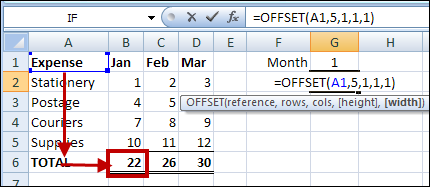
For example, this OFFSET formula would return the January total, in cell B6:
=OFFSET(A1,5,1,1,1)

  1. The starting reference is cell A1.
  2. From there, it goes down 5 rows, and right one column, to cell B6.
  3. The selected range size is 1 row tall and 1 column wide.
Excel OFFSET function example with arrows

Baiting the Hook

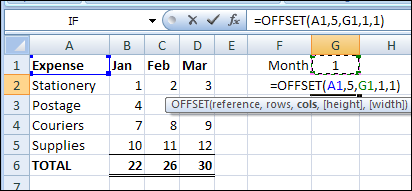
Instead of typing all the values in the formula, you can use one or more cell references, to make the OFFSET formula flexible. In this example, all the totals are in row 5, so that number won’t change.

However, the month number is typed in cell G1, so you could use that cell to set the number of columns to offset. Change the formula so G1 is the cols argument.

=OFFSET(A1,5,G1,1,1)

OFFSET03

Now, if you change the month number to 3 in cell G1, the March total will be returned.

Casting the Net

Instead of pulling the result from a single cell, you could use OFFSET with the SUM function, to select a range with multiple cells, and calculate the total.

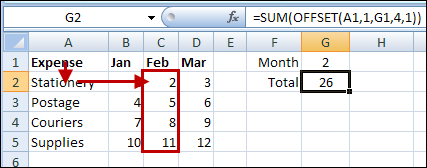
For example, this formula would calculate the total for the February expenses.

=SUM(OFFSET(A1,1,G1,4,1))

  1. The starting reference is cell A1.
  2. From there, it goes down 1 row, and right 2 columns, to cell C2.
  3. The selected range size is 4 rows tall and 1 column wide – C2:C5.

OFFSET04

Other Fish to Fry

I like the OFFSET function, and use it to create dynamic ranges in some of my workbooks.

There are alternatives to using the Excel OFFSET function, such as the Excel INDEX Function.

There’s an interesting discussion of the merits of each function on Dick Kusleika’s Daily Dose of Excel Blog: New Year’s Resolution: No More Offset.

Ice Cold Fish

I’d rather stay inside and work on OFFSET formulas, but ice fishing is popular here in Canada. This video makes the sport look almost appealing.

_____________________

Athlete Height Weight Analysis Pivot Table

footballhelmet Occasionally, a football game appears on the television at my house. I’m talking about real football, with burly men in tight pants, not that other kind of football, with wiry men in shorts.
This weekend, one of the games was between teams from Arizona and New Orleans. While admiring the strategies of the two teams, I noticed that the players whose numbers were in the 60s and 70s seemed heavier than the others.

Was that an optical illusion? Did their numbers, or some extra padding, make them seem bigger? Or were they really larger than the rest of the team?

Excel Weight Analysis

Excel can help you with burning questions such as these. From the NFL site, I copied the player roster for each team, and pasted it into Excel.

Unfortunately, the player heights were entered as feet-inches, e.g. 6-1, so that took a bit of fixing, because Excel helpfully changes numbers in that format to dates. A few players didn’t have numbers listed, so I changed those to zero.

Make a Pivot Table

After the player rosters were pasted into Excel, I created a pivot table from the data.

I put the player numbers into the pivot table Row area, Team name into the Column area, and Weight into the Values area, as Average.

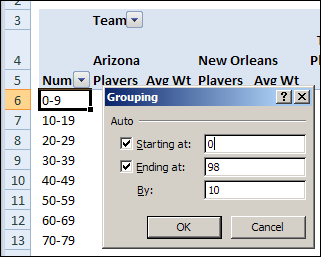
Then I grouped the pivot table Player Numbers into 10s.

Pivot Table Group by 10

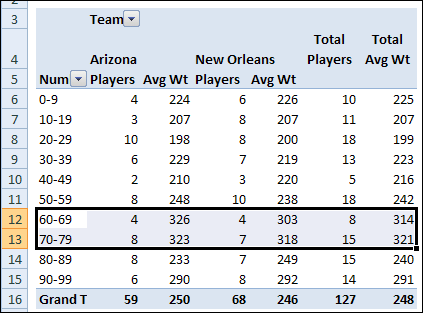
Average Weight in Pivot Table

As I suspected, the 60s and 70s are much heavier than their teammates. Only the 90s come anywhere close.

Average Weight in Pivot Table

Maybe It’s Not the Number

Admittedly, I don’t know too much about how the player numbers are assigned. Maybe each position gets a specific number range and some positions need bigger players.

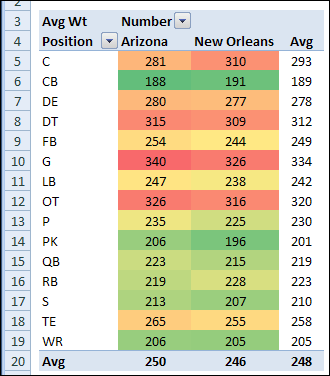
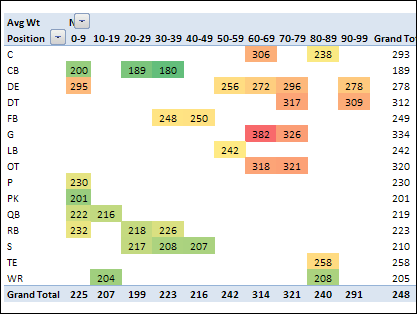
So, I created another pivot table, to check the average weight of players in each position, and see which numbers are assigned. A bit of conditional formatting was added, to highlight the different weight ranges.

Football02

And it does look like the Guards and Tackles are assigned numbers in the 60s and 70s. The lower numbers have lower weight players, and the 80s have a middle range.

BMI Status

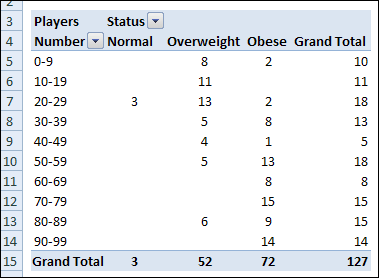
Since we created a Body Mass Index formula a couple of weeks ago, I added that to the player stats too. Then a VLOOKUP formula pulled the BMI status from a lookup table, and a pivot table showed the number of players in each status (Normal, Overweight or Obese).

I’m sure their muscles put the players into different BMI categories than the rest of us, but there aren’t many guys in the Normal category.
Football04

Team Weights

Finally, I created a table to compare the player weights on each team. Overall, the Arizona team is a bit heavier. Maybe that slowed them down, and that’s why they lost the game.

Football03

Download the Workbook

If you’d like to do your own team weight analysis, you can download the sample workbook from my Contextures website. Go to the Excel Sample Data page, and scroll down to the Football Player section. The zipped file is in xlsx format, and does not contain any macros.

[Update – August 2022]: I’ve added 2022 player data to the workbook, for the same two football teams. Now there are 306 player records for you to analyze!

Anyway, the football season should be over soon, and the players can use the Excel Calorie Counter to get themselves in shape for next year. Only if they want to, of course – I’m certainly not going to mention weight loss to any of them!
_____________

Does Excel Drive You to Drink?

After a long day of dealing with Excel formulas, pivot tables, and hidden Ribbon commands, you might be ready for an evening cocktail. Or six!

Newspaper Study

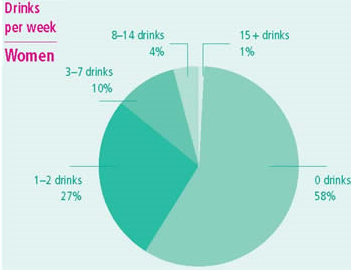
I found a link to this Canadian drinking study in the Toronto paper today, and it looks like we’re a nation of teetotalers. Is your country the same?

Apparently most Canadians don’t work with Excel, or perhaps they vent their frustrations on the hockey or curling rink at the end of the day.

Canadian drinking study in Toronto paper

The Excel Drink Calculator

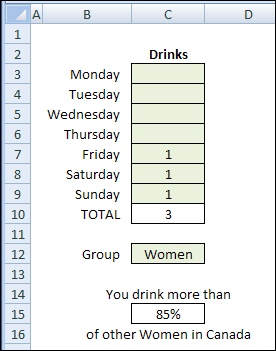
To spare you the agony of checking your results in a hard-to-read green pie chart, I created an Excel version of the online drink calculator.

Excel Drink Calculator

Use the Drink Calculator

In cells C3 to C9, enter your estimated number of drinks per day.

  • The SUM Function in cell C10 calculates your total for the week.

Then, select Men or Women from the drop down list in cell C12.

  • The VLOOKUP formula in cell C15 will compare your results to the rest of the men or women in Canada.

Hmmm…more than 85% – that can’t be good.

Time to move, I think. 😉 What country would you recommend?

Download the Excel Drink Calculator

If you’re brave enough to test your own results, you can download the Excel Drink Calculator. It’s in Excel 2007 format, with no macros.

Please do not operate heavy machinery, or leave a comment, if you have been drinking.
______

Leno and Conan Excel Gantt Chart

Rumours say that the late night TV schedule on NBC will change. Jay Leno will leave his 10 PM spot, and return to 11:35 PM. How long will the revised Leno show be, and what effect will it have on the rest of the schedule?

I’ll bet the NBC programming executives have set up an Excel worksheet to test the possible scenarios, and they made a nice Gantt chart to show the results.

Continue reading “Leno and Conan Excel Gantt Chart”

Elvis Sings Excel: A Little Less Concatenation

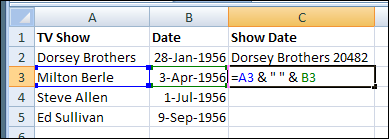
Last Friday, January 8th, would have been Elvis Presley’s 75th birthday. Sadly, he died in 1977, so he never had a chance to work with Microsoft Excel. Otherwise, he might have sung “A Little Less Concatenation”, instead of “A Little Less Conversation.”

Continue reading “Elvis Sings Excel: A Little Less Concatenation”

Excel Calorie Burning Calculator

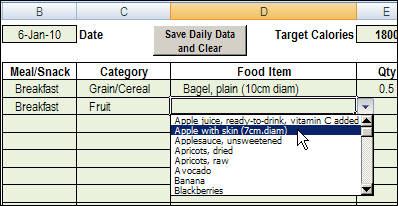
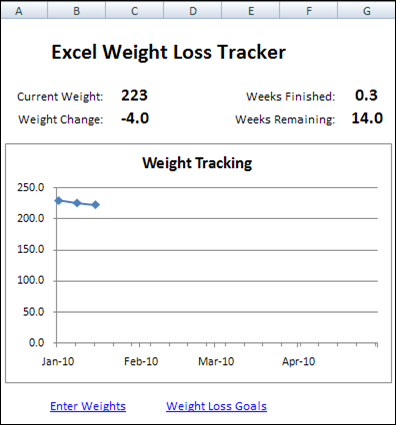
Good work! You’ve stopped eating cookies, and you’re recording your daily food intake in the Excel Calorie Counter.

The pounds are magically melting away, and you’re keeping track of your weight loss.

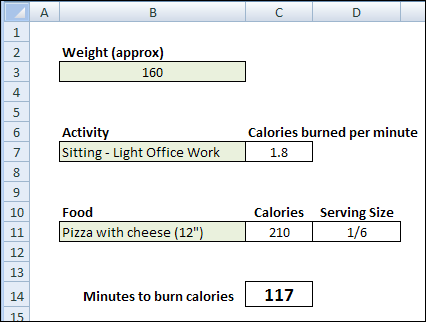
Here’s one more tool to help you with your healthy living plans – the Excel Calorie Burning Calculator.

Continue reading “Excel Calorie Burning Calculator”

Happy New Year With Excel Fireworks

Happy New Year! All the best in 2010, and I hope you’re looking forward to the release of Office 2010.

Excel Fireworks

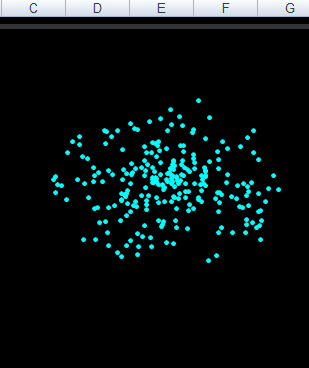
I thought about creating some fireworks in Excel, then discovered that Andy Pope already made some, based on an XY scatter chart.

Fortunately, there’s no noise, so if your head hurts a little today, the fireworks won’t make it worse.

In Andy’s workbook, you can set the number of rockets, the sparks in each rocket, and the effect of gravity. That could keep you busy for hours!

Excel Fireworks by Andy Pope

Excel Scrolling Banner

Andy also has a sample Excel workbook with scrolling text.

If you’re feeling adventurous, you could combine Andy’s two workbooks to show Happy New Year, and a fireworks display.

Excel Scrolling Banner

More New Year’s Day Fun

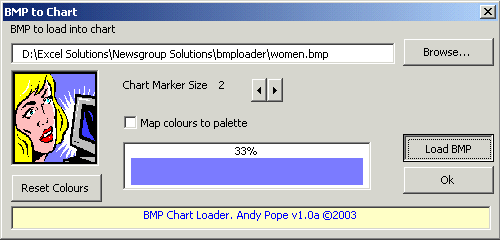
And for one more bit of Excel fun on New Year’s Day, Andy Pope has a free tool for converting a normal BMP image into an Excel scatter chart.

Here’s a screen shot of the BMP to Chart dialog box, where you can select a BMP format image file.

Andy Pope's BMP to Chart tool
Andy Pope’s BMP to Chart tool

Line Chart vs Scatter Chart

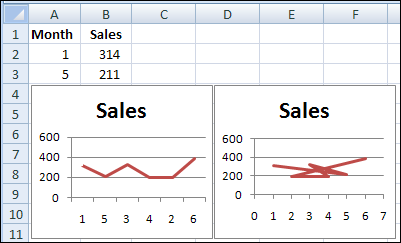
If you’re not familiar with Excel scatter charts, take a look at my blog post that compares Excel line charts and scatter charts.

difference between line chart (left) and scatter chart (right)

_________________