We Need a Spreadsheet Day

Yesterday, Seth Godin suggested that we should invent a holiday to celebrate the things that we love. For example, today is Family Day here in Ontario, Canada, a holiday that has only existed for a couple of years. It’s nice to have the day off, and that gave me the chance to think about other holidays.

How about a Spreadsheet Day, to honour Excel, and the other spreadsheets that people use? There are other spreadsheets, aren’t there?

I searched Google, and nothing relevant came up for the keyword phrase, “Spreadsheet Day”. That’s shocking!

Next, I checked a couple of sites that list all the obscure holidays and special days, but found nothing similar listed there either.

There are plenty of obscure holidays, including Pi Day on March 14th, and there’s even a Pickle Day, on November 14th. But no Spreadsheet Day.

What Day Would Work Best?

We should select a suitable day to celebrate spreadsheets, without conflicting with any of the other important holidays.

The first cell in an Excel worksheet is A1, so that could guide the holiday date selection.

The first “A” month is April, but April 1st is April Fools’ Day, and it would be best to avoid that. Also, April is tax month in Canada and the USA, so Excel users might not be in the mood to celebrate.

How about August 1st? There’s not much happening in August, and no other holidays on that date, that I can see. That would be a good date for Spreadsheet Day. Or maybe you have a better suggestion.

How Could We Celebrate?

What activities could we plan for Spreadsheet Day?

  • The 50 yard dashboard?
  • Rowing competitions?
  • All day cell-ebrations?
  • Sitting in a Lotus position?
  • Pie Chart eating contests?

Do you have any other ideas?

Spreadsheet Day 2010

There’s still time to organize a Spreadsheet Day for 2010, if we get started now. Let the hijinks, shenanigans and monkey business begin!

____________
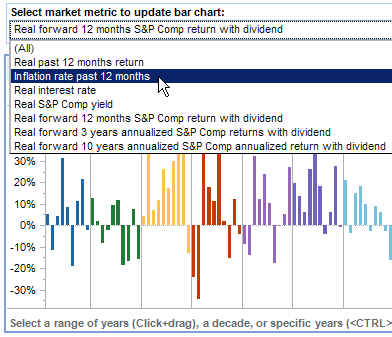
Tableau Public Has Launched

If you’ve wanted to try Tableau data visualization software, now’s your chance! They’ve just launched Tableau Public, where you can upload your data, and use the free Tableau tools to create amazing interactive charts, maps and dashboards.

This example shows Economic Indicators & Stock Market Returns, and you can select from a drop down list of market metrics to update the chart.

Tableau Public interactive chart

As the product name implies, your saved data will be public, so it’s not the place to work with your top secret financial data. It’s a great opportunity to experiment with the Tableau software though, using dummy data, or data that you’re willing to share with the public.

With Tableau Public, you can connect to Excel, Access, and text files, with a limit of 100,000 rows of data per connection. You can save up to 50 Mb of content to the Tableau Public web servers.

Tableau Articles

There are other blogs where you can see dashboard examples, and see how people are using the software.

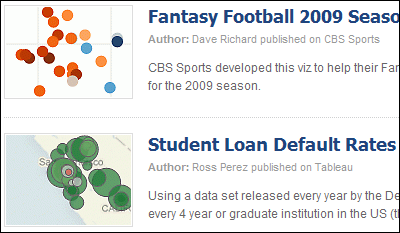
There’s also a gallery with dashboard examples, such as the Fantasy Football 2009 Running Backs and Student Loan Default Rates.

TableauPublic01

Use Tableau Public

To get started, go to the Tableau Public page, and click the Download Tableau Public button. Then, enter your email address, and click Submit. To help you understand the software, you can watch the brief Tableau Public Preview video and the Tableau Public training videos.

After you install Tableau Public, open it, and connect to your Excel, Access or text data file. It’s quick and easy to create a graph, and Tableau will help by suggesting chart types for your data.

Your work in Tableau Public desktop will be saved to the Tableau Public web servers, not on your computer. On the web servers, your data will be accessible by anyone on the internet, so don’t use Tableau Public for confidential or sensitive data.

Share Your Results

After you save your work, you can share it, by embedding it on your blog or website, or by sharing a link to your data.

If you create a dashboard, you can post the link in the comments here, so other people can go and take a look.
___________
Related Links:
Last fall I wrote a couple of articles about Tableau, and uploaded a short video:

Adrift in a Sea of Numbers

Create a Chart from Excel Data in Tableau

I used a trial version of Tableau for a couple of weeks, which has all the features of the paid version. I was really impressed with what the software can do, and got in touch with the Tableau people, to see if I could participate in the Tableau Public beta.

The free version wasn’t available yet, so they provided me with a license for the paid version, so I could keep experimenting, and post my work in their public servers.
______________

Excel Price List With VLOOKUP and MATCH Function

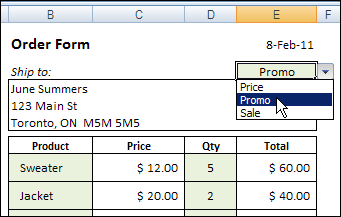
You can create order forms and price lists in Excel, and automatically show a price when a product is selected in the order form. But what happens if you want to give some customers special pricing, or offer sales pricing occasionally? Here’s how to customize your Excel price list with VLOOKUP and MATCH.

Continue reading “Excel Price List With VLOOKUP and MATCH Function”

Old Items Appear in Pivot Table Drop Downs

After you update the source data for a pivot table, and refresh the table, some of the old data might still appear in the pivot table drop downs.

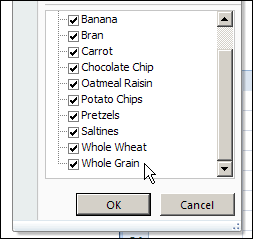
For example, you changed a product name from Whole Wheat to Whole Grain, and now both names show up in the pivot table’s Product drop down.

There are written steps and a video below, that show how to fix the problem.

old data in pivot table drop down

Prevent Old Items in Excel 2007

You can prevent old items from being retained in an Excel 2007 pivot table, by changing on of the pivot table options

  1. Right-click a cell in the pivot table
  2. In the pop-up menu, click PivotTable options
  3. Click the Data tab
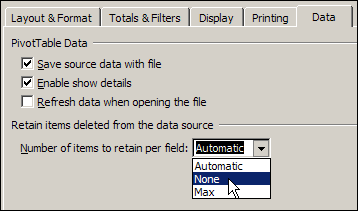
  4. In the Retain Items section, select None from the drop down list.
  5. Click OK, then refresh the pivot table.

OldItems02

The old items will disappear from the pivot table drop downs, and won’t appear again.

Clear Old Items in Excel 2003

To prevent old items in Excel 2003 pivot tables, you can use programming to change the MissingItemsLimit setting.

Or, you can manually clear the old items, by following these steps:

  1. If you manually created groups that include the old items, ungroup those items.
  2. Drag the pivot field that contains old items out of the pivot table. Also remove it from any other pivot tables that use the same pivot cache.
  3. Refresh the pivot table.
  4. Drag the pivot field back to the pivot table.

This will clear the existing old items, but won’t prevent more from appearing later.

Watch the Video

To see the steps to change the retain items setting in Excel 2007, you can watch this short video.

______________

For more information on Pivot Tables, see the Pivot Table Tutorials on the Contextures Website.

______________

Excel Movies Database Filter Macro

The Oscar nominations will be announced next Tuesday, February 2nd (oh, Groundhog Day, that was a good movie).

In honour of the occasion, I’ve updated my Excel Movie Database sample file.

Excel Movie Database

I included some movies from the Top 250 Movies list at the IMDb website. You can add movies from your DVD collection, or your Netflix list.

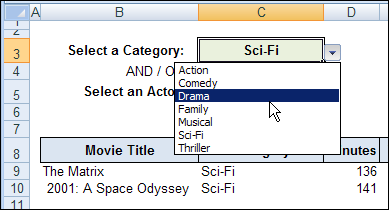
Then use the selection boxes to see movies from a specific category, and/or featuring your favourite actor.

In the previous version, you could only choose Category OR Actor, and now you can choose one or both. (Exciting, I know!)

Or, clear both criteria cells, to see all the movies.

Select a movie category

Download the Sample File

You can download the Excel movies database file from the Contextures website. It’s in Excel 2003 format, and zipped.

The file contains macros, so you’ll have to enable those to make the file work.

The Perfect Computer

I couldn’t find any movies about Excel, to add to the Excel movies database, but computers play a leading role in several movies. You might remember HAL 9000, from “2001: A Space Odyssey”.

HAL: Let me put it this way, Mr. Amor. The 9000 series is the most reliable computer ever made. No 9000 computer has ever made a mistake or distorted information. We are all, by any practical definition of the words, foolproof and incapable of error.

Yes, that was the dream, way back in 1968, when they made “2001: A Space Odyssey”. Over 40 years later, we haven’t even come close to achieving that goal! Well, maybe it’s not the computers’ fault – the users might be part of the problem.

Random Draw Sinner

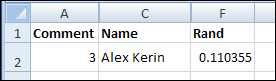
Congratulations to Alex Kerin, whose name I selected in the random draw for the Excelerator Quiz giveaway. Here’s his name at the top of the list, after I used the RAND function, and sorted the Rand column in ascending order.

Giveaway20100129

Alex’s prize is a 23″ monitor, plus a keyboard and mouse, courtesy of the PowerPivot team. Thanks to everyone who participated, and to the PowerPivot team, and Megan at Ignite Social Media, who organized the giveaway.

__________

Excel AutoFilter Shows Filter Mode

It’s Price Book publishing week for one of my clients, and we’ve been making lists, and checking them twice. Or 3 or 4 times, or more!

When comparing the new prices to the previous prices, an Excel AutoFilter comes in handy. You can select the same product or model in each workbook, and easily compare item details.

Yes, the widget prices went up a bit this year, so that’s why the assembled parts cost a bit more.

There are written steps and a video below, that show how to use the AutoFilter feature, and workarounds for a problem

Record Count in the Status Bar

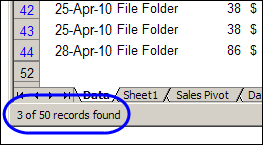
Sometimes when you select records with an AutoFilter, the record count appears in the Status Bar, at the bottom left. In this example, I was working with a small table, with 50 records, and only one column had a formula.

I selected File Folder in the Product column, and the Status Bar showed that 3 of the 50 records contained that product. So far, so good.

Record Count in the Status Bar

Status Bar Shows Filter Mode

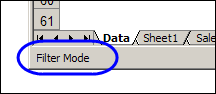
Then I added another record to the table, and selected a different product from the AutoFilter drop down list. This time the Status Bar showed the rather unhelpful message, “Filter Mode”, instead of the record count.

FilterMode02

Excel 2007 seems to handle this better, but in Excel 2003, and earlier versions, you might see “Filter Mode” if there are more than 50 formulas in the list.

When you apply an AutoFilter, the formula recalculate. If there are lots of formulas to calculate, Excel shows a “Calculating %” message in the Status Bar, so you’ll have something to entertain you while you wait.

Unfortunately, the “Calculating %” message interferes with the record count message in the Status Bar. If the record count message is interrupted, it shows the “Filter Mode” message instead.

You can’t change this behaviour, but there are a couple of workarounds that you can use to find the record count.

Use AutoCalc Instead

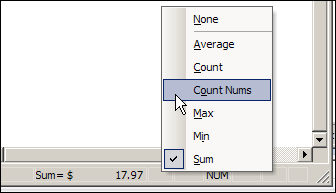
If the Status Bar shows “Filter Mode”, you can get the record count from the AutoCalc feature instead.

  1. Right-click on the Status Bar
  2. In the pop-up menu, click Count Nums
  3. Click on the column heading for a column that contains numbers (and no blank cells within the list)

You’ll see the count of visible numbers in the AutoCalc area of the Status Bar.

AutoCalc area of Status Bar

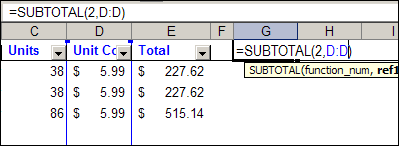
Use the SUBTOTAL Function

If you’d rather have the record count show up automatically, you can use the SUBTOTAL function. It ignores the filtered rows, and calculates based on the visible rows only.

For example, with numbers in column D, this formula, with 2 as the first argument, will calculate the COUNT of visible numbers:

=SUBTOTAL(2,D:D)

Use the SUBTOTAL Function

If you want to count items in a column that contains text, use 3 as the first argument, and subtract 1 from the result, to account for the heading cell.

=SUBTOTAL(3,B:B)-1

Watch the Excel AutoFilter Video

In this very short video you can see my Excel AutoFilter experiment, and watch the Filter Mode message appear in the Status Bar.

There are no ruggedly handsome math teachers in this video, but it’s fun-filled and action-packed!

There are more Excel AutoFilter Tips on my Contextures website.
___________

Excel Codes Change to Scientific Notation

Let’s call this installment, “The Mysterious Case of the Vanishing Parts.” (Read carefully — that’s paRts, not paNts.)

Strange Formatting

Last Friday, I was working on a client’s Excel file, revising some VBA code.

The code splits a list of manufacturing parts into multiple columns, strips a couple of characters off the front of the part name, and copies the results to another column.

What Happened?

It seemed to be going well, until I got an email from my client, saying that some of the part numbers looked funny.

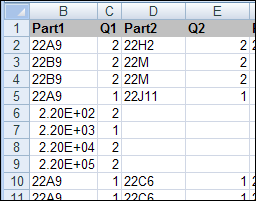
He included a screenshot, and indeed, those part numbers did look odd. Here’s an example, using some dummy data.

ScientificNotation01

Scientific Notation Formatting

“Aha!” I thought. (Yes, I actually talk to myself like that. 😉 )

Those parts were all numbers, so Excel just formatted them as Scientific Notation.

I could simply format the column as General at the end of the macro, to make them look right.

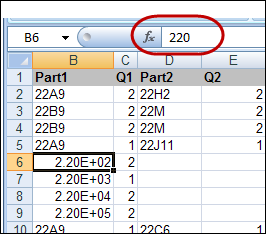
Unfortunately, it wasn’t that simple. When I clicked on one of the affected cells, the formula bar showed 220 as the actual part number.

So, if I changed the formatting to General, 220 is the part number that would be copied to other cells, later in the macro.

That would cause problems, because all the codes should have two digits, then a letter, and then numbers

Scientific Notation Formatting

Why Part Number Was Changed

After a bit more investigation, I found that the original part number wasn’t 220, it was 22E1.

Close, but manufacturing might be adversely affected if Excel starts making up new part numbers!

Because the original part number (22E1) started with numbers, followed by the letter E, then another number, Excel interpreted it as a number in Scientific Notation.

It converted that number to Excel’s style of Scientific Notation (exponential) formatting – 2.20E+02.

I’m sure Excel was trying to help, but that creates problems, just as it does when Excel changes 6-10 to a date for you, without asking.

The workaround to this unsolicited help is to force the data to be recognized as text, as Microsoft explains in its article:

Text or number converted to unintended number format in Excel.

Fixing the Problem

In my client’s macro, instead of formatting the parts column after copying the part names, I added an apostrophe at the start of each part name.

The apostrophe doesn’t show on the worksheet, but it tells Excel that the cell contents are text.

That solution left the “E” parts in their original format, and the problem was solved.

VBA Code Revision

Here’s the formula that is added in the VBA code:

.Range(“D2?).Formula = “=IF($A2<>$A1,””‘”” & $U2,””””)”

ScientificNotation03

Scientific Notation Explained

If you’d like to know how scientific notation works, in fairly simple terms, you can read this article: Scientific Notation

And for an even shorter and simpler description, here’s a short video in which a math teacher explains scientific notation.

And remember to do your homework!

_______________