Sort Data With Excel Custom Lists

You know how to sort an Excel list alphabetically, and with Excel 2007 you can even sort an Excel list by colour.

Did you know that you can also create a custom list in Excel and use that to sort your data, instead of sorting in alphabetical or numerical order?

See how, in the written steps and video below

Sort by Custom List

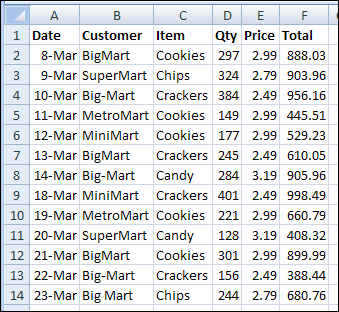
Instead of sorting the products in this table alphabetically, we’ll create a custom list of products, and use it when sorting the list.
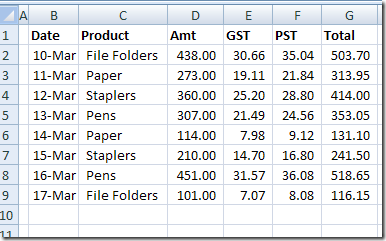
CustomSort01

Create a Custom List in Excel

You can create a custom list in Excel by importing a list from a worksheet, or by typing a new list. In this example, there is a worksheet named Lists, and it contains a product list.

We’ll import that list, to create the custom list.
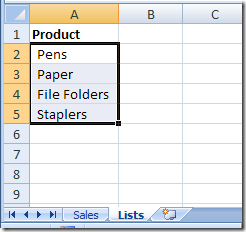
CustomSort02

To open the custom list window:

  • Select the cells that contain the list items
  • On the Ribbon, click the File Tab (or the Office Button in Excel 2007)
  • Then click Options.
  • Excel 2010 and later: Click the Advanced category, then scroll down to the General section
  • Excel 2007: Click the Popular category, then look in the Top Options section
  • Click Edit Custom Lists

To add a custom list:

  • In the Custom Lists dialog box, the list address — $A$2:$A$5 — should appear in the Import range box. If not, you can click in the Import range box, and type a range, or select a range on the worksheet.
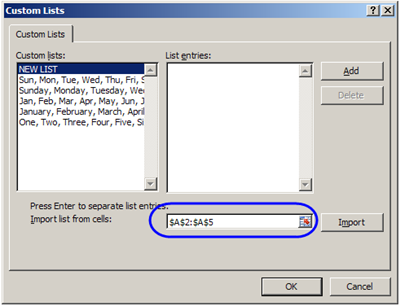
CustomSort04

  • To add the selected range as a custom list, click the Import button.
  • The list items will appear in the List entries section of the Custom List dialog box, and at the end of the list of existing Custom Lists.
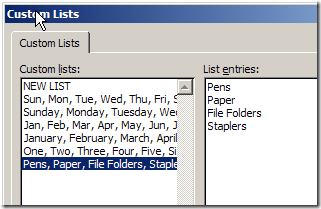
CustomSort05

  • Click OK to close the Custom Lists dialog box, and click OK to close the Excel Options window.

Use the Custom List

You can use the custom lists when sorting, and you can also use them with the AutoFill feature. Type any item from a custom list in a cell, then use the Fill handle to complete the list.
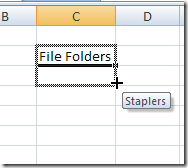
CustomSort07

Sort Excel List in Custom Order

To sort your list based on your custom list, follow these steps:

  • Select a cell in the table that you want to sort.
  • On the Ribbon’s Data tab, click Sort
  • In the Sort dialog box, select a Column from the first drop down, and select Values from the Sort On drop down.
  • In the Order drop down, click Custom List
  • In the Custom List dialog box, select your custom list, and click OK
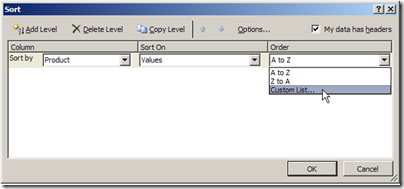
Sort Excel List in Custom Order
  • Click OK to close the Sort dialog box

The list is sorted in the order of the items in your custom list.

Watch the Excel Sort Video

To see the steps for adding an Excel Custom List, then sorting by that Custom List, watch this short Excel video tutorial.

____________
Plan Your Party Seating with Excel

If you’re having a party this weekend, you can plan your party seating with Excel. Get this sample Excel seating workbook, enter the guest names on the Lists sheet, then fill the tables by selecting names from data validation drop down lists. After you’ve assigned a guest to a table, that guest’s name disappears from the drop down lists, so you can’t accidentally assign a guest to two different seats.

NOTE: There is a newer seating plan here: Excel Seating Plan with Charts

Continue reading “Plan Your Party Seating with Excel”

Running Totals Are Easy With Excel Pivot Tables

This week I’m working on a client’s sales plans for the upcoming fiscal year. They forecast sales per month by product and customer, and we use some pretty complicated formulas to sort things out. Of course, anywhere that it makes sense to use a pivot table, I create one. It’s a great way to summarize all the details, and review the overall totals. Running totals are easy with Excel pivot tables!

Continue reading “Running Totals Are Easy With Excel Pivot Tables”

Back In Time With Microsoft Excel

A very nice email, from someone who visited the Contextures website, made me think about how long I’ve been using Excel.

My guess was that I’d started around 1987, so I fired up the old Mac laptop, and dug some old floppies out of the storage cupboard.

Excel 3.0 on Mac PowerBook

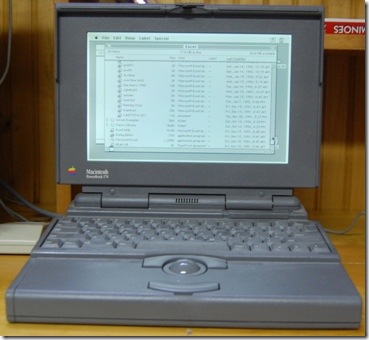
In the photo below, you can see my Mac PowerBook 170 laptop, from late 1991. It’s running the Mac version of Excel 3.0.

There’s a Mac 128K model in the back room too, but I didn’t have the strength to dig that out. (I hope the producers of the tv series, The Hoarders, don’t call me now.)

Mac PowerBook 170 running Mac Excel 3.0

Excel Files

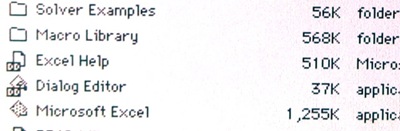
As you can see, the application files were much smaller in Excel 3.0. Of course, that still took a good chunk out of my 40MB hard drive.

Do you remember the days when a Microsoft Office application was just over a megabyte in size?

ExcelMac02

Flashy Excel Charts

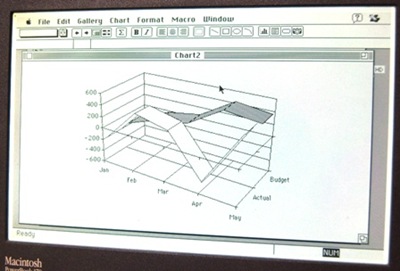
Even though the machine didn’t have colour, I was still able to make some pretty flashy 3-D charts in the old days.

I have no idea what this was supposed to show, but maybe it was the results of an Olympic ski jumping event.

ExcelMac03

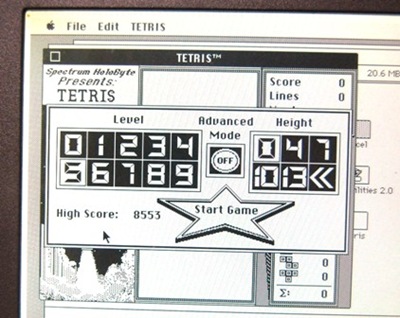
Black and White Tetris

I’m sure that I never wasted any time playing TETRIS, when I was supposed to be working on Excel files.

And it must have been harder to play back then, when all the Tetris shapes were the same shade of grey!

ExcelMac04

Sorting a List

Way back then (and until Excel 2007), we were only able to sort by 3 levels, and we couldn’t sort by colour.

That didn’t matter much to me, since I didn’t have colour!

Sorting a List in Excel 3.0

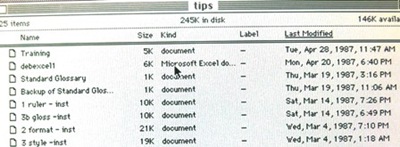
My Oldest Excel File

There may be something older on a floppy disk at the back of the storage cupboard, but I finally found an Excel file that I’d worked on in April 1987. I was creating some Excel training files, to be used by Apple vendors.

ExcelMac06

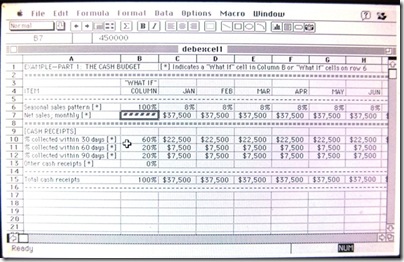
The Excel 3.0 File and Excel Toolbar

Here’s what the file looked like, and it’s interesting to see the minimalist toolbar too. Do you remember what all those icons were for?

Excel 3.0 File and Excel Toolbar

How Long Have You Used Excel?

There’s an Excel poll on my Debra D blog, so if you have a minute, please go and answer the question – How Long Have You Been Using Excel?

[update: the poll is closed now]

Spreadsheet Demo From May 1987

In an episode of Computer Chronicles from May 1987, the guests talked about spreadsheets.

This video shows an Excel demo, by Mike Slade from Microsoft, using a Macintosh. He shows multiple worksheets open at the same time, links the sheets, creates a chart, and runs a macro.

____________
Collect Data From Users in Excel VBA

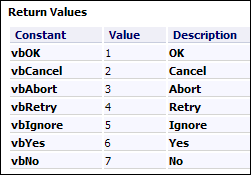
You can use Excel VBA to show messages to someone who’s using your workbook. A message can be simple, with just an OK button, or give people options, with Yes and No buttons.

That lets you collect data from users, and then complete macro steps based on which button they clicked.

Continue reading “Collect Data From Users in Excel VBA”

Sort By Colour in Excel

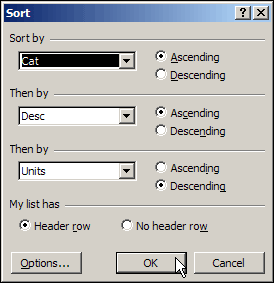
In the old days, the Sort dialog box in Excel only had 3 levels.

However, with a bit of planning, you could sort Excel data by 4 columns or more, and once you learned that trick, life was good. Or at least it was sort of good. 😉

Sort dialog box in Excel 2003

Sorting in Excel 2007

In Excel 2007, the Sort dialog box is much fancier, and you can include up to 64 sorting levels.

I’ve never needed anywhere near that many – 5 or 6 fields is plenty for most tables that I’ve had to sort.

Sort By Colour

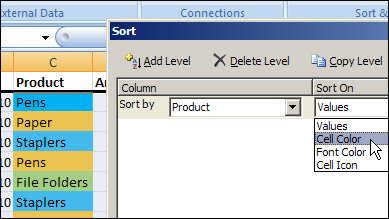
Another new feature in Excel 2007 is the ability to sort by cell or font colour, or by cell icon.

sort by cell or font colour

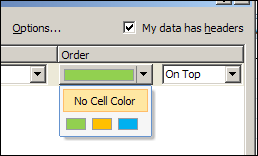
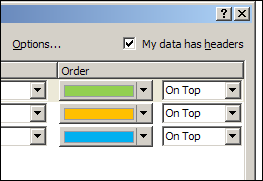
If you have different colours in a column, you can choose one to show up at the top or bottom of a sorted list.

SortColour02

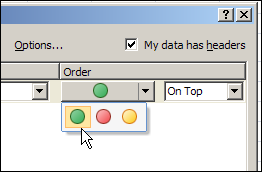
If you used conditional formatting to add cell icons, such as traffic lights, you can sort by those icons.

SortColour06

To put the colours or cell icons in a specific order, you can add the same field multiple times in the Sort dialog box, and choose a different colour or cell icon for each sorting level.

This won’t be too difficult if you have only a few colours in the list, but will be more challenging if you have lots of colours.

SortColour03

Worksheet List Sorted by Colour

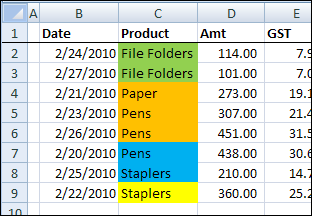
The list on my worksheet, that was previously sorted by date, is now sorted by the colours, in the order that I selected above.

Yellow isn’t in the Sort level specifications, so it appears at the bottom of the list.

Worksheet List Sorted by Colour

Sort By Colour At Your Own Risk

Even though you can sort by colour now, I wouldn’t recommend it. I’ve seen too many rainbow coloured Excel worksheets, where nobody can remember what the colours mean.

Is yellow good? Is blue bad? Is there a colour code somewhere?

Sort By Text or Number

I’d rather add another column in the worksheet, and put a number code or text comment there. S

o, instead of marking the overdue accounts with a red fill colour, type “Overdue” in another column, or use a formula to calculate which accounts are overdue.

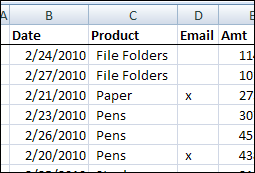
Or, instead of highlighting the customer names that you want to send an email to, type an X in an Email column.

Then, you can sort or filter the Overdue accounts or the Email column, to focus on the rows of interest.

Mark X in Email Column

Do You Sort By Colour?

Maybe I’m missing something, and the feature is working well for you. Some people must have asked for the feature, since they added it to Excel 2007.

In your Excel worksheets, do you ever sort by colour? In what kind of lists or situations is it most helpful for you?
_______________
More Room to Work in Excel 2007

You might not love the Ribbon in Excel 2007, but the user interface does have new features that are an improvement over Excel 2003.

The new features are useful when you’re working with large formulas or long names. There are written steps and a video below, that show those features

Change the Formula Bar Height

In Excel 2003, if you click on a cell that contains a long formula, it can spill onto the worksheet, hiding the column headings.

It’s nice to see the formula, if you want to edit it, but annoying if you’re trying to do something else.

LongFormula01

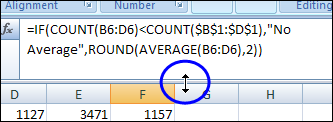
In Excel 2007, you can adjust the height of the formula bar, and the long formulas don’t cover the worksheet. To adjust the height:

  1. Point to the bar at the bottom of the formula bar.
  2. When the pointer changes to a two headed arrow, drag up or down, to change the formula bar height
Change Formula Bar Height

Restore Formula Bar Height

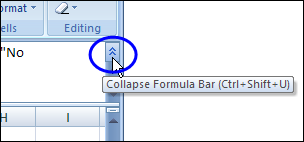
After you’ve adjusted the height, you can quickly restore it to its previous height, by clicking the Collapse Formula Bar button.

FormulaBarHeight03

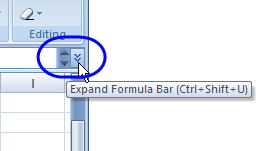
When the formula is collapsed, the button changes to Expand Formula Bar. Click that to return to the previous height setting.

FormulaBarHeight04

Also, if the formula is too long to show in the formula bar at its current height, scroll buttons appear, as you can see in the screen shot above.

You can click the scroll buttons to view the formula, if you don’t want to change the formula bar height.

Widen the Name Box

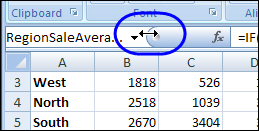
Another new feature that I find really helpful is the ability to widen the Name Box. Instead of just seeing the start of a long name, and three dots, you can widen the Name Box to see the entire name.

To adjust the Name Box width, point to the dividing line at the right edge of the Name Box, and drag to the right.

Widen the Name Box
Widen the Name Box

Restore Name Box Width

To return to the default Name Box width, double-click the dividing line. (At least I think it’s the default width – I’ve changed my settings too many times to remember exactly.)

Excel’s Help says, “The maximum width of the name box is half of the width of the worksheet.” However, I’m able to widen the Name Box to the full width of the worksheet, and narrow it to nothing.

Maybe that restriction applied in the Beta version, and the Help wasn’t changed.

Do You Use These Features?

I’ve used Excel for so many years without these features, that I often forget they’re available. Long formulas can be hidden in the formula bar when condensed, because they don’t spill onto the worksheet, the way they used to.

If a formula is cut off in a logical place, you might not even realize that part of it is hidden. Those scroll buttons are very subtle, and are the only clue that a formula doesn’t fit.

Do you remember to use the new sizing features? Do you prefer them to the Excel static settings?

Watch the Video

Here’s a short video that shows the new features for adjusting the formula bar height and the Name Box width.

It also shows how to temporarily collapse the Ribbon, so only the tabs are visible. That gives you an extra inch of space, if you need it when working on a large worksheet.

_______________
Excel Pivot Tables At the Olympics

Are you too old to compete in the Olympics? Maybe you’re not as bendy as those 16-year-old figure skaters, but there might be other sports with athletes about your age.

Olympic Athlete Data

Athlete bios are posted on the Vancouver 2010 Winter Games website, and I compiled that data, then created a few Excel pivot tables, to analyze the athletes’ ages.

  • Which Winter Olympic sports have the oldest athletes?
  • Which countries send the youngest participants?
  • Do similar age groups compete in different sports?
  • Who wears the wildest pants?

With our Excel pivot tables, and some pivot table grouping, we can find the answers to those pressing questions. Well, maybe not the pants issue, but let’s look at the age questions.

Create Excel Pivot Table

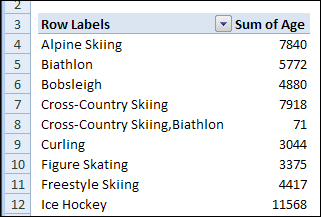
Using the Olympic athlete biographical data, I created an Excel pivot table with:

  • Sport in the Row Labels area
  • Age in the Values area

The pivot table default for the Age field is to show the Sum of Age, and that isn’t too helpful for this analysis.

Olympic2010Age01

Show Maximum Values in Pivot Table

Instead of using the Sum function, I’d like to see the Maximum age for athletes in each sport. Fortunately, there is a quick way to change the summary function that is used for a pivot table value field.

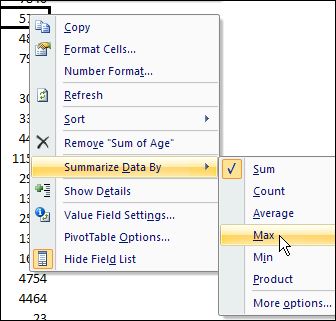
To change the summary function in an Excel pivot table Values field, follow these steps:

  • Right-click on one of the values in the Age field.
  • Click Summarize Data By
  • In the pop-up menu, click click Max
Show Maximum Values in Pivot Table

Sort the Values

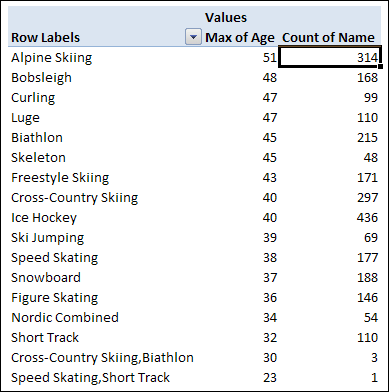
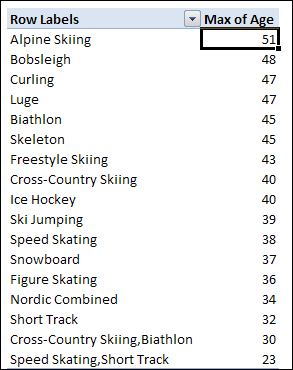
After changing the summary function to Max, the pivot table shows the highest age in each sport.

Next, I can sort the list in descending order by Age. That will highlight the sports with the oldest competitors.

  • Alpine skiing is at the top of the list – that was a surprise!
  • Short track speed skating has the lowest maximum age

Olympic2010Age03

Show a Count of Athletes

Maybe there’s only one Alpine skier, and they’re really old.

To compare the number of athletes in each sport, I’ll add the athlete’s name field to the Values area, and it will appear as Count of Name.

Show a Count of Athletes

Except for the last two items, there’s a good number of athletes in each sport, with Alpine Skiing as the second largest group.

See Athlete Age by Country

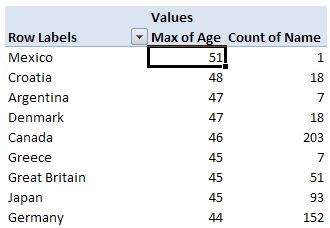
If we replace Sport with Nationality in the Row Labels area, we can see the maximum age and athlete count for each country.

Olympic2010Age05

That 51-year-old alpine skier is from Mexico, and is the only athlete from that country. Coincidentally, Great Britain sent 51 athletes, but the oldest is 45.

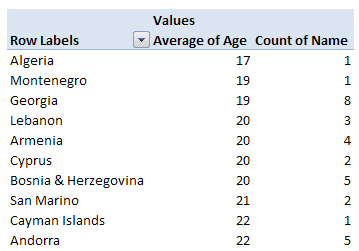
To see the average age per country, you can change the summary function to Average, then sort the ages in ascending order. The lowest average ages are from countries with a small number of athletes.

Olympic2010Age06

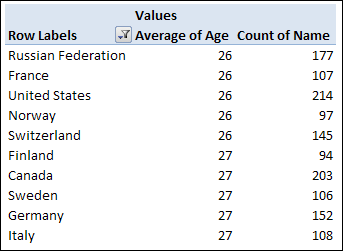
Filter by Count of Name

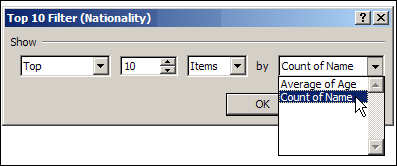
To see the average ages for the larger contingents, we can filter the countries by the Count of Name value. Click the drop down arrow for the Nationality field, click Value Filters, then click Top 10. I selected to see the Top 10 items by Count of Name.

Filter by Count of Name

The pivot table now shows only the countries with the largest number of participants, sort by average age. There’s not much difference in the average ages among countries in the top 10 list.

Olympic2010Age08

That’s not too encouraging! If I want to compete in the next Winter Olympics, I should move to Mexico, and take up alpine skiing.

Age Range in Selected Sports

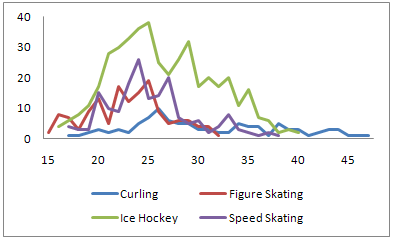
Finally, let’s see the age range in a few of the ice sports. I removed Nationality from the Row Labels, and added Sports. Then, I filtered the list, to show only four of the sports – curling, figure skating, ice hockey and speed skating.

Olympic2010Age09

Figure skating has the narrowest age range, and curling has the widest. Maybe I can stay in Canada, and learn how to curl.

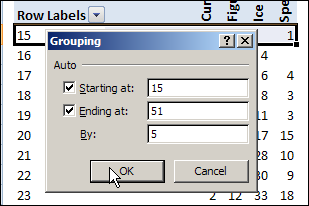
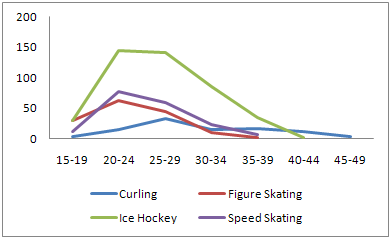
Instead of showing the individual ages on the chart, I can group the ages into 5 year bands. Right-click on an Age, and click Group. Then enter 5 in the By box, and click OK.

Olympic2010Age10

The chart looks less like the Rocky Mountains, and it’s easier to see the age ranges for each sport.

Olympic2010Age11

Download the Data

I’ve saved the athlete bio data in a zipped Excel file that you can download, and use it to create your own pivot table. Let me know if you make any surprising discoveries.

To get the sample file, go to the Excel Sample Data page on my Contextures site. Then, for details on what’s in the file, go to the section named Sample Data – Winter Athletes.

The zipped Excel file is in xlsx format, and does not contain any macros.

Congratulations

And congratulations to Alexandre Bilodeau, from Canada, for winning a gold medal in Men’s Moguls at the Vancouver 2010 Winter Olympics.

Yes, it was the first Olympic gold ever won by a Canadian on home soil.

___________