Pivot Table Count Per Decade

canada If you’re looking for love, move along — the “Canadian Singles” in the article title refers to hit songs, not eligible bachelors.

Last week, a new book was published with a list of top 100 Canadian singles, based on a poll of music professionals and fans.

In his J-Walk blog, John Walkenbach posted a link to the Canada’s Top 100 Singles list, and there was a lively discussion in the comments section.

Top 100 Canadian Singles List

No discussion is complete without a spreadsheet, so I copied the list into Excel, and cleaned it up.

To make it more interesting, I found the release date for each hit song, and split them into decades, using the Excel FLOOR function.

Make a Pivot Table

From that data, I created a pivot table, showing the count of songs from each decade, listed by rank.

Was most of the best music released in the 1970s, or were most of the voters from that era?
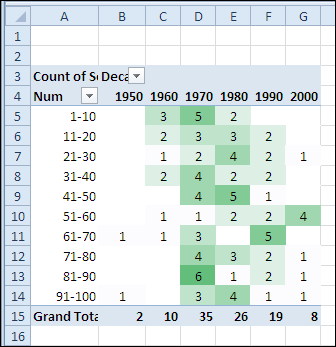
Pivot Table Song Count by Decade

Pivot Table Group Numbers by 10

In column A, the top 100 songs are grouped by 10s, to summarize the data.

For example, row 5 shows the decade counts for the songs ranked from one to ten in the top 100 list.
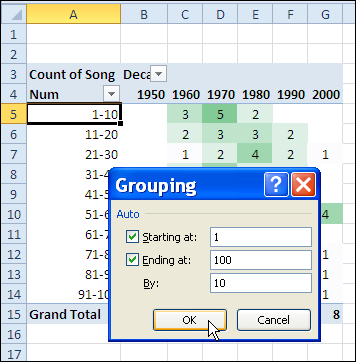
Group numbers by 10 in pivot table

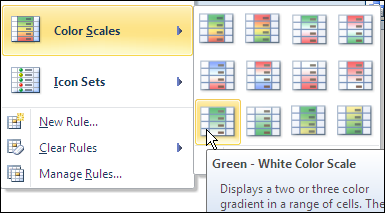
Highlight with Color Scale

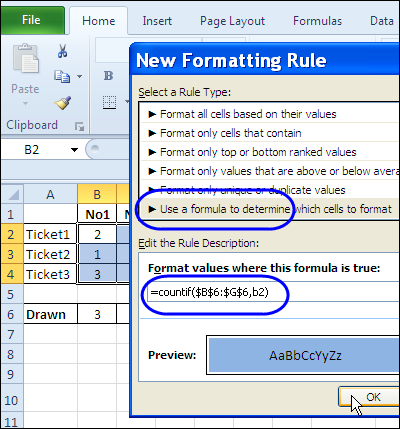
Next, I added conditional formatting to highlight the decades with the largest number of songs.
PivotItemLabelRepeat04

Repeat Pivot Table Item Labels

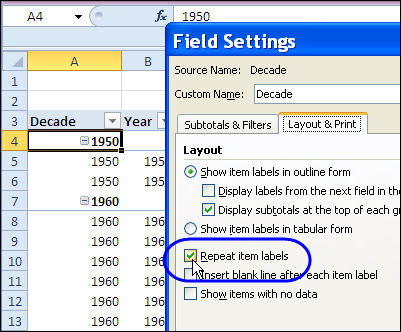
A new feature in Excel 2010 pivot tables is the ability to repeat the field item labels.

In another copy of the pivot table, I put the decade in the row label area, and changed the pivot table report layout to Outline Form.
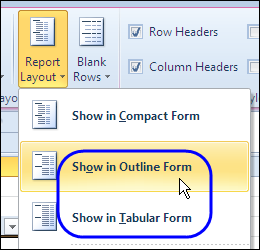
PivotItemLabelRepeat01

Change Pivot Field Setting

Then, I right-clicked on the Decade field, and clicked Field Settings. On the Layout & Print tab, I added a check mark to Repeat Item Labels, and clicked OK.

After changing that setting, the decade is repeated in each row, instead of showing just once, at the top of the section.
Repeat Pivot Table Item Labels

Download the Top 100 Canadian Single File

To see the list, and create your own pivot table, you can download one of my sample files.

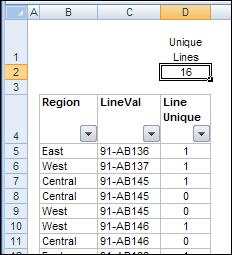
Count Unique Items in Excel Filtered List

You can use the SUBTOTAL function to count visible items in a filtered list. In today’s example, AlexJ shows how to count the unique visible items in a filtered list. So, if an item appears more than once in the filtered results, it would only be counted once. Thanks, AlexJ!

Continue reading “Count Unique Items in Excel Filtered List”

New Improved Excel Data Entry Form

Many moons ago, Dave Peterson created a sample Excel worksheet data entry form and kindly shared it on the Contextures website.

In Dave’s original form, users could add records on the data entry sheet, and click a button to go to the database sheet, where they could review or edit the order records.

Continue reading “New Improved Excel Data Entry Form”

Help Improve This Excel Expense Tracker

On the Consumerist website last week, they posted Lauren’s Excel budget template, so I downloaded it, to take a look.

I’d call it an Expense Tracker, rather than a “Budgeter”, because it’s used to record income and expenses. (Do you know the origin of the word “budget”? I had to look it up.)

Expense Tracker Formula

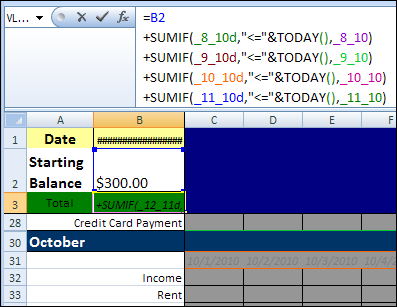
Here’s what it looks like, with part of the formula for the Total cell showing in the formula bar.

The grey fill colour is added with conditional formatting.

ExpenseTrack01

Excel Formula for Total

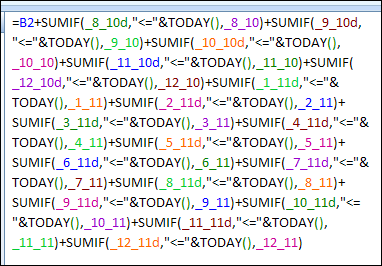
Shown below is the full formula for the Total.

You can see that Lauren has named the date headings (_8_10d) and hidden total row (_8_10) for each month.

Long Excel Formula for Total

So Many Named Ranges

Wow! It makes me tired just looking at that. Lauren created a lot of named ranges, to set up the file, and she’ll need to do more work to add more months.

Because there’s a separate section for each month, her formula needs a SUMIF formula for each range.

She might have to upgrade from Excel 2003, or she’ll pass the character limit for that formula.

Room for Improvement

I don’t know who Lauren is, but she should be commended for setting this up, and keeping track of her income and expenses.

Sure, there are many ways to improve her Budgeter, but it seems to work okay, even if it is a bit convoluted. At least she knows where her money is going!

What Would You Do?

But, there must be better ways to keep track of income and expenses. How would you set up an Excel workbook to do this?

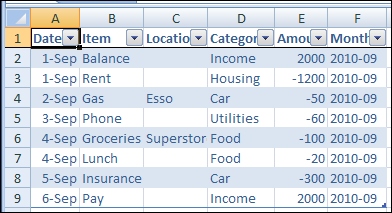
I’d probably create a simple list, with columns for Date, Item, Location, Category and Amount, like the table in the screen shot below.

The last column calculates the year and month, so it’s easy to summarize by month.

add data validation to the Category column

Add Drop Down Lists

You could even get fancy, and add data validation to the Category column, with a drop down list of valid categories.

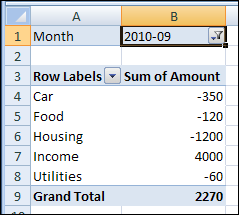
Next, enter all your budget items, then create a pivot table to summarize your spending.

ExpenseTrack04

____________

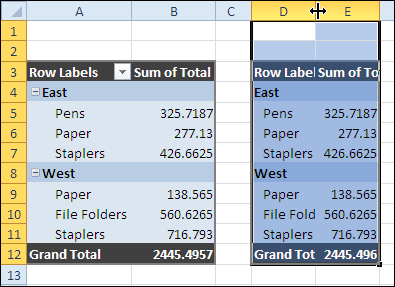
Copy Pivot Table Format and Values

To keep your data details confidential, you might want to send someone a copy of a pivot table, without the link back to its source data. It’s easy to copy a pivot table, and paste it as values,but it is difficult to copy pivot table format and values.

Continue reading “Copy Pivot Table Format and Values”

Split Prize Money for Tied RANK in Excel

If you’re hosting a golf tournament, with cash prizes for the top ten players, what happens if two or more players are tied in rank?

Maybe if the top two players are tied, you’d have a playoff, but if two players are tied at 3rd, you wouldn’t try to break the tie that way.

Continue reading “Split Prize Money for Tied RANK in Excel”

Add Navigation Buttons to Excel Worksheet

Last July, I posted sample Excel VBA code to navigate to the next or previous worksheet.

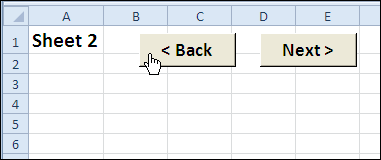
  • If you’re on the second sheet, you can click the Next button to go to the third sheet.
  • Or, click the Back button to go to the first sheet.
Excel worksheet navigation buttons

Check for Hidden Sheets

In the comments for that blog post, Ron de Bruin suggested modifying the two navigation macros, so they test if the target sheet is hidden, before selecting it.

Finally, only 14 months later, the revised code is ready. As you know, quality work takes time! 😉

Excel Worksheet Navigation Code

Here’s the Excel VBA code for the two macros — GoSheetBack and GoSheetNext.

  • If the next sheet is hidden, the code keeps going until it finds the next visible sheet.
  • If the macro code reaches the end of the sheet tabs in either direction, it jumps to the other end, and continues from there.
'==========================
Sub GoSheetNext()
Dim wb As Workbook
Dim lSheets As Long
Dim lSheet As Long
Dim lMove As Long
Dim lNext As Long
Set wb = ActiveWorkbook
lSheets = wb.Sheets.Count
lSheet = ActiveSheet.Index
lMove = 1
With wb
  For lMove = 1 To lSheets - 1
    lNext = lSheet + lMove
    If lNext > lSheets Then
      lMove = 0
      lNext = 1
      lSheet = 1
    End If
    If .Sheets(lNext).Visible = True Then
      .Sheets(lNext).Select
      Exit For
    End If
  Next lMove
End With
End Sub
'==========================
Sub GoSheetBack()
Dim wb As Workbook
Dim lSheets As Long
Dim lSheet As Long
Dim lMove As Long
Dim lNext As Long
Set wb = ActiveWorkbook
lSheets = wb.Sheets.Count
lSheet = ActiveSheet.Index
lMove = 1
With wb
  For lMove = 1 To lSheets - 1
    lNext = lSheet - lMove
    If lNext < 1 Then
      lMove = 0
      lNext = lSheets
      lSheet = lSheets
    End If
    If .Sheets(lNext).Visible = True Then
      .Sheets(lNext).Select
      Exit For
    End If
  Next lMove
End With
End Sub
'==========================

Download the Sample File

To see the detailed instructions, and to download the sample Navigation code workbook, please go to the Excel VBA Worksheet Macro Buttons page on the Contextures website.

Watch the Excel Video

To see the steps for creating the navigation macro buttons, you can watch this Excel video.

____________