
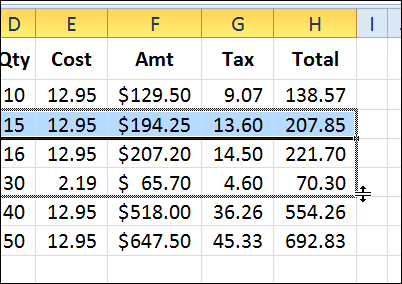
If you want to insert a block of cells on a worksheet, what method do you use most often? Do you insert rows with Excel fill handle, or with a command?
Author: Debra Dalgleish
Close All Files in Excel 2013
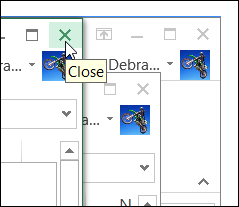
One of the new features in Excel 2013 is that each file opens in a separate window. Having each file in its own window makes it easier to compare files side-by-side, and most of the time I like the separate windows.
Catching Your Excel Errors
It’s been a bad week for Excel, with big news stories about spreadsheet errors. Two Harvard professors were in the news after a student at the University of Massachusetts found errors in their economic research paper.
Click to Move Excel List Items Up or Down
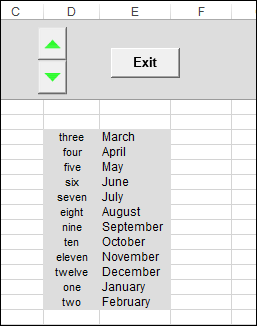
Your challenge for today is to come up with a real-life use for this nifty (do the kids still say nifty?) Excel scrolling tool.
Continue reading “Click to Move Excel List Items Up or Down”
Create a Running Total in an Excel Column
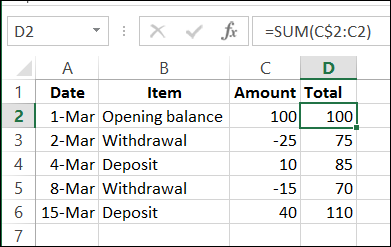
If you’re using a pivot table, there are built in features that lets you show a running total, or a percent running total. Here’s the command to show a % Running Total in a pivot table.
Continue reading “Create a Running Total in an Excel Column”
Highlight Duplicate Records in an Excel List
With Excel’s conditional formatting, you can highlight cells based on specific rules. There are some built-in rules available, and you can use formulas to create your own formatting rules.
Watch the Video
To see the steps for setting up the conditional formatting, watch this short video. The written steps are below the video.
To download the sample file, go to my Contextures website: Highlight Duplicate Records in a List
Highlight Duplicates
In this example, we want highlight duplicate records in a table. There is a built-in rule for highlighting duplicate values in a single column, but nothing that will check an entire row.
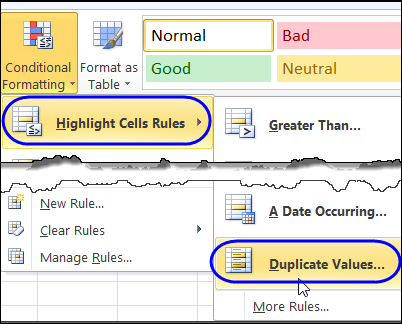
So, we’ll create our own rule, and it will require a new column on the worksheet, before we add the conditional formatting.
Concatenate the Data
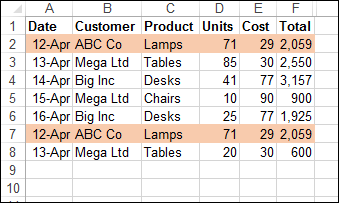
In the sample data, there are two identical rows, and these should be highlighted after we apply our conditional formatting.
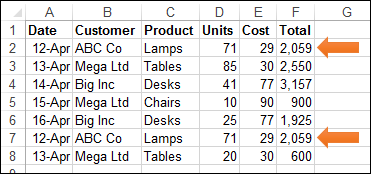
The first step is to use the CONCATENATE function to combine all the data into one cell in each row.
Add a new heading in cell G1 – AllData – and in cell G2, enter this formula, to combine the data from all the cells in that row.
=CONCATENATE(A2,B2,C2,D2,E2,F2)
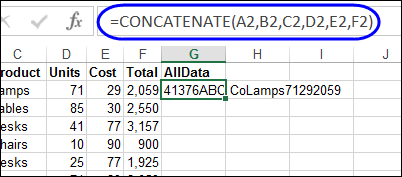
Next, copy the formula down to the last row of data.
Apply the Conditional Formatting
Then, a conditional formatting rule is set, to color the rows that are duplicate records. We’ll use the COUNTIF function to check for duplicates in the AllData column.
=COUNTIF($G$2:$G$8,$G2)>1
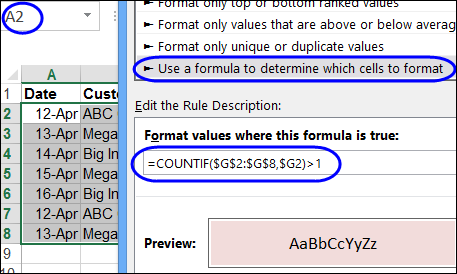
If there is more than one instance of a data combination, that indicates a duplicate row, and the cells in columns A:F will be coloured. The two rows with duplicate records are highlighted, so our conditional formatting formula worked!
Download the Sample File
For detailed instructions, and to download the sample file, go to my Contextures website: Highlight Duplicate Records in a List
_________________________
Create an Excel Table from a List
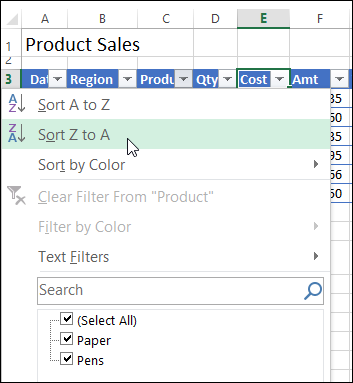
When you create a list in Excel, do you automatically convert that list to a formatted table?
Create a Dynamic Hyperlink
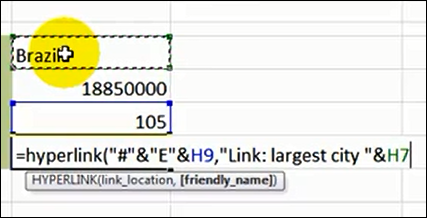
Last week, I heard from Kevin Lehrbass, who runs the My Spreadsheet Lab website. Kevin has posted an Excel video on YouTube, that shows how you can make a dynamic hyperlink, using array formulas.
Create a Drop Down List With Symbols
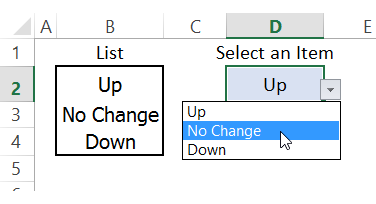
To make data entry easier, you can create a drop down list in an Excel cell, using data validation.
Show RSS Feeds on Excel Worksheet

As you’ve heard, Google Reader will be disappearing in a few months <sigh>, and we’ll have to find other ways to follow our favourite blogs. I’m looking for a replacement, but haven’t found anything perfect yet. How about you?