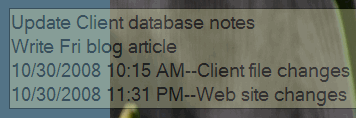
Enter the Time in a Notepad File

I like to use Notepad to make notes as I work. In July, I described how I type .LOG at the top of the Notepad file, so the date and time are automatically entered when the file opens.

That’s a handy feature, but I wanted to timestamp the files as I was working to, to record my start and stop times. There are date and time shortcuts in Excel and Access, but unfortunately those shortcuts don’t work in Notepad.

I obviously hadn’t looked too hard, because today I found the shortcut that I’ve been looking for — listed right there on the Edit menu in Notepad.

Now, if I want to insert the date and time, I press the F5 key, and it’s automatically entered for me.


========================

Create Quick Equations in Word 2007

Word 2007 has a new Building Blocks feature that lets you quickly add items, such as cover pages, text boxes, watermarks and page numbers. If you’re writing a scientific document, you can also insert equations.

Insert an Equation

  • On the Ribbon, click the Insert tab.
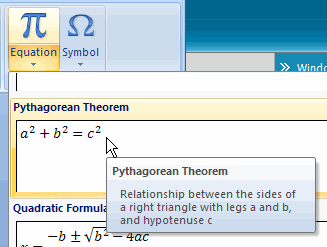
  • In the Symbols group, click on Equation, then click the equation that you want to insert.

WordEquationInsert

Save an Equation

After you insert an equation, you can modify it, then save it to use again later.

  • Click on the equation in the Word document, to activate it.
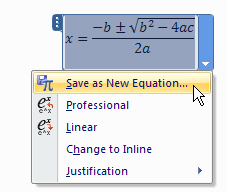
  • Click the arrow at the bottom right of the equation box, and click on Save as New Equation.

WordEquationSave

  • Enter the details for your equation, then click OK.
  • When you close Word, you’ll be prompted to save the changes to the Building Blocks template. Click Yes to save your changes.

Insert a Saved Equation

Saved equations are listed in the Building Blocks Organizer. Open it and select the item you want to insert.

  • On the Ribbon, click the Insert tab.
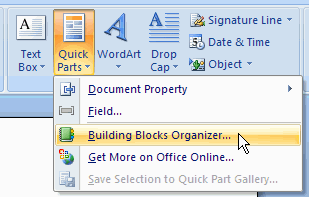
  • In the Text group, click on Quick Parts, then click Building Blocks Organizer

WordBuildBlocks

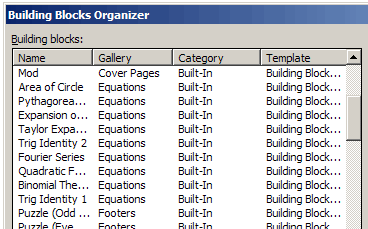
  • In the Building Block Organizer dialog box, click on the Gallery heading, to sort the list by type.
  • Scroll down to the Equations, and click on an equation to select it.

WordEquations

  • Click the Insert button.

Using Windows Live Writer

If you have a blog, I’d highly recommend that you write your articles in Windows Live Writer. It’s a free download, available on the Windows Live web site.

You’ll need a Windows Live account before you can use the program, so if you don’t have an account yet, it’ll take you a couple of minutes to set that up.

I’ve been using Live Writer for a couple of weeks and find it much quicker and easier than logging into my WordPress blog, and writing an article in the tiny window there.

Set Up a Blog

You can set up one blog, or several blogs, and publish to any of them from the same Windows Live Writer session.

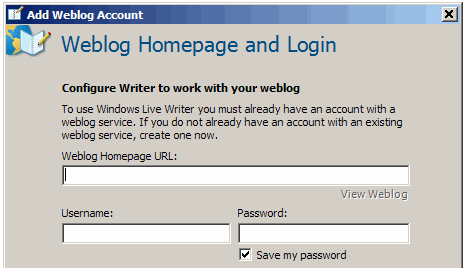
It only takes a minute or two to set up a blog in Live Writer. Fill in the URL, name, password, and select from a few options.

LiveSetup
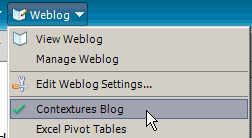
Then, select a blog from the dropdown list, and start writing.

LiveBlogList

Write an Article

Live Writer has a nice big writing area, so it’s easier to see what you’re doing, and view more of the current article.

There’s a formatting toolbar, with most of the common tools. Align is on the Format menu though, instead of the toolbar.

A few more features that keep me using Live Writer:

  • Spelling mistakes are underlined, so you can correct them as you work.
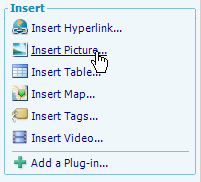
  • From the sidebar, you can insert objects such as a table, map, or video.

LiveInsert

  • For articles with pictures, I keep Windows Explorer open, and drag the images in from there. That’s much quicker than using the Upload feature in WordPress.
  • At the bottom of the article window you can set the categories or add new categories.
  • The Set publish date feature lets you schedule articles for publishing later.

LiveSchedDate

Improvements

There are a couple of things that I’d like to see improved in the next version.

  • Tags — There’s an Insert Tags option, but I don’t see the tags in the published article on my web site.
  • Align — Add an Align button to the formatting toolbar.
  • Pictures — Don’t insert all the images as thumbnails. Maybe there’s somewhere to change that setting, but I haven’t found it yet.

Those are minor annoyances though, and the benefits far outweigh them.

Try It!

Whether you write a couple of articles a month or several per day, I think you’ll like Live Writer. If you do try, let me know what you think of it.
_________________________

I Need More Storage Space

Yes, I definitely need more space for all this office stuff. At least that was my first thought as I looked around my office on the weekend.

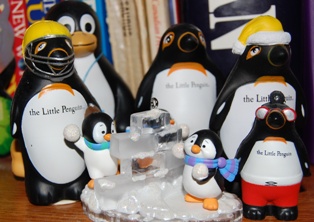
Even though I cleared out a few bookshelves recently, there’s just not enough room in here for all the remaining books, files, computers, printers, gadgets, project binders, and penguins.

So, I thought about a trip to Home Depot, to buy a shelving unit that would make better use of the corner space, and maybe hide some of the tangle of wiring.

Fortunately, I came to my senses and realized that the problem isn’t storage space. The problem is stuff.

  • Do I really need those notes from projects I worked on in 1995. (No, I’m not exaggerating.)
  • Why am I keeping those disks for CorelDraw 7? I haven’t installed it on my past 4 machines.
  • When was the last time I used a floppy disk? And why do I have all those boxes of them in the storage closet?

Fire Up the Shredder

This week I’ll be keeping the shredder busy, as I clear the file drawers and storage boxes of old documents. The old floppy disks and CDs with client information will have to stay for now, until I figure out a way to securely dispose of them.

Any ideas on how to get rid of them? My shredder is only designed for paper, so maybe I’ll have to buy one of those fancy new ones that eats anything.

In the meantime, if you need me, I’ll be under that pile of paper in the corner. And don’t worry, the penguins are safe.

Hidden Word Shortcuts

In Microsoft Word, recording a macro is just a double-click away.
Normally, to record a macro in Word, you’d click on the Tools menu, then click Macro, then click Record New Macro.

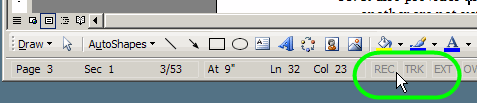
A much quicker way is to double-click on the REC box in the status bar, at the bottom of the Word window.

WordREC

The Record Macro dialog box immediately opens, and you can begin recording.

Double-click the REC box again, to turn off the recorder.

Other Shortcuts

There are other double-click shortcuts in the status bar:

  • TRK: Toggle the Track Changes feature
  • EXT: Toggle the Extend Selection feature
  • OVR: Toggle the Overtype feature (does anyone use that?)
  • Page Number (or any area in the left end of the Status Bar): Open the Go To dialog box

Welcome Your Subscribers

If you use Feedburner to manage your blog’s email subscriptions, you can customize the activation letter that goes out to new subscribers. Instead of using the default address, subject line and email body, you can use your own greeting. I just discovered this feature, so if you got a boring, generic greeting from me, I apologize!

How To Customize the Email

Log in to Feedburn and click the Publicize tab
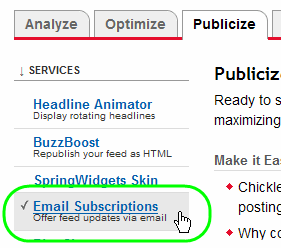
In the list of Services, click on Email Subscriptions

FeedburnPub
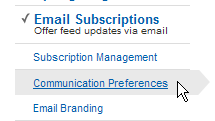
In the list that appears below Email Subscriptions, click on Communication Preferences

FeedburnComm
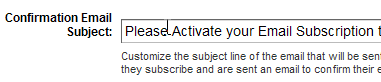
In the Communication Preferences page you can modify your From address, the Subject line, and the Body text. There are instructions below each box to help you.

FeedburnEdit
Even if you just add a few words of your own, like “please” and “thanks”, it will improve the default message.

You could also add the URL of your main site (it won’t be clickable), in case the subscriber hasn’t found that yet.

When you’re done, click the Save button, and log out of Feedburner.

Procrastination Revisited

A couple of weeks ago I started reading Never Procrastinate Again, and promised to report on what I thought of the material, and how well it worked for me.

Reasons For Procrastination

This is an audio course with written transcript and worksheets, by Dave Navarro from the Rock Your Day blog. I listened to a few minutes of the audio files, but those just don’t suit my learning style, so I used the written transcript instead. There are also video files (about 100 MB) that you can download separately, but I didn’t bother with those.

The key to this course is identifying why you’re procrastinating, by reviewing ten possible reasons in a worksheet. The ten procrastination causes fall into three basic categories:

  1. I don’t like to do it.
  2. I don’t know how to do it.
  3. I’m afraid to do it.

Beside each of the ten reasons there’s a suggested method for overcoming your resistance, and there’s space to write little pep talks to yourself. On another worksheet you can schedule time to practice these pep talks.

My Checklist

I haven’t bought into the self pep talk approach, but the list of procrastination reasons was thought provoking. So, I wrote a list of work-related things I have to do, and things I want to do, both long and short term. A few of those things made my stomach knot when I thought about them, so I ran a couple of those through the reasons checklist.

The first example was invoicing. Why do I avoid that task, even though I like getting paid for the work that I do? The reason seemed to be a mixture of dislike and fear. It’s a bit tedious, even though I have a database with all the information, and the reports and queries help make it easier. The fear is that I’ll make an error in an invoice or that someone will question an item or two.

My Solution

I decided to work on the October invoices and create a set of instructions as I worked. Next month I won’t have to remember all the details, I’ll just follow the written steps. I’ll also look for ways to make things easier for myself.

I built a few error checking steps into the instructions, so that alleviates some of my fear. I also realized that my time sheet data entry needs a bit of improvement, so I can clearly describe the work that’s being invoiced for on-going projects. That should reduce any questions about the invoices.

Break Down the List

The other thing I realized is that several of the things on my to do list need to be broken into smaller pieces. That will make those items less scary, and make it easier to know how to do them.

I keep my list visible on the computer desktop all the time, so that helps me stay focused. Instead of wandering off to explore something new, the minute I think of it, I add it to the list to work on later. When I’m between billable work sessions, I can pick something non-billable from the list to work on. So far, it’s going pretty well.

The Verdict

The Never Procrastinate Again course helped me get started on a few things, even though I didn’t follow all of the author’s suggestions. Maybe the self talk and role playing works for some people, but I’ll pass on those. However, the checklist is great for identifying problems, and for realizing that some tasks are too big to tackle in one piece. Next time a task makes my stomach knot, I’ll run it through the checklist.

Are You a Star Maker?

When I open Google Reader first thing in the morning, there are a few blogs that I always read, if they’ve posted any new articles. Most of those I read within Google Reader, and occasionally click the link to go to the blog, to read the comments or find the end of a partial feed’s article.

Mark Them

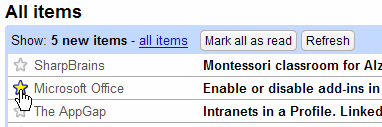
Then I click the All Items link, skim through the articles in List view, and add a star to any items that look interesting. This keeps me from spending a couple of hours reading blogs, when I should be getting down to work.

GoogleReadStarAdd

Read Them

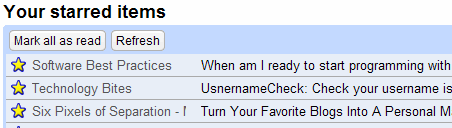
Later in the day I view the list of Starred items, and click on an item to skim through it.

GoogleReadStarList
After reading an article (or the first couple of sentences), I usually remove the star, but leave a few marked so I can go back to them.

This helps me when I don’t have enough time to read a really long or complex article, or return to articles where I’ve left a comment.

Review Them

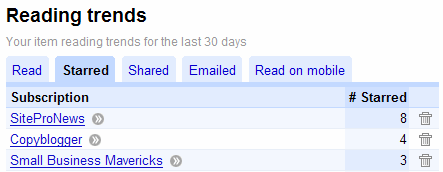
If you’re really obsessive compulsive, you can use the Trends feature to analyze the stars you’ve added. To me, it’s slightly interesting, but not too useful.

I use the Read page when trimming my feed list, since it gives me a good idea of what I’ve found useful over the past few months, and what’s been clogging up the feed list.

GoogleReadStarTrend

How Do You Use Google Reader?

  • Do you use Starred items in Google Reader?
  • Trends?
  • Any of the other features?

Stay On Track With NextAction

I keep track of my tasks in an Excel file, where I have macros that export the completed data to Access for invoicing.

I check the list every morning, and at the end of the day, but not very often throughout the day. So, while I might have an excellent plan for the day, it can go off the rails if I get distracted.

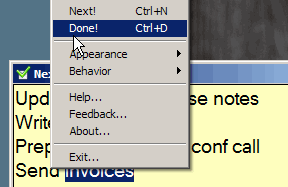
NextAction is a little program in which you can list your activities, then mark them as done throughout the day. It’s a free download available on the TimeSnapper website. I’m testing it to see if it will help me keep on track.

NextActionDone

When it’s not active, it’s still visible on my desktop, in the bottom corner of the second monitor.

NextActionFade
So far, the benefits seem to outweigh the negatives.

Benefits

  • I can copy and paste the current day’s task list from Excel, so there’s no time wasted in retyping anything.
  • The window stays on top of other programs (optional setting) with adjustable transparency. This keeps my task list visible, no matter what else I’m doing, and reminds me of the day’s list.
  • To keep track of start and end times, I can mark the task as Done when I start it, to create a time stamp. When I’m finished, I mark it Done again, to get another time stamp.

Negatives

  • There’s no way to export the data, so I have to copy and paste the completed tasks back to Excel. If I decide to keep using NextAction, I’ll write an Excel macro to clean up the pasted data and calculated the time spent on each task.
  • No drag and drop in the text editing, so I had to cut and paste to move things around.
  • After changing a couple of the settings, it lost its Stay On Top capability, even though that setting was still turned on. Exiting and reopening seemed to fix it.

Which Way Does Your Paper Curl?

Do you know that just like us, paper has a good side, and a not-so-good side? And the good side is better for printing. Paper grain affects printing too, but we’ll save that excitement for another day. (Yes, I grew up in a paper mill town, thanks for asking.)

How do you figure out which is the good side?

If your paper is still in its package, look at the label on the end. There should be a small arrow that points to the good side. There might even be a label near the arrow that says, “Print this side” or something similar.

If there’s no label left on the package, or no arrow, you can check the curl of the paper. Hold a small stack of paper by the narrow edge, and either the sides or bottom edge should curl in a bit. That’s the curl side, and you should print on the other side.


In your printer, look for the symbols that show which side the paper will be printed on.

  • Load the paper so it prints on the good side.
  • If you’re printing on both sides, print on the good side first.

For even more fascinating paper facts you can read this Xerox publication (pdf), Helpful Facts About Paper.
___________________________________