Automatically Add Sheet When Excel Opens

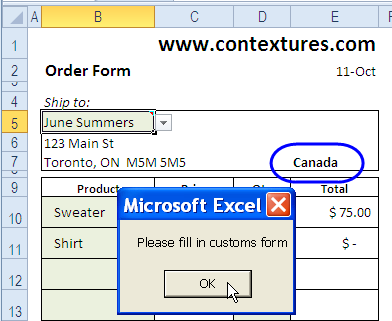
imageOn the Contextures YouTube channel, someone asked if Excel can automatically create a sheet when the file opens:

  • “this question from my friend, she always need to open same file and create a new sheet with the name of the month when her is updating the data. is there any ways to skip the above process?”

Video Answer

Since the question came from YouTube, I provided the answer in a video, which you can see at the end of this blog post.

If you prefer to see the code, or download a sample file, you can find the details below.

How the Add Sheet Code Works

The goal is to add a worksheet with the month name, when the Excel file opens. We only want that to happen at the start of the month, if the sheet doesn’t exist already.

We’ll write a macro that:

  • figures out what the current month is
  • checks for a sheet with that name
  • adds that sheet, if it doesn’t exist

The Add Worksheet Code

Insert a regular module in the workbook, and paste in the following code. I used yyyy-mm as the sheet name format, but you could use a different format.

For example, to see the full month name, use mmmm as the format.

Sub AddMonthWkst()
Dim ws As Worksheet
Dim strName As String
Dim bCheck As Boolean
On Error Resume Next
strName = Format(Date, "yyyy_mm")
bCheck = Len(Sheets(strName).Name) > 0
If bCheck = False Then
  Set ws = Worksheets.Add(Before:=Sheets(1))
  ws.Name = strName
End If
End Sub

Run the Code Automatically

To make the code run automatically, when the workbook opens, you’ll create a Workbook_Open event.

Paste the following code on the ThisWorksheet module:

Private Sub Workbook_Open()
    AddMonthWkst
End Sub

Download the Sample File

To see the workbook and the Add Worksheet code, you can download the Add Worksheet sample file.

The file is in Excel 2007 format, and zipped. It contains macros, so you’ll need to enable them, to see the code working.

Watch the Add Worksheet Automatically Video

To see the steps for creating the code, and making it run automatically, you can watch this Excel Video Tutorial.

_____________
Fix Those Wandering Excel Comments

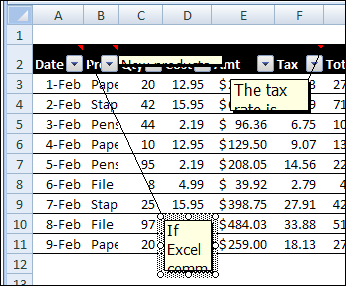
Do you ever open an Excel workbook, and find that tragedy has struck your comments? You spent hours inserting those comments, and making them just the right size and shape. Then, for no apparent reason, everything changes. Comments are in the wrong place, and wrong size. Here’s how to fix those wandering Excel comments.

Continue reading “Fix Those Wandering Excel Comments”

Excel Bingo Card Random Number Code

A couple of years ago, I posted about an Excel bingo workbook, that you could use to create a set of three cards with random numbers.

Bingo Card Formulas

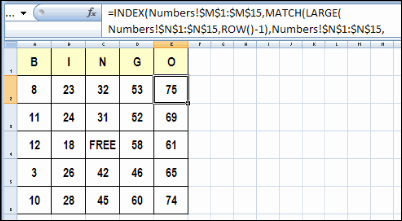
In the Excel workbook, the bingo card sheet uses the INDEX and MATCH functions to pull the numbers from another sheet.

  • =INDEX(Numbers!$M$1:$M$15, MATCH(LARGE(
    Numbers!$N$1:$N$15, ROW()-1), Numbers!$N$1:$N$15,0))
INDEX and MATCH formula for bingo cards

There were a few follow up workbooks, including an Excel Bingo Number Selector file from Dick Kusleika.

Horizontal Number Lists

This week, Carrie posted a comment on that article, and she wanted to adapt the bingo cards so they could be printed with Adobe InDesign. Instead of a square with 25 numbers, that program needs the 25 numbers in a single row.

Using the example in the screen shot above, the numbers in the first two rows would be arranged like this, followed by the numbers from the remaining rows:

BingoHoriz01

Random Number Code

Jim Cone pitched in, and wrote some code to generate the random numbers in single rows, but it created some duplicates in the rows. Carrie didn’t want an uprising in the bingo hall, so we sent Jim away to try again. 😉

It didn’t take long for him to return with some code that worked correctly, so Carrie, and her Hummel figurine collecting friends, can safely play bingo this summer.

Whew! A bit later, Dick posted an update for Jim’s code. It’s shorter, and does the job very well.

Copy the Random Number Code

Thanks Jim and Dick! I’m sure Carrie appreciates the code, and maybe it will help a few other people.

To use this random number code, copy it to a regular code module in your workbook.

Then, go to a blank sheet, and run the SurelyYouCantBeSerious_R1 code.

Sub SurelyYouCantBeSerious_R1()
'Generates 800 sets of random Bingo numbers with no duplicates.
'Each row contains an individual set of Bingo numbers.
'Designed to be used with the "Adobe InDesign" application.
'Jim Cone - Portland, Oregon USA - February 02, 2011
'[email protected] - remove all "X"
'Edited by Dick dailydoseofexcel.com
On Error GoTo DontCallMeShirley
Dim arrList(1 To 800, 1 To 25) As Long
Dim j As Long
Dim R As Long
'B COLUMNS
'1 to 15 in the B column
Randomize
For R = 1 To 800
  For j = 1 To 5
    FillList arrList, j, R
  Next j
Next R
Range("A1:Y800").Value = arrList()
  Exit Sub
DontCallMeShirley:
  Beep
  Resume Next
End Sub
'==========
Sub FillList(ByRef arrList As Variant, lStart As Long, R As Long)
Dim j As Long
Dim C As Long
Dim N As Long
Dim arrCheck(1 To 75) As Long
j = 1
For C = lStart To 25 Step 5
  Do While j < 6
    'Int((High - Low + 1) * Rnd + Low)
    N = Int(Rnd * 15 + ((lStart - 1) * 15 + 1))
    If arrCheck(N) < 1 Then
      arrList(R, C) = N
      arrCheck(N) = N
      j = j + 1
      Exit Do
    End If
  Loop
Next C
End Sub

______________

Excel AutoFilter With Criteria in a Range

In Excel 2003, and earlier versions, an AutoFilter allows only two criteria for each column. In Excel 2007 and later, you can select multiple criteria from each column in the table. See how to apply an Excel AutoFilter with  multiple criteria in a range on the worksheet.

Update: Get the latest version of this workbook on my Contextures site: Filter Criteria List Macro.

Continue reading “Excel AutoFilter With Criteria in a Range”

Add List Box to Excel Worksheet

In some workbooks, you want users to select one or more from a list of options.

Select Items in a List Box

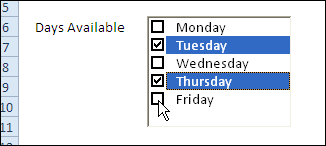
To make it easier for people to enter data, you can add a List Box, with check boxes, to an Excel worksheet.

ListBoxDaysSelect06

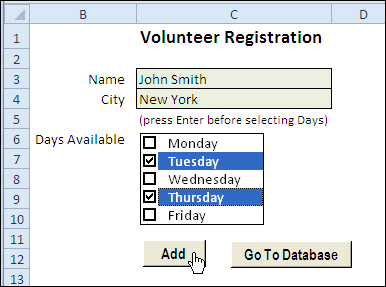
List Box on Data Entry Sheet

You wouldn’t want to have too many List Boxes on a worksheet, but it would be handy in a data entry form, like this one.

List Box on Data Entry Sheet

Set Up a List Box

On the Contextures website, there are instructions for setting up a List Box, and a sample workbook.

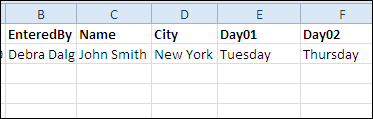
You can enter records, one at a time, on the data entry sheet, and run the macro to store the saved records another sheet.

Store Selected Items

The List Box macro code pulls the selected items from the List Box, and stores them in separate cells.

VolunteerListBox02b

Watch the List Box Video

To see the steps for creating a List Box on a worksheet, you can watch this short Excel video tutorial.

____________

Excel VBA Click Shape to Sort Column

People are lazy! Shocking, I know, but who wants to click twice in Excel, if you can do the same thing by only clicking once?

SortClick00

Click to Sort Column

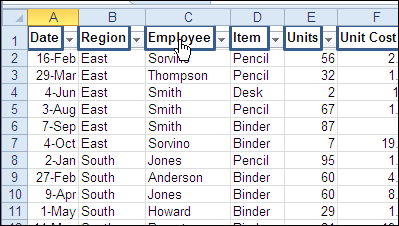
Peterson, champion of weary Excel users, created this sample Excel VBA sort code, that adds invisible rectangles at the top of each column in a table.

A macro is automatically assigned to each rectangle, and it sorts the table by that column, when you click it.

Benefits of Sort Macros

Here are two benefits of using Dave’s code:

  1. Reduced wear and tear on clicking fingers
  2. Less risk of table scrambling, because it ensures the entire table is selected before sorting
Click Invisible Shapes to Sort Columns

Edit the Setup Macro

There are two macros in Dave’s sample file.

  • SetupOneTime – run this once, to add the hidden rectangles
  • SortTable – sorts table by selected column, when heading is clicked

Before you run the SetupOneTime macro, you should edit both macros, to adjust them for your workbook

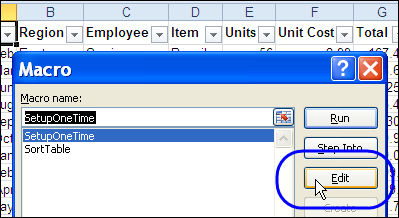
  1. On the Excel Ribbon, click the Developer tab, then click Macros
  2. Click SetupOneTime, and click Edit

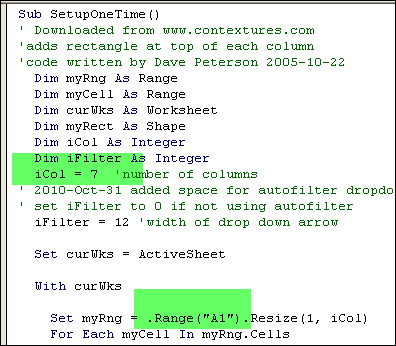
SortClick02

The Setup Macro Code

In the SetupOneTime macro, change the iCol variable to match the number of columns in your table. If your table doesn’t start in cell A1, change that reference.

SortClick03

Edit the SortTable Macro

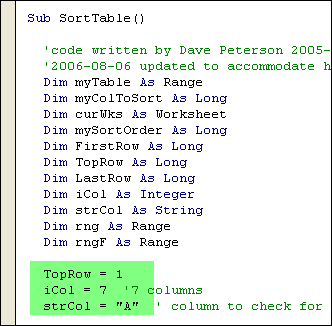
Next, change the variables in the SortTable macro, to suit your table settings. You can adjust:

  • TopRow (row where headings are located)
  • iCol (number of columns in the table)
  • strCol (column to check for last row)

SortClick04

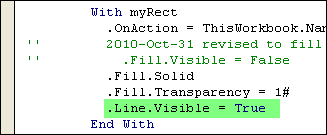
If you want to see the rectangle outlines, change the Line.Visible setting to True.

SortClick06

Run the SetupOneTime Macro

After you’ve edited the macros, you can run the setup macro:

  1. Select the sheet where your table is located.
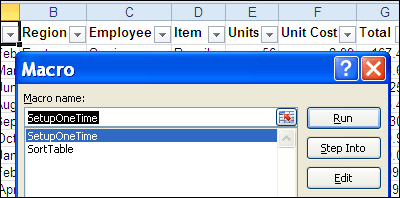
  2. On the Excel Ribbon, click the Developer tab, then click Macros
  3. Click SetupOneTime, and click Run

SortClick07

Now, click a heading in the table, to sort by that column.

Excel 2007 Shapes Problem

When I was getting this blog post ready, I discovered that Dave’s original code needed a tweak before it would work correctly in Excel 2007 and Excel 2010.

In the original code, written for Excel 2003, there was one line of code that made the rectangular shape invisible:

.Fill.Visible = False

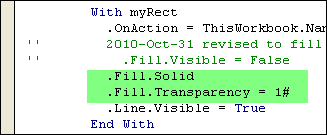
In the newer versions of Excel, only the borders of the invisible shapes were clickable, so I had to change the code to these two lines:

.Fill.Solid
.Fill.Transparency = 1#

The revised code worked for me in Excel 2003, 2007 and 2010, creating transparent shapes that were clickable.

SortClick05

Download the Sample Workbook

To see the full code for the SetupOneTime and SortTable macros, and download the sample workbook, visit the Sort Data With Excel Macros page on the Contextures website.

And for more Excel advanced sorting tips, go to the Excel Add-in Advanced Sorting page on my Contextures site.

Watch the Click Headings to Sort Columns Video

To see the steps for editing the code, adding the rectangles, and clicking the hidden shapes, you can watch this short Excel tutorial video.

_________________


Get Details in Excel VBA Code

Did you ever get an Excel file from someone else, and try to sort out their Excel VBA code? Or, even worse, open an Excel file that you wrote long ago, and try to remember what all those variables mean?

I spend lots of time staring at Excel code, but apparently I don’t use the right-click menu too often, because I hadn’t noticed a couple of handy commands until recently.

These commands can help you decipher that mysterious code, and unravel the complicated sections.

Excel VBA Quick Info

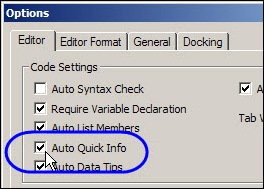
The first handy command is Quick Info. I have Auto Quick Info turned on in the VBE Editor options, and it helps me remember the syntax as I type the code.

excelvbainfo00

Right-Click for Quick Info

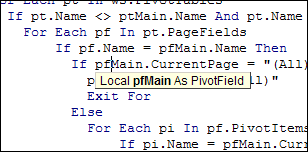
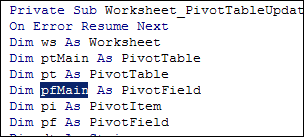
What I didn’t realize was that you can right-click on a variable, function, statement, method, or procedure in the code, and click Quick Info.

Right-Click for Quick Info in Excel Visual Basic Editor

A tooltip appears, with details on the selected item.

excelvbainfo02

Excel VBA Definition

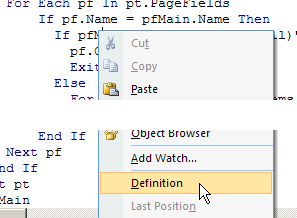
The other right-click command that I finally discovered is the Definition command.

excelvbainfo03

Click the Definition command, and it takes you to the selected variable’s definition.

Finding the definition is easy in most procedures, but in a long procedure, with a long list of variables, the Definition command really makes the job easier.

It’s especially helpful if the variable is defined on a different code module!

excelvbainfo04
___________

Excel Error – Selection Is Too Large

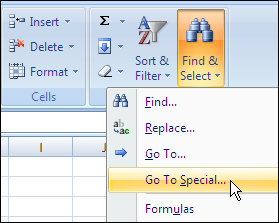
To fill blank cells, or delete rows with blanks cells, you can use Excel’s Go To Special feature.

FillBlankCode01

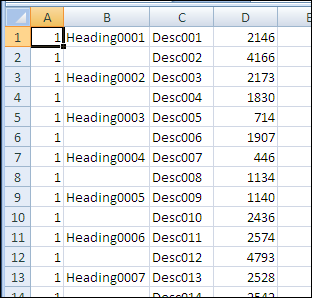
For example, in the worksheet shown below, you might want to fill in all the blanks in column B, by copying the value from the row above.

FillBlankCode00

There are instructions on the Contextures website to fill blank cells, by using Go To Special to select the blanks.

You can do this manually, and there’s sample code to make the job easier.

Selection Is Too Large Error

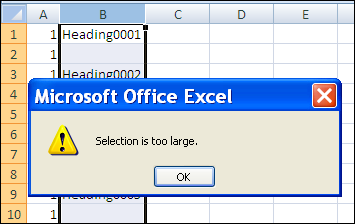
This technique works very well, unless you’re trying to fill blank cells in a long list. In that case, you might see the error message, “Selection is too large.”

FillBlankCode03

This happens in Excel 2007, and earlier versions, because there is a limit of 8192 separate areas that the special cells feature can handle. (This problem has been fixed in Excel 2010.)

There are details on Ron de Bruin’s website: SpecialCells Limit Problem.

Work in Smaller Chunks

If you run into this error, you can work with smaller chunks of data instead.

  • If you’re making the changes manually, select a few thousand rows, instead of the full column.
  • If you’re using a macro, you can loop through the cells in large chunks, e.g. 8000 rows, instead of trying to change the entire column.

On the Contextures website, Fill Blank Cells Macro – Example 3 checks for the number of areas, using Ron’s sample code, and uses a loop if necessary.

The code is shown below, and it shows a message box if the range is over the special cells limit. You can remove that line — it’s just there for information.

Sub FillColBlanks()
'https://www.contextures.com/xlDataEntry02.html
'by Dave Peterson  2004-01-06
'fill blank cells in column with value above
'2010-10-12 incorporated Ron de Bruin's test for special cells limit
'https://www.rondebruin.nl/specialcells.htm
Dim wks As Worksheet
Dim rng As Range
Dim rng2 As Range
Dim LastRow As Long
Dim col As Long
Dim lRows As Long
Dim lLimit As Long
Dim lCount As Long
On Error Resume Next
lRows = 2 'starting row
lLimit = 8000
Set wks = ActiveSheet
With wks
   col = ActiveCell.Column
     'try to reset the lastcell
   Set rng = .UsedRange
   LastRow = .Cells. _
     SpecialCells(xlCellTypeLastCell).Row
   Set rng = Nothing
    lCount = .Columns(col) _
            .SpecialCells(xlCellTypeBlanks) _
            .Areas(1).Cells.Count
    If lCount = 0 Then
        MsgBox "No blanks found in selected column"
        Exit Sub
    ElseIf lCount = .Columns(col).Cells.Count Then
		   'this line can be deleted
        MsgBox "Over the Special Cells Limit" 
        Do While lRows < LastRow
            Set rng = .Range(.Cells(lRows, col),  _
            .Cells(lRows + lLimit, col)) _
             .Cells.SpecialCells(xlCellTypeBlanks)
            rng.FormulaR1C1 = "=R[-1]C"
            lRows = lRows + lLimit
        Loop
    Else
        Set rng = .Range(.Cells(2, col),  _
            .Cells(LastRow, col)) _
            .Cells.SpecialCells(xlCellTypeBlanks)
        rng.FormulaR1C1 = "=R[-1]C"
    End If
   'replace formulas with values
   With .Cells(1, col).EntireColumn
       .Value = .Value
   End With
End With
End Sub

_______________

Excel VBA – Macro Runs When Worksheet Changed

Are you ready for Spreadsheet Day on October 17th?

Maybe you can add a Spreadsheet Day message to all your workbooks, using the technique described in this blog post.

It’s a macro that runs every time the worksheet changed. I’m sure your co-workers would enjoy that!

Continue reading “Excel VBA – Macro Runs When Worksheet Changed”